Your sending tool knows who replied. Your CRM should know too.
Picture a prospect who replies with real interest, and nobody in your team sees it in the CRM. The rep who owns the account has no idea. The deal never gets created. The follow-up never happens. That is what life without crm sync for cold email looks like: two systems, each holding half the story, and a good lead falling through the gap between them. This guide closes that gap. It explains what crm sync for cold email actually means, how native, Zapier and API sync differ, which tools sync with HubSpot, Salesforce, Pipedrive and Close, how field mapping works, what lands in the CRM timeline, and which plan you need before the sync you want is switched on. Prices were checked on 16 November 2026.
Visit Reply.io →See Apollo →Check Smartlead →We checked all tool prices in this guide on 16 November 2026 on the providers’ official sites. Features and pricing can change, so please check the provider’s site before you buy. We do not guess at features, prices or trials.
Quick Answer
CRM sync for cold email connects your sending tool to your CRM so contacts, replies and activity flow between them without manual exports. A native two-way sync is the best option for most teams: the sending tool pushes sent emails, opens, replies and meetings into the CRM timeline, and the CRM pushes contact and deal changes back. Zapier works when no native sync exists, and an API or webhook route works when you need full control.
Pick HubSpot if you want the widest native support, since every major sending tool syncs with it. Pick Reply.io if you want the widest native coverage in one tool, because it syncs two-way with HubSpot, Salesforce and Pipedrive, and natively with Close. For example, a solo sender on HubSpot Free can start syncing today for $0 on the CRM side. In fact, the sync is worth setting up on day one, before the first campaign, because a CRM that never sees your outreach cannot help you sell.
Contents
- What CRM sync actually means
- Native vs Zapier vs API: the three ways to sync
- The four CRMs that matter for cold email
- The sync matrix: which tools sync with which CRMs
- Field mapping: what syncs, and what breaks
- Activity logging: what lands in the CRM timeline
- Starting sequences from the CRM
- Data hygiene: dedupe, stale records and sync conflicts
- What sync costs: the plan gates to watch
- The honest pros and cons of CRM sync
- Who should pick which setup
- Frequently asked questions
- The verdict
CRM sync for cold email is the habit that keeps two systems honest
Firstly, cold email creates data fast. For instance, every campaign produces sends, opens, clicks, replies, bounces and meetings, and each of those events means something different. A reply means a person is interested. A bounce means an address is dead. A meeting means a deal is starting. Similarly, a CRM holds the other half of the story: who owns the account, what stage the deal is in, and what the last conversation covered. In short, neither system is complete on its own. CRM sync for cold email is the connection that lets each side see what the other knows.
Secondly, the good news is that this connection is now ordinary, not exotic. In fact, most sending tools ship a native HubSpot or Salesforce sync. The ones that do not usually work through Zapier. For example, a solo founder can connect Apollo to HubSpot Free in an afternoon, with no developer and no budget. Moreover, the setup is mostly choices, not code: which contacts sync, which events log, and which system wins when both change the same field. As a result, this guide is a practical manual, not a technical paper. It ends with a decision framework you can use today.
How this guide fits with our other CRM guides
This guide is the sync manual, and our other guides cover the choices around it. The CRM for Outreach Guide 2026 compares the CRMs themselves, while the Enterprise Engagement Guide 2026 covers the big platforms where sync is a team sport. Next, the Cold Email Sequencing Guide 2026 explains the campaigns that generate the data, and the How to Handle Cold Email Replies 2026 guide covers what to do when the sync delivers a reply. This guide sits in the middle: it assumes you have a sending tool and a CRM, and it tells you exactly how to join them.
What CRM sync actually means
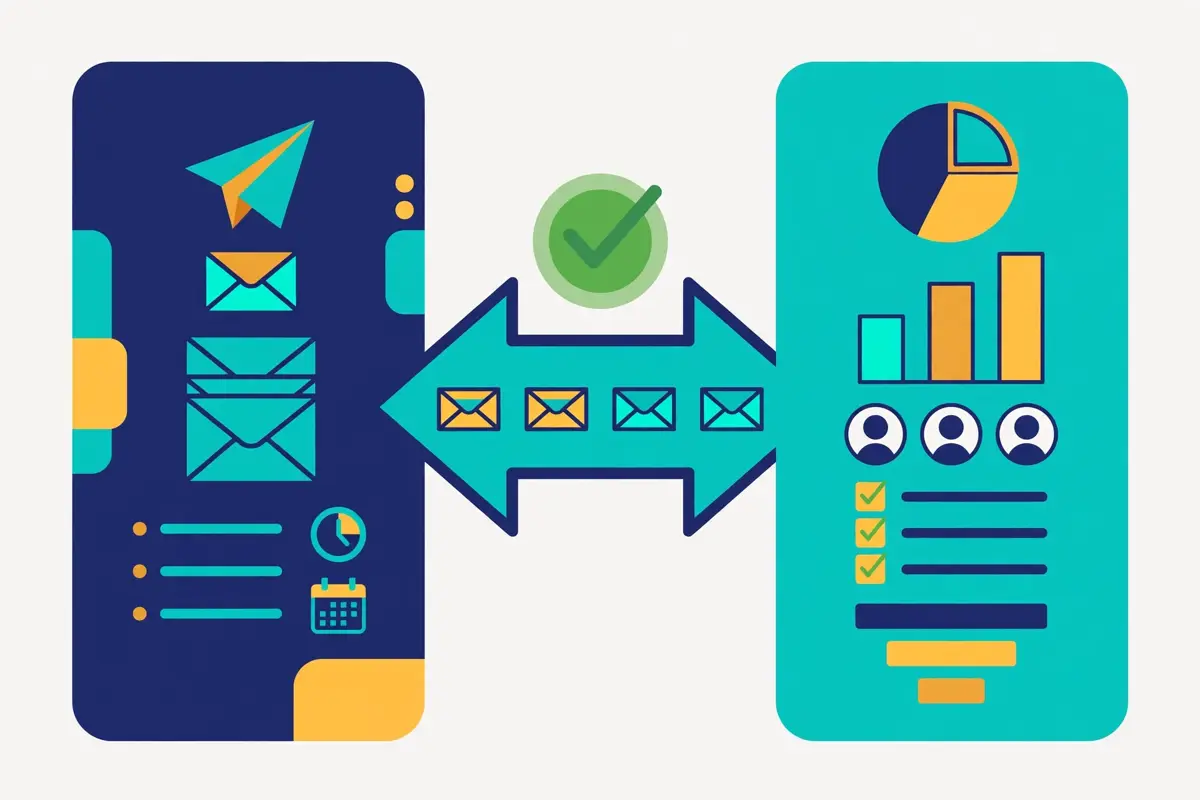
In fact, crm sync for cold email is the automatic exchange of data between the tool that sends your cold emails and the CRM that holds your customer records. For example, when a prospect replies to a cold email, the sync copies that reply into the CRM, attaches it to the right contact, and updates the contact so the team can see it. Similarly, when a rep updates a contact in the CRM, the sync can push that change back to the sending tool. In short, the two systems stop being separate filing cabinets and start behaving like one system with two windows.
Secondly, the word sync hides three different promises, and it helps to separate them. In fact, some syncs only move contacts one way, from the CRM into the sending tool. The campaign has someone to mail. Some syncs only move activity one way, from the sending tool into the CRM, so the timeline shows what happened. Moreover, a two-way sync moves both, and it is the only kind that keeps both systems true over time. As a result, the first question to ask any vendor is not whether it syncs, but which direction, which objects, and how often.
CRM sync for cold email: one-way sync vs two-way sync
| Sync direction | What moves | What it is good for |
|---|---|---|
| One-way: CRM to sender | Contacts and lists flow into the sending tool | Starting campaigns from CRM lists without exports |
| One-way: sender to CRM | Sent emails, replies and meetings flow into the CRM | Keeping the CRM timeline honest after campaigns |
| Two-way | Contacts and activity flow in both directions | Teams where reps and campaigns share the same records |
| Manual export | CSV files moved by hand, when needed | A stopgap, not a sync, and it goes stale fast |
The table above is the first decision in any sync project: direction. A one-way sync solves one problem, while a two-way sync solves the whole problem. Last checked: 16 November 2026.
Why one-way sync still leaves a gap
A one-way sync is better than nothing, yet it leaves a gap that grows over time. Firstly, a CRM-to-sender sync gives the campaign good lists, but the CRM never learns what the campaign did. For instance, a rep opens the contact record a week later and sees nothing about the three emails that went out, the reply that came back, or the meeting that was booked. Similarly, a sender-to-CRM sync logs the activity, but the sending tool never learns that the deal closed. It keeps mailing a customer who already bought. In sum, one-way syncs are half a bridge, and half a bridge still strands people.
In addition, the gap shows up in the numbers a team reports. Above all, a manager who asks how many meetings cold email produced will get one answer from the sending tool and a different answer from the CRM. For example, the sending tool counts every meeting booked, while the CRM counts only the meetings a rep remembered to log. Moreover, the difference is not a rounding error: it is the whole value of the campaign, invisible in the system the business actually runs on. As a result, a two-way sync is worth the extra setup, because it makes the reporting true.
What two-way sync changes day to day
Two-way sync changes the daily routine in a quiet way: nobody retypes anything. In fact, a rep who updates a phone number in the CRM sees it updated in the sending tool without thinking about it. A prospect who replies positively gets a deal created in the CRM, and the sending tool stops mailing them automatically. For example, a contact who unsubscribes in the CRM is suppressed in the sender before the next step goes out, which protects both the sender reputation and the relationship. Similarly, a lead score that rises in the CRM can trigger a new sequence, without anyone exporting a list. In short, the two systems behave like colleagues who talk, rather than strangers who share a desk.
Secondly, two-way sync removes the most common source of duplicate work. In fact, the classic failure is a rep who calls a prospect an hour after the prospect replied to a cold email, because the rep never saw the reply. For instance, that call is awkward for everyone, and it makes the company look disorganised. Moreover, the fix is not better discipline: it is a sync that puts the reply on the CRM timeline within minutes. As a result, the value of two-way sync is measured in embarrassments avoided, not in features listed.
Native vs Zapier vs API: the three ways to sync
In fact, there are three ways to connect a sending tool to a CRM, and they differ in effort, cost, and control. For example, a native sync is built by the vendor, a Zapier sync is built by you from ready-made pieces. An API sync is built by a developer from raw parts. Similarly, the right choice depends on what you need the sync to do, not on which sounds most impressive. Moreover, most teams should start with native, fall back to Zapier, and only build an API sync when the first two cannot do the job. In short, this section walks through all three, with honest trade-offs.
CRM sync for cold email: the native route
A native sync is an integration the sending tool built itself. It is the easiest route by a long way. Firstly, you open the integrations page, click the CRM logo, sign in, and choose what syncs. For instance, Apollo offers a native two-way sync with HubSpot and Salesforce, Reply.io offers native two-way sync with HubSpot, Salesforce and Pipedrive, plus a native Close sync. Smartlead offers native sync with HubSpot, Salesforce and Pipedrive. Similarly, Lemlist offers native HubSpot and Salesforce sync, Instantly offers HubSpot and Salesforce sync. Woodpecker offers native HubSpot and Pipedrive sync. In sum, if your CRM is HubSpot, a native sync almost certainly exists.
Secondly, native syncs are maintained by the vendor, which matters more than it sounds. In fact, CRMs change their APIs, rename fields, and add new objects. A native sync is updated by the vendor when that happens. For example, a Zapier workflow you built yourself will break quietly when a field changes, while a native sync is fixed by the vendor before most users notice. Moreover, native syncs usually handle the hard parts for you: matching contacts by email, creating deals from replies, and logging activity in the right format. As a result, native is the default choice, and the rest of this guide assumes you start there.
The Zapier route when no native sync exists
Zapier is the bridge for the pairs that have no native sync. In fact, Zapier connects thousands of apps through simple if-this-then-that workflows, called Zaps. For instance, a Zap can watch for a new reply in your sending tool, then create or update a contact in your CRM. A second Zap can watch for a deal stage change in the CRM, then remove the contact from a sequence. Similarly, Zapier works with almost every sending tool and CRM, because almost every tool has either a Zapier app or a webhook. In short, Zapier turns a missing integration into an afternoon of configuration.
In addition, Zapier has real limits worth knowing before you rely on it. Above all, Zapier charges by task. Every synced event is a task, so a busy campaign can burn through a plan fast. For example, Zapier’s free plan covers 100 tasks a month, which sounds generous until a campaign logs a thousand opens a day, so check the current plan limits on Zapier’s site before you build. Moreover, Zapier syncs are usually one-way and event-based, which means they react to things happening rather than keeping two databases identical. As a result, Zapier is excellent for logging replies and creating contacts, and poor for true two-way field sync.
The API, webhook and middleware route
An API sync is a custom connection built on the tool’s programming interface, and it gives full control. Firstly, a developer writes code that calls the sending tool’s API and the CRM’s API, moving exactly the fields you choose, on exactly the schedule you choose. For instance, Smartlead, Lemlist, Instantly and most serious sending tools publish an API and webhooks. A developer can catch a reply the moment it arrives and push it into the CRM in real time. Similarly, middleware services such as OutboundSync sit between the two systems and do the same job without custom code, which suits teams that need API depth without hiring a developer. In sum, the API route is the most powerful, and the most expensive to build and maintain.
Secondly, the API route is the right answer when the sync has to be exact. In fact, a team that needs custom objects, unusual field rules, or a sync that respects a complex sales process will outgrow both native and Zapier. For example, OutboundSync connects Smartlead to HubSpot and Salesforce through webhooks and the Smartlead API, logging replies as timeline events, updating custom fields, and blocking new customers from outreach automatically. Moreover, that depth is overkill for a solo sender. It is exactly right for an agency running dozens of clients. As a result, treat the API route as a deliberate investment, not a first step.
Watch a Smartlead sync being built, end to end
Video: Walkthrough of OutboundSync’s Smartlead integration for HubSpot and Salesforce by OutboundSync on YouTube. This video is the creator’s property, embedded via YouTube for education. OutreachCompare is not affiliated with OutboundSync and does not claim ownership of this video.
In fact, the video above shows the middleware route in action. For instance, Harris Kenny, the founder of OutboundSync, walks through how Smartlead data flows into HubSpot and Salesforce: replies, activities, attribution, and block lists. It also shows the HubSpot side, with activities and timeline events on the contact record, and the Salesforce side, with leads, contacts, tasks and email messages. Watch it with the three routes above in mind, and the API route will stop sounding abstract.
CRM sync for cold email: which route fits which team
| Route | Setup effort | Cost | Best for |
|---|---|---|---|
| Native | Minutes, no code | Included in the plan, or gated by plan | Most teams, most of the time |
| Zapier | An afternoon of Zaps | Free plan covers 100 tasks a month; paid plans scale with volume | Pairs with no native sync |
| API / webhook | Developer days, then maintenance | Developer time, plus any middleware fee | Custom objects and exact rules |
| Middleware | Hours, no code | A subscription per connection | Agencies and API depth without developers |
The table above is the route decision in one place. Start native, fall back to Zapier, and build an API sync only when the first two cannot do the job. Zapier task limits change, so check Zapier’s site before you build. Last checked: 16 November 2026.
The four CRMs that matter for cold email
In fact, four CRMs cover almost every cold email team: HubSpot, Salesforce, Pipedrive and Close. For example, HubSpot is the friendly default, Salesforce is the enterprise standard, Pipedrive is the visual pipeline for small sales teams. Close is the CRM built around calling and emailing from inside the record. Similarly, each one syncs differently, costs differently, and suits a different team size. Moreover, the CRM you pick decides which sending tools sync natively, because every vendor builds HubSpot first. In short, choose the CRM with the sync in mind, not after it.
HubSpot: the widest native support, and a real free tier
HubSpot is the safest CRM choice for cold email, because every major sending tool syncs with it. Firstly, Apollo, Lemlist, Instantly, Smartlead, Reply.io, Klenty and Woodpecker all document a HubSpot integration, which means a team on HubSpot can change sending tools without rebuilding the sync. For instance, HubSpot Sales Hub Free costs $0 for two users, which makes it the cheapest way to start syncing. The free CRM is genuinely useful rather than a demo. Similarly, the paid tiers step up steeply, so the sync itself is free while the automation around it is not. In sum, HubSpot is the default, and defaults are defaults for a reason.
Secondly, HubSpot’s own sending limits shape how the sync should be used. In fact, HubSpot caps sequences at 500 sends a day on Professional seats and 1,000 a day on Enterprise seats, and connected inboxes carry their own daily limits, so HubSpot sequences suit warm one-to-one follow-up rather than cold volume. For example, the clean architecture is to let a dedicated sending tool do the cold volume on separate domains, and let HubSpot hold the contacts, deals and history, with the sync carrying replies back. Moreover, that split protects the main domain, because cold mail never touches it. As a result, HubSpot plus a sender is a partnership, not a replacement.
Salesforce: the enterprise standard, with the steepest sync gates
Salesforce is the CRM that large sales teams already run. Its sync is the deepest when it is switched on. Firstly, Apollo and Reply.io both offer native two-way Salesforce sync, Lemlist, Instantly, Smartlead and Klenty all sync with Salesforce too. Yesware’s full Salesforce sync sits on its Enterprise plan. For instance, a Salesforce team can log sent emails, replies, calls and meetings against leads, contacts, accounts and opportunities, which is a level of detail the smaller CRMs do not match. Similarly, Salesforce costs reflect that depth, so the sync is rarely the expensive part: the CRM itself is. In short, Salesforce is the right CRM when the company already runs on it, and the wrong CRM to buy just for cold email.
In addition, Salesforce changed its plan names for new customers on 3 September 2026. Old price lists are now stale. Above all, Enterprise and Unlimited were replaced by Core, Advanced and Max for new customers, so any article still quoting the old $165 or $330 figures is out of date. For example, the current list runs from Free at $0 through Starter at $25, Pro at $100, Core at $195, Advanced at $395, and Max at $550. Moreover, API access, which some syncs need, is typically a Professional-and-above feature. A Starter team should check API access before promising ops a deep sync. As a result, confirm the plan on Salesforce’s site before you buy.
Pipedrive: the visual pipeline that syncs where it counts
Pipedrive is the CRM for teams that live in the pipeline view. Its sync coverage is narrower but well chosen. Firstly, Smartlead, Reply.io, Klenty and Woodpecker all sync natively with Pipedrive, which covers the most popular sending tools, while Apollo and Lemlist do not document a native Pipedrive sync and need Zapier or an API route instead. For instance, a Pipedrive team that loves Smartlead or Reply.io will have a smooth native setup, while a team that loves Apollo will need a bridge. Similarly, Pipedrive’s pricing is the friendliest of the four at the low end, which makes it a strong pick for a small team that wants a real pipeline without enterprise cost. In sum, check the matrix before you commit, because Pipedrive is the CRM where the sending tool choice matters most.
Secondly, Pipedrive’s plans are simple to read, which is a pleasure after HubSpot and Salesforce. In fact, the annual prices run Lite $14, Growth $39, Premium $59 and Ultimate $79 per seat a month, with monthly billing at $24, $49, $79 and $99. For example, a five-seat team on Growth pays $195 a month on annual billing, which is less than a single HubSpot Professional seat with onboarding. Moreover, the sync itself is included where it exists, rather than sold as an add-on. The plan decision is about the CRM features, not the sync. As a result, Pipedrive rewards teams that pick their sending tool first and their CRM second.
Close: the CRM that is also a sending machine
Close is different from the other three, because it is a CRM with cold email and calling built in. Firstly, Close combines contact management, email sequences, a power dialer and SMS in one place, which means a small team can run outreach without a separate sending tool at all. For instance, Reply.io also offers a native Close sync, for teams that prefer Reply.io’s sending engine with Close as the record. Similarly, Close’s pricing starts low and climbs with dialling power. The sync question is often whether to use Close alone or pair it with a sender. In short, Close suits teams that want one system, and the sync matters most when a team outgrows that one system.
In addition, Close’s plan ladder is worth reading carefully, because features are gated by tier. Above all, Solo costs $9 a month on annual billing, or $19 monthly, for one user and 10,000 leads, while Essentials costs $35 or $49, Growth costs $99 or $109. Scale costs $139 or $149. For example, Workflows, the automation engine that makes a Close sync powerful, is not included on Solo or Essentials, and the Power Dialer arrives on Growth while the Predictive Dialer and Live Call Coaching arrive on Scale. Moreover, Close offers a 14-day trial with no card required, plus a 30-day money-back promise. A team can test the fit before paying. As a result, Close is the cheapest serious CRM to start with. The plan gates are the thing to watch.
CRM sync for cold email: the four CRMs at a glance
| CRM | Entry price | Top price shown | Sync strength for cold email |
|---|---|---|---|
| HubSpot Sales Hub | Free $0 (2 users) | Enterprise $150/seat/mo + $3,500 onboarding | Widest native support; every major sender syncs |
| Salesforce | Free $0; Starter $25 | Max $550 | Deepest sync; two-way with Apollo, Reply.io and more |
| Pipedrive | Lite $14/seat/mo annual | Ultimate $79/seat/mo annual | Native with Smartlead, Reply.io, Klenty, Woodpecker |
| Close | Solo $9/mo annual (1 user) | Scale $139/mo annual | Built-in sending; native Reply.io sync; Workflows from Growth |
Prices above are the CRM list prices checked on 16 November 2026. HubSpot’s Starter $10 figure is a limited-time new-customer offer struck from $20, and Salesforce’s old Enterprise and Unlimited plans were replaced for new customers on 3 September 2026. Check the provider’s site before you buy. Last checked: 16 November 2026.
The sync matrix: which tools sync with which CRMs
In fact, the matrix below is the heart of this guide. Every cell was checked against the providers’ own sites or their documented integrations, not from memory. For example, a tick means the vendor documents a native sync, a two-way tick means the sync moves data in both directions. A dash means no native sync was confirmed. Similarly, a dash is not a verdict on the tool: Zapier or an API route usually fills the gap. Moreover, the matrix covers the seven sending tools with verified native syncs, plus Yesware, because its Salesforce gate is the clearest pricing lesson in this guide. In short, find your CRM column first, then read down it.
CRM sync for cold email: the native sync matrix
| Sending tool | HubSpot | Salesforce | Pipedrive | Close |
|---|---|---|---|---|
| Apollo | ✓ two-way native | ✓ two-way native | use Zapier or API | N/A |
| Lemlist | ✓ native | ✓ native | use Zapier | N/A |
| Instantly | ✓ native | ✓ native | use Zapier or API | N/A |
| Smartlead | ✓ native | ✓ native | ✓ native | N/A |
| Reply.io | ✓ two-way native | ✓ two-way native | ✓ two-way native | ✓ native |
The first five rows above cover the tools with the widest verified native syncs. Reply.io is the only sending tool in this guide with a native sync for all four CRMs. Last checked: 16 November 2026.
CRM sync for cold email: the rest of the matrix
| Sending tool | HubSpot | Salesforce | Pipedrive | Close |
|---|---|---|---|---|
| Klenty | ✓ two-way native | ✓ two-way native | ✓ two-way native | N/A |
| Woodpecker | ✓ native | use Zapier or API | ✓ native | N/A |
| Yesware | N/A | ✓ Enterprise only | N/A | N/A |
| Saleshandy | Check the site | Check the site | Check the site | N/A |
Klenty syncs two-way with five CRMs, including Salesforce, HubSpot and Pipedrive; check Klenty’s site for the full list. Yesware’s Salesforce sync is Enterprise-only, corroborated by independent pricing checks in November 2026; confirm it on Yesware’s site. Saleshandy’s CRM sync plan gating was not re-verified on its official site today, so check the site before you rely on it. A dash means no native sync was confirmed, not that syncing is impossible: Zapier or an API route usually fills the gap. Features and pricing can change, so please check the provider’s site before you buy. Last checked: 16 November 2026.
How to read the matrix without fooling yourself
A tick in the matrix means a native sync exists, yet it does not promise that every feature syncs. Firstly, one vendor’s HubSpot sync may log opens, clicks, replies and meetings, while another vendor’s HubSpot sync may log only sent emails and replies. For instance, the difference only shows up in the integration settings, after you connect. The matrix is the starting point, not the finish. Similarly, a two-way tick means data flows both ways. It does not mean every field flows both ways: some fields sync one way by design, and some never sync at all. In sum, use the matrix to shortlist, then test the sync with ten real contacts before you trust it with ten thousand.
Secondly, the matrix changes, so treat it as a snapshot dated 16 November 2026. In fact, vendors add CRM integrations every quarter, and a dash today can become a tick by spring. For example, a tool that lacked a Pipedrive sync last year may have shipped one since, and a tool that offered a free sync may have moved it to a higher plan. Moreover, the providers’ own integration pages are the only reliable source, because third-party lists go stale fast. As a result, the habit to build is simple: check the vendor’s site on the day you buy, and re-check it when you renew.
Field mapping: what syncs, and what breaks
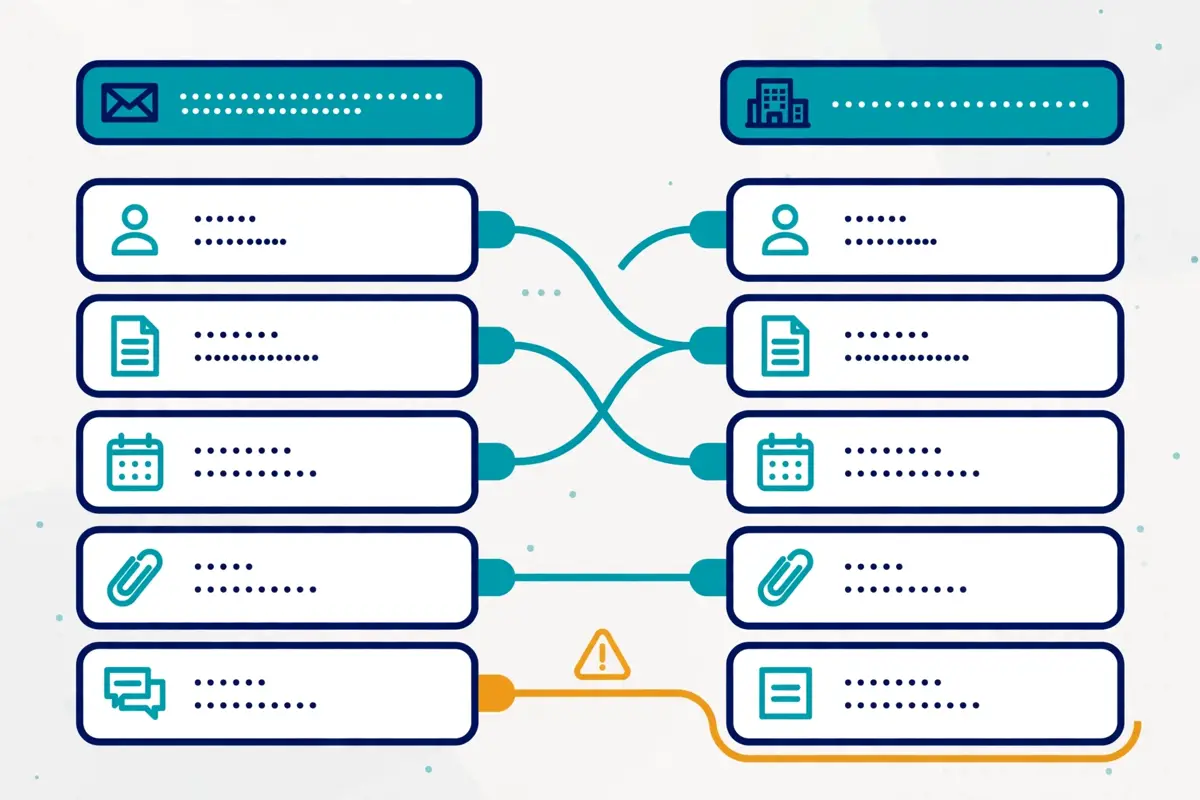
In fact, field mapping is the quiet work inside every sync, and it decides whether the data arrives clean or arrives wrong. For example, the sending tool calls a field Lead Status, the CRM calls it Lifecycle Stage. The sync has to know they mean the same thing. Similarly, the sending tool stores a company name as a text field, while the CRM stores it as a linked company record. The sync has to decide how to join them. Moreover, every sync ships with a default map, and the default map is usually sensible, yet it is rarely complete. In short, mapping is where a sync is won or lost.
CRM sync for cold email: the fields that usually sync cleanly
| Field | Where it lives | What usually happens |
|---|---|---|
| First name, last name | Contact in both systems | Syncs cleanly both ways |
| Email address | Contact in both systems | The matching key; syncs cleanly both ways |
| Company name | Contact or company record | Syncs, but may create a duplicate company |
| Job title | Contact in both systems | Syncs cleanly both ways |
| Phone number | Contact in both systems | Syncs, but formats differ between systems |
| Lead status | Contact or deal in the CRM | Syncs, but the value lists rarely match |
The table above covers the standard fields, which are the easy part. The hard part is the custom fields, covered below. Last checked: 16 November 2026.
The standard fields are easy, and the custom fields are the work
Standard fields sync cleanly because both systems agree on what they mean. Firstly, a first name is a first name everywhere. An email address is the matching key that ties the two records together. For instance, the sync looks up the email address in the CRM, finds the contact. Updates it, or creates it if it is missing. Similarly, job title and phone number usually map without drama, although phone formats differ: one system stores +353 1 234 5678, the other stores 012345678, and the sync may treat them as different numbers. In sum, the standard fields are a solved problem, and they are not where syncs fail.
Secondly, custom fields are where the work lives. In fact, every team has fields the vendor never imagined: a lead source with twelve values, a product interest with five, or a score that only makes sense inside one company. For example, HubSpot lets you create custom contact properties, Salesforce lets you create custom fields on any object, and Pipedrive and Close offer custom fields too, yet the sending tool has to know each one exists. Moreover, the sync will only carry a custom field if you map it by hand, and an unmapped custom field simply never arrives. As a result, the mapping session is the moment to list every custom field that matters, and map it deliberately.
What breaks a field map, and how to spot it early
Field maps break in a handful of predictable ways, and each one has a visible symptom. Firstly, a value list mismatch is the most common: the sending tool offers Interested, Not Interested and Meeting Booked, while the CRM offers New, Working, Qualified and Closed. The sync has no rule for translating between them. For instance, the result is a contact stuck on the wrong status, or a sync error that quietly skips the record. Similarly, a required field in the CRM will reject any record that arrives without it, so a contact with no company name may fail to sync into a CRM that demands one. In short, the fix is a translation table, written down before the sync goes live.
In addition, data types cause silent damage. Above all, a date stored as text in one system and as a date in the other can arrive as a blank, a number stored with a currency symbol can fail validation, and a multi-select field in one system may have no equivalent in the other. For example, a sync that maps a multi-select product interest field into a single text field will keep only the first value and drop the rest, without warning. Moreover, the damage is silent because the sync reports success: the record arrived, just wrong. As a result, test the map with ten contacts that cover every field type, and read the results in the CRM by eye before you sync the rest.
CRM sync for cold email: five mapping rules that prevent most failures
Five rules prevent most mapping failures, and they are all cheap to follow. Firstly, map the email address first, because it is the matching key, and a sync that matches on name alone will create duplicates. Secondly, decide which system owns each field before you map it, because a field with two owners will flip-flop forever. For instance, let the CRM own the phone number and the sending tool own the sequence status, and write that down. Thirdly, keep value lists short and identical on both sides, because every extra value is a translation you have to maintain. Fourthly, never map a field you do not use, because an unused map is a future breakage waiting to happen. Finally, test with ten real contacts, read every field in the CRM, and only then sync the list.
Moreover, the mapping deserves a document, not a memory. In fact, the person who sets up the sync may leave. The next person will inherit a map nobody can explain. For example, a one-page note that lists each mapped field, its owner. Its value translations will save hours the first time something breaks. Similarly, the note should record what was deliberately left unmapped. Why, because an unmapped field looks like a bug to the next person. As a result, write the map down on day one, and update it whenever a field changes.
Activity logging: what lands in the CRM timeline

In fact, activity logging is the part of the sync a rep actually sees. For example, when a rep opens a contact in the CRM, the timeline should show the cold emails that went out, the opens and clicks, the reply that came back, the call that followed. The meeting that was booked. Similarly, a timeline that shows only the sent emails is half a story, while a timeline that shows everything is the full picture. Moreover, the difference matters in a live sales conversation, because a rep who can see the whole history will not ask a prospect to repeat it. In short, logging is the sync’s public face.
CRM sync for cold email: what each event should log
| Event | What should land in the CRM | Why it matters |
|---|---|---|
| Email sent | Subject, body, date and sequence name | Reps see exactly what the prospect received |
| Email opened | Open date, and which email was opened | Shows interest, but opens are unreliable since Apple MPP |
| Link clicked | Which link, and when | Stronger than an open: the prospect acted |
| Reply received | Full reply text, with sentiment where available | The most important event; triggers follow-up |
| Bounce | Bounce type, hard or soft, with reason | Marks the address dead and protects the sender |
| Meeting booked | Date, time and attendees | Turns outreach into pipeline the CRM can report |
The table above is the logging checklist. If your sync logs only sent emails, it is doing the minimum; ask the vendor what else it can log. Last checked: 16 November 2026.
Replies are the event that matters most
Replies are the event the whole sync exists to deliver. Firstly, a reply is the moment a cold prospect becomes a live conversation, and the CRM must know about it within minutes, not days. For instance, Smartlead logs replied emails into the CRM, Reply.io logs replies two-way into HubSpot, Salesforce and Pipedrive. Apollo’s two-way sync carries replies back to the contact record. Similarly, the best syncs also carry the reply’s sentiment. The CRM can tell a positive reply from an unsubscribe without a human reading it. In sum, a sync that logs replies slowly is a sync that lets hot leads go cold.
Secondly, a reply should do more than appear on a timeline: it should change the record. In fact, a positive reply should pause the sequence, create or update a deal, and assign the contact to the rep who owns the account. For example, Reply.io can create deals from lead categories you choose. Smartlead can create deals when a lead hits a category you pick, which turns a reply into pipeline without anyone touching a keyboard. Moreover, the alternative is a rep who discovers the reply three days later, after the prospect has moved on. As a result, check what your sync does with a reply, not just whether it logs one.
Opens and clicks: useful signal, unreliable numbers
Opens and clicks log neatly, yet they deserve a warning label. Firstly, opens became unreliable when Apple Mail Privacy Protection started opening emails on behalf of users, which inflates open rates and makes an open a weak signal. For instance, a prospect who never read your email can still show as opened, and a prospect who read it carefully on a plain-text client may show as never opened. Similarly, clicks are stronger, because a click means the prospect acted, yet clicks can also come from security scanners that follow every link. In short, log opens and clicks, use them to prioritise, and never report them as results.
In addition, logging every open can flood the timeline with noise. Above all, a contact who opened the same email four times will show four events, which buries the reply that matters. For example, the better syncs summarise engagement on the contact record, with the full event history available underneath, rather than stamping every open onto the timeline. Moreover, some teams choose to log only replies, meetings and bounces. To leave opens and clicks in the sending tool. As a result, decide what belongs on the timeline before you switch the sync on, because a noisy timeline is a timeline nobody reads.
Calls and meetings: the events that turn outreach into pipeline
Calls and meetings are the events that turn cold email into revenue the CRM can report. Firstly, a call made from inside the sending tool should log against the contact, with the outcome noted, and a meeting booked from a cold email should create a calendar event and a deal stage change. For instance, Klenty’s dialler logs calls against the CRM record, Close logs calls and emails natively because it is both CRM and dialler. Reply.io’s native Close sync carries activity between the two. Similarly, a meeting that exists only in the sending tool is invisible to the manager who forecasts from the CRM. In sum, the sync is complete only when the meeting lands in the CRM.
Secondly, the meeting is the moment to check the sync’s deal handling. In fact, some syncs create a deal automatically when a meeting is booked, while others only log the meeting and leave the deal to a human. For example, the automatic route is faster, yet it can create duplicate deals if the contact already has one open. Moreover, the manual route is safer, yet it depends on a rep remembering to create the deal at all. As a result, pick one rule, write it down, and make sure the whole team follows it, because two rules will create duplicate deals within a week.
Starting sequences from the CRM
In fact, the sync runs in the other direction too: the CRM can start the sequence. For example, a rep who marks a deal as lost can trigger a re-engagement sequence, a new contact added to a list can be enrolled automatically, and a lead score that crosses a threshold can start a follow-up cadence. Similarly, this direction is where the CRM stops being a filing cabinet and starts being the brain of the outreach. Moreover, it only works when the sync carries the trigger reliably, which is why the enrolment rules deserve the same care as the field map. In short, sequences from the CRM are the advanced move, and they are worth learning.
CRM sync for cold email: the enrolment triggers that work best
| Trigger in the CRM | What it starts | Watch out for |
|---|---|---|
| New contact added to a list | Enrolment in the matching sequence | Unvetted contacts entering a cold sequence |
| Deal stage changes | A re-engagement or win-back sequence | Mailing a customer who already bought |
| Lead score crosses a threshold | A follow-up sequence for warm leads | A score that rises for the wrong reason |
| Reply sentiment turns positive | Sequence pauses, rep takes over | A positive reply that keeps receiving automated steps |
| Contact unsubscribes or bounces | Removal from every sequence | A suppression that arrives too late |
The table above lists the triggers worth building first. The last row is the most important: removal triggers protect your reputation. Last checked: 16 November 2026.
Enrolment rules need a bouncer at the door
Automatic enrolment is powerful, and it needs a guard at the door. Firstly, a trigger that enrols every new contact will eventually enrol someone who should never receive cold email: a customer, a partner, or a person who already asked to be left alone. For instance, the fix is a suppression list that the sync checks before any enrolment, plus an exclusion list in the CRM for customers and partners. Similarly, a trigger should check the basics before it fires: a valid email, a real company, and no open deal. In sum, the rule is simple: enrolment should be automatic, and the exclusions should be automatic too.
Secondly, the exclusion habit protects the domain as well as the relationship. In fact, mailing a current customer with a cold pitch is embarrassing. Mailing a person who unsubscribed is a compliance problem. For example, OutboundSync’s block lists stop new customers from receiving cold outreach automatically, which is the same idea built into a middleware product. Moreover, the CRM is the right place to hold the block list, because the CRM is where the customer record lives. As a result, build the block list first, test it with a customer record, and only then switch on automatic enrolment.
What a good CRM-triggered sequence looks like
A good CRM-triggered sequence is short, specific, and honest about its trigger. Firstly, a re-engagement sequence for a lost deal should mention the earlier conversation, because the prospect will remember it. A generic cold email will look careless. For instance, three steps over two weeks is enough for a warm trigger, while a cold trigger may need the full five to seven steps. Similarly, the sequence should stop the moment the prospect replies, books, or asks to be left alone. The sync should carry that stop signal in both directions. In short, a triggered sequence is a conversation with a reason, not a campaign with a list.
In addition, the triggered sequence should be measured separately from cold campaigns. Above all, a warm trigger will reply at a far higher rate than a cold list. Mixing the two will flatter the cold numbers and hide the warm ones. For example, report triggered sequences on their own line, with their own reply rate and meeting rate. The team can see what the CRM trigger is actually worth. Moreover, the comparison is the point: if triggered sequences outperform cold campaigns by a wide margin, the team should build more triggers, not send more cold mail. As a result, keep the reporting honest, and let the numbers guide the next trigger.
Data hygiene: dedupe, stale records and sync conflicts
In fact, a sync does not fix dirty data: it spreads it faster. For example, a duplicate contact in the CRM becomes a duplicate contact in the sending tool, and a stale phone number in the sender becomes a stale phone number in the CRM. Similarly, the sync is a mirror, and a mirror shows the dirt as clearly as the clean parts. Moreover, the hygiene work has to happen before the sync goes live. It has to keep happening after, because data decays every month. In short, this section is the maintenance manual for the sync.
CRM sync for cold email: dedupe before you connect anything
Dedupe is the first hygiene job, and it belongs before the first sync. Firstly, a CRM that has grown for years will hold the same person two or three times: once from a form fill, once from an import, and once from a rep who typed the name differently. For instance, syncing that CRM will create the same duplicates in the sending tool, and the same person may then receive the same email twice. Similarly, the sending tool may dedupe by email, while the CRM dedupes by name and company, so the two systems disagree about what a duplicate is. In sum, clean the CRM first, decide the dedupe rule, and write it down.
Secondly, the dedupe rule should name the matching key. In fact, email address is the only reliable key, because names change, companies rebrand, and phone numbers get reused. For example, a sync that matches on email will find the right contact almost every time, while a sync that matches on first name and company will miss people who changed jobs. Moreover, the CRM should be set to block the creation of a contact with an email that already exists, because that rule stops most duplicates at the door. As a result, dedupe is a rule, not a one-off clean, and the rule has to live in both systems.
Stale records: the slow rot that a sync cannot see
Stale records are the slow rot in any CRM, and a sync cannot see them. Firstly, roughly a fifth of business email addresses go stale each year, as people change jobs and companies close. A synced stale record is still stale. For instance, a contact who left their company two years ago will keep receiving cold email until someone notices, because the sync only knows the record exists, not that the person left. Similarly, the sending tool will report the bounces. The CRM will ignore them unless the sync carries bounce information back. In short, the sync needs a bounce rule, and the team needs a re-verification habit.
In addition, the bounce rule is the hygiene habit that pays for the sync. Above all, a hard bounce should mark the CRM contact as invalid and suppress it in the sending tool, automatically, without a human in the loop. For example, most native syncs carry bounces back to the CRM, yet the CRM does nothing with them unless a workflow acts on the bounce field. Moreover, a quarterly re-verification of the active list, using the routine in our How to Clean a Cold Email List 2026 guide, will catch the stale records the bounces missed. As a result, hygiene is a loop: bounce, suppress, re-verify, repeat.
Why clean the list before it syncs
A quick note on the guide just linked: it covers list cleaning in full, and it belongs here because a synced list is still a list. Firstly, cleaning a list before it syncs is cheaper than cleaning it after, because the sync will carry every bad address into the CRM. For instance, a list with 5% dead addresses will create 5% dead contacts in the CRM. Those contacts will sit there until someone cleans them. Similarly, the cleaning guide’s six-step workflow works the same way on a list that is about to sync. In sum, clean first, sync second, and the CRM will thank you.
Sync conflicts: when both systems change the same field
A sync conflict happens when both systems change the same field before the sync runs. Firstly, a rep updates a phone number in the CRM while the sending tool updates the same contact from a reply signature. The sync has to choose one. For instance, most syncs resolve this with a simple rule: the most recent change wins, or one system always wins. Similarly, the most-recent-wins rule is fair, yet it can overwrite a careful correction with a careless one. In short, conflicts are rare, yet they are the most confusing failures, because the data looks right in one system and wrong in the other.
Secondly, the fix is to give each field a single owner. In fact, the owner rule from the mapping section is the conflict rule too: the CRM owns the phone number, the sending tool owns the sequence status, and neither system writes to the other’s fields. For example, a field with one owner can never conflict, because only one system ever changes it. Moreover, the sync should log conflicts where it can, so the team can see which fields fight most often. As a result, the owner rule is the cheapest conflict policy there is. It is worth writing down on day one.
What sync costs: the plan gates to watch
In fact, the sync itself is often free, yet the plan that unlocks it is not. For example, a vendor may offer a HubSpot sync on every plan, a Salesforce sync only on the top plan, and a Pipedrive sync nowhere at all. Similarly, the CRM side has gates too: HubSpot’s workflows need Professional, Salesforce’s API needs Professional or above, and Close’s Workflows start on Growth. Moreover, the total cost of a sync is the sending tool plan plus the CRM plan. The cheaper side can hide the expensive side. In short, read both price lists before you commit.
CRM sync for cold email: the sending-tool gates
| Tool | Entry price | Where the sync sits |
|---|---|---|
| Apollo | Free $0; Basic $49/mo annual | Two-way HubSpot and Salesforce sync on paid plans; check the plan page |
| Lemlist | Email $69/mo monthly, $55 annual | Native HubSpot, Salesforce and Zapier sync included |
| Instantly | Growth $47/mo monthly, $37.60 annual | HubSpot and Salesforce sync included; no trial shown |
| Smartlead | Base $39/mo, $32.50 annual | HubSpot, Salesforce and Pipedrive sync included |
| Reply.io | Email Volume from $59/mo | Two-way HubSpot, Salesforce and Pipedrive plus native Close |
The table above covers the five tools with the widest verified syncs. Reply.io’s annual figures of $49 and $89, its Jason monthly figure of $800, and its Agency figure of $166 were visible on 15 November but not in the page fetched on 16 November, so confirm them on Reply.io’s site. Last checked: 16 November 2026.
CRM sync for cold email: the sharpest gates in this guide
| Tool | Entry price | The gate to watch |
|---|---|---|
| Klenty | Starter $50/mo annual | Starter has no dialler or CRM sync; Growth $70/user/mo is the real entry |
| Woodpecker | $35/mo monthly, $23.33 annual | Native HubSpot and Pipedrive sync included at entry |
| Yesware | Free $0; Pro $15/mo annual | Full Salesforce sync is Enterprise-only, $65 annual or $85 monthly |
| Close | Solo $9/mo annual | Workflows start on Growth $99/mo annual, not on Solo or Essentials |
| Saleshandy | Starter $34/mo annual | CRM sync plan gating not re-verified today; check the site |
Klenty’s Starter plan is the clearest trap in this guide: it costs $50 a month and contains no CRM sync at all, so a buyer who wants syncing must budget for Growth at $70 a user a month. Yesware’s Salesforce gate is corroborated by independent pricing checks in November 2026; confirm it on Yesware’s site. Last checked: 16 November 2026.
The Klenty lesson: read the plan table, not the headline
Klenty’s Starter plan is the example to remember, because it looks like a bargain and contains no sync. Firstly, Starter costs $50 a month on annual billing, which is cheaper than most rivals, yet it is email-only, with no dialler and no CRM sync. For instance, a buyer who picks Starter for the price will discover the missing sync after paying. The fix is Growth at $70 a user a month. Similarly, the gap is $20 a user a month, which is $240 a year per seat. It is the kind of gap that only shows up in the plan table. In sum, the headline price is never the sync price: the plan table is.
Secondly, the same lesson applies on the CRM side. In fact, HubSpot Free gives you the CRM and the sync, yet the workflows that make the sync powerful need Professional at $90 a seat a month on annual billing, plus a $1,500 onboarding fee. For example, a team that budgets for the sending tool and forgets the CRM onboarding will be surprised twice: once by the fee, and once by the missing automation. Moreover, Salesforce’s API access and Close’s Workflows follow the same pattern, with the useful feature one tier above the entry plan. As a result, budget both sides together, and read both plan tables before you buy.
Watch how HubSpot and Salesforce connect, step by step
Video: How To Connect HubSpot and Salesforce CRM Systems by Set2Close on YouTube. This video is the creator’s property, embedded via YouTube for education. OutreachCompare is not affiliated with Set2Close and does not claim ownership of this video.
In fact, the video above shows the CRM-to-CRM side of syncing: connecting HubSpot and Salesforce to each other. For instance, Set2Close walks through preparing both accounts, installing the integration from HubSpot’s marketplace, configuring which records sync, mapping fields between the two systems, and setting the rules for which system wins. It also covers the step teams skip: testing the integration before trusting it. Watch it after the pricing section, and the field-mapping rules from earlier in this guide will feel familiar.
Doing the maths on a five-seat team
The maths below is our own calculation from the list prices above. It shows how fast the two sides add up. Firstly, a five-seat team on Apollo Professional at $79 a seat a month on annual billing pays $395 a month for the sending tool, and the same team on HubSpot Professional at $90 a seat pays $450 a month, plus $1,500 onboarding once. For instance, the combined first-year cost is about $11,640, which is $845 a month for the tools plus the onboarding fee. Similarly, the same team on Smartlead Pro at $94 a month flat, not per seat, with Pipedrive Growth at $39 a seat, pays $94 plus $195, which is $289 a month, with no onboarding fee. In sum, the CRM choice matters more than the sending tool choice, because the CRM is priced per seat and the sender often is not.
Secondly, the cheapest honest stack in this guide is hard to beat. In fact, Apollo Free at $0 with 75 credits a seat a month, plus HubSpot Free at $0 for two users, gives a solo sender a working two-way sync for nothing. For example, the free stack will not scale, yet it proves the sync works before a single dollar is spent. Moreover, the next step up is Smartlead Base at $39 a month with Pipedrive Lite at $14 a seat, which is $53 a month for one seat. It covers the most common syncs natively. As a result, start free, prove the value, and only then pay for the seats.
The honest pros and cons of CRM sync
In fact, crm sync for cold email is worth doing, yet it is not free of downsides. For example, the sync saves hours a week, removes duplicate work, and makes reporting true, which are real gains. Similarly, the sync adds a moving part that can break, it can flood the CRM with noise. It can spread dirty data faster than a human ever could. Moreover, the honest picture is that the pros outweigh the cons for almost every team, provided the sync is set up with care. In short, this section lists both sides plainly, so the decision is an informed one.
CRM sync for cold email: the pros
The pros start with time, and time is the scarcest resource in a sales team. Firstly, nobody retypes replies, nobody exports CSV files, and nobody asks a colleague what happened with a prospect, because the timeline shows it. For instance, a rep who saves thirty minutes a day on admin gains two and a half hours a week, which is a real selling afternoon. Secondly, the CRM becomes the single source of truth, so managers forecast from real activity instead of remembered activity. Thirdly, the sync stops the embarrassing double-contact, where a rep calls a prospect who already replied. Finally, the sync makes cold email measurable in the system the business runs on, which is what justifies the budget.
In addition, the pros include protection. Above all, a sync that carries unsubscribes and bounces back to the CRM protects the sender reputation automatically, because the next campaign will not mail people who opted out. For example, a manual process depends on someone remembering to suppress an address, while a sync does it every time, without fail. Moreover, the sync creates an audit trail, which matters when a prospect asks what was sent and when. As a result, the pros are not just convenience: they are risk reduction, and risk reduction is worth paying for.
The cons, stated plainly
The cons start with complexity, and complexity is a real cost. Firstly, a sync is another integration to maintain, and integrations break when vendors change their APIs. For instance, a field renamed in the CRM can silently stop syncing, and the team may not notice for weeks. Secondly, a sync can flood the CRM with noise, especially when it logs every open and click, which buries the replies that matter. Thirdly, a two-way sync can overwrite good data with bad data when both systems change the same field, which is why the owner rule matters. Finally, the sync costs money on both sides, and the plan gates in the previous section can double the budget a buyer expected.
Secondly, the cons include a subtler risk: false confidence. In fact, a team with a working sync can assume the data is true, and stop checking it. For example, a sync that matches contacts by email will quietly create a new contact when a prospect replies from a different address. The team will have two records for one person without knowing it. Similarly, a sync that logs opens will make a campaign look more engaging than it is, because Apple’s privacy protection inflates the numbers. In sum, the sync is a tool, not a guarantee. It still needs a human to check the data now and then.
Who should pick which setup
In fact, the right setup depends on the team, not the tools. For example, a solo sender needs a free sync that works in an afternoon, while an agency needs a middleware sync that handles dozens of clients. Similarly, a Salesforce enterprise needs depth and governance, while a Pipedrive team needs a native sync that just works. Moreover, the framework below sorts teams by size and CRM, and each row names the setup that fits. In short, find your row, and start there.
CRM sync for cold email: pick this setup when
| Pick this setup when | Setup | Why it fits |
|---|---|---|
| You are solo, on HubSpot Free | Apollo Free + HubSpot Free, native two-way sync | Costs $0, works in an afternoon, proves the value |
| You run volume on a budget | Smartlead Base + Pipedrive Lite, native sync | $53 a month for one seat, with the main syncs included |
| You want the widest native coverage | Reply.io + any of the four CRMs | Two-way HubSpot, Salesforce and Pipedrive, plus native Close |
| You are a Salesforce enterprise | Apollo Professional or Reply.io + Salesforce Core or above | Deep two-way sync with leads, contacts and opportunities |
| You are an agency | Smartlead + OutboundSync middleware | Webhook depth, block lists and attribution per client |
| No native sync exists for your pair | Zapier, then an API route if Zapier cannot do it | An afternoon of Zaps beats a month of custom code |
The table above is the decision framework for this guide. Every price in it is a list price checked on 16 November 2026; check the provider’s site before you buy. Last checked: 16 November 2026.
The setup to avoid for each team
Each team also has a setup to avoid, and naming it saves a bad purchase. Firstly, a solo sender should avoid buying Salesforce for cold email, because the CRM costs more than the outreach and the depth goes unused. For instance, a solo sender on Salesforce Max at $550 a month is paying enterprise money for a one-person problem. Secondly, a Pipedrive team should avoid Apollo if the Pipedrive sync is non-negotiable, because Apollo needs a Zapier bridge for Pipedrive. Thirdly, a team that wants Yesware should avoid Pro and Premium if Salesforce sync is the reason, because the full sync needs Enterprise at $65 a seat a month on annual billing. Finally, any team should avoid Klenty Starter if it wants a sync, because Starter contains none.
In addition, every team should avoid switching on every sync at once. Above all, the temptation is to sync all contacts, all fields and all events on day one. The result is a flooded CRM and a confused team. For example, the better rollout is staged: contacts first, then replies, then meetings, then the rest, with a week between each stage to check the data. Moreover, each stage should have a named owner, because a sync with no owner is a sync nobody fixes when it breaks. As a result, roll out in stages, and the sync will earn trust instead of losing it.
The one-week rollout plan
A one-week rollout plan turns the framework into a schedule. Firstly, day one is for choosing the CRM and the sending tool from the matrix, and for reading both plan tables. Secondly, days two and three are for cleaning the CRM, deduping by email, and writing the field map with its owner rule. For instance, day four is for connecting the native sync and testing it with ten real contacts, reading every field in the CRM by eye. Thirdly, day five is for switching on reply logging and the suppression rules, because those protect the sender. Finally, the weekend is for watching the first live sync. The following Monday is for fixing whatever the test missed.
Moreover, the rollout plan needs a weekly check after it goes live. In fact, a sync that worked on day one can break on day thirty, when a vendor changes an API or a rep renames a field. For example, a fifteen-minute weekly check of the sync logs, the duplicate count. The bounce handling will catch most failures before they matter. Similarly, the check should include one question: is the CRM timeline telling the truth about the last campaign? As a result, the sync becomes a habit, not a project, and habits are what keep data clean.
Frequently asked questions
What is crm sync for cold email, in one sentence?
CRM sync for cold email is the automatic exchange of contacts, replies and activity between your sending tool and your CRM, so both systems hold the same story. Firstly, the sending tool pushes sent emails, opens, replies, bounces and meetings into the CRM timeline. Secondly, the CRM pushes contact and deal changes back to the sending tool. In short, it replaces manual CSV exports with a connection that runs on its own.
Is a native sync better than Zapier for crm sync for cold email?
Yes, a native sync is better for most teams, because the vendor builds it, maintains it, and handles the hard parts such as contact matching and deal creation. Firstly, a native sync is set up in minutes, with no code and no per-event cost. Secondly, Zapier is the right fallback when no native sync exists, because it connects almost any pair of tools. In sum, start native, and use Zapier only when native cannot do the job.
Which CRM has the best crm sync for cold email support?
HubSpot has the widest support, because every major sending tool in this guide syncs with it natively: Apollo, Lemlist, Instantly, Smartlead, Reply.io, Klenty and Woodpecker. Firstly, HubSpot Free costs $0 for two users, which makes it the cheapest way to start. Secondly, Salesforce has the deepest sync, with two-way support from Apollo and Reply.io, yet it costs far more. In short, HubSpot is the widest, Salesforce is the deepest, and the right pick depends on the team.
Does crm sync for cold email work with Pipedrive?
Yes, Pipedrive syncs natively with Smartlead, Reply.io, Klenty and Woodpecker, which covers the most popular sending tools. Firstly, Apollo, Lemlist and Instantly do not document a native Pipedrive sync, so those pairs need Zapier or an API route. Secondly, the Pipedrive sync is included where it exists, rather than sold as an add-on. In sum, check the matrix in this guide before you commit, because Pipedrive is the CRM where the sending tool choice matters most.
How much does crm sync for cold email cost?
The sync itself is usually included in the plan. The cost is the sending tool plan plus the CRM plan. Firstly, a solo sender can sync for $0, using Apollo Free and HubSpot Free. Secondly, a one-seat team on Smartlead Base and Pipedrive Lite pays about $53 a month. Thirdly, a five-seat team on Apollo Professional and HubSpot Professional pays about $845 a month, plus $1,500 onboarding once. In short, the CRM is usually the expensive side, because it is priced per seat.
What breaks most often in crm sync for cold email?
Field mapping breaks most often, usually because the two systems use different value lists for the same field, or because a required field in the CRM rejects records that arrive without it. Firstly, the fix is a translation table, written before the sync goes live. Secondly, duplicates are the next most common failure, usually because the sync matches on name instead of email. In sum, test the sync with ten real contacts, read every field in the CRM by eye, and only then sync the list.
The verdict
Our verdict on crm sync for cold email
Best for most teams: Reply.io. It is the only sending tool in this guide with a native sync for all four CRMs, two-way with HubSpot, Salesforce and Pipedrive, and native with Close, from $59 a month. Best free start: Apollo Free with HubSpot Free. A working two-way sync for $0, which proves the value before a dollar is spent. Best budget stack: Smartlead Base with Pipedrive Lite. About $53 a month for one seat, with the main syncs included. Best for Salesforce enterprises: Apollo Professional or Reply.io with Salesforce Core or above. Deep two-way sync with leads, contacts and opportunities. Avoid Klenty Starter if you want a sync, because it contains none, and avoid Yesware Pro or Premium if Salesforce sync is the reason, because the full sync needs Enterprise.
We have not tested these syncs hands-on, so this verdict is based on the vendors’ documented integrations and list prices checked on 16 November 2026, not on a trial. The honest advice is to test the sync yourself with ten real contacts before you trust it with ten thousand. Set the sync up on day one, roll it out in stages, write the field map down, and check it weekly. A CRM that sees your outreach is a CRM that can help you sell, and a sending tool that sees your CRM is a tool that stops mailing the wrong people. That is the whole point of crm sync for cold email, and it is worth an afternoon of your time.
Keep reading
- CRM for Outreach Guide 2026, the CRMs themselves, compared head to head.
- Enterprise Engagement Guide 2026, the big platforms, where sync is a team sport.
- Close CRM Review 2026, the CRM with sending built in, from $9 a month.
- HubSpot Sales Hub Review 2026, the widest native sync support, from $0.
- Apollo Review 2026, two-way HubSpot and Salesforce sync, from $49 a month.
- Lemlist Review 2026, native HubSpot and Salesforce sync, from $69 a month.
- How to Handle Cold Email Replies 2026, what to do when the sync delivers a reply.
- Cold Email Sequencing Guide 2026, the campaigns that generate the data the sync carries.
- Best Cold Email Tools for Sales Teams 2026, the best tools when a whole team shares one CRM.
- Best Cold Email Tools for Enterprise 2026, the enterprise shortlist, where sync depth decides the winner.