Author: OutreachCompare Team

  • Twilio SendGrid Review 2026

    Twilio SendGrid Review 2026

    Best for developers and growing products that want one platform for transactional email and marketing campaigns: Twilio SendGrid

    Twilio SendGrid is the email delivery platform behind some of the largest senders on the internet. Your application calls its API or connects over SMTP, and SendGrid delivers the message from infrastructure that moves more than 205 billion emails every month. Behind that scale sits a genuinely useful product: dynamic templates, real-time email validation, Deliverability Insights, dedicated IPs with automated warm-up, and a separate Marketing Campaigns product with a visual builder, segmentation and automation. This SendGrid review works through the whole picture, because SendGrid is really two products sold side by side, and the price you pay depends on which one you need.

    Getting the price right matters more than it looks. SendGrid charges by volume and by product, so a team that sends 100,000 transactional emails a month pays $34.95 on Essentials, while a team that also wants newsletters pays for Marketing Campaigns separately, from $15 a month. Meanwhile the free trial lasts 60 days at 100 emails a day, and then it ends — there is no permanent free plan any more. Older guides still describe the old free tier, so this SendGrid review checks every price on Twilio’s official pricing pages on 16 November 2026, and it flags the places where the old guides are wrong.

    What this SendGrid review covers

    This SendGrid review covers what SendGrid is and who it fits, the full 2026 pricing picture for the Email API and Marketing Campaigns, how setup and sender authentication work, the key features and what SendGrid does not include, deliverability and dedicated IP warm-up, and a head-to-head comparison with Amazon SES, Mailgun and Postmark. Every price below was checked on Twilio’s official pricing pages on 16 November 2026. Every rival figure was cross-checked against the vendor’s own pricing page the same day. By the end you should know exactly what SendGrid costs at your volume, when its marketing tools are worth paying for, and when a cheaper rival is the smarter buy.

    Visit SendGrid →Compare with Amazon SES

    Prices checked 16 November 2026 on Twilio’s official pricing pages. Features and pricing can change, so please check the provider’s site before you buy.

    Quick Answer

    SendGrid is the best all-round choice for a product team that needs transactional email and marketing campaigns from one vendor. The Email API starts with a 60-day free trial at 100 emails a day, then Essentials costs from $19.95 a month for 50,000 emails, and Pro starts at $89.95 a month for 100,000 emails with a dedicated IP included. Marketing Campaigns is a separate product, from $15 a month for the Basic plan. You get a mature API, dynamic templates, real-time validation, Deliverability Insights and 99.99% uptime SLA, all on infrastructure that sends 205 billion emails a month. It is not the cheapest option — Amazon SES sends the same 100,000 emails for $10 — and it is not a cold email tool. For permission-based transactional and marketing email, though, SendGrid is the friendly middle ground between bare-bones SES and the pricier specialists.

    What SendGrid actually is

    In fact, Twilio SendGrid is a cloud email delivery platform that lets any application send email at scale, without running its own mail servers. In practice, your code calls the SendGrid Email API, or your system connects over SMTP, and Twilio handles the delivery. Twilio describes SendGrid as a service for businesses that need to create, send and manage email at scale through RESTful APIs or SMTP relay, with built-in authentication and reputation management to maximise inbox placement. It moves more than 205 billion emails a month, and it claims a 99% deliverability rate with a 99.99% uptime SLA. That scale is the point: SendGrid is infrastructure that already serves companies such as Shopify, whose 1.7 million merchants send payment and shipping alerts through it.

    SendGrid is the engine with a dashboard, not just the engine

    In short, think of SendGrid as the engine with a proper dashboard attached. It sends the email, and it also gives you somewhere friendly to watch it happen. For example, a product team can plug the API into its application and start sending password resets, receipts and shipping notices within an afternoon, then open the SendGrid dashboard to see delivery, opens, clicks, bounces and spam reports in real time. A marketer on the same account can open Marketing Campaigns, design a newsletter in the drag-and-drop editor, segment the list and press send. That combination is exactly what separates SendGrid from Amazon SES, which sends email just as reliably yet offers no campaign builder at all.

    Indeed, SendGrid began in 2009 as a startup, and Twilio acquired it in 2019. Since then the two companies have steadily merged their websites, documentation and billing, so today you buy SendGrid on twilio.com and manage it through a Twilio account. That move confused plenty of older guides, which still link to sendgrid.com pricing pages that now redirect to a notice about the move. As a result, this SendGrid review links to the live Twilio pricing pages throughout. Every price below comes from those pages, checked on 16 November 2026.

    Two products share one account in this SendGrid review

    Meanwhile, two products share one SendGrid account, and mixing them up is the most common pricing mistake buyers make. The Email API is the developer product: it sends the transactional email your application generates, such as welcome messages, password resets, receipts and alerts. It charges by the number of emails you send each month. Marketing Campaigns is the marketer product: it sends newsletters and promotional campaigns to a stored contact list. It charges by contacts stored and emails sent. You buy them separately, and emails sent through one do not count against the other. A team that needs both pays for both, which is why this SendGrid review prices each product on its own below.

    For example, three kinds of email run through SendGrid every day. Transactional email is the first: password resets, receipts, order confirmations, shipping updates and alerts that a customer expects within seconds of an action. Marketing mail comes second: newsletters, promotional offers and campaigns sent to subscribers who opted in. Notifications come third: system messages an application fires when something happens, from a new comment to a failed payment. SendGrid handles all three, and its dynamic templates and event webhooks are built for exactly that mix. What it never does is find you recipients, write cold outreach sequences or warm up inboxes for prospecting. SendGrid is built for mail people expect, and its acceptable-use rules reflect that.

    Who SendGrid fits best — and who should skip it

    Overall, this SendGrid review finds SendGrid fits a product team that sends transactional email every day and wants marketing email from the same vendor. If your application already sends password resets, receipts and alerts. Your marketing team also sends a weekly newsletter, SendGrid covers both without a second vendor, a second bill or a second authentication setup. It also fits a growing SaaS business that needs to scale from thousands to millions of emails a month without changing provider, because the plan ladder runs from a free trial to custom Premier pricing above five million emails a month. The API is mature, the SDKs cover every major language. The dashboard is friendly enough that a non-developer can check delivery without asking engineering for help.

    Similarly, for a small business with no developer, SendGrid still works, provided the email you send is mostly marketing. Marketing Campaigns has a visual editor, ready-made templates, segmentation, automation and A/B testing. A marketer can run the whole product alone. The free trial gives you 60 days at 100 emails a day to learn it, which is generous for testing, even though it ends. Our best cold email tools for beginners roundup covers tools built for outreach instead, because SendGrid is not one of those. For expected, permission-based email, however, SendGrid is one of the easiest serious platforms to start with.

    Who should think twice before choosing SendGrid

    By contrast, three kinds of buyer should think twice. The first is the buyer who only needs the cheapest possible sending and already has a developer. Amazon SES sends 100,000 emails for $10 on its pay-as-you-go rate, while SendGrid Essentials charges $34.95 for the same volume. The gap stays wide at a million emails. Our Amazon SES review works through that maths in detail. A team with a developer and a clean list should take the SES saving, because SendGrid’s extra features are only worth paying for if you actually use them.

    Meanwhile, the second buyer who should pause is the cold emailer. SendGrid is not a cold outreach tool, and using it that way risks your account. It has no B2B contact database, no prospecting sequences, no LinkedIn automation and no inbox rotation for cold sending. Twilio expects permission-based sending, and high bounce or complaint rates can get an account suspended. A team that wants to run cold outreach should read our best cold email software roundup, and our Instantly review covers a tool built for that job. SendGrid is for mail your recipients asked for, and it performs best when that is true.

    Finally, the third is the buyer who sends very little email and wants a permanent free plan. SendGrid’s old free tier is gone, and the trial ends after 60 days. A hobby project sending a few hundred emails a month will pay $19.95 a month on Essentials, which feels steep for a trickle of mail. A free or low-volume sender should look at the cheaper specialists in our deliverability tools roundup first, or check Postmark’s free developer tier of 100 emails a month. SendGrid earns its price once volume or the marketing tools justify it, and not before.

    Pricing in this SendGrid review: Email API and Marketing Campaigns

    In short, SendGrid pricing comes down to two questions: how much email you send each month, and which product you need. The Email API charges by monthly send volume, while Marketing Campaigns charges by contacts stored and emails sent. Both products start with a free trial, and both scale through volume tiers on Twilio’s pricing calculators. The table below shows the starting prices from Twilio’s official pricing pages, checked on 16 November 2026. Where a plan’s price rises with volume, the table says so, because the pricing page itself shows starting prices and lets you pick your volume on a slider.

    Email API pricing in this SendGrid review: trial, Essentials, Pro and Premier

    In practice, the Email API starts with a free trial that costs $0 for 60 days and lets you send 100 emails a day, with no credit card required. After the trial you need a paid plan to keep sending. Essentials starts at $19.95 a month for 50,000 emails, and it costs $34.95 a month for 100,000 emails. Pro starts at $89.95 a month for 100,000 emails. Its price rises with volume up to 2.5 million emails a month. Premier is custom priced for senders above five million emails a month. Taxes and overage charges may apply on top of the monthly rate. Twilio says that sending past your plan’s limit adds a small per-email overage fee to the following month’s invoice.

    Above all, what changes between the plans is more than volume. Essentials sends from shared IPs, includes the dynamic template editor, real-time analytics, domain authentication and one teammate. It keeps three days of searchable email activity. Pro adds a dedicated IP, automated dedicated IP warm-up, subuser management, single sign-on, 2,500 free email validations a month, 60 email testing credits a month, five event webhooks, 1,000 teammates and seven days of searchable activity. Premier adds 5,000 free validations, expert program management and custom volume. The dedicated IP is the feature most buyers actually move to Pro for, because it means your sender reputation depends only on your own sending, not on strangers sharing your IP.

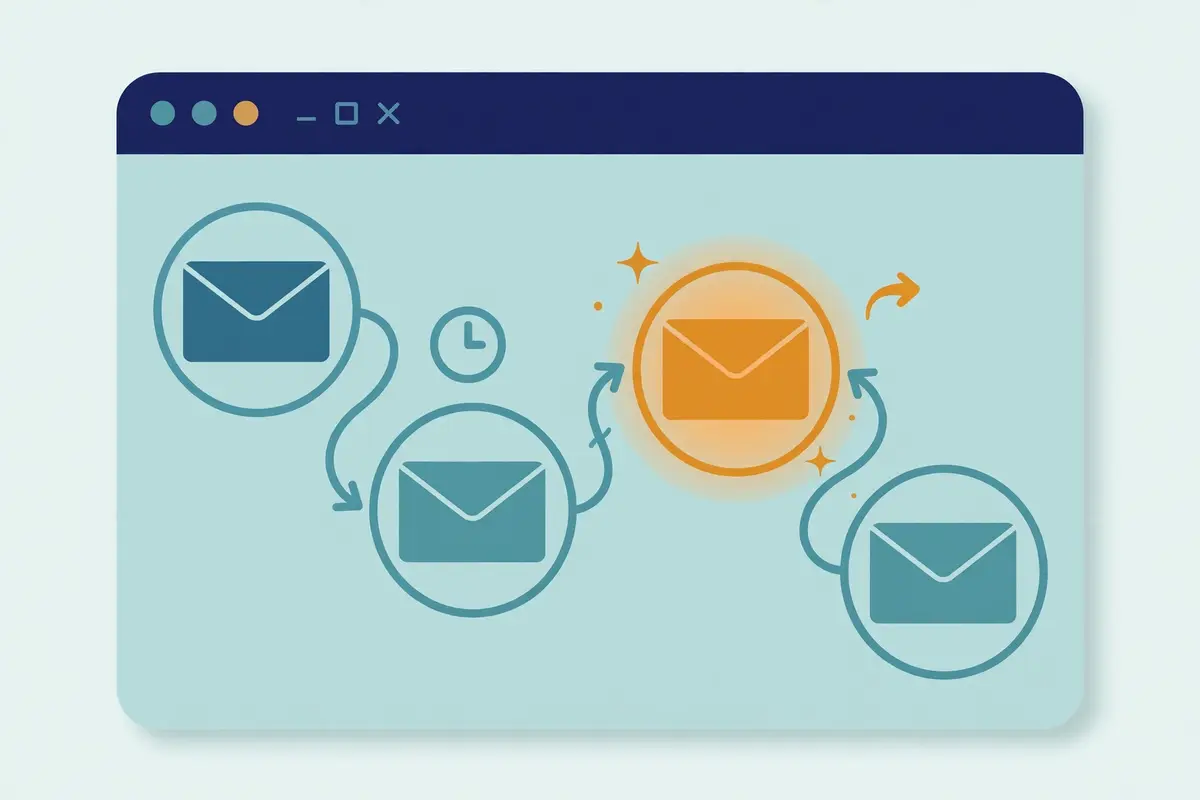
    SendGrid review: three pricing plan tiers rising like steps with email volume, showing how SendGrid charges by volume
    SendGrid charges by volume and by product: the Email API by emails sent, Marketing Campaigns by contacts stored. Pick your volume on Twilio’s calculator before you judge the price.

    Marketing Campaigns pricing in this SendGrid review: Basic, Advanced and Custom

    Similarly, Marketing Campaigns is priced separately, and its plans run on contacts rather than sends alone. Basic starts at $15 a month, Advanced starts at $60 a month, and Custom is quoted for very large lists. All three include the design and code editors, segmentation, A/B testing, automation and send scheduling. Basic includes five signup forms and ten email testing credits a month, while Advanced includes fifteen signup forms, sixty testing credits, access to dedicated IPs, and ticket, chat and phone support with guaranteed response times. Basic support is ticket-based. A team that only sends transactional email never pays for any of this, which is the point: buy Marketing Campaigns only if you actually send campaigns.

    Notably, Twilio’s pricing page still describes a free Marketing Campaigns plan that stores up to 2,000 contacts and sends 6,000 emails a month, with A/B testing, signup forms, automation and testing credits included. That description sits in the page’s own FAQ, so we report it as written, with a caution: SendGrid’s free plans have changed before, most notably when the old free Email API plan was retired, so confirm the free plan still exists on the signup page before you plan around it. The 60-day trial is the safer way to test the product, because its terms are stated plainly on both pricing pages.

    What SendGrid costs at your volume in this SendGrid review

    To put numbers on it, at 50,000 emails a month, SendGrid Essentials costs $19.95, which works out to about $0.40 per 1,000 emails inside the plan. At 100,000 emails, Essentials costs $34.95, or about $0.35 per 1,000, while Pro costs $89.95 for the same volume, or about $0.90 per 1,000 — more than double, because Pro bundles the dedicated IP, validation and testing credits. That comparison is the honest way to read SendGrid pricing: Essentials is the cheap sending tier. Pro is the tier where you pay for the product around the sending. A sender that only needs delivery should stay on Essentials. A sender that needs its own IP, subusers and validation should move to Pro and use those features, or the extra $55 a month is wasted.

    Essentials or Pro: which tier pays off at your volume

    Meanwhile, a marketer sending campaigns to a list of 5,000 contacts should budget for Marketing Campaigns on top of the Email API, starting at $15 a month for Basic. That combined bill is where SendGrid starts to look expensive next to an all-in-one marketing tool, so compare the total before you commit. On the other hand, a SaaS product sending a million transactional emails a month will find Pro’s higher tiers cheaper per email than Essentials, because the per-email cost falls as volume rises. The right move is to run your own volume through Twilio’s pricing calculator and check the overage rate for your tier, since regularly paying overages costs more than upgrading to the next tier.

    SendGrid pricing at a glance in this SendGrid review

    PlanPriceWhat you getBest for
    Email API — Free trialBest for testing$0 for 60 days
    100 emails a day
    SMTP and API, dynamic template editor, analytics, no credit card requiredTesting SendGrid before you pay anything
    Email API — EssentialsFrom $19.95 a month
    50,000 emails; $34.95 for 100,000
    Shared IPs, templates, real-time analytics, domain authentication, 3 days of activity history, 1 teammateSmall products sending up to 100,000 emails a month
    Email API — ProFrom $89.95 a month
    100,000 emails, up to 2.5 million
    1 dedicated IP included, automated IP warm-up, subusers, SSO, 2,500 validations, 60 testing credits, 7 days of historyGrowing senders that need their own IP and team controls
    Email API — PremierCustom pricing
    5 million+ emails a month
    1 dedicated IP included, 5,000 validations, expert program management, custom volume and termsHigh-volume senders with custom needs
    Marketing Campaigns — BasicFrom $15 a monthDesign and code editors, segmentation, A/B testing, automation, 5 signup forms, 10 testing credits, ticket supportSmall lists sending regular newsletters
    Marketing Campaigns — AdvancedFrom $60 a monthEverything in Basic, plus 15 signup forms, 60 testing credits, dedicated IP access, ticket, chat and phone supportLarger lists that need support and testing
    Marketing Campaigns — CustomCustom pricingEverything in Advanced, with custom contact and send volumesVery large marketing lists

    Last checked: 16 November 2026 on Twilio’s official pricing pages for the Email API and Marketing Campaigns. Prices are in US dollars before tax, and overage charges may apply. Features and pricing can change, so please check the provider’s site before you buy. We do not guess at features, prices or trials.

    Setting up SendGrid: account, sender identity and your first send

    Setting up SendGrid takes minutes for a test send and a little longer for a production setup, and this SendGrid review walks through each step so the difference is clear before you start. You create a Twilio account, start the free trial, and verify a sender identity, which proves you own the address your mail comes from. For testing, a single sender verification is enough: you verify one email address and you can send to it. For production, you authenticate your whole domain instead, which adds the SPF, DKIM and DMARC records that mailbox providers expect. Our sending domain guide walks through those three records in plain language, and they are the foundation of every SendGrid setup.

    Create the API key the safe way in this SendGrid review

    After that, you create an API key with only the permissions you need. Twilio’s own quickstart recommends a restricted key with Mail Send set to Full Access and nothing else turned on, and that is good advice: an API key is a long secret password, and anyone who holds it can send email as you. Store it as an environment variable, never in your code repository, and rotate it if it ever leaks. SendGrid also requires two-factor authentication on the account, which you can enable with SMS or an authenticator app. Those two steps — a restricted key and two-factor authentication — take five minutes and protect you from the most common account takeover.

    Video: How to Set Up WP Mail SMTP with SendGrid (Fix WordPress Emails!) by WP Mail SMTP on YouTube. This video is the creator’s property, embedded via YouTube for education. OutreachCompare is not affiliated with WP Mail SMTP and does not claim ownership of this video.

    Watch the video above if your site runs on WordPress, because it walks through the exact setup in under five minutes: create the SendGrid account, authenticate the domain, generate the API key, and connect it through the WP Mail SMTP plugin so WordPress sends order confirmations and password resets through SendGrid instead of your host’s unreliable default mail. The same steps apply without WordPress, too: the API key and the domain authentication are the two pieces every integration needs, whether your application is written in Python, Node.js, PHP, Ruby, Go, Java or C#. Twilio publishes official libraries for all of those languages, plus interactive API documentation that lets you test a send from the browser.

    Your first send after the key is ready

    After that, your first send is a single API call to the Mail Send endpoint. Twilio’s documentation shows the exact code for each language. You pass your API key, a verified sender address, a recipient, a subject and your content, and SendGrid returns a message ID you can track. The free trial lets you send 100 emails a day for 60 days, which is plenty for testing templates, webhooks and error handling. Send a test to your own addresses at Gmail, Outlook and Yahoo, check where each message lands, and look at the activity feed to confirm the delivery events. That small test tells you more about your setup than any amount of reading.

    Authenticate before you send real mail

    Finally, before you send to real customers, finish domain authentication and link branding. Domain authentication adds the DNS records that prove SendGrid sends on your behalf, and link branding rewrites the tracking links in your emails to use your own domain instead of SendGrid’s. Both steps lift inbox placement, and both are included on every plan. Skipping them is the most common reason a new sender lands in spam: the mail itself is fine, yet the mailbox provider cannot verify who sent it. Twilio’s setup guide walks through the DNS records step by step, and your domain registrar or DNS host can help if the record format looks unfamiliar.

    Key features: API, templates, validation and analytics

    In general, this SendGrid review finds SendGrid’s feature set built around one idea: your application sends the email. SendGrid handles everything that happens after you press send. The Email API accepts messages through a REST API or SMTP relay. Almost any application can use it without changing its architecture. Official client libraries cover C#, Go, Java, Node.js, PHP, Python and Ruby. The API supports batch sending, scheduled sends and large messages up to 20 MB. Event webhooks report every delivery event — processed, delivered, opened, clicked, bounced, blocked and spam-reported — back to your application in real time. You can react to a bounce the moment it happens instead of discovering it in a monthly report.

    Dynamic templates in this SendGrid review make transactional mail personal

    In particular, dynamic templates are the feature that makes transactional email feel personal without hand-writing every message. You design a template once in the editor, add Handlebars placeholders for the customer’s name, order number or reset link, and your application fills them in for each recipient. The editor works on every plan, while template testing — previewing how a template renders across mailbox providers and devices — is included on Pro and Premier with 60 credits a month, and available as a paid add-on on lower plans. Testing credits can also be bought in packs, from $18 a month for 30 credits to $800 a month for 2,000. A team that sends the same template thousands of times a day will find this the most valuable feature in the product.
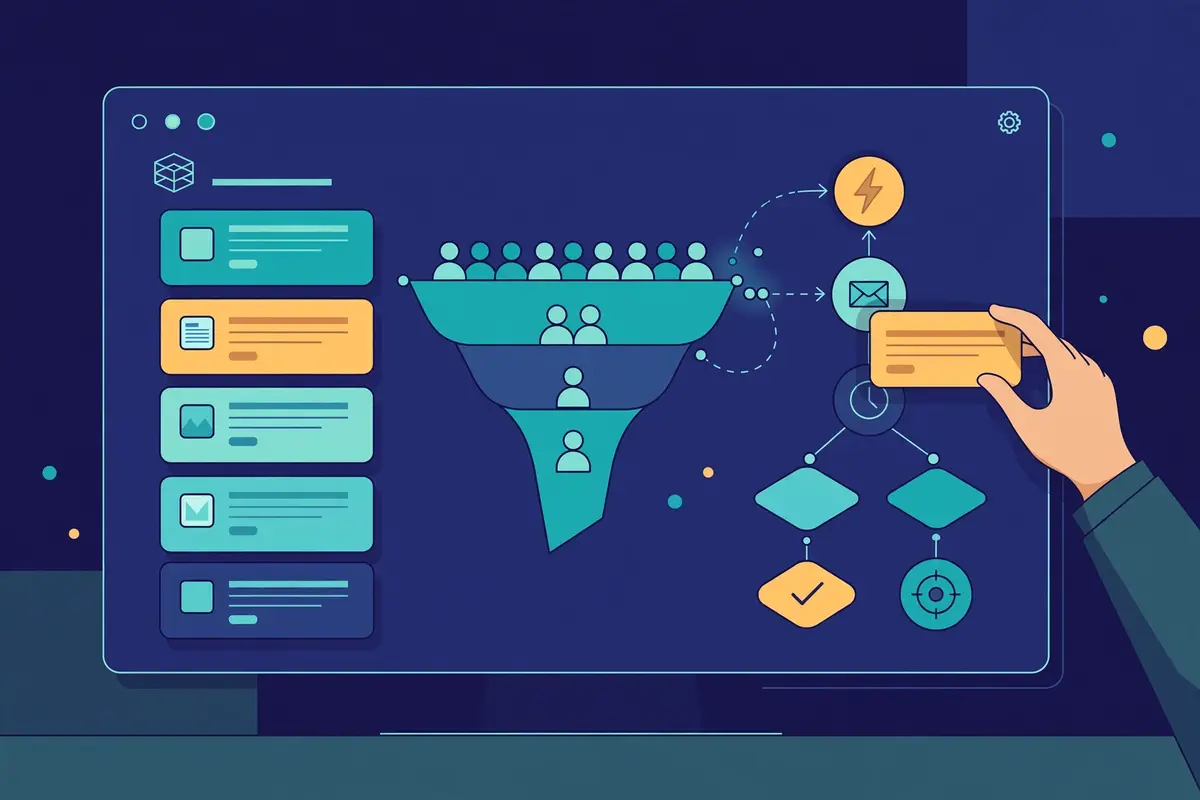
    SendGrid review: the Marketing Campaigns drag-and-drop email builder with template blocks, segmentation funnel and automation flow
    The marketer’s half of SendGrid: a visual builder, segmentation and automation, sold separately from the Email API.

    The builder, lists and automation in Marketing Campaigns

    In short, this is where SendGrid stops being a developer tool and becomes a marketing tool. It includes a drag-and-drop design editor and a code editor, responsive templates, contact list management, segmentation, signup forms, automation workflows, send scheduling and A/B testing. You can segment by engagement, location or custom fields, then automate a welcome series or a re-engagement campaign that runs itself. Engagement statistics show opens, clicks, bounces and spam reports, while Deliverability Insights break results down by mailbox provider over time. It is not as deep as a dedicated marketing automation platform, yet for a team that already sends transactional email through SendGrid, it removes the need for a second vendor entirely.

    Validation, suppression and security keep lists clean

    Next, email validation is SendGrid’s quiet workhorse. The Email Validation API checks addresses in real time before you send, which cuts bounce rates and protects your sender reputation. Pro includes 2,500 free validations a month and Premier includes 5,000, and extra validations are available for purchase. Suppression management is equally important: SendGrid keeps lists of addresses that bounced, complained or unsubscribed, and it stops you sending to them again. That single habit stops the most common reputation damage in email, which is mailing the same dead address week after week. On security, SendGrid offers SPF, DKIM and DMARC authentication, TLS encryption, two-factor authentication, IP access management, single sign-on on Pro and Premier, SOC 2 Type II certification, GDPR compliance and EU data residency.

    What SendGrid does not include, and why that matters

    On the other hand, honesty requires saying what SendGrid does not do. It has no B2B contact database, no lead finder and no email verifier for prospecting lists. A cold outreach team still needs a data provider. Our best B2B data providers roundup covers that side of the job.

    It has no LinkedIn automation, no cold sequences and no warm-up pool for cold inboxes. It has no CRM, no landing page builder and no SMS or WhatsApp sending inside the SendGrid product itself, although the wider Twilio platform offers those channels separately. Searchable email activity is also short: three days on the trial and Essentials, seven days on Pro and Premier, with longer history available for purchase. A team that needs 45-day logs should look at Postmark, which includes them. None of these gaps matter for transactional email, yet they decide whether SendGrid fits a buyer whose needs go beyond sending.

    Deliverability and warm-up: dedicated IPs, Insights and reputation

    Overall, deliverability is where SendGrid earns its reputation, and this SendGrid review spends time here because it decides whether your email reaches the inbox or the spam folder. Twilio claims a 99% deliverability rate across the platform, with a 99.5% average delivery rate and 91.3% inbox placement for Shopify’s merchants, and a median delivery speed of 1.9 seconds. Those are vendor figures, so treat them as a claim about the platform rather than a promise about your account. Your own results depend on your list, your content and your authentication, which is exactly why SendGrid gives you the tools to watch them.

    SendGrid review: a Deliverability Insights dashboard with an inbox placement gauge, a shield with a checkmark and envelopes landing in inboxes
    Inbox placement by mailbox provider over time, shown here, so you can see where email lands and fix what drags it down.

    Insights that show where your mail lands

    Deliverability Insights is the main tool. It shows delivery, opens, clicks, bounces and spam reports broken down by mailbox provider over time, so you can see whether Gmail loves you and Outlook does not, or whether a single campaign dragged your reputation down. Bounce and block classifications explain why a message failed, instead of leaving you with a bare error code. ISP feedback loop data shows complaints as they arrive. The Sender Engagement Quality Score gives you a single number to watch over time. Together these tools give a sender everything needed to spot a problem early, which matters far more than any single deliverability percentage on a marketing page.

    Video: SendGrid Deliverability: Best Practices and Tools by Warmy on YouTube. This video is the creator’s property, embedded via YouTube for education. OutreachCompare is not affiliated with Warmy and does not claim ownership of this video.

    For instance, the video above gives a practical walkthrough of the deliverability habits that matter most with SendGrid: why messages disappear, how Deliverability Insights and advanced analytics help, which common issues drag placement down, and how to fix them. The video’s advice lines up with Twilio’s own guidance: authenticate your domain, validate addresses before you send, keep your list clean, and watch bounces and complaints every week. None of that is glamorous. All of it is what separates senders that land in the inbox from senders that slowly slide into spam.

    Dedicated IPs and automated warm-up on Pro

    In short, IP choice is the biggest deliverability decision a SendGrid buyer makes. Essentials sends from shared IPs, which means your reputation is partly shared with strangers, for better and for worse. Pro and Premier include one dedicated IP, with more available to buy, and Pro includes automated dedicated IP warm-up. Warm-up matters because a brand-new IP has no reputation, and mailbox providers distrust sudden volume from an unknown sender. SendGrid’s automated warm-up raises your volume gradually over days and weeks, building reputation safely instead of blasting a full list on day one. A sender that moves to Pro for the dedicated IP should let the warm-up finish before sending at full volume, or the IP’s reputation will suffer before it starts.

    Reputation rules you should respect from day one

    Ultimately, beyond the IP, reputation comes down to habits. Send only to people who opted in, remove addresses that bounce, honour unsubscribes immediately, and keep complaint rates low. SendGrid watches bounce and complaint rates. Accounts that abuse the platform can be suspended, so the rules are not theoretical. Our email verification tools roundup covers services that clean a list before you send, and our warmup tools roundup covers the warm-up side for cold outreach. For transactional and marketing mail, SendGrid’s own validation, suppression lists and Deliverability Insights are usually enough, provided you actually use them every week.

    SendGrid against Amazon SES, Mailgun and Postmark

    In this SendGrid review, SendGrid’s closest rivals each win on one thing, and the comparison below makes the trade-offs plain. Amazon SES wins on price at every volume. Mailgun wins on developer-first tooling and deliverability extras. Postmark wins on transactional speed and long activity logs. SendGrid wins on breadth: it is the only one of the four that combines a serious API with a real marketing campaign product in the same account. The right choice depends on which of those strengths your team actually needs, so read the table with your own volume and your own team in mind.

    Amazon SES in this SendGrid review: the cheapest rival by a wide margin

    By contrast, Amazon SES is the rival every price-conscious buyer compares SendGrid against, and the maths is stark. SES charges $0.10 per 1,000 emails on its pay-as-you-go rate, so 100,000 emails cost $10, while SendGrid Essentials charges $34.95 for the same volume. At a million emails, SES costs $100 and SendGrid Pro costs far more. SES also offers dedicated IPs, Mail Manager for inbound mail and multi-region failover, all inside AWS. What SES does not offer is a campaign builder, a visual editor, a list manager or a friendly dashboard. Our Amazon SES review works through the new Essentials, Pro and Enterprise plans in detail. A team with a developer should take the SES saving. A team without one should take SendGrid’s product.

    Mailgun in this SendGrid review: the developer-first rival

    Mailgun, owned by Sinch, is the rival most similar to SendGrid’s Email API, and developers often choose between the two. Its plans start with a free tier of 100 emails a day, then Basic from $15 a month for 10,000 emails, Foundation from $35 a month for 50,000 emails and $75 for 100,000, and Scale from $90 a month for 100,000 emails. Its Optimize deliverability suite adds inbox placement tests, spam-trap and blocklist monitoring and bulk verification, plus automated IP warm-up and Send Time Optimization. Mailgun has no marketing campaign builder as polished as SendGrid’s, and no all-in-one marketing product. A team that needs newsletters as well as API sending will find SendGrid broader. A purely developer-led team that lives in code may prefer Mailgun’s API-first feel.

    Postmark in this SendGrid review: the transactional specialist

    Finally, Postmark, owned by ActiveCampaign, is the specialist of the group. It separates transactional and promotional mail onto isolated IP message streams, delivers fast, keeps 45-day full-content logs, and offers a free developer tier of 100 emails a month. Its paid plans start at $15 a month for 10,000 emails, with Pro and Platform tiers around $16.50 and $18, and a 125,000-email tier at $115 a month. Postmark is the best choice for a team that sends transactional email and wants the longest logs and the fastest delivery, yet it has no marketing campaign product to match SendGrid’s, and its volume pricing climbs faster than SendGrid’s at high volumes. A team that sends both transactional and marketing email from one account should pick SendGrid. A team that sends only receipts and alerts should look hard at Postmark.

    The comparison table in this SendGrid review: cost at 100,000 emails

    ToolCost at 100,000 emails a monthStarting priceBest for
    Twilio SendGridBest for API plus campaigns

    Only rival here with a serious API and a marketing campaign product in one account.

    $34.95
    Essentials
    $0 for 60 days, then from $19.95 a monthProduct teams sending transactional and marketing emailVisit Site →Email API from $19.95 a month
    Amazon SESBest for lowest cost

    Cheapest sending at every volume, inside AWS.

    $10.00
    À la carte
    $0.10 per 1,000 emails, no monthly feeDevelopers who want the lowest cost per emailVisit Site →From $0.10 per 1,000 emails
    MailgunBest for developers

    API-first sending with a strong deliverability suite.

    $75.00
    Foundation
    Free 100 a day, then from $15 a monthDeveloper-led teams sending transactional emailVisit Site →Foundation from $35 a month
    PostmarkBest for fast transactional

    Isolated message streams and 45-day full-content logs.

    $115.00
    125,000-email tier
    Free developer tier, then from $15 a monthTeams sending only transactional emailVisit Site →Basic from $15 a month

    Last checked: 16 November 2026 on each provider’s official pricing page: SendGrid, Amazon SES, Mailgun and Postmark. Features and pricing can change, so please check the provider’s site before you buy. We do not guess at features, prices or trials.

    The feature matrix in this SendGrid review: what each service includes

    FeatureSendGridAmazon SESMailgunPostmark
    Email API and SMTP relay✓✓✓✓
    Marketing campaigns and visual builder✓———
    A/B testing✓—✓—
    Automation workflows✓———
    Real-time email validation✓—✓—
    Dedicated IP included on a plan✓✓✓✓
    Automated dedicated IP warm-up✓✓✓✓
    Deliverability insights dashboard✓✓✓—
    Subuser and team management✓—✓—
    Single sign-on✓———
    Inbound email parsing✓✓✓✓
    Searchable activity beyond 7 days——✓✓
    Free trial or free tier✓✓✓✓

    Last checked: 16 November 2026 on each provider’s official site. ✓ means the feature is stated on the provider’s site, noting plan limits where they apply. — means not confirmed or confirmed absent on the provider’s site. Features and pricing can change, so please check the provider’s site before you buy. We do not guess at features, prices or trials.

    Reading the matrix like a buyer

    In the end, read the matrix from your own needs, not from the number of ticks. SendGrid leads on breadth, because it is the only service here that pairs a full API with a marketing campaign builder, A/B testing, automation and single sign-on. SES leads on price and on AWS integration, yet it trails on everything a marketer touches. Mailgun matches SendGrid closely on developer features and adds its Optimize deliverability suite, yet it has no marketing product to match Campaigns. Postmark leads on transactional focus and log history, yet it is the narrowest of the four. A buyer that needs one vendor for transactional and marketing email should pick SendGrid. A buyer that needs only one of those jobs should pick the specialist and save the money.

    Strengths and weaknesses, side by side

    Where SendGrid shines in this SendGrid review

    Above all, this SendGrid review finds SendGrid’s greatest strength is breadth without complexity. One account covers transactional email, marketing campaigns, templates, validation, analytics and deliverability tools. The dashboard is friendly enough for a non-developer to use. The API is mature and well documented, with official libraries for every major language and interactive docs that let you test a send from the browser. Scale is proven rather than promised: 205 billion emails a month, a 99.99% uptime SLA and a 1.9-second median delivery speed. The free trial is genuinely useful at 60 days and 100 emails a day. The plan ladder scales cleanly from a side project to more than five million emails a month without changing provider.

    In addition, deliverability tooling is the second strength. Deliverability Insights, bounce and block classifications, ISP feedback loops, real-time validation, suppression management and automated dedicated IP warm-up give a sender the full picture, and Pro bundles most of it into one price. The third strength is the Twilio ecosystem: a team that later needs SMS, voice or verification can add it from the same vendor, which matters for products that grow beyond email. For a growing SaaS business, that combination of breadth, scale and a clear upgrade path is hard to beat.

    Where SendGrid falls short in this SendGrid review

    By contrast, the honest weaknesses start with price. SendGrid is not the cheapest way to send email, and the gap to Amazon SES is wide at every volume. Essentials costs $34.95 for 100,000 emails that SES sends for $10, and the marketing product costs extra on top. A buyer that only needs delivery is paying for features it never opens. The second weakness is the end of the free plan: after 60 days you pay or you stop sending, which stings for hobby projects and tiny senders. The third weakness is short activity history: three days on Essentials and seven days on Pro, with longer history sold separately, while Postmark includes 45 days.

    Furthermore, support is the fourth weakness worth naming plainly. Lower plans get ticket support. Personalised support is available for purchase rather than included, so fast, meaningful help only comes with a higher plan or an add-on. The fifth is that SendGrid is not a cold email tool and never pretends to be: no database, no prospecting sequences, no LinkedIn and no cold warm-up pool. None of these weaknesses makes SendGrid a bad product. They make it a product with a clear best buyer. A buyer outside that profile should pick a rival instead.

    Getting started in this SendGrid review: a sensible first 30 days

    In this SendGrid review, the first week is setup week. Create your Twilio account, start the 60-day trial, verify a single sender for testing, and authenticate your domain for production. Create a restricted API key with Mail Send access only, turn on two-factor authentication, and send your first test emails to your own addresses at Gmail, Outlook and Yahoo. Check where each message lands, open the activity feed, and confirm the delivery events match what you sent. If anything lands in spam, fix authentication before you send more, because early reputation damage is harder to undo than it is to prevent.

    The second week: your first real mail

    Next, in the second week, move your first real transactional mail onto SendGrid. Start with one message type, such as password resets or order confirmations, and build a dynamic template for it. Wire the event webhook into your application so bounces and complaints flow back automatically, and set up suppression handling so bounced addresses never get mailed twice. Watch Deliverability Insights daily for the first few days, and check the bounce and block classifications for anything unexpected. Keep your old sending method running in parallel until SendGrid proves itself, then switch the rest over one message type at a time.

    Week three and four: volume, monitoring and the buy decision

    Subsequently, in weeks three and four, scale up and decide whether to pay. Move the rest of your transactional mail across, then try Marketing Campaigns with a small segment of your list before you mail everyone. Test a template with the email testing credits, run an A/B test on subject lines, and check engagement by mailbox provider. At the end of the month, compare your actual volume against the plan tiers: if you regularly exceed Essentials, upgrade rather than paying overages. If you need a dedicated IP, move to Pro and let the automated warm-up run its course. By day 30 you will know whether SendGrid earns its price for your team. You will still have a month of trial left to decide.

    Frequently asked questions in this SendGrid review

    How much does SendGrid cost per month?

    In short, SendGrid’s Email API starts with a free trial at $0 for 60 days, then Essentials costs from $19.95 a month for 50,000 emails, or $34.95 a month for 100,000 emails. Pro starts at $89.95 a month for 100,000 emails and scales to 2.5 million, while Premier is custom priced above five million emails a month. Marketing Campaigns is a separate product, from $15 a month for Basic and from $60 a month for Advanced. We checked all of these figures on Twilio’s official Email API pricing page and Marketing Campaigns pricing page on 16 November 2026.

    Is SendGrid free?

    In fact, SendGrid is free for 60 days at 100 emails a day, with no credit card required, and then you need a paid plan to keep sending. The old permanent free plan no longer exists, so do not plan around it. Twilio’s pricing page still describes a free Marketing Campaigns plan with 2,000 contacts and 6,000 emails a month, yet free plans have changed before, so confirm it on the signup page before you rely on it. After the trial ends, the cheapest paid route is Essentials at $19.95 a month.

    What is the difference between the Email API and Marketing Campaigns?

    Overall, the Email API is the developer product that sends transactional email your application generates, such as password resets and receipts. It charges by emails sent. Marketing Campaigns is the marketer product that sends newsletters and promotional campaigns to a stored contact list, with a visual builder, segmentation, automation and A/B testing. It charges by contacts and sends. You buy them separately, and emails sent through one do not count against the other. A team that needs both pays for both.

    Is SendGrid good for cold email?

    In short, SendGrid is not a good tool for cold email, and using it that way risks your account. Twilio expects permission-based sending, and high bounce or complaint rates can get an account suspended. SendGrid has no B2B contact database, no prospecting sequences, no LinkedIn automation and no inbox rotation for cold sending. It is built for mail people expect: password resets, receipts, notifications and newsletters to opted-in subscribers. A team that wants to run cold outreach should read our best cold email software roundup, and our Instantly review covers a tool built for that job.

    Does SendGrid include a dedicated IP?

    Yes, Pro and Premier include one dedicated IP each, with more available to buy. Pro includes automated dedicated IP warm-up. Essentials sends from shared IPs, which means your reputation is partly shared with other senders. A dedicated IP is worth paying for once your volume is steady and your list is clean, because your sender reputation then depends only on your own sending. Let the automated warm-up finish before you send at full volume.

    Which is cheaper, SendGrid or Amazon SES?

    Overall, this SendGrid review finds Amazon SES cheaper than SendGrid at every volume on sending alone. At 100,000 emails a month, SES costs $10 on its pay-as-you-go rate, while SendGrid Essentials costs $34.95 and SendGrid Pro costs $89.95. At a million emails a month, SES costs $100, while SendGrid’s Pro tiers cost several times more. SendGrid charges more because it includes the product around the sending: a visual builder, lists, automation, subusers, validation and a dedicated IP on Pro. A developer-led team should pocket the SES saving, while a team without a developer should take the SendGrid product.

    The verdict in this SendGrid review

    Verdict: SendGrid is the best all-round email platform for teams that send transactional and marketing email

    Best for: developers, SaaS products and growing businesses that want one platform for transactional email and marketing campaigns, with a mature API, real deliverability tools and room to scale past five million emails a month.

    SendGrid does the broadest job of any service in this comparison, and it does it well. The Email API is mature, fast and well documented. Dynamic templates, real-time validation, event webhooks and Deliverability Insights give a team everything it needs to send reliably and to see what happened afterwards. Marketing Campaigns adds the visual builder, segmentation, automation and A/B testing that SES and Postmark simply do not offer. Behind it all sits infrastructure that moves 205 billion emails a month with a 99.99% uptime SLA. A team that sends both kinds of email from one account will not find a friendlier home for them.

    The honest price is higher than the cheapest rival, because SendGrid sells a product rather than raw sending. Amazon SES sends the same 100,000 emails for $10 against SendGrid’s $34.95, and that gap never closes. A developer-led team with a clean list should take the saving.

    A team that values the dashboard, the marketing tools, the dedicated IP on Pro and the support of a large vendor should take SendGrid and use the features it pays for. Start with the 60-day trial, send your real transactional mail through it, and let the delivery numbers decide. We have not tested SendGrid hands-on, so this verdict rests on Twilio’s official pricing and feature pages checked on 16 November 2026, not on our own sending. On that evidence, SendGrid is the safe, capable middle ground: not the cheapest, not the narrowest, and the easiest serious choice for a team that needs both halves of email in one place.

    Visit SendGrid →

    Keep reading

    Best for API plus marketing campaigns: Twilio SendGridFree trial 60 days · Essentials from $19.95 a month Visit Site →
  • Amazon SES Review 2026

    Amazon SES Review 2026

    Best for developers and growing products that want the lowest cost per email at serious scale: Amazon SES

    Amazon Simple Email Service, known as Amazon SES, is the email engine inside Amazon Web Services. Your application calls an API or connects over SMTP. Amazon delivers the message from the same infrastructure that sends Amazon’s own mail. Nothing here is a campaign builder, and nothing here holds your hand. What you get instead is raw, reliable sending at a price no rival touches: $0.10 per 1,000 emails on the pay-as-you-go à la carte rate, with no monthly minimum and no contract. At 100,000 emails a month that is $10. At a million it is $100. SendGrid charges $34.95 for the same 100,000 on its cheapest plan, and Postmark charges $115. That gap is the whole story of this Amazon SES review. It is why developers keep choosing SES even though it asks more of them than any rival.

    Pricing changed in 2026, and older guides have not caught up. New accounts now start on the Essentials plan at $0.16 per 1,000 emails, not the $0.10 rate, and the famous 62,000 free emails a month from EC2 no longer appears on the AWS pricing page at all. You can switch to à la carte pricing at any time. You should, unless you need the deliverability tools the plans bundle. This Amazon SES review works through the new plans, the à la carte rate, the sandbox every new account starts in, the features you build yourself, and the honest limits. As a result, you can decide whether the cheapest email on the market is also the right email for you.

    What this Amazon SES review covers

    This Amazon SES review covers what SES is and who it fits, the full 2026 pricing picture with the new Essentials, Pro and Enterprise plans, the sandbox and production access, the API, SMTP, Mail Manager and templates, deliverability and warm-up, and a head-to-head comparison with SendGrid, Mailgun and Postmark. Every price below was checked on the official AWS pricing page on 16 November 2026. Every rival figure was cross-checked against the vendor’s own pricing page. By the end you should know exactly what SES costs at your volume, what you must build yourself, and when a friendlier rival is worth the extra money.

    Visit Amazon SES → Jump to the comparison table

    A note on the prices in this Amazon SES review

    One thing to know before the numbers. AWS changed SES pricing on 21 July 2026, and many guides still quote the old setup. New accounts now start on the Essentials plan at $0.16 per 1,000 emails, and the old 62,000 free emails a month from EC2 no longer appears anywhere on the AWS pricing page. We checked the official SES pricing page on 16 November 2026. Every figure in this Amazon SES review comes from that page or from the rival’s own pricing page, checked the same day. If a figure matters to your budget, open the pricing page yourself before you commit, because AWS can change rates without warning.

    Quick Answer

    Amazon SES is Amazon’s cloud email sending service: a pay-as-you-go API and SMTP relay that delivers transactional, marketing and newsletter email at massive scale, for as little as $0.10 per 1,000 emails on the à la carte rate. AWS says SES delivers more than a trillion emails a year. There is no campaign builder, no list manager and no visual editor. As a result, you build the sending layer yourself or pair SES with a front-end tool.

    The price is the reason to buy it, and the setup is the reason to pause. New accounts start in a sandbox limited to 200 emails a day, sent only to verified addresses, until AWS approves a production access request. New accounts also start on the Essentials plan at $0.16 per 1,000, not the $0.10 rate, although you can switch to à la carte pricing at any time.

    Amazon SES is best for developers, SaaS products and growing businesses that already live in AWS and send real volume to people who expect their mail. It is not the tool for a non-technical marketer, for a team that wants a campaign builder, or for cold email prospecting, since AWS requires permission-based sending and can pause accounts that generate complaints. For pure transactional mail at low volume, Postmark is friendlier, and for campaigns with a visual builder, SendGrid is the easier buy.

    What Amazon SES actually is

    Amazon Simple Email Service, or Amazon SES, is a cloud email service from Amazon Web Services that lets any application send and receive email at scale. In practice, your code calls the SES API, or your mail system connects over SMTP, and Amazon handles the delivery. AWS describes SES as a service for developers and businesses that need to send high-volume transactional, marketing or newsletter email. It says the service delivers more than a trillion emails a year. That scale is the point. In fact, SES is the same kind of infrastructure Amazon built for its own retail operation, offered to any AWS customer at Amazon’s own economics.

    SES is the engine, not the car

    In short, think of SES as the engine, not the car. It sends the email, and it receives email too, through a feature called Mail Manager. It does not write your campaigns, manage your lists, design your templates or warm up your sending reputation for you. For example, a product team that already has an application, a database of customers and a developer can plug SES in and start sending password resets, order confirmations, shipping notices and newsletters within a day. A marketer with no developer and no application will find very little to click on, because there is no send button in the SES console in the way a marketing tool has one.

    Indeed, SES launched in 2011, and it has grown into one of the highest-volume email services in the world. It runs in many AWS regions. It fits naturally beside the rest of AWS: your application can already live on EC2 or Lambda, your data can already sit in S3, and your events can already flow through SNS and CloudWatch. For a team that already pays AWS every month, SES feels like one more line on the same bill, not a new vendor to manage. That closeness to the rest of AWS is a real advantage. It is also the reason SES asks for more technical skill than any rival in this comparison.

    Three kinds of email run through SES

    Three kinds of email run through SES every day. Transactional email is the first: password resets, receipts, order confirmations, shipping updates and alerts that a customer expects within seconds. Marketing email is the second: campaigns, promotional offers and newsletters sent to people who opted in. Notification email is the third: the system messages an application sends when something happens, from a new comment to a failed payment. SES handles all three through the same API, and it charges the same per-email rate for each. What it never does is find you recipients, write your copy or decide who should get what. That boundary is worth understanding before you sign up.

    Who Amazon SES fits best — and who should skip it

    Amazon SES fits a developer or a product team that sends real volume and wants the lowest possible cost per email. If your application already sends thousands of password resets, receipts and notifications a month. You have someone on the team who can work with an API, SES will save you money from the first invoice. It also fits a growing SaaS product that already runs on AWS, because the billing, the regions, the SDKs and the monitoring all sit in the same console you already use. At a million emails a month, SES costs $100 on the à la carte rate, while SendGrid Pro costs $799 for 1.5 million and Mailgun Scale costs $700 for a million. That difference pays for a lot of developer time.

    Similarly, high-volume senders with steady, permission-based lists are the second natural fit. A newsletter with a hundred thousand subscribers, a marketplace that emails every buyer and seller, or a platform that notifies users about activity will all find SES cheap and dependable. The service scales without a plan change, and the per-email rate stays flat. As a result, your cost grows in a straight line with your volume. There is no tier to outgrow and no sales call to survive when you cross a threshold. That predictability is reassuring when you are planning a budget a year ahead.

    Who should think twice before choosing SES

    Now the honest other side. SES is not the tool for a non-technical marketer who wants to build a campaign, pick a template and press send. There is no drag-and-drop editor, no list manager and no automation builder. As a result, a team without a developer will stall on day one. It is also not the tool for cold email prospecting. AWS requires permission-based sending, and it watches bounce and complaint rates closely. Accounts that generate complaints can be paused, and cold lists generate complaints. Our cold email legality guide explains the consent rules. A team that wants to run cold outreach should read our Instantly review or our Smartlead review instead, since both are built for that job.

    By contrast, small senders should pause too, and work out the maths first. At 10,000 emails a month, SES costs $1 on the à la carte rate, which sounds unbeatable, yet the setup time, the sandbox request and the bounce handling you must build yourself can cost more than the saving. Postmark charges $15 for the same 10,000 emails. It gives you fast delivery, 45 days of logs, a template editor and human support in return. For a solo founder sending a few thousand emails a month, that $14 difference buys a much easier life. SES earns its keep at volume, and the break-even point is higher than the headline rate suggests.

    Pricing in this Amazon SES review: plans, à la carte and the real cost

    SES pricing looks simple at first glance. This Amazon SES review starts with the numbers because they decide everything else. and it rewards a careful read. AWS now offers three pricing plans, plus the classic pay-as-you-go à la carte rate. New accounts start on the Essentials plan, and you can switch to à la carte pricing at any time. That switch matters, because the à la carte rate is cheaper than every plan at every volume when you count sending alone. The plans only win when you would otherwise buy the deliverability add-ons they bundle. As a result, the right choice depends on what you need beyond raw sending.

    In practice, on the à la carte rate you pay $0.10 per 1,000 outbound emails, with no monthly fee and no minimum. Attachments add $0.12 per gigabyte of data you send. Inbound email is charged at $0.10 per 1,000 emails, with the first 1,000 each month free. At 10,000 emails a month that is $1. One hundred thousand emails cost $10. A million emails cost $100. There is no volume discount on the à la carte rate, and there is no annual billing to negotiate. You pay for what you send, and the bill stops when you stop sending.

    The Essentials, Pro and Enterprise plans

    Meanwhile, Essentials is the default plan for new accounts. It costs $0.16 per 1,000 emails for the first 10 million a month, then $0.14 per 1,000 up to 100 million, and $0.11 per 1,000 above that. There is no monthly fee. At 100,000 emails a month Essentials costs $16, against $10 on à la carte. As a result, you pay $6 extra for the plan’s bundled features. Those features include deliverability tooling that à la carte buyers pay for separately, which is why the plan can still be the cheaper route for a team that needs them. Check the plan comparison on the AWS pricing page before you choose, because the bundle changes over time.

    However, Pro costs $105 a month, plus $0.22 per 1,000 emails for the first 10 million, then $0.17 and $0.12 at higher tiers. At 100,000 emails a month that is $127 in total. Enterprise costs $500 a month, plus $0.23 per 1,000 for the first 10 million, then $0.18 and $0.13. At 100,000 emails a month that is $523. Those plans are plainly not about cheap sending. They bundle dedicated IPs, email validation, seed list testing and the Virtual Deliverability Manager dashboard. They suit a large sender that would buy those add-ons anyway. A small sender should not pay $105 a month for features it will never open.

    Amazon SES review: a pay-as-you-go meter beside a stack of envelopes and a rising bar chart, showing how SES charges per thousand emails
    Pay as you go, nothing more: SES charges per thousand emails, with no monthly minimum on the à la carte rate.

    What the add-ons really cost

    On top of that, two add-ons shape the real cost, and both are worth pricing before you commit. A standard dedicated IP costs $24.95 a month per IP, and you manage its warm-up yourself. A managed dedicated IP costs $15 a month per account, plus tiered per-email charges starting at $0.08 per 1,000 for the first 10 million. The Virtual Deliverability Manager, known as VDM, costs $0.07 per 1,000 emails on top of the sending rate, which lifts the effective à la carte cost from $0.10 to $0.17 per 1,000. Essentials customers who want the full VDM dashboard pay $1,250 a month for it, while Pro includes one domain, one managed dedicated IP and five seed list tests. Enterprise includes five domains, twelve managed dedicated IPs and twenty-five seed list tests.

    Free sending has changed since the old guides

    Free sending has changed, and this is where old guides mislead readers. The famous 62,000 free emails a month from EC2 no longer appears anywhere on the AWS pricing page, so do not build a budget around it. Instead, new AWS customers get up to $200 in AWS Free Tier credits, available for six months after account creation and usable within twelve months. At the à la carte rate that credit covers two million emails if you spend it all on SES, which is generous, yet it is a credit balance that runs down, not a recurring free tier. After the credits run out, every email costs the standard rate.

    PlanMonthly feeRate per 1,000 emails (first 10M a month)Cost at 100,000 emails a monthCost at 1,000,000 emails a month
    Amazon SES à la carteBest for lowest cost
    Pay only for what you send, no monthly fee, no minimum.
    $0$0.10$10$100
    Amazon SES Essentials
    Default plan for new accounts since 21 July 2026.
    $0$0.16$16$160
    Amazon SES Pro
    Bundles 1 managed dedicated IP, validation and seed tests.
    $105$0.22$127$325
    Amazon SES Enterprise
    Bundles 12 managed dedicated IPs, validation and seed tests.
    $500$0.23$523$730

    Last checked: 16 November 2026 on the AWS SES pricing page. Rates are tiered and apply marginally, so only the emails inside each tier pay that tier’s rate. Add-ons such as dedicated IPs, VDM and attachments cost extra. Features and pricing can change, so please check the provider’s site before you buy. We do not guess at features, prices or trials.

    What SES costs at your volume

    Run the comparison at your own volume before you decide, because the gap between SES and its rivals shrinks as your volume falls. At 10,000 emails a month, SES costs $1 on the à la carte rate, SendGrid Essentials costs $19.95, Mailgun Basic costs $15 and Postmark Basic costs $15. For 100,000 emails, SES costs $10, SendGrid Essentials costs $34.95, Mailgun Foundation costs $75 and Postmark costs $115 on its 125,000-email tier. For a million emails, SES costs $100, SendGrid Pro costs $799 for 1.5 million, Mailgun Scale costs $700 and Postmark costs $775 on its 1.5 million tier. SES wins at every volume on sending alone, and the win grows with volume. What the rivals sell for the extra money is the product around the sending. That is the trade-off this Amazon SES review keeps coming back to.

    Setting up SES: the sandbox, production access and your first send

    Every new SES account starts in a sandbox, and this Amazon SES review flags it early because it surprises more new users than any other part of SES. In the sandbox you can send at most 200 emails in a 24-hour period, at a rate of one email a second, and only to email addresses or domains you have already verified. You cannot email a single real customer until AWS approves your production access request. The sandbox exists to stop spammers from abusing the service. It applies per AWS region, so production access granted in one region does nothing for another. No pricing plan gets you out of it, and no payment gets you out of it faster.

    Amazon SES review: a fenced sandbox with a padlock on the left, an open gate, and envelopes flowing toward an inbox on the right
    Every SES account starts in the sandbox: 200 emails a day, only to verified addresses, until AWS approves production access.

    Leaving the sandbox: the production access request

    In practice, getting out of the sandbox is a production access request, submitted from the SES console under the account dashboard. AWS asks for your use case, your website, how you build your list and how you handle bounces and complaints. The strongest requests are honest and specific: describe what you send, who receives it, how they opted in, and what happens when someone unsubscribes. AWS also says that verifying your sending domain before you request access helps the request get approved faster, so do that first. Our sending domain guide walks through SPF, DKIM and DMARC in plain language. Those three records are the foundation of every SES setup.

    Your first send after approval

    Subsequently, a new production account typically starts with a quota of 50,000 emails a day and a sending rate of 14 emails a second. Those limits rise over time as you build a clean sending history. You can request higher limits from the console. The first send itself is straightforward: verify an identity, which means an email address or a domain, then send through the SES console, the API, an AWS SDK or the SMTP interface. Most developers choose the API or an SDK, since SES fits naturally into code, while the SMTP interface suits an existing mail system that already speaks SMTP.

    Authenticate before you send

    In particular, domain authentication deserves a paragraph of its own, because it decides whether your mail reaches the inbox at all. SES supports Easy DKIM, which signs every message with a key AWS manages for you. It works with SPF and DMARC records you publish on your domain. Set all three before your first production send, and test with the SES mailbox simulator, which lets you practise sending without mailing a real person. A sender that skips authentication will see its mail filtered, and no amount of cheap sending fixes a domain that mailbox providers do not trust.

    Video: Getting Started on Amazon SES by Amazon Web Services on YouTube. This video is the creator’s property, embedded via YouTube for education. OutreachCompare is not affiliated with Amazon Web Services and does not claim ownership of this video.

    Watch the video above before you open the console, because it walks through the six steps in order: pick the right AWS region, verify and authenticate your sending identities, choose your IP type, monitor your metrics, pick your sending method, and move out of the sandbox. Those six steps are the whole setup, and the video covers them in a few minutes. The region choice matters more than it looks, since SES sending and receiving are not available in every region. Your sandbox status, quotas and identities all live in the region you pick. In short, choose the region closest to your customers, and stay there unless you have a reason to run in two regions at once.

    Key features: API, SMTP, Mail Manager and templates

    Sending is the core of SES. This Amazon SES review looks at it first because it comes in two forms. The SES API is a modern HTTP API with SDKs for the languages developers already use, including Node.js, Python, Go, Java and PHP. It supports bulk sending, templated mail and sending through configuration sets. The SMTP interface is the older route. It suits any application or mail system that already speaks SMTP, since you point it at the SES endpoint with credentials and it just works. Meanwhile, both routes send the same mail at the same price. The choice is about your stack, not about the service.

    Configuration sets and templates

    In addition, configuration sets are the quiet feature that makes SES manageable at scale. A configuration set groups your sending rules, your event publishing and your reputation settings, so different kinds of mail can behave differently. Your password resets can publish delivery events to one SNS topic, your newsletter can publish to another. Your marketing mail can carry its own suppression rules. That separation matters when something goes wrong, because you can see which stream caused the problem instead of guessing across one big pile of mail. Event publishing also feeds CloudWatch. As a result, your bounce, complaint, delivery and open events can land in the monitoring you already run.

    Templates in SES are HTML templates you create through the API or the console, then fill with data at send time. They work well for transactional mail, where the same receipt or reset email goes out thousands of times with different names and numbers. What they are not is a visual builder. There is no drag-and-drop editor, no block library and no preview that a marketer would recognise. As a result, a team that wants to design a beautiful newsletter will need a separate tool, or a developer who writes HTML. That gap is the clearest sign that SES is infrastructure, not a marketing product.

    Mail Manager, templates and inbound mail

    Mail Manager is the inbound half of SES, and it turns SES into a single service for sending and receiving. It lets you protect and automate inbound email with security and compliance controls, route incoming mail to S3, Lambda or other AWS services, and apply rules to what arrives. A product that needs to receive replies, process support mail or accept inbound messages can do it inside the same account that sends its mail, without a second vendor. Global Endpoints add multi-region failover on top, routing your sending through a second region if the first has trouble, which is the kind of resilience a large sender pays for without thinking twice.

    Video: Introducing Amazon Simple Email Service Mail Manager by Amazon Web Services on YouTube. This video is the creator’s property, embedded via YouTube for education. OutreachCompare is not affiliated with Amazon Web Services and does not claim ownership of this video.

    Finally, suppression lists are the feature that protects your reputation without you noticing. For example, SES keeps an account-level list of addresses that bounced or complained, and it stops you sending to them again. That single behaviour prevents the most common reputation damage in email, which is mailing the same dead address week after week. You can manage the list through the API. You can set your own rules about how long an address stays suppressed. Combined with the bounce and complaint feedback that SES publishes to SNS, it gives a developer everything needed to keep a list clean, even though SES never shows you a friendly dashboard for it.

    What SES does not include, and why that matters

    Honesty requires a list of the missing pieces, and this Amazon SES review lists them plainly because they decide the real cost of choosing SES. because they decide the real cost of choosing SES. There is no campaign builder, no list manager, no visual template editor, no automation builder, no A/B testing and no lead database. SES runs no warm-up pool of the kind a cold email tool runs, although managed dedicated IPs include warm-up as part of their service. Analytics are missing too: there is no built-in dashboard with open rates and click maps, although the raw events are all available through SNS and CloudWatch for a team that wants to build its own. Every one of those gaps is a feature you build, buy separately, or live without.

    That trade is the right one for many teams. This Amazon SES review keeps returning to it because it is the decision that matters. and the wrong one for others. A SaaS product with developers already has an application, a database and a dashboard, so SES slots into the stack it already owns. A marketing team without developers has none of those things, and SES hands them a bill for building them. The honest question is not whether SES is good, because it is excellent at what it does, but whether your team already owns the layer above it. If the answer is yes, SES is the cheapest reliable sending you can buy. If the answer is no, a rival that includes that layer will cost less in total, even though its per-email rate is higher.

    Deliverability and warm-up: VDM, dedicated IPs and reputation

    Deliverability is where SES shows both its strength and its honesty, and this Amazon SES review spends time here because it decides whether cheap sending stays cheap. The strength is the infrastructure: SES sends from Amazon’s own network, it offers shared, dedicated and owned IP options. It gives you the tools to watch your sender reputation in detail. The honesty is that SES hands you the tools and leaves the work to you. Nobody at AWS warms up your domain, cleans your list or writes your authentication records for you. A sender that ignores those jobs will land in spam no matter how cheap the sending is.

    Amazon SES review: a dashboard with a shield and checkmark, a rising inbox placement chart and envelopes landing in inboxes
    Deliverability is a job, not a switch: VDM shows inbox placement, yet warming up and list hygiene stay with the sender.

    In particular, Virtual Deliverability Manager, known as VDM, is the main deliverability tool. It shows inbox placement insights by campaign, watches blocklists, and gives recommendations when something looks wrong, such as a missing authentication record or a rising complaint rate. On the à la carte rate VDM costs $0.07 per 1,000 emails, which lifts the effective cost from $0.10 to $0.17 per 1,000. It is still cheap at that level. The full VDM dashboard costs $1,250 a month for Essentials customers, while Pro and Enterprise include it in their monthly fee. A sender that watches placement closely will find VDM worth the money. That is the honest trade-off at the heart of this Amazon SES review, and a sender that never opens VDM should not pay for it.

    IP choice and warm-up: shared, dedicated or managed

    IP choice is the second lever, and SES gives you three. Shared IPs come with the base rate, and they suit most senders, since Amazon manages the pool. Dedicated IPs cost $24.95 a month each for the standard kind. You manage their warm-up yourself, which means starting with small volumes and growing steadily over weeks. Managed dedicated IPs cost $15 a month per account plus tiered per-email charges, and AWS handles the warm-up for you. In practice, a high-volume sender with a steady list should take a dedicated IP, because its reputation is then its own, not shared with strangers. A small sender should stay on shared IPs, because a dedicated IP with low volume never builds a reputation at all.

    In practice, warm-up itself deserves a plain explanation, because it trips up new senders. A new domain or a new dedicated IP has no reputation, and mailbox providers treat unknown senders with suspicion. The fix is to start small, send to your most engaged recipients first, and grow the volume gradually over two to four weeks. SES does not run a warm-up pool of inboxes that open and reply to your mail, the way a dedicated warm-up tool does, so the warming happens on your real list, with your real recipients. Our warm-up tools roundup explains the process in full, and our deliverability tools roundup covers the placement testing that pairs well with SES.

    Reputation rules AWS enforces

    Finally, reputation protection is the last piece, and AWS is strict about it. SES publishes guidance to keep complaint rates under 0.1%, and accounts that pass 0.5% risk being paused. Bounce rates matter too, and a list with more than a few percent of bad addresses will hurt the domain fast. The fix is unglamorous and it works: verify every address before you mail it, remove bounces at once, honour unsubscribes immediately, and never buy a list. Our email verification roundup covers the tools that clean a list before it reaches SES. That cleaning is the cheapest deliverability insurance a sender can buy.

    Amazon SES against SendGrid, Mailgun and Postmark

    Three rivals cover the ground SES leaves open, and this Amazon SES review compares each one on price and on the product around the sending. and each one is the right answer for a different buyer. SendGrid, now part of Twilio, is the broadest platform: an Email API plus Marketing Campaigns, with templates, automation, subusers and dedicated IPs on its Pro plan. Mailgun, owned by Sinch, is the developer-first rival with the strongest deliverability tooling in its Optimize suite, inbound routing and a free plan of 100 emails a day. Postmark, owned by ActiveCampaign, is the transactional specialist: separate message streams for transactional and broadcast mail, fast delivery, 45 days of logs and human support. SES beats all three on price, and all three beat SES on the product around the sending.

    SendGrid: the broadest rival

    First, SendGrid is the closest thing to a full alternative. Its Email API starts with a 60-day free trial at 100 emails a day, then Essentials from $19.95 a month for 50,000 emails, or $34.95 for 100,000, and Pro from $89.95 for 100,000 with a dedicated IP included. Marketing Campaigns is a separate subscription from $15 a month. It adds the visual builder, lists and automation that SES lacks. A team that wants one account for transactional mail and newsletters, with a builder a marketer can use, will find SendGrid the easier buy. The extra $25 a month over SES at 100,000 emails is a fair price for it. SendGrid has no permanent free plan any more, which is worth knowing before you sign up.

    Mailgun: the developer-first rival

    Next, Mailgun is the rival for a developer who wants more tooling without leaving the API behind. Its free plan covers 100 emails a day, Basic costs $15 a month for 10,000 emails, Foundation costs $35 for 50,000 or $75 for 100,000, and Scale costs $90 for 100,000. Foundation includes a dedicated IP at the 100,000 tier, and Scale adds send time optimisation, dedicated IP pools and 30 days of log retention. Mailgun Optimize adds inbox placement tests, spam-trap monitoring and bulk verification, which is the closest rival to VDM. A developer who wants SES-style sending with a friendlier console, better logs and real deliverability tooling should weigh Mailgun seriously, even though it costs roughly seven times more than SES at 100,000 emails.

    Postmark: the transactional specialist

    Lastly, Postmark is the rival for transactional mail that has to arrive fast. Its free developer plan covers 100 emails a month, Basic costs $15 a month for 10,000 emails, Pro costs $16.50 and Platform costs $18, with overage at $1.80, $1.30 and $1.20 per 1,000. At 100,000 emails a month the cheapest route is the 125,000-email tier at $115. Postmark keeps transactional and broadcast mail on separate message streams with separate IP pools. As a result, a newsletter can never hurt the reputation of a password reset. It also gives 45 days of full content logs, inbound webhook parsing and DMARC monitoring. A product whose password resets and receipts must land in seconds should look at Postmark first, and accept the higher per-email cost as the price of that reliability.

    The comparison table: cost at 100,000 emails

    ServiceCheapest way to send 100,000 emails a monthFree optionBest for
    1
    Amazon SESBest for lowest cost
    Raw sending at AWS scale, for teams with a developer.
    $10
    À la carte, $0.10 per 1,000
    Up to $200 in AWS credits for new customersDevelopers and SaaS products sending high volumeVisit Site →$0.10 per 1,000, no monthly fee
    2
    SendGridBest for API plus campaigns
    Email API plus Marketing Campaigns in one account.
    $34.95
    Essentials, 100,000 emails
    60-day trial, 100 emails a dayTeams that want a builder as well as an APIVisit Site →Essentials from $19.95 a month
    3
    MailgunBest for developer tooling
    API and SMTP with deliverability tooling built in.
    $75
    Foundation, 100,000 emails
    Free plan, 100 emails a dayDevelopers who want Optimize and inbound routingVisit Site →Basic from $15 a month
    4
    PostmarkBest for transactional speed
    Separate streams keep critical mail safe from campaigns.
    $115
    Basic, 125,000-email tier
    Free developer plan, 100 emails a monthProducts whose resets and receipts must arrive fastVisit Site →Basic from $15 a month

    Last checked: 16 November 2026 on the AWS SES pricing page, the SendGrid pricing page, the Mailgun pricing page and the Postmark pricing page. Rival figures were cross-checked against each vendor’s own pricing page on the same day. Features and pricing can change, so please check the provider’s site before you buy. We do not guess at features, prices or trials.

    The feature matrix: what each service includes

    FeatureAmazon SESSendGridMailgunPostmark
    API and SMTP sending✓✓✓✓
    Inbound email receiving✓✓✓✓
    Campaign builder—✓——
    List management—✓✓—
    Visual template editor—✓✓✓
    Dedicated IPs✓✓✓✓
    Managed IP warm-up✓—✓✓
    Inbox placement testing✓✓✓—
    Email validation✓✓✓—
    Free tier or free plan✓—✓✓
    45-day message logs———✓
    A/B testing—✓——
    Multi-region failover✓—✓—
    Separate transactional and marketing streams✓——✓

    Last checked: 16 November 2026 on the AWS SES site and each rival’s official site. ✓ means the feature is stated on the provider’s site. — means it is not confirmed or is confirmed absent. SES separates mail through configuration sets, and Postmark separates it through message streams. Features and pricing can change, so please check the provider’s site before you buy. We do not guess at features, prices or trials.

    Reading the matrix like a buyer

    Read the matrix with the buyer in mind, because this Amazon SES review is written for the buyer, not the tick count. not the tick count. SES wins the rows a developer cares about: sending, receiving, IPs, warm-up, placement testing, validation and failover. It loses every row a marketer cares about: the builder, the lists, the editor and the testing. SendGrid is the only rival that ticks the marketing rows as well as the sending rows, which is why it is the default choice for a team that wants one tool for everything. By contrast, Mailgun sits in the middle, with developer tooling and a friendlier console than SES. Postmark is the narrowest and the most focused, doing one job very well. None of them is wrong, and the right one is the one that matches the team that will use it.

    Strengths and weaknesses, side by side

    Where Amazon SES shines in this Amazon SES review

    • Lowest cost per email: $0.10 per 1,000 on à la carte, with no monthly fee and no minimum, and the price stays flat as you scale.
    • Proven scale: AWS says SES delivers more than a trillion emails a year, so volume is never a worry.
    • Pay as you go: no contract, no negotiation and no annual billing, and you can switch between plans and à la carte at any time.
    • Deep AWS integration: SDKs, configuration sets, SNS and CloudWatch events, S3 and Lambda for inbound mail, all in the same console.
    • Flexible IP options: shared, standard dedicated, managed dedicated and owned IPs, with multi-region failover through Global Endpoints.
    • Real deliverability tooling: VDM placement insights, blocklist monitoring, email validation and seed list testing on the paid plans.
    • Sending and receiving in one service: Mail Manager handles inbound mail with security and compliance controls.
    • Suppression lists built in: bounced and complaining addresses are blocked automatically, which protects your reputation.

    Where Amazon SES falls short in this Amazon SES review

    • No campaign builder: there is no visual editor, no list manager and no automation builder, so marketers need another tool.
    • Sandbox first: every new account is limited to 200 emails a day to verified addresses until AWS approves production access.
    • New accounts start on Essentials: $0.16 per 1,000, not the $0.10 rate, until you switch to à la carte yourself.
    • No recurring free tier: the old 62,000 free emails a month is gone, and new customers get $200 in credits instead.
    • Developer skill required: setup, authentication, bounce handling and monitoring all need someone technical.
    • Add-ons lift the real cost: VDM at $0.07 per 1,000 and dedicated IPs at $24.95 a month narrow the price gap.
    • No warm-up pool: warming happens on your real list, with no inbox network opening and replying to your mail.
    • Strict reputation rules: AWS watches complaints closely, and accounts above 0.5% risk being paused.
    • No built-in analytics dashboard: events flow to SNS and CloudWatch, yet there is no friendly open-rate report.

    Getting started: a sensible first 30 days

    To begin with, start with the account, not the sending, and this Amazon SES review lays out the first month in order. Create the AWS account, open the SES console, and pick the region closest to your customers. Verify your sending domain first, and publish SPF, DKIM and DMARC before anything else, because authentication is the foundation every later step rests on. Then submit the production access request with an honest description of what you send, who receives it and how they opted in. While AWS reviews the request, build the integration: pick the API or SMTP, set up a configuration set, connect SNS for bounce and complaint events, and write the code that handles them. A week spent on that plumbing saves a month of reputation repair later.

    The second week: your first real mail

    In the second week, send your first real mail, and keep it small. Start with transactional mail, since password resets and receipts are the mail your customers want most. They build reputation fastest. Send to your most engaged recipients first, watch the bounce and complaint rates every day, and fix any authentication warning at once. If you need a dedicated IP, start warming it now with small volumes that grow steadily, and do not rush it, because a rushed warm-up is worse than a slow one. Our first email addresses guide explains how to build a list people actually want to be on. That list is the asset that makes SES work.

    Week three and four: volume, monitoring and the buy decision

    Then, in the third week, grow the volume gradually and add the next kind of mail. Bring in the newsletter or the marketing stream, and keep it in its own configuration set, so its reputation never touches your transactional mail. Turn on VDM if you want placement insight, and read its recommendations instead of ignoring them. In the fourth week, sit down with the numbers: your cost per thousand, your bounce rate, your complaint rate and your delivery rate. Compare the real monthly cost, including any add-ons, with the SendGrid, Mailgun and Postmark figures in this Amazon SES review’s comparison table above. If SES is still the cheapest at your volume and your team is comfortable with the tooling, stay. If the missing builder or the missing dashboard is costing your team hours every week, that is the signal to switch. The saving on sending will not cover it.

    In short, keep your list clean from the first day, and never let it slide. Verify new addresses at sign-up, remove every bounce at once, honour every unsubscribe immediately, and never buy a list, no matter how tempting the offer looks. A clean list is the cheapest deliverability tool in email. It matters more on SES than anywhere else, because SES gives you the infrastructure and leaves the reputation to you. A month of careful sending builds a sender reputation that lasts, and a week of careless sending can undo it.

    Frequently asked questions in this Amazon SES review

    How much does Amazon SES cost per month?

    In short, Amazon SES costs $0.10 per 1,000 emails on the pay-as-you-go à la carte rate, with no monthly fee and no minimum, so 100,000 emails a month costs $10 and a million costs $100. New accounts start on the Essentials plan at $0.16 per 1,000, which costs $16 for 100,000 emails. You can switch to à la carte at any time. Pro costs $105 a month plus $0.22 per 1,000, and Enterprise costs $500 a month plus $0.23 per 1,000. Attachments add $0.12 per gigabyte, and add-ons such as dedicated IPs and VDM cost extra. We checked all of these figures on the AWS pricing page on 16 November 2026.

    Is Amazon SES free?

    In fact, Amazon SES has no recurring free tier. New AWS customers get up to $200 in AWS Free Tier credits, available for six months and usable within twelve months, which covers two million emails at the à la carte rate if you spend it all on SES. The old 62,000 free emails a month from EC2 no longer appears anywhere on the AWS pricing page, so do not plan around it. After the credits run out, every email costs the standard rate, starting at $0.10 per 1,000 on à la carte.

    What is the Amazon SES sandbox, and how do I leave it?

    Every new SES account starts in a sandbox limited to 200 emails a day, at one email a second, sent only to addresses or domains you have verified. You leave it by submitting a production access request from the SES console, describing your use case, your website, how you build your list and how you handle bounces and complaints. AWS says verifying your sending domain first helps the request get approved faster. Once approved, a new production account typically starts at 50,000 emails a day and 14 emails a second. Those limits rise with a clean sending history.

    Is Amazon SES good for cold email?

    In short, Amazon SES is not a good tool for cold email, and using it that way risks your account. AWS requires permission-based sending, and it watches bounce and complaint rates closely, pausing accounts that pass 0.5% complaints. Cold lists generate complaints, so a cold campaign on SES can lose you the account. SES is built for mail people expect: password resets, receipts, notifications and newsletters to opted-in subscribers. A team that wants to run cold outreach should read our best cold email software roundup, and our Instantly review covers a tool built for that job from $47 a month.

    Does Amazon SES include a campaign builder or templates?

    In fact, Amazon SES includes HTML templates you create through the API or console, yet it has no visual campaign builder, no drag-and-drop editor and no list manager. Templates work well for transactional mail that goes out thousands of times with different data. A developer can build a full sending layer on top of them. A marketer who wants to design a newsletter and press send will need a separate front-end tool, or a rival such as SendGrid, which includes Marketing Campaigns with a visual builder from $15 a month.

    Which is cheaper, Amazon SES or SendGrid?

    Overall, this Amazon SES review finds Amazon SES cheaper than SendGrid at every volume on sending alone. At 100,000 emails a month, SES costs $10 on à la carte, while SendGrid Essentials costs $34.95 and SendGrid Pro costs $89.95. At a million emails a month, SES costs $100, while SendGrid Pro costs $799 for 1.5 million. SendGrid charges more because it includes the product around the sending: a visual builder, lists, automation, subusers and a dedicated IP on Pro. A team with a developer should take the SES saving, and a team without one should take the SendGrid product.

    The verdict in this Amazon SES review

    Verdict: Amazon SES is the cheapest reliable email at scale, for teams that can build around it

    Best for: developers, SaaS products and growing businesses that already live in AWS and send high volumes of permission-based email, and want the lowest cost per email on the market.

    Amazon SES does one job, and it does it better than any rival in this comparison: it sends email at massive scale for almost nothing. The à la carte rate of $0.10 per 1,000 emails is three times cheaper than SendGrid Essentials and eleven times cheaper than Postmark at 100,000 emails a month. The gap grows with volume. Behind that rate sits real infrastructure: more than a trillion emails a year, shared and dedicated IPs, VDM placement insights, Mail Manager for inbound mail, and multi-region failover. A team with a developer and a clean, opted-in list will not find a better deal anywhere.

    The honest price is not just the per-email rate, because SES asks more of its buyer than any rival. Every account starts in a sandbox, new accounts start on the $0.16 Essentials plan until they switch, the old free tier is gone, and there is no campaign builder, no list manager, no visual editor and no warm-up pool. A team without a developer will stall. A team that wants to run cold email should not use SES at all. For a developer-led team sending real volume to people who expect the mail, SES is the easiest yes in transactional email. The first month will prove it on your own numbers.

    OutreachCompare has not tested Amazon SES hands-on. As a result, this verdict is based on the official site, the published material and the documented features checked on 16 November 2026, not on a live trial. No numeric score is given until hands-on testing is done.

    Visit Amazon SES →

    Keep reading

    More transactional and bulk email reviews

    Guides and roundups

    Best for developers and growing products that want the lowest cost per email at serious scale: Amazon SES$0.10 per 1,000 emails · No monthly fee · Pay as you go Visit Site →
  • Groove Review 2026

    Groove Review 2026

    Best for Salesforce teams who want every email, call and meeting logged in the CRM automatically: Groove

    Groove is a sales engagement platform built for one kind of team above all others: a team that lives in Salesforce. You run multi-step Flows of emails, calls, LinkedIn touches and texts, and every action lands on the Salesforce record at once, with no sync delay and no second database to reconcile. That is the whole idea. Groove was founded in 2014, grew into the leading engagement platform for Salesforce users, and was acquired by Clari in August 2023. Then Clari merged with Salesloft in December 2025, and in September 2026 the combined company took the Salesloft name. Groove still works, and existing customers still log in, yet the website you would buy it from no longer exists. This Groove review starts with that ownership story because it shapes every buying decision that follows, from the price you will be quoted to the roadmap you will be sold.

    Pricing is the second thing to know, and it is simple to state. Groove publishes no prices at all. The old pricing page now lands on the Salesloft homepage, and the route in is a demo request, not a checkout. Third-party buyer reports put a standalone Groove licence at roughly $50 to $150 per user per month, with the full Clari bundle far higher, yet those are reported ranges, not official prices. There is no free plan and no published free trial, so a pilot with a small team is the way to test it.

    What this Groove review covers

    This Groove review works through the product as it stood on 16 November 2026. It covers the ownership story and what it means for buyers, the pricing picture and the reported ranges, the Flows that run outreach, the Salesforce-native activity capture, the dialler and the Omnibar, the tracking, templates and meeting scheduler, the analytics and AI, deliverability and the missing warm-up, and how Groove compares with Salesloft, Outreach and Lemlist. By the end you should know whether Groove is the right engagement layer for a Salesforce team, or whether a rival with published prices and a trial would serve you better.

    Visit Groove → Jump to the comparison table

    A note on the prices in this Groove review

    One thing to know before the numbers. Groove publishes no prices, and neither does its owner. We checked groove.co/pricing and clari.com/pricing on 16 November 2026, and both now land on salesloft.com, where the pricing page leads to a demo request form. As a result, every dollar figure in this Groove review is a third-party reported range, clearly marked as such, and none of it is an official price. If a figure matters to your budget, ask Salesloft for a written quote, and get any roadmap promise in writing too, since the product has changed owners twice in three years.

    Quick Answer

    Groove is a Salesforce-native sales engagement platform, now owned by Salesloft after Clari acquired it in 2023 and merged with Salesloft in 2025. You build multi-step Flows of emails, calls, LinkedIn touches and texts, and every action is written straight to the Salesforce record, with no sync delay and no separate database. That native capture is the reason to buy it, and it is the feature reviewers praise most.

    The catch is the buying experience, not the product: Groove publishes no prices, offers no free plan and no published free trial, and its own website now redirects to Salesloft. Third-party buyer reports put a standalone licence at roughly $50 to $150 per user per month, with the full Clari bundle far higher, yet those are reported ranges, not official prices.

    Groove is best for enterprise sales teams who already run Salesforce and want engagement, activity capture and reporting to live on Salesforce objects. It is not the tool for a team on HubSpot or any other CRM, for a small team that needs a published price and a self-serve trial, or for a high-volume cold email team that needs warm-up and a lead database, since none of those is included.

    What Groove actually is

    Groove is a sales engagement platform, and the word engagement does most of the work. A CRM stores the record of a deal. In contrast, Groove runs the work that moves the deal: the emails, the calls, the follow-ups, the reminders, the meeting bookings, and the logging of all of it. A rep opens Groove in the morning, sees the next step on every live Flow, and works through the list. Each action is recorded the moment it happens, so a manager can open Salesforce later and see the whole story without asking the rep what they did. That loop is the product. It is not a database, it is not a warm-up pool, and it is not a cold email blaster. It is the working surface for a sales team that already knows who to call.

    Groove was founded in 2014 in San Francisco, with offices later in San Diego and Seattle. In particular, it grew by doing one thing better than the generalist sequencers: living inside Salesforce. The vendor says more than 75,000 users at companies such as Google, Uber, Capital One, ADP and iHeartMedia run Groove, and the platform claims the top enterprise customer satisfaction ranking on G2 in the sales engagement category for four consecutive years. Older vendor material cites 70,000 users and 50,000 reps, so treat the headline as a vendor claim that has moved over time. On GetApp, Groove holds 4.7 out of 5 from 146 reviews, with ease of use at 4.7 and customer support at 4.7. On TrustRadius it scores 8 out of 10 from 969 ratings, although TrustRadius now labels it a legacy product, a point this Groove review returns to below.

    Eight capabilities this Groove review found defining

    Eight capabilities define the product, and they are worth naming before the detail. First come the Flows, which are multi-step, multi-channel sequences of emails, calls, LinkedIn touches, texts and automated actions. Next comes the Salesforce-native activity capture, which writes every action straight to the Salesforce record. Then comes the Groove Dialer, with click-to-call, call recording and voicemail drops. After that comes the Omnibar, a browser extension that lets a rep research and engage a prospect from anywhere on the web. Then comes the email tracking, with real-time alerts when a prospect opens, clicks or replies. Next comes the meeting scheduler, with calendar booking from inside the email. Then comes the analytics, with Flow performance and engagement reporting tied to Salesforce objects. Finally comes the AI layer, with assistants and agents that suggest the next engagement and automate routine tasks.

    The eight capabilities at a glance

    • Flows: multi-step sequences across email, calls, LinkedIn, SMS and automated actions, with Groove Plays for repeatable motions.
    • Salesforce-native capture: every email, call, meeting and note lands on the Salesforce record at once, with no sync delay.
    • Groove Dialer: click-to-call, call recording, voicemail drops and live coaching, inside the same workspace.
    • Omnibar: a browser extension for prospect research and engagement without switching tabs.
    • Email tracking: real-time open, click and reply alerts, plus templates that save the messages that work.
    • Meeting scheduler: calendar booking embedded in the email, with meeting types, notes and outcomes logged to Salesforce.
    • Analytics: Flow and engagement reporting tied directly to Salesforce objects, so RevOps reads one source of truth.
    • AI assistants and agents: engagement suggestions and routine task automation, described in the vendor’s own material.

    Watch: what Groove is, in the vendor’s own words

    Video credit: “Groove Sales Engagement Platform Overview” by Clari Groove on YouTube (watch the original on YouTube). This video is the creator’s property, embedded here via YouTube for education. OutreachCompare has no affiliation with the creator and claims no ownership of the video.

    Two acquisitions in three years: the ownership story

    Ownership is the first thing a buyer should understand, because it explains the website, the pricing and the roadmap. Clari announced the acquisition of Groove on 14 August 2023, and the deal closed on 21 August 2023. Groove became Groove by Clari, the sales engagement layer of the Clari revenue platform. Then Clari agreed to merge with Salesloft, the deal was announced in August 2025, and it closed on 3 December 2025, with Steve Cox becoming chief executive of the combined company. On 2 September 2026 the combined company took the single Salesloft name, and only the forecasting product kept the Clari name, as Clari Forecast. We checked both old homepages on 16 November 2026: groove.co and clari.com both serve the Salesloft homepage today.

    What does that mean in practice? Groove still exists as a working product, and existing customers still log in at engine.groove.clari.com, which Salesloft’s own transition page still links to. Yet TrustRadius now describes Groove as a legacy product, with its functionality continuing inside Salesloft’s sales execution capabilities rather than as an independent product line. Meanwhile, Salesloft sells its own engagement platform, which competes directly with Groove. A buyer therefore faces an honest question that no feature list answers: which of the two engagement platforms is the strategic one? Salesloft has said no required migration from Groove is planned, and existing contracts, pricing and renewal dates are unaffected. Even so, a new buyer should get a written roadmap commitment before signing, and should test both platforms in the demo before choosing.

    One name, several products: do not confuse this Groove with the others

    A short warning helps before the detail. Groove is a common product name, and at least one helpdesk tool shares it. This Groove review covers only Groove the sales engagement platform, the product that Clari acquired in 2023 and that now sits inside Salesloft. If a search result talks about support tickets and live chat, it is a different Groove. The one in this review talks about Flows, Salesforce activity capture and the Groove Dialer. Keep that distinction in mind when reading third-party reviews, since the two products share a name and nothing else.

    Who Groove fits best — and who should skip it

    First, this Groove review finds the product fits enterprise sales teams who already run Salesforce as the system of record. For example, think of an SDR team working named accounts, an account executive team running multi-threaded deals, or a customer success team expanding existing accounts, all from Salesforce records that must stay accurate. As a result, that team needs engagement, activity capture and reporting to live on Salesforce objects, not in a parallel database that drifts out of sync. Groove gives them exactly that. The vendor claims it gives revenue teams 20% of their week back, and that it captures three times the activities of competing platforms. Both are vendor claims, not tested results, yet they describe the pitch accurately: less admin, more selling, and a CRM that tells the truth.

    Revenue operations teams come next, and they get the most from Groove when the whole go-to-market motion runs through Salesforce. Managers read pipeline in Salesforce rather than reconciling two systems. In turn, the analytics tie Flow performance to opportunities and revenue. A RevOps leader who opens Salesforce on a Monday morning can see which Flows earned meetings, which reps are behind on follow-ups, and which accounts have gone quiet. Meanwhile, the Salesforce admin keeps one system of record instead of two. In particular, a team with a real admin function, a Salesforce Enterprise edition or higher, and a sales process that already lives in Salesforce will find Groove a natural fit. In addition, the per-seat pricing model suits a team that can buy in volume and negotiate.

    Buyers who should look elsewhere

    Now the other side. Teams on HubSpot, Pipedrive or any CRM other than Salesforce should look elsewhere first. Still, Groove only works with Salesforce, and that is not a soft limit. The Salesforce-native design is the product, and a team without Salesforce gets none of it. Our HubSpot Sales Hub review covers the obvious pick for a HubSpot team, and Lemlist from $69 a month works with Salesforce, HubSpot and Pipedrive. Likewise, a small team that needs a published price, a free trial and a checkout page will find Groove closed. There is no self-serve route in, and the buying process is a sales conversation. A founder or a five-person team should weigh Klenty from $50 a month billed annually or Apollo from $49 a user a month instead, since both publish prices and offer trials.

    High-volume cold email teams should also look elsewhere. Groove sends through your own Gmail or Microsoft 365 mailbox, it offers no warm-up pool, and it includes no lead database. A team sending thousands of cold emails a week will outgrow it within days. As a result, it belongs on a volume sender instead. Instantly Growth at $47 a month or Smartlead at $39 a month are both built for thousands of cold emails a week, with warm-up included. If any of those descriptions sounds like your team, read the comparison table below before you book the demo.

    Why a Salesforce team should still pilot Groove first

    Between those two poles sits the buyer this Groove review expects most often. A Salesforce team whose reps still log activity by hand, or whose managers cannot trust the CRM. That buyer should pilot Groove with a small team in a Salesforce sandbox before deciding anything. First, pick ten reps, load their real accounts, and run one Flow for a month. In particular, count the meetings booked and the hours saved on logging, not the send volume. Read the activity in Salesforce yourself, and check whether the record really updates the moment a rep acts. When a Flow underperforms, check the list and the targeting before you touch the wording. Even the sharpest email books nothing when it reaches the wrong people. A buyer who pilots on real accounts gets evidence, not a sales pitch, behind the decision.

    Pricing in this Groove review: no published prices, quote only

    Groove publishes no prices, and this Groove review states that plainly rather than filling the gap with a guess. We checked groove.co/pricing on 16 November 2026, and it lands on the Salesloft homepage. The same day, clari.com/pricing landed on a Salesloft demo request form at salesloft.com/see-it-live. Salesloft’s own pricing page leads to the same demo form. In short, there is no tier list, no starting rate, and no plan structure to work from. The route in is a demo, then a sales conversation, then a custom quote. As a result, a buyer who wants a number before the call will not get one from the vendor’s site.

    The pricing table in this Groove review, checked today

    RouteWhat you getPublished priceReported range (third-party)Best forVisit Site →
    Groove EngagementStandalone sales engagement module: Flows, activity capture, dialler, tracking, schedulerQuote only — check the siteAbout $50 to $150 per user per month, billed annuallySalesforce teams buying engagement aloneVisit Site →
    Groove + Clari bundleGroove with Clari Forecast and Clari Copilot in one contractQuote only — check the siteAbout $225 to $400 per user per month for the full stackTeams already buying Clari forecastingVisit Site →
    Full Salesloft platformThe owner’s own engagement, forecasting, conversation intelligence and AI agentsQuote only — check the siteAbout $75 to $200 per user per month, by buyer reportsNew buyers choosing the strategic platformVisit Site →

    Last checked: 16 November 2026 on groove.co and the Salesloft pricing page. No published prices exist. The ranges above are third-party buyer reports, not official prices. Features and pricing can change, so please check the provider’s site before you buy. We do not guess at features, prices or trials.

    What the buyer reports actually say

    Three independent buyer trackers agree on the shape of the cost, even though they disagree on the exact number. For example, the Groove add-on is most often reported at roughly $50 to $80 per user per month, with the standalone module reported up to about $150. Historical standalone licences ranged from about $50 to $160 per user per month, with a basic email cadence licence near $600 per user per year and a fully loaded licence with dialler and automation near $1,500 to $1,900 per user per year.

    The full Clari stack is reported at roughly $200 to $310 or more per user per month, with some trackers putting it at $225 to $400. Procurement data puts the median Clari annual contract at $76,000 a year. Treat every one of those numbers as a reported range, not a price you can hold the vendor to, and use them only to decide whether the demo is worth your time.

    Implementation costs in this Groove review, and why they matter

    Implementation is a separate cost, and for Groove it is not small. Buyer trackers report professional services at $15,000 to $75,000 for enterprise deployments, on top of the per-seat subscription. Another tracker puts initial setup at $10,000 to $25,000 for Salesforce workflow configuration, data migration and training. That cost follows from the design: Groove is configured around your Salesforce objects, your workflows and your sales process, which takes real work. For that reason, a buyer should budget for it from the start, and should ask what is included in the quote. In the end, a team that buys Groove expecting a sixty-second setup will be disappointed. In addition, that disappointment is avoidable once the implementation cost is understood.

    No free plan, no published trial: ask for a pilot instead

    Groove offers no free plan, and the published material confirms no free trial either. Independent reviews reach the same conclusion: the route in is a demo, and the sensible ask is a pilot with a small team in your Salesforce sandbox. That pilot is the trial, in practice, and a buyer should negotiate it as part of the quote. Ask for a fixed length, a fixed seat count, and a clear success measure, such as meetings booked or hours saved on logging. Get the pilot terms in writing, with the price that follows it. A vendor that will not agree a pilot is telling you something about the buying experience, and a buyer should listen.

    How to negotiate a Groove quote

    Three levers work in a Groove negotiation, according to buyer trackers. First, bring a competing quote. Outreach and Salesloft quotes are effective, and the vendor will discount to win or retain a deal. Second, ask what is bundled. New customers are often pushed toward the full Clari bundle, yet a team that only needs engagement should price the standalone module separately. Third, fix the renewal. Buyer reports describe price rises at renewal, so a multi-year price lock or a capped increase is worth more than a first-year discount. Get the roadmap in writing too, since the product has changed owners twice in three years. A quote is only as good as the commitments behind it.

    Flows in this Groove review: multi-step, multi-channel sequences

    Flows are the heart of Groove, and they are the feature that turns a list of accounts into pipeline. A Flow is a series of steps that runs itself until someone replies. Then you build it once, add people, and let it run. Groove calls them personalised multi-step Flows, and the vendor material lists the step types plainly: emails, automated actions, SMS, LinkedIn touches, calls, and Groove Plays, which are repeatable motions a team can reuse. You set the timing for each step, so the second email goes out three days after the first, the call lands a day later, and the LinkedIn touch follows the week after. In short, that is the core of the product, and it is the reason Flows are the first thing this Groove review recommends a new user to try.

    Groove review: a multi-step Flow builder with email, call, LinkedIn and text steps connected in order
    A Flow that runs itself: email, call, LinkedIn and text steps in order, stopping the moment someone replies.

    How a Flow works, step by step

    A Flow in Groove takes four steps, and the shape will feel familiar to anyone who has run a sequence before. First you add people, usually from Salesforce, since the contacts already live there. Next you personalise each email with merge fields, or customise a message one at a time for the accounts that matter most. Then you start the Flow, and Groove sends the emails from your own Gmail or Microsoft 365 mailbox, not from a third-party server. Finally the follow-ups run themselves: Groove sends the next step when a prospect does not respond, and it stops the Flow the moment they reply or book a meeting. That final step matters most, since nobody gets a follow-up after they have already answered.

    Groove Plays and the account-based angle

    Groove Plays deserve a mention, because they are the team version of a Flow. A Play is a repeatable motion that a manager builds once and the whole team runs: a new-account opening play, a renewal play, a win-back play, a multi-threading play for a stalled deal. At the same time, the account-based angle sits beside it. Groove is built for relationship sellers who work named accounts, not for bulk senders who work long cold lists. The vendor material talks about engaging top accounts with smart account-based features, and about giving reps signals from Salesforce and from tools such as 6sense and Seismic. That framing suits an account executive with fifty named accounts far better than a rep with five thousand cold contacts.

    The honest limits of the Flow builder

    Two honest limits belong here plainly. First, third-party reviews describe the Flow builder as having fewer branching and testing options than Outreach or Salesloft. Still, if your sequences are linear, this costs nothing. If you run segment-specific branching with reply-based routing and want to A/B test steps, build your most complex real sequence in the pilot and see what you have to simplify. Second, LinkedIn automation is not available in Groove, according to a competitor’s feature map that Groove buyers cite. The LinkedIn steps in a Flow are manual tasks, not automated connection requests or messages. A team that wants LinkedIn automation should weigh Lemlist, which automates LinkedIn visits, invites and voice notes. This Groove review names both limits because they are testable in an afternoon, and the pilot is the place to test them.

    Salesforce-native activity capture in this Groove review

    Activity capture is the feature that justifies Groove, and it deserves its own section. In contrast, most sequencers keep their own database and sync it to the CRM, which means the sync can lag, break, or drift. Groove has no separate database. Because it is native to Salesforce, it records all activities in real time, directly on Salesforce objects. An email sent, a call logged, a meeting booked, a note taken: each one appears on the record at once. As a result, there is no data latency, and Salesforce reporting is always accurate. That is the vendor’s claim, and it is the claim reviewers praise most. The vendor says Groove captures three times the activities of competing platforms, which is a vendor claim, not a tested result, yet the mechanism behind it is real.

    Groove review: a sales rep working in an email inbox while activity syncs automatically to the customer record beside it
    No second database: every email, call and meeting lands on the Salesforce record the moment it happens.

    Two-way sync with Gmail, Outlook and Google Calendar

    The sync runs in both directions, and the details are worth knowing. Groove offers a two-way integration between Salesforce and Google Calendar, and a two-way integration with Gmail. The Microsoft 365 version offers the same for Outlook email and calendar: reps keep Salesforce records up to date without leaving the Outlook view. You can create, edit and enrich Salesforce objects from the inbox, and every change flows back. For example, a rep who sends an email from Gmail sees it on the Salesforce record at once. A manager who opens the record sees the whole conversation without asking the rep what happened. Ultimately, that is the loop that makes the CRM trustworthy, and it is the reason this Groove review rates the capture as highly as the Flows themselves.

    Why native capture lowers compliance risk

    One benefit of native capture is easy to miss, and it matters for regulated teams. When activity lives on Salesforce objects, the compliance controls of Salesforce apply directly: field-level security, audit trails, retention rules, and the opt-out fields that keep unsubscribed contacts out of outreach. A separate engagement database creates a second place where data can go stale, and a second place to audit. Groove removes that second place. The vendor frames this as lowered compliance risk and streamlined administration, and the logic holds. A team in financial services or healthcare, where the audit trail matters as much as the send, should weigh that benefit seriously. It is also the reason the vendor’s healthcare customer story, embedded below, focuses on productivity rather than volume.

    The price of native: Salesforce is a hard requirement

    The price of native capture is a hard requirement, and it should be stated once more. Groove only works with Salesforce. Teams not already on Salesforce cannot use Groove, and some features require Salesforce Enterprise edition or higher, which adds to the base CRM cost. A team that buys Groove is therefore buying two things: the engagement platform and the Salesforce edition that supports it. Budget for both. A team on HubSpot should not try to bend Groove to fit, since the Salesforce alignment is the product. Our HubSpot Sales Hub review covers the native option for that team.

    Dialler, Omnibar and the daily workflow in this Groove review

    Calling is the second half of Groove, and it lives in the same workspace as the Flows. The Groove Dialer lets a rep click to call from the Flow, record the call, drop a pre-recorded voicemail, and log the outcome to Salesforce without leaving the screen. Meanwhile, managers can listen in and coach live, which turns a call block into a training session. That matters for a team that still sells by phone, since the call is the step most sequencers treat as an afterthought. Groove treats it as a first-class step, with call scripts, call lists and call outcomes built into the Flow. A rep who works through a call block in the morning will find the next call already queued, the script already open, and the record already waiting.

    Groove review: a sales dialler dashboard with a call list, progress bars and a chart of meetings booked
    Calls inside the Flow: click-to-call, recording and voicemail drops, with outcomes logged to Salesforce at once.

    Parallel dialling through the Nooks integration

    Groove’s own dialler is a single-line dialler, and teams that want parallel dialling use the Nooks integration. The integration lets a rep run up to 1,500 Groove call Actions inside Nooks, with AI-powered parallel dialling, while all activity syncs in real time to Groove and Salesforce. That is a joint-customer integration, and it needs an active Groove subscription, yet it shows how the product is extended rather than replaced. A team that dials in volume should test the Nooks route in the pilot, since the native dialler alone will feel slow at a hundred calls a day. The integration is listed on Clari’s own site, which is one of the few Groove pages still live.

    Omnibar: research and engage without switching tabs

    Omnibar is the feature reviewers mention most fondly, and it deserves a mention. It is a browser extension that sits above any web page and lets a rep research a prospect, look up their LinkedIn profile, and start an engagement without switching to a separate app. A rep reading a prospect’s company page can open the Omnibar, see the Salesforce record, and send the next email from the same window. Reviewers call it a great feature for research before calls. In fact, the love for it shows in the ratings. It is a small piece of the product, yet it captures the design idea: the rep should never leave the work to do the admin. The Omnibar keeps the rep in the flow.

    A day with Groove, from Flow to meeting

    Put the pieces together and a working day looks like this. You open Groove in the morning and the Flow list shows the next step on every live account. The call block comes first, since the dialler queues the calls and the scripts are already open. Next come the follow-up emails, and the tracking alerts tell you who opened the proposal twice. Before the next call, the Omnibar handles the research on the account. A prospect books a meeting from the link in your email, and the calendar invite arrives with the meeting type, the notes and the outcome already set to log to Salesforce. At the end of the day the reporting shows which Flow earned the most meetings, and you share it with the team. Nothing in that day required manual logging, and that is the whole promise of the product.

    Tracking, templates and meeting scheduling in this Groove review

    Tracking is the feature that tells a rep who is hot right now, and Groove covers it well. You get real-time alerts when a prospect opens an email, clicks a link, or replies, and the engagement shows on the Salesforce record beside the contact. That alert is the working surface of the product. Then you open Groove in the morning, see who is interested right now, and follow up while the interest is warm. Reviewers praise the email and event tracking, the success rates, and the view of the effort put in against the engagement each lead has shown. A seller who works from the alerts will call the prospect who opened the proposal twice before the prospect who never opened at all. Also, that ordering is worth more than any single feature.

    Templates that save the messages that work

    Templates are the second half of the tracking story. You save your best emails as templates and reuse them in a click, right inside Gmail or Outlook, with merge fields for the name, the company and any other detail that changes per prospect. In particular, reviewers single out the templates as a time saver, saying Groove saves a lot of time on typing long letters when explaining products to customers. The templates live beside the Flow, so a rep can drop a proven message into a step without rebuilding it. Shared templates spread the best messaging across the whole team. A manager who writes the message that works can share it, and every rep sends the same proven wording with their own personalisation on top. That loop is how a team improves steadily.

    Meeting scheduler and the calendar booking feature

    Scheduling closes the loop a Flow opens. A prospect replies, and the reply needs a meeting. Instead, Groove books that meeting without the back-and-forth that usually follows. You embed your availability in the email, the prospect picks a time, and the meeting lands on your calendar with a reminder attached. The calendar booking feature is one reviewers praise by name, and Groove lets you tag meetings by type, notes, outcomes and next steps, while Salesforce updates automatically with new meeting analytics. That tagging is the detail that matters: a meeting is not just a calendar event, it is a logged outcome that the manager can report on. One reviewer noted a flaw worth knowing: calendar dates embedded in emails can still be clicked after the date has passed, which has caused a few missed demos. Check the booking link behaviour in the pilot.

    The honest limits of pixel tracking

    Two honest limits belong here plainly, since no tracking tool escapes them. Email open tracking relies on a tiny pixel image that loads when the email is viewed. Gmail and Outlook both route images through their own proxy servers, which can pre-fetch the pixel and record an open that no human ever made. Groove cannot reliably tell a human open from an automated scan. A prospect who reads the email in plain text, or whose mail client blocks images, will never register an open at all. Treat opens as a signal, not a fact, and judge a Flow by its replies and meetings booked, not by its open rate. This Groove review says that plainly because a buyer who trusts the open rate alone will optimise for the wrong number.

    Analytics and AI in this Groove review: what managers see

    Reporting is where Groove earns its keep after the send, and it covers the numbers that matter. For example, Flow performance shows which sequences earn meetings. Engagement analytics show who opened, clicked and replied, and when. Because the data lives on Salesforce objects, a manager can report on activity against opportunities and revenue, not just against sends. That is the single source of truth the vendor talks about, and it is the reason RevOps teams like the product. As a result, a manager who opens the report on a Monday morning can see what worked last week and share the winning Flow before lunch. Weekly reviews of those numbers lift outreach a little further every time. Ignore the numbers, though, and the same weak second email keeps going out.

    Where managers want more from the reporting

    One honest limit belongs here. Reviewers say the canned reports are useful, yet managers who want custom reporting will miss it. One manager on TrustRadius put it plainly: the included reports are useful, but building exactly the report they want is not possible. Another reviewer asked for more KPI analytics in a dashboard that merges Salesforce pipeline data with Groove outcomes, so reps take greater ownership of their activities. Groove’s answer is the Salesforce reporting itself, since the data lives on Salesforce objects and can be reported there. A team with a Salesforce admin who builds reports will be fine. A team that expects the engagement tool to be the reporting tool should test the canned reports in the pilot.

    AI assistants, agents and conversation intelligence

    Groove’s AI layer is described in the vendor’s own material as assistants and agents that give personalised engagement suggestions and automate routine tasks for every quota-carrying member of the team. The same material also talks about playbooks and orchestration that standardise winning sales behaviours. Beside Groove sits Clari Copilot, the conversation intelligence tool that records and analyses sales calls, and the two are sold together in the bundle. The vendor claims teams using the platform accelerate their time to revenue by over 20% every week, and cites Tenable with reps increasing productivity by 30%, and PopularPays cutting inbound lead response times from two days to five minutes while booked meetings rose by 54%. All of those are vendor-reported customer results, not tested figures. Treat them as the pitch, and test the AI suggestions on your own Flows in the pilot.

    Watch: Groove in healthcare and life sciences

    Video credit: “Sales Productivity Platform of Choice for Healthcare & Life Sciences Organizations by Groove” by Clari on YouTube (watch the original on YouTube). This video is the creator’s property, embedded here via YouTube for education. OutreachCompare has no affiliation with the creator and claims no ownership of the video.

    Deliverability in this Groove review: warm-up, sending limits, domain safety

    Deliverability is where Groove is most honest, and this Groove review says so plainly rather than hiding it. Groove sends through your own Gmail or Microsoft 365 mailbox, which means Google’s and Microsoft’s rules apply directly, and no tool that lives in your inbox can promise otherwise. A Workspace account is capped at about 2,000 emails in a rolling 24 hours by Google, and Microsoft sets its own limits. Send too fast and the account can be limited for minutes, hours or a full day. On the other hand, sending from your own server is the upside: a message from your own address looks like ordinary email rather than a bulk blast, and the replies land as ordinary replies. That framing sets expectations before the first send instead of after the first spam folder, which is reassuring.

    Furthermore, it is the reason this Groove review treats deliverability as a shared responsibility.

    What Groove does not offer for deliverability

    Two gaps belong here plainly. First, Groove offers no warm-up pool, and nothing in the vendor material, the marketplace listings or the help centre describes one. As a result, this Groove review counts warm-up as not offered rather than as a hidden feature. A team that needs warm-up should pair Groove with a dedicated tool from our warmup tools roundup, and use Groove for the engagement and the capture. Second, Groove publishes no inbox placement test and no placement percentage. A buyer hunting for a measured spam-folder score should look at a dedicated deliverability tool instead. What Groove does list is the honest toolkit: sending from your own server, personalisation, and auto-removal on reply, which are the controls that keep a sender reputable.

    Keeping your domain safe while you use Groove

    Keeping a domain safe comes down to the same rules whatever tool sends the email, and they are worth stating here. Set up SPF, DKIM and DMARC on the domain before the first send. The sending domain guide explains each record in plain language. Warm a new domain slowly, hold the daily volume steady rather than spiky, and check replies and bounces every single day. Check every address before it goes into a Flow, since even a strong list carries a few bad ones, and a bounce rate above a few percent will damage the domain. Remove every unsubscriber at once, since emailing someone who asked to be left alone is the fastest way to earn a spam complaint. Groove gives you the sending controls and the tracking; the reputation is still yours to protect.

    The email deliverability tools roundup covers the specialist tools that handle warming properly.

    Groove against Salesloft, Outreach and Lemlist in this Groove review

    Groove does not compete with every sequencer on the market, and the comparison below keeps the field narrow on purpose. The three closest rivals are the other enterprise engagement platforms, Salesloft and Outreach, plus Lemlist, which is the self-serve alternative for teams that want published prices. We verified all three on their own official sites or in our own published reviews on 16 November 2026. The table below uses the figures from those checks. One read of the table shows the shape of the choice. In short, Groove wins on Salesforce-native capture, Salesloft wins on being the owner’s strategic platform, Outreach wins on AI agents and forecasting depth, and Lemlist wins on price transparency and a database. In addition, every one of the three enterprise options is quote-only, so the demo is the price discovery.

    The comparison table in this Groove review, checked today

    ToolStarting priceFree planFree trialWorks withBest forVisit Site →
    GrooveQuote only; reported about $50 to $150 per user per monthNo free planNo trial published — ask for a pilotSalesforce onlySalesforce teams who want native activity captureVisit Site →
    SalesloftQuote only; Advanced and Elite, reported $125 to $165 per user per monthNo free planDemo onlySalesforce, HubSpot and othersEnterprise cadence plus forecasting in one contractVisit Site →
    OutreachQuote only; Amplify, reported $100 to $150 per user per monthNo free planNo trial advertisedSalesforce, HubSpot and othersEnterprise AI agents and deal management at scaleVisit Site →
    LemlistEmail $69 a month, $55 billed annuallyNo free plan14 days, no cardSalesforce, HubSpot, Pipedrive, APISmaller teams wanting multichannel plus a databaseVisit Site →

    Last checked: 16 November 2026 on groove.co and the Salesloft pricing page, and in our published reviews of Salesloft, Outreach and Lemlist. Reported ranges are third-party buyer reports, not official prices. Features and pricing can change, so please check the provider’s site before you buy. We do not guess at features, prices or trials.

    Groove against Salesloft in this Groove review

    Salesloft is the closest rival, and the choice between the two is unusual, since they now share an owner. Salesloft sells Advanced and Elite packages, both quote-only on annual contracts, with the dialler, forecasting and two AI agent add-ons priced separately. Buyer reports put Salesloft at $125 to $165 per user per month at list, falling to about $100 to $130 after negotiation, with Elite higher still. The vendor claims 97% forecast accuracy, 12-plus hours saved per rep per week, and 40% more selling activity.

    Groove is the Salesforce-native specialist, and Salesloft is the broader platform with its own cadence, conversation intelligence, Rhythm and Clari Forecast. A Salesforce team that wants the deepest native capture should pilot Groove, and a team that wants one contract for engagement, forecasting and AI agents should pilot Salesloft. This Groove review rates both highly, and the roadmap commitment you can get in writing decides the winner. Our Salesloft review covers the owner’s platform in full.

    Groove against Outreach in this Groove review

    Outreach is the other enterprise rival, and the choice comes down to native capture against AI depth. Outreach sells Amplify packages, all quote-only, with per-seat licences plus consumption-based AI credits, and no free plan or advertised trial. Buyer reports put the entry cost at roughly $100 to $150 per user per month. Outreach leads on AI agents, Kaia coaching, deal management and forecasting, with Amplify Plus claiming to predict deal outcomes with 81% accuracy and to ramp reps three times faster. Groove leads on the Salesforce-native design, where every action lands on the record at once with no sync delay. A team that runs Salesforce and wants the CRM to tell the truth should pilot Groove, and a team that wants the deepest AI and forecasting should pilot Outreach. Our Outreach review covers the Amplify packages in full.

    Groove against Lemlist in this Groove review

    Lemlist is the self-serve alternative, and the choice comes down to enterprise process against transparency. Lemlist publishes its prices openly: Email at $69 a month or $55 billed annually, Multichannel at $109 or $87, with a 650M-plus B2B database, a 14-day trial and no card. It runs email, LinkedIn, calls, WhatsApp and SMS, with AI icebreakers and a warm-up tool included. Groove publishes no prices, offers no trial, and includes no database or warm-up. Lemlist suits a smaller team that wants to buy today and test this week. Groove suits an enterprise Salesforce team that wants native capture, governed workflows and a negotiated contract. A buyer who needs a published price should buy Lemlist, and a buyer who needs Salesforce to be the single source of truth should pilot Groove. Our Lemlist review covers the five-channel suite in full.

    Quick comparison at a glance in this Groove review

    FeatureGrooveSalesloftOutreachLemlist
    Email sequences (Flows)✓ Multi-step Flows✓ Cadence✓ Sequences✓ Campaigns
    Multi-channel steps✓ Email, call, LinkedIn, SMS✓ Email, call, LinkedIn, social✓ Email, call, LinkedIn, social✓ Email, LinkedIn, call, WhatsApp, SMS
    Built-in dialler✓ Groove Dialer✓ Dialler add-on✓ Dialler included✓ Via Aircall / Ringover
    LinkedIn automation— Manual steps only✓ LinkedIn steps✓ LinkedIn steps✓ Visits, invites, voice notes
    Email tracking✓ Opens, clicks, replies✓ Opens, clicks, replies✓ Opens, clicks, replies✓ Opens, clicks, replies
    Meeting scheduler✓ Calendar booking✓ Meeting booking✓ Meeting booking✓ Via Calendly integration
    Native CRM activity capture✓ Salesforce-native, no sync delay— Sync to Salesforce— Sync to Salesforce— Sync to Salesforce
    Warm-up included— Not offered— Not offered— Not offered✓ lemwarm included
    Lead database— Not offered— Not offered— Not offered✓ 650M+ contacts
    AI writing / assistant✓ AI assistants and agents✓ AI agents, Rhythm✓ AI agents, Kaia✓ AI icebreakers, lemAgent
    CRM sync✓ Salesforce only✓ Salesforce + HubSpot✓ Salesforce + HubSpot✓ Salesforce, HubSpot, Pipedrive
    Free plan— No free plan— No free plan— No free plan— No free plan
    Free trial— No trial published— Demo only— No trial advertised✓ 14 days, no card

    Last checked: 16 November 2026 on each provider’s official site and in our published reviews. ✓ means the feature is stated on the provider’s site; — means it is not confirmed or is confirmed absent. Features and pricing can change, so please check the provider’s site before you buy. We do not guess at features, prices or trials.

    Strengths and weaknesses in this Groove review, side by side

    Every tool in this series has a balance sheet, and Groove is no exception. The strengths are real and long-standing: the Salesforce-native capture is the best in its class, the Flows cover the whole outreach motion, the dialler and the Omnibar keep the rep in one workspace, and the ratings have been strong for years. The weaknesses are equally real: there are no published prices, no free plan and no trial, the ownership has changed twice in three years, and there is no warm-up, no database and no LinkedIn automation. A buyer who weighs both sides honestly will know within minutes whether Groove fits. In addition, that clarity is itself a strength of a product that has been around since 2014.

    What Groove does best in this Groove review

    • Salesforce-native activity capture: every email, call, meeting and note lands on the Salesforce record at once, with no sync delay and no second database.
    • Flows across every channel: multi-step sequences of emails, calls, LinkedIn touches, texts and automated actions, with reusable Groove Plays.
    • Dialler inside the workspace: click-to-call, recording, voicemail drops and live coaching, plus parallel dialling through Nooks.
    • Omnibar for research: prospect research and engagement from any web page, without switching tabs.
    • Strong reviewer ratings: 4.7 out of 5 on GetApp from 146 reviews, 8 out of 10 on TrustRadius from 969 ratings, and top enterprise satisfaction on G2 for years.
    • Meeting scheduler with logging: calendar booking with meeting types, notes, outcomes and next steps written to Salesforce.
    • Compliance-friendly design: activity on Salesforce objects means Salesforce controls, audit trails and opt-out handling apply directly.
    • Long track record: founded in 2014, used by more than 75,000 users at Google, Uber, Capital One and ADP, according to the vendor.

    Where Groove falls short in this Groove review

    • No published prices: quote-only sales, with the old pricing page now landing on the Salesloft demo form.
    • No free plan and no published trial: the route in is a demo and a negotiated pilot, not a self-serve test.
    • Ownership has changed twice: Clari acquired Groove in 2023, then merged with Salesloft in 2025, and the combined company now trades as Salesloft.
    • Salesforce is a hard requirement: teams on HubSpot or any other CRM cannot use Groove at all.
    • No warm-up or placement testing: nothing in the vendor material describes a warm-up pool or an inbox placement test.
    • No lead database: Groove assumes the contacts already live in Salesforce, and finds none for you.
    • No LinkedIn automation: the LinkedIn steps in a Flow are manual tasks, not automated outreach.
    • Flow builder limits: third-party reviews describe fewer branching and testing options than Outreach or Salesloft offer.

    Getting started in this Groove review: a sensible first 30 days

    The first month with Groove should be a pilot, not a commitment, and the demo is where it starts. Book the demo, and ask for the pilot in the same conversation. Agree a fixed length, a fixed seat count, and a clear success measure, such as meetings booked or hours saved on logging. Get the pilot terms and the price that follows in writing. Load ten reps with their real accounts in a Salesforce sandbox, and run one Flow for a month. Judge the pilot by the replies and the meetings booked, not by how many emails went out, and read the activity in Salesforce yourself before you judge the product. That first month tells you whether the native capture changes how your team works, which is the question that matters.

    In the second week, build the Flow library. Save the five sequences your team runs most often, add the merge fields, and put them in Plays by motion: first touch, follow-up, renewal, win-back. Share the best one with the whole team and ask whether it reads like a human wrote it, since a Flow that reads like a mail merge will earn fewer replies than a plain email. Add the meeting scheduler link to your templates, set the meeting types, and connect the calendars. As a result, every reply can become a meeting in one click. By the end of the second week you should know whether the Omnibar and the dialler save each rep an hour a day. Also, that saving is the real return on the subscription.

    Week three and four: Flows, reports and the buy decision

    In the third week, run your first real Flow. Pick a list of thirty accounts, build three touches over nine days, and set the call step between the second and third email. Check the activity feed each morning, call the prospect who opened the proposal twice, and note which template earned the reply. In the fourth week, open the reports. The Flow report shows what works, the engagement report shows who is hot, and the Salesforce record shows whether the capture really happens in real time. Then decide: if the pilot saved logging time and booked meetings, negotiate the contract, and get the roadmap and the renewal cap in writing. If it did not, walk away with evidence, not a sales pitch, behind the decision. A buyer who follows that month will have proof either way.

    One last piece of practical advice: verify your list before it goes into a Flow, and set up SPF, DKIM and DMARC before the first send, following our sending domain guide. Strong lists still carry a few bad addresses, and a bounce rate above a few percent will hurt the domain. Hold the daily volume steady instead of spiky, remove every unsubscriber at once, and watch the replies every single day. Groove gives you the Flows and the capture. The reputation stays yours to protect, and a month of careful sending builds a sender reputation that lasts.

    Frequently asked questions in this Groove review

    Is Groove still available to buy?

    Yes, Groove is still available, yet the buying route has changed. Clari acquired Groove in August 2023, then merged with Salesloft in December 2025, and the combined company took the Salesloft name in September 2026. Existing customers still log in at engine.groove.clari.com, and Salesloft has said no required migration is planned. New buyers should book a demo through Salesloft, ask for a pilot, and get a written roadmap commitment, since Salesloft also sells its own engagement platform. TrustRadius now labels Groove a legacy product, with its functionality continuing inside Salesloft, so the roadmap question matters more than any feature list.

    How much does Groove cost per month?

    Groove publishes no prices, so there is no official monthly figure to quote. We checked groove.co/pricing and clari.com/pricing on 16 November 2026, and both now land on salesloft.com, where the pricing page leads to a demo request. Third-party buyer reports put a standalone Groove licence at roughly $50 to $150 per user per month, with the full Clari bundle at roughly $225 to $400, yet those are reported ranges, not official prices. Implementation is a separate cost, reported at $10,000 to $75,000 for enterprise deployments. Ask Salesloft for a written quote, and negotiate the renewal cap at the same time.

    Does Groove work without Salesforce?

    No, Groove only works with Salesforce, and that is a hard requirement rather than a soft limit. The Salesforce-native design is the product: every email, call, meeting and note is written straight to the Salesforce record, with no sync delay and no separate database. Teams not already on Salesforce cannot use Groove, and some features require Salesforce Enterprise edition or higher. A team on HubSpot should read our HubSpot Sales Hub review instead, and a team that wants a multi-CRM sequencer should weigh Lemlist, which works with Salesforce, HubSpot and Pipedrive.

    Is there a free trial or free plan for Groove?

    No, Groove offers no free plan, and the published material confirms no free trial either. The route in is a demo, followed by a sales conversation and a custom quote. The sensible ask is a pilot with a small team in your Salesforce sandbox, with a fixed length, a fixed seat count, and a clear success measure. Get the pilot terms and the price that follows in writing. A vendor that will not agree a pilot is telling you something about the buying experience, and a buyer should listen.

    What is the difference between Groove and Salesloft?

    Groove and Salesloft are both sales engagement platforms, and they now share an owner. Groove is the Salesforce-native specialist: every action lands on the Salesforce record at once, with no sync delay. Salesloft is the broader platform: cadence, conversation intelligence, Rhythm, Clari Forecast and AI agents in one contract, working with Salesforce, HubSpot and other CRMs. Both are quote-only, with no published prices. A Salesforce team that wants the deepest native capture should pilot Groove, and a team that wants one contract for engagement, forecasting and AI agents should pilot Salesloft. Our Salesloft review covers the owner’s platform in full.

    Is Groove good for cold email?

    Groove is good for warm follow-up and for account-based outreach from Salesforce, yet it is not a cold email tool. Flows send through your own Gmail or Microsoft 365 mailbox, which helps deliverability, and the tracking, templates and scheduler cover the whole follow-up motion. It is not the tool for high-volume cold email, however. There is no warm-up pool, no lead database and no inbox placement test, and Google caps a Workspace account at about 2,000 emails in a rolling 24 hours. Thousands of cold emails a week call for Instantly from $47 a month or Smartlead from $39 a month, since both are built for that job.

    The verdict in this Groove review

    Verdict: Groove is the best Salesforce-native engagement layer, if you can buy it on your terms

    Best for: enterprise sales teams who already run Salesforce and want every email, call and meeting logged on the Salesforce record automatically, with no sync delay and no second database to reconcile.

    Groove does one job, and it does it better than any rival in this comparison: it makes Salesforce the single source of truth for outreach. The Flows cover email, calls, LinkedIn and SMS. Meanwhile, the dialler and the Omnibar keep the rep in one workspace, and the activity capture means a manager can trust the CRM. The ratings back it up, with 4.7 out of 5 on GetApp and 8 out of 10 on TrustRadius, and the vendor’s claim of top enterprise satisfaction on G2 for four consecutive years.

    The honest price is a quote, not a number, because Groove publishes no prices, offers no free plan and no published trial, and its own website now redirects to Salesloft. Third-party reports put a standalone licence at roughly $50 to $150 per user per month, with implementation on top. Teams on any CRM other than Salesforce, small teams that need a published price and a trial, and volume cold email teams should look elsewhere. For a Salesforce team that can negotiate a pilot, a roadmap commitment and a renewal cap, Groove is the easiest yes in the enterprise tier, and the pilot will settle the question on your own accounts in a month.

    OutreachCompare has not tested Groove hands-on, so this verdict is based on the official site, the published material and the documented features checked on 16 November 2026, not on a live trial. No numeric score is given until hands-on testing is done.

    Visit Groove →

    Keep reading

    More enterprise and sales engagement reviews

    Guides and roundups

    Best for Salesforce teams who want every email, call and meeting logged in the CRM automatically: GrooveQuote-only · No free plan · Ask for a pilot Visit Site →
  • Yesware Review 2026

    Yesware Review 2026

    Best for salespeople who want tracking, templates and follow-ups inside Gmail or Outlook: Yesware

    Yesware is a sales engagement tool that lives inside your inbox. You add a Chrome extension for Gmail or an add-in for Outlook, and from then on your email tracking, your templates, your multi-touch campaigns and your meeting scheduler all happen in the inbox you already open every morning. An email you send still comes from your own Gmail or Outlook address, the replies still land as ordinary replies, and the calendar you book from is still your own Google or Microsoft calendar. Yesware adds the machinery behind that familiar window, so a normal inbox becomes a sales platform. This Yesware review starts there because the inbox is the product, and almost every strength and every limit that follows comes from living inside Gmail or Outlook rather than replacing them.

    Pricing is simple on the surface and surprising underneath, and this Yesware review explains the surprise first because it shapes every buying decision that follows. There is a free plan at $0, a Pro plan at $19 a seat a month billed monthly or $15 billed annually, a Premium plan at $45 or $35, and an Enterprise plan at $85 or $65 for teams that run Salesforce. The catch is the campaign cap: the free plan allows only 10 campaign recipients a month, and Pro allows only 20, so the honest starting price for real outreach is Premium at $35 a seat a month billed annually, where campaigns become unlimited. A 14-day free trial asks for no card and runs at full functionality.

    What this Yesware review covers

    This Yesware review works through the product as it stood on 16 November 2026. It covers the pricing and the campaign caps, the email tracking that made Yesware famous, the multi-touch campaigns, the templates, the meeting scheduler, the reporting that managers actually use, the Salesforce sync that only Enterprise buyers get, deliverability and the Gmail and Outlook sending limits, and how Yesware compares with Mixmax, GMass and Mailshake. By the end you should know whether Yesware is the right way to run sales from your inbox, or whether a deeper sequencer, a cheaper mail merge tool, or a full volume sender would serve you better.

    Visit Yesware → Jump to the comparison table

    A note on the prices in this Yesware review

    One thing to know before the numbers. Every price in this Yesware review was read from yesware.com/pricing on 16 November 2026. In addition, the page lists its prices in US dollars, per seat per month. The page shows two billing views, monthly and annual, and this review quotes both wherever they differ. The free plan costs $0 on either view, Pro costs $19 billed monthly or $15 billed annually, Premium costs $45 or $35, and Enterprise costs $85 or $65. If a figure matters to your budget, check the pricing page once more before you buy, since Yesware has restructured its pricing more than once in the last few years, and an older review may still show the old numbers.

    Quick Answer

    Yesware is a sales engagement tool that lives inside Gmail and Outlook, and it is the simplest inbox-native option in this Yesware review. You add a Chrome extension or an Outlook add-in, and Yesware tracks every open, click and attachment download in real time, reuses proven email templates, runs multi-touch campaigns of emails, call reminders and LinkedIn touches, books meetings from inside the email, and logs activity to your CRM automatically. Pricing starts at $0 on the free plan, with Pro at $15 a seat a month billed annually, Premium at $35, and Enterprise at $65 for Salesforce teams. A 14-day free trial asks for no card.

    The catch is the campaign cap, not the tracking: the free plan allows only 10 campaign recipients a month, and Pro allows only 20, so the honest starting price for real outreach is Premium at $35 a seat a month billed annually, where campaigns become unlimited. The free plan also limits tracking to emails sent less than 24 hours ago, which makes it a demo rather than a working tool for deals that run over several days.

    Yesware is best for salespeople and small teams who already live in Gmail or Outlook and want to know who opened what, follow up on time, and reuse the messages that work. It is not the tool for a team that sends thousands of cold emails a week, needs a lead database, or wants a built-in dialler or warm-up pool, since none of those is included.

    What Yesware actually is

    Yesware is a sales engagement platform that lives inside Gmail and Outlook. Also, that single fact explains almost everything about it. You install the Chrome extension for Gmail or the add-in for Outlook, sign in with your Google or Microsoft account, and the inbox you already know gains a sidebar, a tracking feed, a template library and a campaign builder. Nothing else changes: the emails you send still come from your own address, the replies still land in your inbox as ordinary replies, and the calendar you book from is still your own Google or Microsoft calendar. Yesware adds the machinery behind that familiar window, so a normal inbox becomes a sales platform. This Yesware review starts there because the inbox is the product, and every strength and every limit that follows comes from living inside Gmail or Outlook rather than replacing them.

    Sixty seconds to set up, according to the Yesware review

    Setup takes about sixty seconds, according to the Yesware homepage, and the steps are genuinely that short. First you sign up with your Microsoft or Google email, which is the whole account creation. Next you download the Chrome extension or the Outlook add-in, which takes one click. Then you start tracking emails and automating outreach, since the tools appear inside the inbox at once. There is no onboarding call, no IT ticket and no implementation project. Furthermore, the homepage says teams can be onboarded instantly with a minimal learning curve. That speed is the point. A seller who can start without waiting for anyone else will actually start, and a seller stuck in an implementation queue often never starts at all.

    Eight capabilities this Yesware review found defining

    Eight capabilities define the product, and they are worth naming before the detail. First comes the real-time email tracking, with alerts the moment a prospect opens, clicks or downloads. Next come the proven templates, with dynamic merge fields and shared folders for teams. Then come the multi-touch campaigns, with automated emails, manual emails, call reminders, LinkedIn touches and custom steps in one flow. After that comes the meeting scheduler, with booking links, buffer times and Zoom integration. Then comes the inbox activity feed, with a live view of who is engaged right now. Next comes the reporting, with per-recipient, per-template and per-campaign views. Then comes the CRM sync, which logs activity to Salesforce on the Enterprise plan and copies to most CRMs on Gmail. Finally comes the security posture, with SOC 2 Type II compliance on the pricing page and GDPR and CCPA badges on the homepage.

    The eight capabilities at a glance

    • Real-time email tracking: opens, clicks and attachment downloads, with desktop alerts the moment a prospect engages.
    • Proven templates: reusable emails with dynamic merge fields, folders, and shared templates for teams.
    • Multi-touch campaigns: automated and manual emails, call reminders, LinkedIn touches and custom steps in one flow.
    • Meeting scheduler: booking links, buffer times, pre-meeting questions, Zoom integration and colleague calendaring.
    • Inbox activity feed: a live view of recent opens, clicks and replies, right beside the inbox.
    • Reporting: per-recipient, per-template and per-campaign reports, plus team reporting on Premium.
    • CRM sync: automatic activity logging to Salesforce on Enterprise, and copy-to-CRM on Gmail.
    • Security: SOC 2 Type II compliance, with GDPR and CCPA badges on the homepage.

    Watch: what Yesware is, in the vendor’s own words

    Video credit: “What Is Yesware?” by Yesware on YouTube (watch the original on YouTube). This video is the creator’s property, embedded here via YouTube for education. OutreachCompare has no affiliation with the creator and claims no ownership of the video.

    One more framing point helps before the details. Yesware is a sales tool for people who already have relationships to run, not a tool that finds strangers for you. It has no built-in lead database on the standard plans, and it does not pretend otherwise. It assumes you bring the contacts, usually from your CRM or a CSV import. Moreover, it assumes you send from Gmail or Outlook. That boundary suits an account executive, a founder, a recruiter or a consultant who already works in their inbox and wants their follow-ups, meetings and CRM logging to happen in one place. That boundary leaves volume buyers short. Anyone who wants a single subscription to find leads, warm inboxes and blast cold email at scale will need one tool for the list and another for deliverability.

    This Yesware review keeps that distinction visible throughout, because confusing the two jobs is how buyers end up disappointed.

    Who Yesware fits best — and who should skip it

    First, this Yesware review finds the product fits individual sellers and small teams who already live in Gmail or Outlook. Think of a sales rep working a pipeline of warm deals, a founder following up after demos, a recruiter chasing candidates, or a consultant nudging clients, all from the inbox they open every morning. That person needs to know who opened what, to follow up at the right moment, and to reuse the messages that work. Yesware gives them exactly that, and the free plan costs nothing, which means the tracking alone can be tried without a purchase order. This Yesware review rates it highly for people of that shape. That is because the inbox is the product and Yesware is the simplest way to run sales from it.

    Sales managers come next, and they get the most from Yesware when every rep sends from their own Gmail or Outlook account and the deals live in Salesforce. Team reporting on Premium shows which templates earn replies and which reps need coaching. Meanwhile, shared templates spread the best messaging across the whole team. A manager who opens the campaign report on a Monday morning can see what worked last week and share the winning template before lunch. A team that already pays for Google Workspace or Microsoft 365. Also, that sends a few hundred emails a week rather than a few thousand, will find Yesware a natural fit. In addition, the per-seat pricing makes that easy to buy, since each rep can sit at a different tier.

    Buyers who should look elsewhere

    Now the other side. High-volume cold email teams should look elsewhere first. Yesware sends through your Gmail or Outlook account, Google caps a Workspace account at about 2,000 emails in a rolling 24 hours, and the campaign caps on the cheaper plans are far tighter than that. A team sending thousands of cold emails a week will outgrow Yesware within days. As a result, it belongs on a volume sender instead. Instantly Growth at $47 a month or Smartlead at $39 a month are both built for thousands of cold emails a week. Likewise, a team that needs a lead database should not buy Yesware expecting one, since none is included on the standard plans, and Apollo from $49 a user a month with a 240M-plus database will serve that need better.

    Outlook-first teams should check one detail before they buy. Yesware works in both Gmail and Outlook, and that is a genuine advantage over Gmail-only tools. Yet, the feature table on the pricing page marks reminders, Send Later, LinkedIn touches and copy-to-most-CRMs as Gmail-only. A team that sends half its email from Outlook gets a thinner product from Yesware on those four features, and Mailshake from $29 a month or Klenty from $50 a month billed annually will serve the whole team instead. If your team needs a built-in dialler, a warm-up pool, or an AI writer, Yesware will frustrate you, since the dialler is only a RingCentral integration, the warm-up does not exist, and no AI writing assistant appears on the official site. If any of those descriptions sounds like your team, read the comparison table below before you start the trial.

    Why an inbox seller should still trial Yesware first

    Between those two poles sits the buyer this Yesware review expects most often. A seller whose follow-ups still depend on memory, sticky notes and hope. That buyer should test the 14-day trial against a real pipeline before deciding anything. Pick fifty contacts you already know, build one short campaign, and send it with tracking and the meeting scheduler switched on. Count the replies and the meetings booked, not the send volume. Read the replies yourself, and check for stale addresses behind the bounces before you blame the message. When a campaign underperforms, check the list before you touch the wording. The sharpest email in the world books nothing when it reaches the wrong people. A buyer who starts the trial on a Monday gets two full working weeks of real replies to judge the product by, which beats any sales page as a test.

    Pricing in this Yesware review: the honest starting price is Premium

    Yesware publishes its prices openly, and this Yesware review starts with the figures as they stood on 16 November 2026. There are four plans, all billed per seat per month, and the page shows two billing views, monthly and annual. The free plan costs $0 on either view, Pro costs $19 billed monthly or $15 billed annually, Premium costs $45 or $35, and Enterprise costs $85 or $65. That is a refreshingly simple structure, and the annual discount is a flat saving on every paid plan, which makes the yearly decision easy to price. A 14-day free trial asks for no card, and the homepage repeats that promise on every section. As a result, a buyer can test the full product before paying anything.

    The pricing table in this Yesware review, checked today

    PlanMonthly billingAnnual billingCampaign recipients a monthWhat it includesBest forVisit Site →
    Free$0 / seat / month$0 / seat / month10 recipientsBasic open and attachment tracking, meeting scheduler, weekly webinar trainings, email supportTrying Yesware after the trialVisit Site →
    Pro$19 / seat / month$15 / seat / month20 recipientsUnlimited open, link and attachment tracking, personal activity and recipient engagement reports, email and phone supportSolo sellers tracking a few dealsVisit Site →
    Premium$45 / seat / month$35 / seat / monthUnlimitedEverything in Pro, plus unlimited campaigns, shared templates and campaigns, team reporting, centralised billing, no Yesware brandingReal outreach — most popular planVisit Site →
    Enterprise$85 / seat / month$65 / seat / monthUnlimitedEverything in Premium, plus the full Salesforce sync, add contacts to campaigns, import list views, single sign-on, trusted IP rangesSalesforce teamsVisit Site →

    Last checked: 16 November 2026 on the Yesware pricing page. Prices are per seat per month in US dollars. Features and pricing can change, so please check the provider’s site before you buy. We do not guess at features, prices or trials.

    Why Premium is the real starting point for outreach

    For most sellers, Premium is the real starting point, and this Yesware review says so plainly. The free plan allows only 10 campaign recipients a month, and Pro allows only 20, which is not enough to run any real outbound campaign. A rep who adds five prospects a day will burn through the Pro cap in a single week. Independent reviewers who read the same pricing page reach the same conclusion. Furthermore, they call Premium the honest entry point for teams doing actual outreach. The $35 a seat a month annual price is the figure to budget for, not the $15 Pro price that most pricing roundups lead with. A seller who buys Pro expecting to run campaigns will be disappointed within days. Moreover, that disappointment is avoidable once the cap is understood.

    The free plan and the 24-hour tracking limit

    The free plan deserves a closer look, because its limits are easy to miss. It includes basic email open tracking, basic attachment tracking, 10 campaign recipients a month, the meeting scheduler, weekly webinar trainings and email support, which sounds generous for $0. The catch sits in the feature table. On the free plan, tracking is limited to emails sent less than 24 hours ago. A prospect who opens your email on day three will not appear in your tracking, and a deal that runs over several days will go dark after the first day. That makes the free plan a demo rather than a working tool. In addition, it is the reason this Yesware review recommends the 14-day trial, which runs at full functionality, over the free plan for any serious evaluation.

    The free trial in this Yesware review, and what happens when it ends

    Yesware offers a 14-day free trial, and the terms are generous in every way that matters. During the trial you get the full product, with no payment details asked. As a result, you can test the tracking, the campaigns, the templates and the scheduler properly. When the trial ends, you either buy the tier that fits your volume or you move to the free plan with its 10-recipient cap and its 24-hour tracking window, and your workspace and data stay intact. That is a fair deal, since nothing is held hostage. Also, it is the reason this Yesware review recommends the trial without hesitation. Starting the trial on a Monday gives you two full working weeks of real replies to judge the product by.

    Enterprise pricing in this Yesware review, and who needs it

    Enterprise is the plan for teams that run Salesforce. Furthermore, the price is $85 a seat a month billed monthly or $65 billed annually. The plan adds the Salesforce inbox sidebar, email sent and reply sync, calendar sync, background sync, bi-directional activity sync, the ability to add contacts to campaigns, import list views, single sign-on and trusted IP ranges. Those are the features that make Yesware feel like part of Salesforce rather than a tool bolted onto it. Moreover, they are locked behind the most expensive tier. A team that does not run Salesforce should not pay for Enterprise, since Premium already includes unlimited campaigns and team reporting. A Salesforce team, on the other hand, should budget for Enterprise from the start, since the sync is the reason to buy Yesware at all for that team.

    Email tracking in this Yesware review: the feature that made Yesware famous

    Tracking is the feature that made Yesware famous, and it is still the reason most buyers arrive. Yesware tells you the moment a prospect opens your email, clicks a link, or downloads an attachment, with a real-time alert on your desktop and an entry in the inbox activity feed. That alert is the working surface of the product. You open your inbox in the morning, see who is interested right now, and follow up while the interest is warm. The homepage puts it plainly, saying Yesware helps you follow up with the right prospect at the right time with messaging that works. That framing turns tracking into action rather than a report nobody reads, which is reassuring for a seller.

    What Yesware tracks in this Yesware review, and how the alerts work

    Yesware tracks three things, and each one answers a different question. Email opens tell you whether the prospect saw the message at all, and the alert fires the moment the open happens. Link clicks tell you which part of the message earned attention, since a prospect who clicks the pricing link is warmer than one who clicks the blog link. Attachment downloads tell you whether the proposal was actually read, which is the signal that matters most before a follow-up call. On Pro and above, tracking is unlimited across all three, with no cap on the number of emails tracked. The free plan tracks too, yet only for emails sent less than 24 hours ago, which is the limit that makes it a demo rather than a working tool.

    The activity feed and Response Insights in this Yesware review

    The inbox activity feed is the quieter half of the tracking story, and it deserves a mention. It sits beside the inbox and shows a live stream of recent opens, clicks and replies. As a result, a seller can glance at it between meetings and see who is engaged right now. Response Insights sits on top of that feed. In addition, the pricing page lists it on every plan, including the free one. Together they answer the question every seller asks in the morning: who should I talk to first? A seller who works from the feed will call the prospect who opened the proposal twice before the prospect who never opened at all. Also, that ordering is worth more than any single feature.

    The honest limits of pixel tracking in this Yesware review

    Two honest limits belong here plainly, since no tracking tool escapes them. First, email open tracking relies on a tiny pixel image that loads when the email is viewed, and Gmail and Outlook both route images through their own proxy servers, which can pre-fetch the pixel and record an open that no human ever made. Independent reviewers report that false opens can inflate the numbers by a meaningful share in B2B inboxes. Furthermore, Yesware cannot reliably tell a human open from an automated scan. Second, a prospect who reads the email in plain text, or whose mail client blocks images, will never register an open at all. Treat opens as a signal, not a fact, and judge a campaign by its replies and meetings booked, not by its open rate.

    This Yesware review says that plainly because a buyer who trusts the open rate alone will optimise for the wrong number.

    Campaigns in this Yesware review: multi-touch follow-ups from your inbox

    Campaigns are the heart of Yesware, and they are the feature that turns tracking into pipeline. A campaign is a series of touches that sends itself until someone replies. Moreover, you build it once, add people, and let it run. Yesware calls them multi-touch and multi-channel campaigns, and the official campaigns page lists the touch types plainly. Automated emails, manual emails, phone call reminders, LinkedIn InMails and custom touches. You set a custom time and cadence for each touch. As a result, the second email goes out three days after the first, the call reminder lands a day later. In addition, the LinkedIn touch follows the week after. That is generous, and it is the reason campaigns are the first thing this Yesware review recommends a new user to try.

    Yesware review: a multi-touch campaign timeline with email, call and LinkedIn steps over several days
    A campaign that runs itself: email, call and LinkedIn touches over several days, stopping the moment someone replies.

    How a campaign works in this Yesware review, step by step

    A campaign in Yesware takes four steps, and the official campaigns page walks through them in order. First you add recipients individually, import a list, or pull contacts directly from Salesforce, which is the Enterprise route. Next you personalise each email with dynamic fields, or customise a message one at a time for the prospects that matter most. Then you hit send, and Yesware sends the emails from your own Outlook or Gmail server, not from a third-party server. As a result, the messages land in the inbox rather than the spam folder. Finally the follow-ups run themselves: Yesware sends the next touch when a prospect does not respond. Also, it removes the recipient automatically when they reply or book a meeting. That last step matters most, since nobody gets a follow-up after they have already answered.

    Watch: how to use Yesware Campaigns for Gmail

    Video credit: “How to Use Yesware Campaigns for Gmail” by Yesware on YouTube (watch the original on YouTube). This video is the creator’s property, embedded here via YouTube for education. OutreachCompare has no affiliation with the creator and claims no ownership of the video.

    Out-of-office detection and auto-removal in this Yesware review

    Two small features make the campaigns feel human rather than robotic. Out-of-office detection spots the automatic reply and holds the sequence. As a result, a prospect on holiday does not get three more emails while they are away. Auto-removal takes a prospect out of the campaign the moment they reply or book a meeting. As a result, the follow-up never lands after the conversation has started. A smart to-do list sits inside the inbox and shows what to do next, with the call reminders and manual touches queued in order. Those controls are what a working seller needs, and they show years of product decisions behind the button.

    The campaign caps in this Yesware review, stated once more

    The caps deserve one more mention here, because they decide which plan to buy. The free plan allows 10 campaign recipients a month, Pro allows 20, and only Premium and Enterprise allow unlimited recipients. Those caps are shared across all your campaigns and reset each month, according to independent reviewers who read the same pricing page. A rep who runs one campaign of thirty prospects needs Premium, full stop, and a team that buys Pro for five reps will hit the wall in the first week. This Yesware review repeats the point because it is the single most common surprise in Yesware pricing. Furthermore, it is entirely avoidable once the cap is understood.

    Templates and personalisation in this Yesware review

    Templates are the second half of the Yesware story. Moreover, they are the feature that saves the most time day to day. You save your best emails as templates and reuse them in a click, right inside Gmail or Outlook, with dynamic merge fields for the name, the company and any other detail that changes per prospect. The templates live in folders, so a rep can keep a folder for first touches, a folder for follow-ups, and a folder for closing emails. In addition, the whole library is searchable from the compose window. That is a small design choice with a large effect on output, since a seller who reuses a good template can send a personalised email in under a minute, which is the whole point of a tool that lives in the inbox.

    Shared templates are the team version of the same idea, and they arrive on Premium. A manager writes the message that works, shares it with the team, and every rep sends the same proven wording with their own personalisation on top. Template-by-template reports then show which shared template earns the most replies. As a result, the team can retire the weak ones and double down on the strong ones. That loop is how a team improves steadily. The best email gets shared, the numbers prove it works, and the whole team gets better. A team that never looks at those numbers will keep sending the same weak second email. Also, Yesware gives you the numbers, so the improvement is yours to make.

    Dynamic merge fields and attachments in this Yesware review

    Dynamic merge fields are the detail that keeps a template from reading like a mail merge. You drop in the first name, the company, the role or any custom field. Furthermore, Yesware fills it in per recipient, so the email reads as if it was written for one person. Attachments can be saved to templates and campaigns as well. As a result, the proposal or the case study travels with the message every time. Attachment tracking then reports who downloaded the file, which is the signal that tells a seller whether to call now or wait a week. Those are small features, and they add up: a template with the right merge fields, the right attachment. Moreover, the tracking switched on is a complete sales motion in one click.

    What Yesware does not write for you

    One gap belongs here plainly. Yesware offers no AI writing assistant on its official site, and nothing on the pricing page, the homepage or the feature list describes one. A seller who wants AI to draft the first version of an email will not find it here, and Mixmax from $29 a month billed yearly or Klenty from $50 a month billed annually both list AI writing among their features. Yesware bets instead on the human writing the email once, saving it as a template, and reusing it well. That bet suits a seller with a proven message and a clear voice. In addition, it frustrates a seller who wants the tool to write for them. This Yesware review names the gap because a buyer who expects AI drafting will be disappointed, and the disappointment is avoidable.

    Meeting scheduler in this Yesware review, and the daily workflow

    Scheduling is the second half of Yesware, and it is the feature that closes the loop a campaign opens. A campaign earns a reply, and the reply needs a meeting. Also, Yesware books that meeting without the back-and-forth that usually follows. You embed your availability in the email itself, the prospect picks a time, and the meeting lands on your calendar with a reminder attached. Booking works with Google and Office 365 calendars. Furthermore, the scheduler supports Zoom integration, so the video link is attached automatically. It is a small design choice with a large effect on pipeline. A meeting booked in one click is a meeting that actually happens.

    Yesware review: a meeting booking panel embedded in an email, with available time slots and a video meeting link
    Meetings book themselves: availability embedded in the email, with the video link attached automatically.

    Buffer times, meeting templates and pre-meeting questions

    The scheduler has the details that make it usable rather than merely present. Buffer times stop meetings from stacking back to back, so a rep gets ten minutes to breathe between calls. Meeting templates save the standard formats, such as a thirty-minute demo or a fifteen-minute intro. As a result, the rep picks a format instead of building one. Custom pre-meeting questions collect the detail that matters before the call, such as the team size or the current tool, so the rep walks in prepared. Colleague calendaring lets you book on a teammate’s calendar as well. As a result, an assistant can fill a rep’s diary without asking for their password. Those are practical controls, and they are included on every plan, including the free one, which is generous.

    Reminders and Send Later in this Yesware review: the Gmail-only catch

    Two everyday features deserve a mention, and one honest caveat. Reminders let you set a follow-up nudge on any email. As a result, the thread comes back to the top of your inbox at the time you choose, with a condition such as only if nobody replies. Send Later lets you write an email now and send it at the right hour. As a result, a message drafted at midnight lands at nine in the morning. Both are listed on the pricing page, and both are marked Gmail-only in the feature table, which means Outlook users do not get them. An Outlook-first team should know that before buying, since the two features are the ones a seller reaches for every day. This Yesware review names the gap because it is easy to miss on the sales page. Moreover, it matters more than most plan differences.

    A day with Yesware in this Yesware review, from inbox to meeting

    Put the pieces together and a working day looks like this. You open Gmail or Outlook in the morning and the activity feed shows who opened yesterday’s emails. You call the prospect who opened the proposal twice. In addition, you send a follow-up to the one who clicked the pricing link. You drop a template into a reply, add the merge fields, and send it with tracking on. You build a campaign for the new list, set the touches three days apart, and let it run. A prospect books a meeting from the link in your email, and the calendar invite arrives with the Zoom link attached. At the end of the day the reporting shows which template earned the most replies, and you share it with the team. Nothing in that day required leaving the inbox, and that is the whole promise of the product.

    Reporting in this Yesware review: what managers actually see

    Reporting is where Yesware earns its keep after the send, and it covers the numbers that matter. The pricing page lists personal activity reports, recipient engagement reports, link click engagement reports, template-by-template reports, template-by-user reports, campaign-by-campaign reports and campaign-by-user reports. Also, the spread across plans is worth knowing. Pro includes the personal activity report and the recipient engagement report, which show a single rep what they sent and who engaged. Premium adds the template and campaign reports, which show a manager what works across the team. Enterprise adds Salesforce managed package reporting, which puts the numbers inside Salesforce itself. That ladder is fair, since a solo seller needs the personal view and a manager needs the team view.

    Yesware review: a reporting dashboard with open and reply rate charts beside a CRM contact record syncing with the inbox
    Reporting that managers use: open and reply rates by template and campaign, with activity synced to the CRM record.

    Recipient engagement reports in this Yesware review

    Recipient engagement reports are the view a seller opens most often. Furthermore, they answer a simple question: who is hot right now? The report shows each recipient, what they opened, what they clicked, and when. As a result, a seller can rank the pipeline by real engagement rather than by gut feel. A prospect who opened three times and downloaded the proposal goes to the top of the call list. Meanwhile, a prospect who never opened anything drops to the bottom. That ordering is worth more than any single feature, since it tells a seller where the next hour of calling should go. The report is included on Pro, which means a solo seller gets it for $15 a seat a month billed annually. Moreover, that is good value for a rep who lives by follow-up timing.

    Template and campaign reports in this Yesware review

    Template and campaign reports are the views a manager opens most often. In addition, they answer a different question: what is working? The template-by-template report shows which message earns the most opens and replies. As a result, the team can retire the weak templates and share the strong ones. The campaign-by-campaign report shows which sequence earns the most meetings. As a result, the team can copy the winning cadence and fix the losing one. Those two reports are the engine of improvement. Also, they arrive on Premium, which is one more reason Premium is the honest starting price for a team. A team that reviews those numbers weekly will improve its outreach steadily. However, a team that ignores the numbers will keep sending the same weak second email.

    What the reports do not measure

    One honest limit belongs here. Yesware reports on engagement with your emails, and it does so well. Yet, it publishes no inbox placement test and no placement percentage. As a result, a buyer who wants a measured spam-folder score will not find one here. The reports also depend on the same pixel tracking as the alerts. As a result, the open counts carry the same proxy inflation described above. Judge a campaign by its replies and its meetings booked, which are real events, and treat the open rate as a directional signal. This Yesware review says that plainly because a manager who manages to the open rate alone will optimise for the wrong number. Furthermore, the reply rate is the number that pays.

    Salesforce sync in this Yesware review, and the Enterprise question

    Salesforce sync is the feature that separates the Enterprise plan from everything below it. Moreover, it deserves its own section because the price jump is large. Enterprise costs $85 a seat a month billed monthly or $65 billed annually, against $45 or $35 for Premium. In addition, the difference is almost entirely the Salesforce integration. The plan adds the Salesforce inbox sidebar, email sent and reply sync, calendar sync, background sync on mobile and tablet, bi-directional activity sync, the ability to add contacts to campaigns, import list views, single sign-on and trusted IP ranges. Those are the features that make Yesware feel like part of Salesforce rather than a tool bolted onto it. Also, they are locked behind the most expensive tier.

    How the Salesforce sync works in this Yesware review

    The sync works in both directions, and the details are worth knowing. You can add a lead or a contact to a campaign straight from Salesforce. Furthermore, you can import an entire list view in one go, which is the fastest way to launch a campaign to a real segment. Every send, open, click and reply flows back to the record automatically. As a result, a manager can open a deal in Salesforce and see the whole conversation without asking the rep what happened. The sync also scans the Salesforce opt-out field in campaigns and in one-to-one emails. Anyone who asked not to be emailed is skipped, never mailed again. That is a small control with a large effect on compliance. Moreover, it is the reason this Yesware review rates the Salesforce sync as highly as the tracking itself.

    The Enterprise question in this Yesware review: who should pay for it

    The question is simple: does your team run Salesforce? If the answer is yes, budget for Enterprise from the start, since the sync is the reason to buy Yesware at all for that team, and Premium without it leaves the CRM logging to manual work. If the answer is no, do not pay for Enterprise, since Premium already includes unlimited campaigns, shared templates and team reporting, and the extra $30 a seat a month buys nothing you will use. A team on HubSpot should note that the pricing page lists no HubSpot sync at all. In addition, the copy-to-most-CRMs feature is marked Gmail-only, so a HubSpot team should check the integration before buying. This Yesware review is blunt about the point because the $65 annual price is the figure that matters. Also, it is worth paying only when Salesforce is the system of record.

    Other integrations in this Yesware review: Docsend, Clari, LinkedIn and Zoom

    Beyond Salesforce, Yesware lists a small set of integrations that fill out the picture. Docsend integration tracks document views, so a seller knows when a prospect reads the deck. Clari integration connects the outreach to forecasting, which matters for teams that already run Clari. The LinkedIn Sales Navigator sidebar, InMail and connect requests bring LinkedIn into the inbox workflow, although the feature table marks the LinkedIn touches as Gmail-only. Zoom and Microsoft Teams integrations attach video links to booked meetings, and RingCentral telephony integration connects calls. Those are useful additions, and they are included on the plans that list them. Yet, none of them is a dialler, a database or a warm-up pool, and a buyer who needs those should look at the comparison table below.

    Deliverability in this Yesware review: your server, your reputation

    Deliverability is where Yesware is most honest, and this Yesware review says so plainly rather than hiding it. Yesware sends through your Gmail or Outlook account, which means Google’s and Microsoft’s rules apply directly, and no tool that lives in your inbox can promise otherwise. Google caps a Workspace account at about 2,000 emails in a rolling 24 hours, and Microsoft has its own limits. As a result, a seller who sends too fast can get limited for minutes, hours or a full day. The official campaigns page states the upside clearly. Yesware sends emails from your Outlook or Gmail server, not a third-party server. As a result, your emails end up in their inbox, not their spam folder. That framing manages expectations before the first send instead of after the first spam folder, which is reassuring.

    Furthermore, it is the reason this Yesware review treats deliverability as a shared responsibility.

    What Yesware does offer is the set of controls that keep a sender reputable. Sending from your own server is the first of them, since a message from your own address looks like ordinary email rather than a bulk blast. Personalisation is the second, since dynamic merge fields and one-at-a-time customisation keep each message relevant. Out-of-office detection and auto-removal are the third, since they stop the follow-ups that annoy prospects and earn spam complaints. The Salesforce opt-out scan is the fourth, since it keeps unsubscribed contacts out of campaigns entirely. Those controls are real and useful, and every plan includes them. They are not a warm-up pool, and they are not an inbox placement test.

    What Yesware does not offer for deliverability

    Two gaps belong here plainly. First, Yesware offers no warm-up pool, and nothing on the official pricing page, homepage or feature list describes one. As a result, this Yesware review counts warm-up as not offered rather than as a hidden feature. A team that needs warm-up should pair Yesware with a dedicated tool from our warmup tools roundup, and use Yesware for the inbox-native campaigns. Second, Yesware publishes no inbox placement test and no placement percentage. A buyer hunting for a measured placement score should look at a dedicated deliverability tool instead. What Yesware does list is the honest toolkit. Sending from your own server, personalisation, opt-out scanning and auto-removal, which are the controls that keep a sender reputable.

    Keeping your domain safe while you use Yesware

    Keeping a domain safe comes down to the same rules whatever tool sends the email, and they are worth stating here. Get SPF, DKIM and DMARC in place on the domain before the first send. Our sending domain guide explains each record in plain language. Warm a new domain slowly, keep the daily volume steady rather than spiky, and check replies and bounces every single day. Check every address before it goes into a campaign, since even a strong list carries a few bad ones, and a bounce rate above a few percent will damage the domain. Take every unsubscriber off the list at once, since emailing someone who asked to be left alone is the fastest way to earn a spam complaint. Yesware gives you the sending controls and the tracking; the reputation is still yours to protect.

    Our email deliverability tools roundup covers the specialist tools that handle warming properly.

    Yesware against Mixmax, GMass and Mailshake in this Yesware review

    Yesware does not compete with every sequencer on the market, and the comparison below keeps the field narrow on purpose. The three closest rivals are the other inbox-native tools. Mixmax, which is the most complete Gmail-native platform, GMass, which is the cheapest Gmail mail merge, and Mailshake, which is the simplest dedicated cold email sender. All three were verified on their own official sites or in our own published reviews on 16 November 2026. Moreover, the table below uses the figures from those checks. A buyer who reads the table once will see the shape of the decision. Yesware wins on simplicity and on working in both Gmail and Outlook, Mixmax wins on depth inside Gmail, GMass wins on price for mail merge. In addition, Mailshake wins on straightforward cold email volume.

    The comparison table in this Yesware review, checked today

    ToolStarting priceFree planFree trialWorks inCampaign capBest forVisit Site →
    Yesware$0 free; Pro $15 / seat / month annualYes — 10 campaign recipients a month14 days, no cardGmail + Outlook10 free, 20 Pro, unlimited Premium ($35 annual)Inbox sales in Gmail and OutlookVisit Site →
    Mixmax$0 free; from $29 / user / month annualYes — 50 recipients a month14 days, no cardGmail first; Outlook add-on50 free, 100 at $29, 1,500 at $89Gmail sellers who want sequences, scheduling and CRM syncVisit Site →
    GMassStandard $29.95 / monthNo free plan7 daysGmail onlyUnlimited sends on paid plansGmail mail merge from Google SheetsVisit Site →
    MailshakeStarter $29 / monthNo free planNo trial — payment up frontOwn platform; Gmail + Outlook send1,500 sends on StarterSimple cold email with warm-up includedVisit Site →

    Last checked: 16 November 2026 on the Yesware pricing page, the Mixmax pricing page, the GMass pricing page and the Mailshake pricing page, and in our published reviews of Mixmax, GMass and Mailshake. Features and pricing can change, so please check the provider’s site before you buy. We do not guess at features, prices or trials.

    Yesware against Mixmax in this Yesware review

    Mixmax is the closest rival, and the choice between the two comes down to depth against simplicity. Mixmax is Gmail-first and deeper: it offers AI meeting notes, AI Compose, Smart Send, Signals, Sidechat, a dialler add-on and the option to run outreach from Claude or ChatGPT, and every paid tier includes every feature. Yesware is simpler and broader: it works in both Gmail and Outlook, it costs less at the entry level. Also, it has a free plan that Mixmax matches only at 50 recipients. A Gmail seller who wants the deepest inbox platform should buy Mixmax from $29 a month billed yearly, and a seller who wants the simplest tool that works in Outlook too should buy Yesware. This Yesware review rates both highly, and the inbox you live in decides the winner.

    Yesware against GMass in this Yesware review

    GMass is the cheapest rival, and the choice comes down to mail merge against engagement. GMass turns Google Sheets into a mail merge machine, with unlimited sends on paid plans from $29.95 a month. Furthermore, it is the best tool in this comparison for sending one personalised email to a long list. Yesware is the better tool for selling, since it adds real-time tracking, campaigns, templates, a meeting scheduler and team reporting, which GMass does not offer in the same depth. A seller who mainly needs to send a personalised blast from Sheets should buy GMass, and a seller who mainly needs to follow up, track engagement and book meetings should buy Yesware. Our GMass review covers the mail merge side in full.

    Yesware against Mailshake in this Yesware review

    Mailshake is the simplest dedicated cold email sender, and the choice comes down to inbox against platform. Mailshake runs in its own platform, includes unlimited warm-up and unlimited verification on every plan, and starts at $29 a month. Yet, it offers no free trial and collects payment up front. Yesware runs inside your inbox, includes a free plan and a 14-day trial with no card, and works in both Gmail and Outlook. Yet, it offers no warm-up and caps campaigns tightly on its cheaper plans. A buyer who wants warm-up included and a straightforward cold email tool should buy Mailshake, and a buyer who wants to sell from the inbox they already use should buy Yesware. Our Mailshake review covers the cold email side in full.

    Quick comparison at a glance in this Yesware review

    FeatureYeswareMixmaxGMassMailshake
    Email tracking (opens, clicks)✓ Unlimited on Pro+✓ Unlimited on paid✓ Included✓ Included
    Attachment tracking✓ Unlimited on Pro+✓ Included— Not confirmed— Not confirmed
    Multi-touch campaigns✓ Email, call, LinkedIn, custom✓ Email, call, task, LinkedIn— Mail merge only✓ Email + LinkedIn
    Meeting scheduler✓ All plans, incl. free✓ All paid plans— Not confirmed✓ On higher plans
    Works in Outlook✓ Full add-in— Add-on, tracking only— Gmail only✓ Sends via Outlook
    Warm-up included— Not offered— Not offered— Not offered✓ Unlimited warm-up
    Lead database— Prospector add-on only— Not offered— Not offered✓ Data Finder credits
    Built-in dialler— RingCentral integration only✓ $9 add-on— Not offered✓ Power dialler on Sales Engagement
    CRM sync✓ Salesforce on Enterprise✓ Salesforce + HubSpot— Not confirmed✓ HubSpot, Pipedrive, Salesforce
    AI writing assistant— Not listed✓ AI Compose— Not listed✓ AI email writer
    Free plan✓ $0, 10 recipients a month✓ $0, 50 recipients a month— No free plan— No free plan
    Free trial✓ 14 days, no card✓ 14 days, no card✓ 7 days— No trial

    Last checked: 16 November 2026 on each provider’s official site and in our published reviews. ✓ means the feature is stated on the provider’s site; — means it is not confirmed or is confirmed absent. Features and pricing can change, so please check the provider’s site before you buy. We do not guess at features, prices or trials.

    Strengths and weaknesses in this Yesware review, side by side

    Every tool in this series has a balance sheet, and Yesware is no exception. The strengths are real and long-standing: the tracking is the best in its class for inbox sellers, the setup takes a minute, the campaigns send from your own server, and the price starts at $0. The weaknesses are equally real: the campaign caps on the cheaper plans are tight, the free plan’s tracking expires after 24 hours, the Salesforce sync costs $65 a seat a month. Moreover, there is no warm-up, no database and no dialler. A buyer who weighs both sides honestly will know within minutes whether Yesware fits. In addition, that clarity is itself a strength of a product that has been around since 2010.

    What Yesware does best in this Yesware review

    • Real-time tracking that just works: opens, clicks and attachment downloads, with desktop alerts the moment a prospect engages.
    • Sixty-second setup: a Chrome extension or an Outlook add-in, no IT ticket, no onboarding call, no implementation project.
    • Works in Gmail and Outlook: the only inbox-native tool in this comparison that is genuinely full-featured in both.
    • Sends from your own server: campaign emails come from your Gmail or Outlook account, not a third-party server.
    • Free plan and no-card trial: $0 to start, and a 14-day trial at full functionality with no payment details asked.
    • Meeting scheduler on every plan: booking links, buffer times and Zoom integration, even on the free plan.
    • Clean Salesforce sync: bi-directional activity sync, list-view imports and opt-out scanning on Enterprise.
    • Long track record: launched in 2010, 1.4 million installs, 6,000+ sales teams, and a 4.5 rating from 6,000 reviews on the homepage.

    Where Yesware falls short in this Yesware review

    • Tight campaign caps: 10 recipients a month on free, 20 on Pro, so real outreach starts at Premium, $35 a seat a month billed annually.
    • Free tracking expires in 24 hours: opens after the first day do not register, which makes the free plan a demo rather than a working tool.
    • Salesforce locked to Enterprise: the sync costs $85 a seat a month billed monthly or $65 annually, against $45 or $35 for Premium.
    • No warm-up or placement testing: nothing on the official site describes a warm-up pool or an inbox placement test.
    • No lead database on standard plans: the Prospector add-on exists, yet no price or accuracy is published on Yesware’s own pricing page.
    • No dialler and no AI writer: calls run through a RingCentral integration, and no AI writing assistant appears on the official site.
    • Some features are Gmail-only: reminders, Send Later, LinkedIn touches and copy-to-most-CRMs are marked Gmail-only in the feature table.
    • Pixel tracking has limits: mail proxies can inflate open counts, and plain-text readers never register an open.

    Getting started in this Yesware review: a sensible first 30 days

    The first month with Yesware should be a test, not a commitment, and the trial makes that easy. Start the 14-day trial on a Monday, install the extension or the add-in, and connect the inbox you actually sell from. Do not start with a cold list. Start with fifty contacts you already know, build one short campaign, and send it with tracking and the meeting scheduler switched on. Judge the trial by the replies and the meetings booked, not by how many emails went out, and read the replies yourself before you judge the message. That first week tells you whether the tracking changes how you work, which is the question that matters.

    In the second week, build the template library. Save the five emails you send most often, add the dynamic merge fields, and put them in folders by stage: first touch, follow-up, closing. Share the best one with a colleague and ask whether it reads like a human wrote it, since a template that reads like a mail merge will earn fewer replies than a plain email. Add the meeting scheduler link to your signature, set the buffer times, and connect Zoom. As a result, every reply can become a meeting in one click. By the end of the second week you should know whether the inbox workflow saves you an hour a day. Also, that saving is the real return on the subscription.

    Week three and four in this Yesware review: campaigns, reports and the plan decision

    In the third week, run your first real campaign. Pick a list of thirty prospects, build three touches over nine days, and set the call reminder between the second and third email. Watch the activity feed each morning, call the prospect who opened the proposal twice, and note which template earned the reply. In the fourth week, open the reports. The recipient engagement report shows who is hot, the template report shows what works. Furthermore, the campaign report shows whether the cadence earned meetings. Then decide the plan: if you used more than 20 campaign recipients in the month, you need Premium at $35 a seat a month billed annually, and if you run Salesforce, budget for Enterprise at $65. A buyer who follows that month will have evidence, not a sales pitch, behind the decision.

    One last piece of practical advice: verify your list before it goes into a campaign, and set up SPF, DKIM and DMARC before the first send, following our sending domain guide. Even a good list has a few bad addresses, and a bounce rate above a few percent will hurt the domain. Keep the daily volume steady instead of spiky, remove every unsubscriber at once, and watch the replies every single day. Yesware gives you the tracking and the campaigns. Also, the reputation is still yours to protect, and a month of careful sending will build a sender reputation that lasts.

    Frequently asked questions in this Yesware review

    Is Yesware really free?

    Yes, Yesware has a free plan at $0 a seat a month. Moreover, this Yesware review found it includes basic email open and attachment tracking, 10 campaign recipients a month, the meeting scheduler, weekly webinar trainings and email support. The limit to know is the 24-hour tracking window. On the free plan, tracking is limited to emails sent less than 24 hours ago. As a result, a prospect who opens your email on day three will not appear in your tracking. The free plan is a good way to try the interface. Yet, a seller who wants tracking that lasts more than a day should run the 14-day trial, which asks for no card and runs at full functionality.

    What does Yesware cost per month?

    Yesware costs $0 on the free plan, $19 a seat a month billed monthly or $15 billed annually on Pro, $45 or $35 on Premium, and $85 or $65 on Enterprise, according to the official pricing page checked on 16 November 2026. The figure that matters most is Premium at $35 a seat a month billed annually, since that is the first plan with unlimited campaign recipients. The free plan allows only 10 a month and Pro allows only 20. Enterprise is the plan for teams that run Salesforce, since the full Salesforce sync is locked to that tier. All prices are per seat per month in US dollars. In addition, this Yesware review quotes both billing views wherever they differ.

    Does Yesware work with Outlook as well as Gmail?

    Yes, Yesware works in both Gmail and Outlook, and that is one of its clearest advantages over Gmail-only tools. Gmail users install a Chrome extension, Outlook users install an add-in, and both get tracking, templates, campaigns, the meeting scheduler and reporting inside the inbox. Four features are marked Gmail-only in the pricing page feature table, however: reminders, Send Later, LinkedIn touches and copy-to-most-CRMs. An Outlook-first team should know that before buying, since the two everyday features, reminders and Send Later, are the ones a seller reaches for most often. This Yesware review names the gap because it is easy to miss on the sales page.

    How many people can I add to a Yesware campaign?

    The free plan allows 10 campaign recipients a month, Pro allows 20, and Premium and Enterprise allow unlimited recipients, according to the official pricing page checked on 16 November 2026. Those caps are shared across all your campaigns and reset each month, according to independent reviewers who read the same pricing page. A rep who runs one campaign of thirty prospects needs Premium, full stop, and a team that buys Pro for five reps will hit the wall in the first week. This Yesware review repeats the point because it is the single most common surprise in Yesware pricing. Also, it is entirely avoidable once the cap is understood.

    Is Yesware good for cold email?

    Yesware is good for warm follow-up and for modest cold outreach. Furthermore, this Yesware review rates it highly for sellers who work from their inbox. Campaigns send from your own Gmail or Outlook server, which helps deliverability, and the tracking, templates and scheduler cover the whole follow-up motion. It is not the tool for high-volume cold email, however. The campaign caps on the cheaper plans are tight, there is no warm-up pool, no lead database and no inbox placement test on the official site, and Google caps a Workspace account at about 2,000 emails in a rolling 24 hours. A team that sends thousands of cold emails a week should weigh Instantly from $47 a month or Smartlead from $39 a month instead, since both are built for that job.

    Does Yesware offer warm-up or a lead database?

    No, Yesware offers no warm-up pool and no lead database on its standard plans, and nothing on the official pricing page, homepage or feature list describes either one. As a result, this Yesware review counts both as not offered rather than as hidden features. An optional Prospector add-on exists for contact sourcing. Yet, no price or accuracy figure is published on Yesware’s own pricing page. As a result, check the site before budgeting for it. A team that needs warm-up should pair Yesware with a dedicated tool from our warmup tools roundup, and a team that needs a database should look at Apollo from $49 a user a month with a 240M-plus database.

    The verdict in this Yesware review

    Verdict: Yesware is the simplest way to sell from your inbox

    Best for: salespeople and small teams who already live in Gmail or Outlook and want to know who opened what, follow up on time, and reuse the messages that work — without learning a new platform.

    Yesware does one job, and it does it well: it turns the inbox you already use into a sales platform, with real-time tracking, proven templates, multi-touch campaigns, a meeting scheduler and honest reporting, all for $0 to start and $35 a seat a month billed annually for real outreach on Premium. The setup takes a minute, the trial asks for no card, and the product has been refined since 2010, which shows in the small details: out-of-office detection, auto-removal on reply, opt-out scanning and a scheduler that works on the free plan.

    The honest price is Premium, not Pro, because the 10- and 20-recipient campaign caps make the cheaper plans unusable for real outreach, and the free plan’s 24-hour tracking window makes it a demo rather than a working tool. Salesforce teams should budget for Enterprise at $65 a seat a month billed annually, since the sync is locked to that tier. Volume buyers, database hunters and dialler users should look elsewhere. For everyone else who sells from Gmail or Outlook, Yesware is the easiest yes in this series, and the 14-day trial will settle the question on your own pipeline in two weeks.

    OutreachCompare has not tested Yesware hands-on, so this verdict is based on the official site, the published pricing and the documented features checked on 16 November 2026, not on a live trial. No numeric score is given until hands-on testing is done.

    Visit Yesware →

    Keep reading

    More Gmail and cold email reviews

    Guides and roundups

    Best for salespeople who want tracking, templates and follow-ups inside Gmail or Outlook: YeswareFrom $15 a month · 14-day trial · Free plan included Visit Site →
  • Mixmax Review 2026

    Mixmax Review 2026

    Best for Gmail sellers who want sequences, scheduling and CRM sync in one inbox: Mixmax

    Mixmax is a sales engagement platform that lives inside Gmail. You add a Chrome extension, connect your Gmail account, and from then on your sequences, your meeting scheduling, your email tracking and your CRM sync all happen in the inbox you already open every morning. A sequence is a series of emails, calls, tasks and LinkedIn steps that sends itself until someone replies, and Mixmax runs it from your own Gmail address, not from a bulk server, so your outreach lands where ordinary email from you lands. The homepage promises you can be live before lunch, with the first sequence running inside ten minutes, and it asks for no onboarding call, no IT ticket and no sales call to get started.

    Pricing is unusual, and this Mixmax review explains it first because it shapes every buying decision that follows. There is only one plan, and the price depends on how many people you reach out to each month: free for 50 recipients a month, $29 a month per user billed yearly for 100 recipients, and $89 a month billed yearly for 1,500 recipients, with larger volumes priced on the page’s calculator. Every paid tier includes every feature, so you never pay more to unlock sequences, scheduling or CRM sync. A 14-day free trial asks for no card and runs at the full 1,500-recipient level.

    What this Mixmax review covers

    This Mixmax review works through the product as it stood on 16 November 2026. It covers the recipient-based pricing and the add-ons, the sequences and the AI that builds them, the one-click scheduling and the AI meeting notes, the tracking and the signals, deliverability and Gmail’s sending limits, the CRM sync and the dialler, and how Mixmax compares with GMass, Yesware and Mailshake. By the end you should know whether Mixmax is the right way to run outreach from Gmail, or whether a cheaper mail merge tool, or a full volume sender, would serve you better.

    Visit Mixmax → Jump to the comparison table

    A note on the prices in this Mixmax review

    One thing to know before the numbers. Every price in this Mixmax review was read from mixmax.com/pricing on 16 November 2026. In addition, the page lists its prices in US dollars, per user per month, billed yearly. The page shows two figures plainly, $29 a month for 100 recipients and $89 a month for 1,500 recipients. Also, it sets larger volumes through an on-page calculator. As a result, this review does not state a price for the scale tier as a fact. Independent trackers that read the same page in October and November 2026 list a 500-recipient tier at $49 a month billed yearly, 3,000 recipients at $129, 5,000 at $159 and 15,000 at $229, with monthly billing at $34 for 100 recipients and $105 for 1,500. Furthermore, those figures are quoted in this review as a cross-check, not as prices read off the live page.

    If a figure matters to your budget, check the pricing page once more before you buy, since Mixmax has restructured its pricing more than once in the last two years.

    Quick Answer

    Mixmax is a sales engagement platform that lives inside Gmail, and it is the most complete Gmail-native option in this Mixmax review. You add a Chrome extension, connect Gmail, and Mixmax runs multichannel sequences of emails, calls, tasks and LinkedIn steps from your own address, tracks every open, click and reply, books meetings in one click, takes AI notes on your calls, and logs every send and reply to Salesforce or HubSpot automatically. Pricing starts at $29 a month per user billed yearly for 100 sequence recipients a month, with 1,500 recipients at $89 a month, and every paid tier includes every feature. A 14-day free trial asks for no card, and a free plan covers 50 recipients a month.

    The catch is Gmail’s ceiling, not Mixmax’s: Google caps a Workspace account at about 2,000 emails in a rolling 24 hours, and Mixmax caps sequence sends at 1,000 a day by design, spacing large lists over weekdays so Gmail treats the sends as manual. Mixmax offers no warm-up pool and no lead database, so a cold outreach buyer still needs a list and a way to warm a new domain.

    Mixmax is best for account executives and founders who already live in Gmail and want their follow-ups, scheduling and CRM logging to happen in one place. It is not the tool for a team that sends thousands of cold emails a week, needs a lead database, or sends mainly from Outlook, where Mixmax is only an add-on rather than the full experience.

    What Mixmax actually is

    Mixmax is a sales execution platform that lives inside Gmail, and that single fact explains almost everything about it. You install the Chrome extension, connect your Gmail account, and the inbox you already know gains a sidebar, a sequence builder, a meeting scheduler and a live feed of who opened what. Nothing else changes: the emails you send still come from your own Gmail address, the replies still land in your inbox as ordinary replies, and the calendar you book from is still your Google Calendar. Mixmax adds the machinery behind that familiar window, so a normal inbox becomes a sales platform. This Mixmax review starts there because the inbox is the product, and every strength and every limit that follows comes from living inside Gmail rather than replacing it.

    How a sequence works, step by step

    A sequence in Mixmax takes three steps, and the homepage says the whole setup can be done before lunch. First you add Mixmax to Chrome from the Web Store, which takes one click. Next you connect your Gmail account, which is the whole integration, since signing in is all it asks. Then you send your first sequence: import a list, pick a template, and go. Mixmax’s own demo timeline puts the first sequence live at nine minutes and forty-seven seconds, with 82 contacts imported at four minutes and ten seconds. That speed is the point, since a seller who can start without an onboarding call or an IT ticket will actually start. Meanwhile, a seller who waits for implementation may never get going.

    Eight capabilities this Mixmax review found defining

    Eight capabilities define the product, and they are worth naming before the detail. First come the multichannel sequences, with emails, calls, tasks and LinkedIn steps in one flow. Next comes the unlimited email tracking on paid plans, with opens, clicks and replies on every email you send. Then comes the one-click scheduling, with booking pages and times embedded in any email. After that come the AI meeting notes, with briefs, notes and recaps for every call. Then comes the AI in the inbox, with AI Compose, Smart Send, Signals and Inbox Categorization. Next comes Sidechat, which lets teammates collaborate inside Gmail. Then comes the CRM sync, which logs every send and reply automatically. Finally comes the option to run Mixmax from Claude or ChatGPT. As a result, you can drive outreach from the AI tools you already use.

    The eight capabilities at a glance

    • Multichannel sequences: emails, calls, tasks and LinkedIn steps in one sequence, sent until someone replies.
    • Unlimited tracking: opens, clicks and replies on every email, with a live feed of who is interested right now.
    • One-click scheduling: booking pages, times in any email, meeting reminders, and booking for teammates.
    • AI meeting notes: briefs before the call, notes during it, and recaps after it, for every meeting.
    • AI in the inbox: AI Compose, Smart Send, Signals and Inbox Categorization, all inside Gmail.
    • Sidechat: collaborate with teammates right inside Gmail, without a separate chat tool.
    • CRM sync: every send and reply logged to Salesforce or HubSpot automatically.
    • Run from AI assistants: drive outreach from Claude or ChatGPT, with sequences, meetings and emails by request.

    Watch: the easiest-to-use sales engagement platform

    Video credit: “The Easiest-to-Use Sales Engagement Platform” by Mixmax on YouTube (watch the original on YouTube). This video is the creator’s property, embedded here via YouTube for education. OutreachCompare has no affiliation with the creator and claims no ownership of the video.

    One more framing point helps before the details. Mixmax is a sales tool for people who already have relationships to run, not a tool that finds strangers for you. It has no lead database and no email finder, and it does not pretend otherwise. It assumes you bring the contacts, usually from your CRM or a CSV import, and it assumes you send from Gmail. That boundary suits an account executive, a founder, a broker or a consultant who already works in Gmail and wants their follow-ups, meetings and CRM logging to happen in one place. That boundary leaves volume buyers short: anyone who wants one subscription to find leads, warm inboxes and blast cold email at scale will need a second tool for the list and a third for the deliverability.

    This Mixmax review keeps that distinction visible throughout, because confusing the two jobs is how buyers end up disappointed.

    Who Mixmax fits best — and who should skip it

    First, this Mixmax review finds the product fits account executives and founders who already live in Gmail. Think of a seller working a pipeline of warm deals, a founder following up after demos, a broker chasing signatures, or a consultant nudging clients, all from the inbox they open every morning. That person needs follow-ups that send themselves, meetings that book themselves, and CRM logging that happens without thinking about it. Mixmax gives them exactly that, and the price starts at $29 a month per user billed yearly, which is less than most sequencers charge for a single seat. This Mixmax review rates it highly for people of that shape. That is because the inbox is the product and Mixmax is the most complete way to run sales from it.

    Small sales teams come next, and they get the most from Mixmax when every rep sends from their own Gmail account and the deals live in Salesforce or HubSpot. The CRM sync logs every send and reply automatically, so the pipeline stays honest without manual data entry. Sidechat lets a manager coach inside Gmail, and delegated sending lets an assistant run outreach from a rep’s address. A team that already pays for Google Workspace. In addition, that sends a few hundred emails a week rather than a few thousand, will find Mixmax a natural fit. Moreover, the per-user recipient pricing makes that easy to buy, since each rep can sit at a different tier.

    Buyers who should look elsewhere

    Now the other side. High-volume cold email teams should look elsewhere first. Mixmax sends through your Gmail account, Google caps a Workspace account at about 2,000 emails in a rolling 24 hours. Also, Mixmax itself caps sequence sends at 1,000 a day. As a result, a team that needs thousands of cold emails a week will hit the ceiling fast. Mixmax’s own help centre says it plainly. If you routinely send to more than 10,000 people at once for marketing automation, use a marketing automation tool. A volume buyer should weigh Instantly from $47 a month on Growth or Smartlead from $39 a month instead, since both are built for that job. Likewise, a team that needs a lead database should not buy Mixmax expecting one, since none is included, and Apollo from $49 a user a month with a 240M-plus database will serve that need better.

    Outlook-first teams should think twice as well. Mixmax is Gmail-first, and its own blog says the Outlook experience is email tracking through an add-on, while Gmail is the full platform. A team that sends half its email from Outlook gets a thinner product from Mixmax, and Mailshake from $29 a month or Klenty from $50 a month billed annually will serve the whole team instead. If your team needs a published database, a done-for-you warm-up pool, or a built-in dialler without an add-on fee, Mixmax will frustrate you, since the database and the warm-up do not exist and the dialler costs $9 a member a month extra. Should any of those descriptions match your team, study the comparison table below before you start the trial.

    Why a Gmail seller should still trial Mixmax first

    Between those two poles sits the buyer this Mixmax review expects most often. A Gmail seller whose follow-ups still depend on memory, sticky notes and hope. That buyer should run the 14-day trial on a real pipeline before deciding. Pick fifty contacts you already know, build one short sequence, and send it with tracking and one-click scheduling. Measure the replies and the meetings booked, not the send volume. Read the replies yourself, and check whether a stale address caused the bounces before you blame the message. When a sequence underperforms, look at the list before rewriting the wording. Even the sharpest email books no meetings when it lands with the wrong people. Two weeks on your own pipeline settles the question with evidence, which beats any sales page as a test.

    Pricing in this Mixmax review: pay by recipients, not by features

    Mixmax publishes its prices openly, and this Mixmax review starts with the figures as they stood on 16 November 2026. There is only one plan, and the price depends on how many people you add to sequences each month. Every paid tier includes every feature, from email tracking to scheduling to CRM sync, so the only question is volume. The pricing page puts it in its own FAQ. The only thing that should change your price is how much automated outreach you run. That is a refreshingly simple model, and it removes the usual guessing about which tier hides the feature you actually need. Annual billing saves 15 to 25% depending on the tier, according to the same FAQ, and you can cancel any time.

    The pricing table, checked today

    Recipients a monthAnnual billingMonthly billingWhat it includesBest forVisit Site →
    Free — 50 recipients$0 / month$0 / monthBasic tracking, meeting scheduling, limited sequencesTrying Mixmax after the trialVisit Site →
    100 recipients$29 / user / month$34 / user / month *Every feature included: sequences, tracking, scheduling, AI notes, CRM syncFollowing up now and then — most popular entry pointVisit Site →
    1,500 recipients$89 / user / month$105 / user / month *Every feature included, at full outreach volumeOutreach as a daily jobVisit Site →
    Outreach at scalePriced on the page’s calculatorCheck the siteEvery feature included, for teams running outreach at scaleGrowing teams and high-volume repsVisit Site →

    Last checked: 16 November 2026 on the Mixmax pricing page. Prices are per user per month in US dollars. * Monthly-billed figures are cross-checked against independent trackers that read the same page in October and November 2026, not read off the live page directly. The scale tier’s price is set on the pricing page’s calculator — check the site for an exact figure. Features and pricing can change, so please check the provider’s site before you buy. We do not guess at features, prices or trials.

    Which tier is the real starting point for outreach

    For most sellers, the $29 tier is the real starting point, and this Mixmax review says so plainly. It covers 100 sequence recipients a month, which is enough for a rep who follows up on warm deals and runs a modest outbound list. The $89 tier covers 1,500 recipients a month, which is the level for a rep whose job is outreach. Furthermore, it is also the level the 14-day trial runs at. As a result, the trial shows you the full volume before you pay. The free plan covers 50 recipients a month with limited features, which is enough to keep tracking and scheduling after the trial ends. Yet, too small to run real outreach on. A seller who is unsure should start the trial, watch how many recipients they actually use in two weeks, and then pick the tier that fits, since upgrades are immediate and prorated.

    The free trial, and what happens when it ends

    Mixmax offers a 14-day free trial, and the terms are generous in every way that matters. During the trial you get every feature, with no payment details asked, and the trial runs at 1,500 recipients. As a result, you can test the sequences, the scheduling and the AI notes properly. When the trial ends, you either buy the tier that fits your volume or you move to Mixmax Free with limited features, and your workspace and data stay intact. That is a fair deal, since nothing is held hostage. Moreover, it is the reason this Mixmax review recommends the trial without hesitation. A buyer who starts the trial on a Monday has two full working weeks to judge the product on real replies.

    Add-ons in this Mixmax review, at $9 a member a month

    Four add-ons sit on top of the paid plans, each at $9 a member a month billed annually, or $12 billed monthly. Custom branding and domains puts your logo on enhancements and booking pages and your domain on tracking and calendar links, which the pricing page says helps more email land. Advanced workspace rules run automations for the whole workspace, with round-robin assignment, shared workflows and org-wide settings. The Salesforce Insights package adds ready-made Salesforce dashboards, reports and activity fields that put Mixmax outreach next to revenue. The dialler lets you call and text prospects right from Mixmax, with SMS and local presence options, and per-minute calling rates are billed separately on top of the $9. None of these is needed to run sequences. In addition, this Mixmax review treats them as optional extras rather than hidden costs.

    The scale tier and the higher volumes, stated honestly

    Above 1,500 recipients a month, Mixmax prices through an on-page calculator. Also, this Mixmax review does not state a figure for that tier as a fact. Independent trackers that read the same page in October and November 2026 list a 500-recipient tier at $49 a month billed yearly, 3,000 recipients at $129, 5,000 at $159 and 15,000 at $229, with monthly billing higher. Furthermore, those figures are quoted here as a guide, not as prices read off the live page. The features table on the pricing page says automated outreach runs up to 15,000 a month on paid plans, which sets the ceiling for a single user. A team that needs more than that should talk to sales, since the page invites larger teams to do exactly that. Moreover, the per-user recipient counts can differ across the team.

    Sequences that run themselves inside Gmail

    Sequences are the heart of Mixmax, and they are the feature that turns an inbox into a sales platform. A sequence is a series of emails, calls, tasks and LinkedIn steps that sends itself until someone replies. In addition, you build it once, add people, and let it run. Mixmax builds sequences with AI by default: you describe what you are selling. Also, it generates a complete multi-stage sequence, with subject lines, copy and follow-up timing, ready to customise and send. If you would rather write your own, you can switch at any time. Furthermore, the sequence builder lets you add stages, mix email with call and LinkedIn steps, and set the gaps between them. That is generous, and it is the reason sequences are the first thing this Mixmax review recommends a new user to try.

    Mixmax review: a four-stage follow-up sequence timeline inside Gmail, ending in a reply
    A sequence that runs itself: four stages over nine days, stopping the moment someone replies.

    Watch: how to create a sequence

    Video credit: “How to Create a Sequence” by Mixmax on YouTube (watch the original on YouTube). This video is the creator’s property, embedded here via YouTube for education. OutreachCompare has no affiliation with the creator and claims no ownership of the video.

    AI-built sequences in this Mixmax review, and why they matter

    The AI sequence builder deserves a moment, because it is the feature a new seller reaches for first. You type a short description of what you sell. Moreover, Mixmax writes the whole sequence for you, subject lines included, with the follow-up timing already set. That draft is a starting point, not a finished email, and the seller edits it, which is the right balance, since a generic AI email is easy to spot. Mixmax also offers AI Compose inside the inbox, which drafts replies and follow-ups in your voice, and Smart Send, which times each send for when the recipient is most likely to respond. Those are practical uses of AI, and they save the time a seller would otherwise spend staring at a blank compose window.

    Multichannel steps in this Mixmax review: email, calls, tasks and LinkedIn

    A sequence in Mixmax is not email-only, and that is what separates it from a plain mail merge. You can mix automated emails with call steps, task reminders and LinkedIn steps in the same flow. As a result, a prospect who ignores the first email gets a call task, and a prospect who answers the call gets a different follow-up. The sequence stops the moment someone replies, so nobody gets a follow-up after they have already answered. You can also add recipients from Salesforce, enrol them automatically with rules, and A/B test sequence steps to see which version earns more replies. Those are the controls a working seller needs, and they show years of product decisions behind the button.

    Sending a sequence from Gmail in this Mixmax review

    Sending a sequence from Gmail is the everyday workflow, and it is deliberately simple. You pick a sequence, add one person or a list. In addition, Mixmax sends the first email from your own Gmail address, in the same thread as the follow-ups that come after it. The follow-ups arrive as threaded replies, so the second email appears in the same conversation as the first, like a normal exchange. A prospect who sees a short bump in a thread they already opened is more likely to answer than a prospect who sees a fresh email with a new subject line. Mixmax also lets you run outreach for a teammate, sent from their address, through delegated sending, which is useful when an assistant books meetings for a busy rep.

    Scheduling and AI: the meeting side of Mixmax

    Scheduling is the second half of Mixmax, and it is the feature that closes the loop a sequence opens. A sequence earns a reply, and the reply needs a meeting. Also, Mixmax books that meeting without the back-and-forth that usually follows. You embed your availability in the email itself, the prospect picks a time, and the meeting lands on your calendar with a reminder attached. Booking pages work the same way for people who prefer a link. Furthermore, you can book meetings for teammates as well. As a result, an assistant can fill a rep’s calendar without asking for their password. That is a small design choice with a large effect on pipeline, since a meeting booked in one click is a meeting that actually happens.

    Mixmax review: one-click meeting scheduling with an embedded calendar and AI send-time suggestions
    Meetings book themselves: availability embedded in the email, with AI suggesting the best time to send.

    AI meeting notes in this Mixmax review: briefs, notes and recaps

    AI meeting notes are the feature that turns a booked meeting into a prepared one. Before the call, Mixmax writes a brief. As a result, the rep knows who they are talking to and what has already been said. During the call, the AI note taker captures what is discussed. After the call, it writes a recap, and can draft the follow-up email from what was agreed. That chain matters because the follow-up is where most deals stall. The rep means to write it, the day fills up, and the prospect cools off. A recap that arrives minutes after the call, with a draft follow-up attached, removes the stall. Moreover, that is why this Mixmax review rates the meeting notes as highly as the sequences themselves.

    Follow-up reminders and Smart Send in this Mixmax review

    Follow-up reminders are the quieter half of the scheduling story, and they deserve a mention. You can set a reminder when you send an email. As a result, the follow-up never slips, and Mixmax will surface the thread when the time comes. Smart Send then times the send for when the recipient is most likely to respond, based on when they have opened before. Those two features work together: the reminder stops the seller forgetting, and the timing stops the email landing at 3am. Neither is flashy, and both are the kind of thing a seller notices only when they are missing, which is why this Mixmax review names them explicitly.

    Polls, templates and snippets in this Mixmax review

    Templates, polls and snippets are the third leg of the inbox, and they make the daily work faster. You save your best emails as templates and reuse them in a click, right in Gmail, with merge fields for the name and the company. Snippets work the same way for a paragraph you send often, such as a pricing answer or a meeting link. Polls and surveys turn an email into an interactive widget. As a result, a prospect can answer a question without leaving the message. Those are small features, and they add up. A seller who reuses a good template, drops in a snippet, and embeds a poll can send a personalised email in under a minute, which is the whole point of a tool that lives in the inbox.

    Tracking, signals and reporting in this Mixmax review

    Tracking is where Mixmax earns its keep after the send, and it covers the three numbers that matter. Opens, clicks and replies are reported on every email you send, with unlimited tracking on paid plans, and a live feed shows you who opened what and when. That feed is the working surface of the product. You open Mixmax in the morning, see who is interested right now, and nudge while the interest is warm. Mixmax’s own homepage puts it plainly, saying the tool shows you who is interested and who is not, and lets you follow up at the right moment. That is a reassuring frame for a seller, because it turns tracking into action rather than a report nobody reads.

    The free plan tracks too, yet with a limit that matters. Free accounts get basic tracking on up to 20 emails a month, according to the Chrome Web Store listing, while paid plans track without a cap. That gap is the real reason to pay, even before sequences. A seller who sends fifty emails a week will burn through the free tracking in two days. Paid tracking also covers attachment tracking, so you know when a prospect opens the proposal you sent, and link tracking, so you know which link they clicked. Those are the signals that tell a seller whether to call now or wait a week. In addition, they are included on every paid tier at no extra cost.

    Signals in this Mixmax review: who is hot, and who has gone cold

    Signals are Mixmax’s name for the engagement intelligence that sits on top of the tracking. The tool surfaces real-time engagement signals, such as who opened an email twice, who clicked a link, and who has gone quiet after opening. As a result, a seller can follow up at the right moment. Inbox Categorization then sorts the inbox itself. As a result, the threads that need an answer rise to the top and the noise sinks. That combination is powerful, since it answers the question every seller asks in the morning: who should I talk to first? A seller who works from Signals will call the prospect who opened the proposal twice before the prospect who never opened at all. Also, that ordering is worth more than any single feature.

    Reporting and analytics in this Mixmax review

    Reporting and analytics sit behind the live feed, and they answer the manager’s question rather than the rep’s. Live reporting shows how each sequence performs, stage by stage, with sent, opened and replied counts per step. As a result, a team can see which email earns replies and which one should be rewritten. The Salesforce Insights add-on, at $9 a member a month, adds ready-made dashboards, reports and activity fields that put Mixmax outreach next to revenue, which is the view a sales leader actually needs. A team that reviews those numbers weekly will improve its sequences steadily. Meanwhile, a team that never looks at them will keep sending the same weak second email. Mixmax gives you the numbers; the improvement is still yours to make.

    Deliverability in this Mixmax review: Gmail’s ceiling, Mixmax’s safeguards

    Deliverability is where Mixmax is most honest, and this Mixmax review says so plainly rather than hiding it. Mixmax sends through your Gmail account, which means Google’s rules apply directly, and no tool that lives in Gmail can promise otherwise. Google caps a Workspace account at about 2,000 emails in a rolling 24 hours, and Mixmax’s own help centre says the same thing, with a clear warning that sending too fast can get an account limited for minutes, hours or a full day. That is a reassuring frame for a buyer, since it manages expectations before the first send instead of after the first spam folder. Furthermore, it is the reason this Mixmax review treats deliverability as a shared responsibility.

    What Mixmax does offer is a set of safeguards that keep a seller inside Google’s limits. A spacing algorithm makes Google treat sequence sends as if they were sent manually, sending messages individually and spreading them over time. If you upload a list of more than 500 recipients, Mixmax spaces the sending over multiple weekdays at 500 recipients a day, and if you want to reach more than 2,000 people, the help centre tells you to send in batches a few days apart. An admin can also set a daily send limit for sequences, from 100 to 1,000 emails a day. Moreover, Mixmax reschedules anything over the limit to the next available day. Those are real, useful controls, and they are included on every plan.

    What Mixmax does not offer for deliverability

    Two gaps belong here plainly. First, Mixmax offers no warm-up pool, and nothing on the official pricing page, homepage or feature list describes one. As a result, this Mixmax review counts warm-up as not offered rather than as a hidden feature. A team that needs warm-up should pair Mixmax with a dedicated tool from our warmup tools roundup, and use Mixmax for the Gmail-native sequences. Second, Mixmax publishes no inbox placement test and no placement percentage. As a result, a buyer who wants a measured placement score will not find one here. What Mixmax does list on its own deliverability blog is the honest toolkit. Daily send limits, deep personalisation, unsubscribe links, an authentication checker and email tracking, which are the controls that keep a sender reputable.

    Keeping your domain safe while you use Mixmax

    Keeping a domain safe comes down to the same rules whatever tool sends the email, and they are worth stating here. Set up SPF, DKIM and DMARC on the domain before the first send, following our sending domain guide, which explains each record in plain language. Warm a new domain slowly, hold the daily volume steady instead of spiky, and watch replies and bounces every single day. Verify the list before it goes into a sequence, since even a good list has a few bad addresses, and a bounce rate above a few percent will hurt the domain. Remove every unsubscriber at once, since a prospect who asked to be left alone and receives another email is the quickest route to a spam complaint. Mixmax gives you the limits and the tracking; the reputation is still yours to protect.

    Our email deliverability tools roundup covers the tools that do the warming job properly.

    Integrations in this Mixmax review: CRM sync, Sidechat and the dialler

    Integrations are where Mixmax earns its keep inside a real stack, and the pricing page lists the headline names plainly. Salesforce, HubSpot, Slack, Zapier, LinkedIn, Dialpad and the Mixmax API are all listed as integrations. In addition, the CRM sync is the one that matters most. Every send and reply is logged to your CRM automatically, so the pipeline stays honest without manual data entry. That is a real saving, since a rep who logs every email by hand will stop doing it by Thursday, and a pipeline that depends on manual logging is a pipeline that lies. A team that already runs Salesforce and wants the activity synced by default will find Mixmax a natural fit. Also, the Salesforce Insights add-on puts the outreach next to revenue in the same dashboard.

    Mixmax review: a Gmail sidebar syncing with a CRM record and a dialler panel
    CRM sync and the dialler: every send and reply logged automatically, with calls and texts from the same sidebar.

    CRM sync in this Mixmax review, and how it stays honest

    The CRM sync works in both directions, and the details are worth knowing. You can add recipients to a sequence straight from Salesforce, and every send, open, click and reply flows back to the lead or contact record automatically. That means a manager can open a deal in Salesforce and see the whole conversation, without asking the rep what happened. The sync also respects the opt-out field. As a result, a contact who asked not to be emailed is skipped rather than mailed again. That is a small control with a large effect on compliance. Furthermore, it is the reason this Mixmax review rates the CRM sync as highly as the sequences themselves. A team that runs HubSpot gets the same automatic logging, with the same visibility into every touch.

    Sidechat and delegated sending in this Mixmax review

    Sidechat is the feature that turns a lonely inbox into a team workspace. It lets teammates collaborate right inside Gmail. As a result, a manager can comment on a thread, a colleague can share a template, and a new rep can learn from a senior’s best emails without leaving the inbox. Delegated sending works alongside it: an assistant can run outreach for a teammate, sent from that teammate’s address. As a result, the emails still come from the rep while the work happens elsewhere. Those are team features, and they are the reason Mixmax suits a small sales team better than a solo sender who never needs them. A solo seller will not miss them. Yet, a team that coaches together will feel their absence in any tool that lacks them.

    Running Mixmax from Claude or ChatGPT in this Mixmax review

    The newest integration is the most interesting one, and it is listed on the pricing page itself. Mixmax connects to Claude and ChatGPT, so you can drive your outreach from the AI tools you already use. You can ask for a four-step follow-up for the contacts you imported, ask how the week’s outreach is doing, or tell it to nudge everyone who opened twice but has not replied, and Mixmax runs it. That is a genuine change in how a seller works, since the inbox stops being a place you visit and becomes a tool you talk to. This Mixmax review has not tested the AI assistant hands-on. As a result, the claim is reported from the official site rather than measured. Yet, the direction is clear: the sellers who adopt it will spend less time clicking and more time talking to prospects.

    The dialler in this Mixmax review, and what it costs

    The dialler is the one feature that costs extra, and the price is plain on the pricing page. At $9 a member a month billed annually, or $12 billed monthly, plus per-minute calling rates billed separately, it lets you call and text prospects right from Mixmax, with SMS and local presence options. Local presence matters because a call from a local number is more likely to be answered than a call from an unknown area code. That is a fair price for a dialler, and it is cheaper than buying a separate calling tool. Yet, a team that dials all day should compare it with Mailshake, whose Sales Engagement plan includes a power dialler, or with Klenty, whose Growth plan includes 200 calling minutes. A team that calls rarely should skip the add-on and buy it only when the phone becomes part of the motion.

    Recipient limits in this Mixmax review: the maths that decides your bill

    The recipient limits are the most misunderstood part of Mixmax, and this Mixmax review states them plainly. A recipient is each person you add to an automated email sequence, and every follow-up in that sequence is included. As a result, a five-step sequence to one person counts once. Emails you send outside a sequence do not count at all. The same contact in two sequences counts twice, and your count resets at the start of each calendar month. Unused recipients do not roll over, and recipients cannot be pooled across the team, since each person buys their own count. That definition is the whole pricing model, and understanding it is the difference between a bill you expected and a bill you did not.

    Three consequences follow from that definition, and each one suits a different seller. First, a rep who follows up on warm deals will rarely use more than 100 recipients a month, since the pipeline is small and the conversations are long. Second, a rep who runs outbound every day will need the 1,500 tier, since a list of fifty new prospects a day uses it up in a month. Third, a team can mix tiers, since each person has their own recipient count. As a result, the rep who follows up on a few deals and the rep who runs outbound full-time can sit at different tiers. That flexibility is the best part of the model. Moreover, it is the reason this Mixmax review recommends counting your real recipients before you buy, rather than guessing at a tier.

    What the limits mean for a real campaign

    In practice, the limits mean this: a free Gmail account suits a list of a few dozen a week, a Workspace account suits a few hundred a week, and anything larger needs a volume tool rather than a bigger Mixmax tier. Mixmax says its sequences can run up to 15,000 recipients a month on paid plans. In addition, the help centre adds that lists over 500 recipients are spaced over weekdays at 500 a day. As a result, a 1,500-recipient campaign takes at least three working days to send. That is an honest boundary, and it tells you who Mixmax is for. A seller who needs a thousand emails a day from one seat should buy a volume tool such as Instantly from $47 a month on Growth or Smartlead from $39 a month, and use Mixmax for the Gmail-native sequences where the personal touch matters most.

    A seller who needs a few hundred a week from Gmail will never feel the ceiling at all.

    Mixmax against GMass, Yesware and Mailshake in this Mixmax review

    Mixmax does not compete with every sequencer, and this Mixmax review compares it with the three rivals that matter most. GMass is the other Gmail-native tool, and the best way to send a mail merge from Google Sheets. Yesware is the inbox sales tool for teams that split between Gmail and Outlook, with a free plan and a Salesforce tier. Mailshake is the sequencer with a power dialler and warm-up built in, from $29 a month. Those three cover the real alternatives: a cheaper merge, the Outlook-friendly option, and the deliverability-first sequencer. A buyer who compares Mixmax with a $39-a-month volume sender is comparing the wrong thing, since Mixmax is not a volume sender and never claimed to be.

    The comparison table, checked today

    ToolStarting priceFree plan / trialSequencesWorks inBest forVisit Site →
    MixmaxFree $0; from $29 / user / month, billed yearlyFree plan, 50 recipients a month; 14-day trial, no cardYes, multichannel, up to 15,000 a monthGmail first, Outlook add-onGmail sellers who want sequences, scheduling and CRM syncVisit Site →
    GMassStandard $29.95 / monthNo free plan; 7-day trial, 50 emails a dayYes, unlimited stages, Premium $39.95Gmail onlyGmail users who want mail merge and sequencesVisit Site →
    YeswareFree $0; Pro $19 / month, $15 annualFree plan, 10 campaign recipients a monthYes, unlimited campaigns on Premium $45Gmail and OutlookInbox sales with a free plan and SalesforceVisit Site →
    MailshakeFrom $29 / monthNo free trial advertisedYes, plus power dialler on Sales Engagement $99Gmail, Outlook and moreOutreach plus calling, with warm-up built inVisit Site →

    Last checked: 16 November 2026. Mixmax and Yesware figures are from each provider’s official pricing page, linked in the table. GMass and Mailshake figures are from our published reviews, verified on their official pricing pages on 16 and 15 November 2026. Features and pricing can change, so please check the provider’s site before you buy. We do not guess at features, prices or trials.

    The feature matrix, checked today

    FeatureMixmaxGMassYeswareMailshake
    Works inside Gmail✓ Chrome extension✓ Chrome extension✓ Gmail sidebar✓
    Works in Outlook✓ add-on, tracking— Gmail only✓✓
    Google Sheets mail merge— not confirmed✓ live Sheet link— not confirmed— not confirmed
    Multichannel sequences✓ email, calls, tasks, LinkedIn— email only✓ email, calls, LinkedIn✓ email, calls, LinkedIn
    Open, click and reply tracking✓ unlimited on paid✓✓✓
    One-click scheduling✓— not confirmed✓ meeting scheduler— not confirmed
    AI meeting notes✓— not confirmed— not confirmed— not confirmed
    AI sequence building✓ AI Compose, Smart Send✓ ChatGPT helper— not confirmed✓ AI email writing
    Warm-up— none offered— none offered— not confirmed✓ unlimited warm-up
    Dialler✓ add-on $9 / member / month— none— call touches only✓ power dialler
    CRM sync✓ Salesforce, HubSpot— via Zapier / API✓ Salesforce on Enterprise✓ HubSpot, Pipedrive, Salesforce
    Free plan✓ 50 recipients a month— 7-day trial only✓ 10 campaign recipients a month— no trial advertised

    Last checked: 16 November 2026. A tick means the feature is stated on the provider’s official site. A dash means it is not confirmed or is confirmed absent. Features and pricing can change, so please check the provider’s site before you buy. We do not guess at features, prices or trials.

    GMass in this Mixmax review: the better mail merge

    Most buyers will actually compare GMass with Mixmax, and the comparison is straightforward. GMass is a Chrome extension that turns Gmail into a mail merge tool, with a live Google Sheet link, personalised attachments, free email verification and a Spam Solver, from $29.95 a month. Mixmax is a Chrome extension that turns Gmail into a sales platform, with multichannel sequences, one-click scheduling, AI meeting notes and CRM sync, from $29 a month per user billed yearly. GMass is the better merge tool, with the Sheet link and the attachments. Meanwhile, Mixmax is the better sales tool, with the scheduling, the AI notes and the CRM sync. A Gmail sender who lives in Sheets should buy GMass. A Gmail seller who lives in meetings should buy Mixmax.

    Yesware in this Mixmax review: the cheaper inbox tool

    Yesware is the rival for a seller who wants inbox sales at the lowest price. It works in Gmail and Outlook, with email tracking, templates, campaigns, a meeting scheduler and LinkedIn touches, and its free plan covers 10 campaign recipients a month. Pro is $19 a month on monthly billing, or $15 a month when billed annually. Meanwhile, Premium is $45 a month, or $35 billed annually, with unlimited campaigns, shared templates and team reporting. Enterprise is $85 a month, or $65 when billed annually, and it adds the Salesforce sidebar with bi-directional sync. Mixmax is the fuller platform, with the AI meeting notes, the multichannel sequences and the Claude and ChatGPT control. Meanwhile, Yesware is the cheaper entry, with the free plan and the lower Pro price. A seller who sends from Outlook should weigh Yesware first.

    A seller who sends only from Gmail should compare the two on sequences and AI, and Mixmax will usually win that test.

    Mailshake in this Mixmax review: the deliverability-first sequencer

    Mailshake is the rival for a seller who wants warm-up and a dialler without paying for add-ons. It runs email outreach with a power dialler on Sales Engagement at $99 a month, or $85 billed annually. Also, it includes unlimited warm-up and unlimited verification on every plan, which Mixmax does not offer at all. Mailshake starts at $29 a month, the same entry price as Mixmax. Yet, it advertises no free trial, while Mixmax offers 14 days with no card. Mixmax is the better Gmail-native tool, with the inbox sidebar, the scheduling and the AI meeting notes. Meanwhile, Mailshake is the better cold outreach tool, with the warm-up, the rotation and the dialler built in. A seller who runs cold email at volume should buy Mailshake. A seller who runs warm follow-ups from Gmail should buy Mixmax.

    Strengths and weaknesses in this Mixmax review, side by side

    Every tool in this Mixmax review’s comparison set has a clear trade, and Mixmax is no exception. Mixmax trades on one clear bargain, and the two lists below draw the decision in sharp lines. It is the best way to run sales from Gmail, and a poor way to buy high-volume cold email infrastructure. That is not a contradiction, and it is the reason this Mixmax review gives a Best-for label rather than a score. The lists below are drawn from the official site and the pricing page, checked on 16 November 2026, with gaps named openly wherever a claim could not be verified.

    Five strengths to weigh

    • First strength: the most complete Gmail-native sales platform, with multichannel sequences, scheduling, AI meeting notes and CRM sync inside one inbox.
    • Second strength: one plan where the price depends only on recipients, so every paid tier includes every feature and no capability hides behind a higher tier.
    • Third strength: a 14-day trial with every feature working and no card asked, running at the full 1,500-recipient level, plus a free plan for 50 recipients a month.
    • Fourth strength: honest safeguards for deliverability, with a spacing algorithm, a configurable daily send limit and clear help-centre guidance on Gmail’s limits.
    • Fifth strength: the easiest setup in this comparison set, with a three-step start, no onboarding call, and security audited by Google, GDPR and SOC 2 on every plan including free.

    Five weaknesses to weigh

    • First weakness: Gmail’s ceiling, about 2,000 emails a day on Workspace and 1,000 a day by Mixmax’s own cap, with no warm-up pool and no way to raise the limit from inside Mixmax.
    • Second weakness: no lead database, no email finder and no verification tool, so a buyer who needs new contacts must pay for a second tool.
    • Third weakness: the dialler costs $9 a member a month extra, plus per-minute usage, so a team that calls all day pays more than the headline price.
    • Fourth weakness: Outlook is only an add-on with tracking, not the full platform, so a mixed-inbox team cannot use Mixmax equally for everyone.
    • Fifth weakness: the scale tier’s price is set on a calculator rather than published plainly, so a high-volume buyer cannot budget without talking to the page first.

    One more drawback is easy to miss, so it belongs here too. Recipients count per sequence, not per email, which means the same contact in two sequences counts twice. A seller who enrols one list in three sequences will burn three times the recipients they expected. Furthermore, the fix is to plan the enrolment before the send, not after it. That is not a hidden fee, since the pricing page explains it plainly. Yet, it is the mistake this Mixmax review sees most often in third-party comparisons. In practice, therefore, the trade is clear: you buy the best Gmail-native sales platform in this comparison set. Moreover, you pay for the recipients you actually use. A buyer who wants the cheapest merge should weigh GMass first. Meanwhile, a buyer who wants Gmail sequences with the least friction should start the Mixmax trial.

    Getting started in this Mixmax review: a sensible first 30 days

    The first week, in this Mixmax review’s getting-started plan, is for the trial and the first sequence. To begin with, install the extension, connect your Gmail account, and import a list of fifty contacts you already know. Give the list clean names and companies, and add one custom line about each person, since that line is what makes the email feel written for them. Build one short sequence with AI, edit the draft until it sounds like you, and send it with tracking and one-click scheduling. A trial on your own pipeline settles the workflow question with evidence, while a demo on slides settles nothing.

    Weeks two to three: a measured first campaign

    Weeks two to three run a small, measured campaign. Pick a real list of a few hundred contacts, verify the addresses with a tool from our email verification tools roundup, and run the sequence with the daily send limit set low. That is where the sequences, the tracking and the scheduling either prove themselves or fall flat. Measure the opens, the replies and the meetings booked, not the send volume. Read the replies yourself, bounces included, and check whether an old address caused the bounces before you fault the email itself. When a sequence underperforms, look at the list before rewriting the wording. Even the sharpest email books no meetings when it lands with the wrong people.

    Week four: making the call

    Week four brings the decision, and the test is a simple one. Give the working sequence a little more volume, and keep watching the one that lags. More replies than expected? Compare the cost per meeting with the $29 tier and the time saved on CRM logging. If deliverability is the bottleneck, lower the daily send limit before the next send. If volume is the bottleneck, count how many recipients you actually used in the trial, and pick the tier that fits, since each rep can sit at a different tier. Divide the monthly cost by the meetings booked to find your cost per meeting, and set it against the GMass or Yesware price for the same list. In short, when Mixmax books meetings cheaper than the old way of working, keep it.

    When it does not, tighten the list, sharpen the targeting, and run one more test before the trial ends.

    Frequently asked questions

    What is Mixmax?

    In short, Mixmax is a sales engagement platform that lives inside Gmail. In addition, this Mixmax review answers the most common questions about it. You add a Chrome extension, connect Gmail. Also, Mixmax runs multichannel sequences of emails, calls, tasks and LinkedIn steps from your own address, tracks every open, click and reply, books meetings in one click, takes AI notes on your calls, and logs every send and reply to Salesforce or HubSpot automatically. It works best in Gmail and Google Workspace, with an Outlook add-on for tracking.

    How much does Mixmax cost?

    Mixmax costs $29 a month per user billed yearly for 100 sequence recipients a month, and $89 a month billed yearly for 1,500 recipients. Furthermore, this Mixmax review checked those figures on mixmax.com/pricing on 16 November 2026. A free plan covers 50 recipients a month with limited features. Larger volumes are priced on the page’s calculator, and independent trackers list 500 recipients at $49 a month billed yearly, 3,000 at $129, 5,000 at $159 and 15,000 at $229, quoted here as a cross-check rather than as prices read off the live page. Add-ons cost $9 a member a month billed annually, or $12 billed monthly.

    Is there a free trial of Mixmax?

    Yes, Mixmax offers a 14-day free trial, and this Mixmax review says so plainly rather than hiding it. During the trial you get every feature, with no payment details asked. Moreover, the trial runs at 1,500 recipients a month. When the trial ends, you either buy the tier that fits your volume or you move to Mixmax Free with limited features, and your workspace and data stay intact. The trial asks for no credit card, according to the pricing page itself.

    How many emails can Mixmax send a day?

    Mixmax itself caps sequence sends at 1,000 a day, and this Mixmax review says so plainly. The ceiling behind that cap comes from Google. About 2,000 emails in a rolling 24 hours on a Google Workspace account. Mixmax spaces lists of more than 500 recipients over weekdays at 500 a day, and an admin can set a daily send limit from 100 to 1,000, with anything over the limit rescheduled to the next available day. Mixmax also counts recipients, not emails: a five-step sequence to one person counts once. Meanwhile, the same contact in two sequences counts twice.

    Does Mixmax do warm-up?

    No warm-up is offered, and this Mixmax review does not claim one. Nothing on the official pricing page, homepage or feature list describes a warm-up pool. As a result, warm-up is counted as not offered rather than as a hidden feature. What Mixmax does offer for deliverability is a spacing algorithm, a configurable daily send limit, deep personalisation, unsubscribe links, an authentication checker and email tracking. A team that needs warm-up should pair Mixmax with a dedicated tool from our warmup tools roundup, and use Mixmax for the Gmail-native sequences.

    Who should not use Mixmax?

    High-volume cold email teams should not use it. That is because Mixmax sends through Gmail, Google caps a Workspace account at about 2,000 emails a day. In addition, Mixmax itself caps sequence sends at 1,000 a day. Outlook-first teams should steer clear too, since Mixmax is Gmail-first and Outlook gets only an add-on with tracking. A team that needs a lead database, a built-in dialler without an add-on fee, or a published inbox placement score should weigh Apollo, which starts at $49 a user a month with a 240M-plus database, or Mailshake, which includes warm-up and a dialler, before deciding.

    The verdict in this Mixmax review

    Verdict: best for Gmail sellers who want sequences, scheduling and CRM sync in one inbox

    Mixmax is the most complete way to run sales from Gmail, and that is the whole case for it. It earns that title by putting multichannel sequences, unlimited tracking, one-click scheduling, AI meeting notes, Sidechat and automatic CRM sync inside the inbox you already use. A seller can import a list, build a sequence with AI, and reach a hundred people who each feel written to alone, then book the meeting and log the deal without leaving Gmail.

    Why Mixmax wins for Gmail sellers

    One plan, published prices and a 14-day trial with every feature working are the numbers behind that claim, and the $29 tier for 100 recipients a month is the one this Mixmax review recommends for most sellers. The $89 tier for 1,500 recipients is the one for a rep whose job is outreach, and the free plan for 50 recipients is the one for a seller who wants to keep tracking after the trial ends. That is why this Mixmax review recommends Mixmax to anyone who already lives in Gmail and wants their follow-ups, meetings and CRM logging to happen in one place.

    What to watch before you buy

    Go in with open eyes. Google caps a Workspace account at about 2,000 emails a day and Mixmax caps sequence sends at 1,000, and Mixmax offers no warm-up, no lead database and no Outlook experience beyond an add-on. The dialler costs $9 a member a month extra, plus per-minute usage, and the scale tier’s price is set on a calculator rather than published plainly. The monthly-billed figures in this review are cross-checked against independent trackers, so confirm them on the pricing page before you budget for them.

    Start the 14-day trial on a real pipeline of fifty contacts, run one sequence with tracking and one-click scheduling, and judge it on meetings booked, not on send volume. Mixmax can then carry the whole Gmail-native motion while a volume tool handles the scale. Skip the trial and you will buy a tier that cannot cover the recipients you need, not a pipeline. We have not tested Mixmax hands-on, so there is no numeric score here — only this verdict, and the evidence above to check it against.

    Visit Mixmax →

    Keep reading

    More Gmail and cold email reviews

    Guides and roundups

    Best for Gmail sellers who want sequences, scheduling and CRM sync in one inbox: MixmaxFrom $29 a month · 14-day trial · Free plan, 50 recipients a month Visit Site →
  • GMass Review 2026

    GMass Review 2026

    Best for Gmail users who want mail merge and sequences without leaving the inbox: GMass

    GMass is a Chrome extension that turns Gmail itself into a mail merge and cold email tool. You install it, a red GMass button appears beside Gmail’s blue Send button, and from then on you write campaigns in the compose window you already know. Lists live in Google Sheets, where each row becomes a recipient and each column becomes a merge field, and the extension personalises every email, tracks opens, clicks and replies, and runs automatic follow-ups in the same thread. It has been building since 2015, and GMass says its own team has sent more than 50 million emails with the tool.

    Pricing starts at $29.95 a month on Standard, or $20 a month billed annually at $249 a year. Sequences and follow-ups arrive on Premium at $39.95 a month, or $29 a month billed annually at $349 a year, and inbox rotation across several Gmail accounts needs Professional at $59.95 a month, or $49 a month billed annually at $599 a year. A 7-day free trial lets you send 50 emails a day, and there is no free plan once the trial ends.

    This GMass review works through the product as it stood on 16 November 2026. It covers the three individual plans and the team pricing, the Google Sheets mail merge, the unlimited follow-up stages, the tracking and the AI analysis, deliverability and the Spam Solver, the sending limits that come from Google rather than GMass, and how GMass compares with YAMM, Mixmax and Yesware. By the end you should know whether GMass is the right way to send cold email from Gmail, or whether a cheaper mail merge tool, or a full sequencer, would serve you better.

    Visit GMass → Jump to the comparison table

    A note on the prices in this GMass review

    One thing to know before the numbers. Every price in this GMass review was read from gmass.co/pricing on 16 November 2026. In addition, the page lists its prices in US dollars. GMass raised its prices on 1 January 2026, which third-party reports describe as the third increase in the company’s ten-year history. Also, the figures below are the new ones. Standard is $29.95 a month billed monthly and $249 a year billed annually, Premium is $39.95 a month and $349 a year, and Professional is $59.95 a month and $599 a year. Team plans use the Professional feature set and start at $175 a month billed monthly, or $145 a month billed annually at $1,750 a year. If a figure matters to your budget, check the pricing page once more before you buy, since GMass changes its prices from time to time.

    Quick Answer

    GMass is a Chrome extension that turns Gmail into a mail merge and cold email tool, and it is the most capable Gmail-native option in this GMass review. You write campaigns in the Gmail compose window, pull the list and the personalisation straight from Google Sheets, and GMass sends each recipient an individual email, tracks opens, clicks and replies, and runs automatic follow-ups in the same thread. Pricing starts at $29.95 a month on Standard, with sequences on Premium at $39.95 a month and inbox rotation on Professional at $59.95 a month, all cheaper billed annually. A 7-day free trial covers 50 emails a day, and there is no free plan.

    The catch is Google’s ceiling, not GMass’s: a free Gmail account can send about 500 emails a day and a Google Workspace account about 2,000, and GMass cannot raise those limits on its own. It can spread a campaign over several days, rotate it across several inboxes on Professional, or route it through an SMTP server, and those are the three ways around the ceiling.

    GMass is best for anyone who already lives in Gmail and wants to send personalised cold email, newsletters or announcements without learning a new platform. It is not the tool for a team that sends from Outlook, needs a lead database or LinkedIn outreach, or wants high-volume cold email with warm-up, because GMass offers none of those as its core job.

    What GMass actually is

    GMass is a Chrome extension, and that single fact explains almost everything about it. You install it from the Chrome Web Store, refresh Gmail, and a red GMass button appears beside Gmail’s blue Send button. Nothing else changes: the inbox looks the same, the compose window looks the same. Furthermore, the emails you send still come from your own Gmail or Google Workspace account. GMass adds the machinery behind that familiar window, so a normal email becomes a campaign. This GMass review starts there because the extension is the product, and every strength and every limit that follows comes from living inside Gmail rather than replacing it.

    How a campaign works, step by step

    A campaign in GMass takes four steps, and GMass’s own homepage says the first one can take under sixty seconds. First you connect a Google Sheet, where each row is a recipient and each column can become a merge field. Then you write the email in the Gmail compose window, typing a curly bracket to drop in a field such as {FirstName} or {Company}, in the subject line as well as the body. Next you set the GMass options: tracking, scheduling, follow-ups, and whether the send should spread over several days. Finally you click the red GMass button instead of the blue Send button. Moreover, GMass sends each recipient their own individual email. Replies land back in your Gmail inbox as ordinary replies, which is why the whole thing feels like normal email rather than a marketing platform.

    Eight capabilities this GMass review found defining

    Eight capabilities define the product, and they are worth naming before the detail. First comes the Google Sheets mail merge, with live data that GMass re-reads just before sending. Next come the automatic follow-ups, with unlimited stages and threaded replies that stop when someone answers. Then comes the tracking, with opens, clicks, replies, bounces and unsubscribes reported per campaign. After that comes the free email verification, which checks addresses before they go out. Then comes the Spam Solver, which iterates on a message until it reaches the inbox. Next come the sending paths: native Gmail, inbox rotation across several accounts, and SMTP. Triggered emails follow, firing when a contact takes an action. Finally comes the API, the webhooks, Zapier and the Sheets API, which connect GMass to the rest of a team’s stack.

    The eight capabilities at a glance

    • Google Sheets mail merge: rows become recipients and columns become merge fields, with the latest Sheet data picked up before sending.
    • Automatic follow-ups: unlimited stages, even a 100-stage onboarding sequence, with threaded replies and one-time follow-ups to non-responders.
    • Tracking and reports: opens, clicks, replies, bounces and unsubscribes, with a live dashboard and cleaner bot filtering.
    • Free email verification: addresses are checked before the campaign goes out, on every plan.
    • Spam Solver: iterates on a message until it hits the inbox, with AI campaign analysis and an inbox placement test.
    • Three sending paths: native Gmail, inbox rotation across several accounts, and SMTP through smtp.gmass.co or an external server.
    • Triggered emails: send automatically when a contact acts, such as opening, clicking or replying.
    • Connections: API, webhooks, Zapier, the Sheets API and SMTP relay, so GMass can sit inside a wider workflow.

    One more framing point helps before the details. GMass is a sending tool for people who already have a list, not a tool that finds the list for you. It has no lead database, no email finder and no LinkedIn outreach, and it does not pretend otherwise. It assumes you bring the contacts, usually in a Google Sheet, and it assumes you send from Gmail. That boundary suits a founder, a seller, a teacher or a marketer who already works in Gmail and wants to reach a list they already hold. That boundary leaves volume buyers short: anyone who wants one subscription to find leads, warm inboxes and send cold email at scale will need a second tool for the list and a third for the deliverability. This GMass review keeps that distinction visible throughout, because confusing the two jobs is how buyers end up disappointed.

    Who GMass fits best — and who should skip it

    First, this GMass review finds the product fits anyone who already lives in Gmail. Think of a founder emailing a list of early users, a seller working a spreadsheet of prospects, a recruiter reaching out to candidates, or a teacher emailing parents, all from the inbox they open every morning. That person needs personalised email at modest volume, sent from their own address, with tracking and follow-ups, and without learning a new platform. GMass gives them exactly that, and the price starts at $29.95 a month, which is less than most sequencers charge for a single seat. This GMass review rates it highly for people of that shape. That is because the inbox is the product and GMass is the cheapest way to make it send campaigns.

    Meanwhile, in this GMass review, small sales teams come next. A team of two to ten sellers on Google Workspace gets the most from GMass when every rep sends from their own Gmail account and the list lives in a shared Sheet. The Premium plan adds the sequences and the API. As a result, follow-ups run themselves and the results can flow into a CRM through Zapier. The Professional plan adds MultiSend, so a campaign can rotate across the team’s inboxes and no single account carries the whole day’s volume. A team that already pays for Workspace. Also, that sends a few hundred emails a day rather than a few thousand, will find GMass a natural fit. In addition, the team pricing makes that easy to buy.

    Buyers who should look elsewhere

    Now the other side. However, Outlook and Microsoft 365 teams should look elsewhere first. GMass works only inside Gmail, and its own FAQ says you need a Gmail or Google Workspace account and the Chrome browser. If half your team sends from Outlook, GMass is a non-starter for them, and Mailshake from $29 a month or Instantly from $47 a month on Growth will serve the whole team instead. Likewise, a team that needs high-volume cold email should not buy GMass expecting it. Google caps a Workspace account at about 2,000 emails a day, GMass offers no warm-up, and the platform supplies no lead database. As a result, a volume buyer will need a second tool for the list and a third for the deliverability.

    Phone-first and LinkedIn-first teams should think twice as well. GMass sends email and nothing else, so a rep who dials all day or works LinkedIn will need a separate tool for the calls and the messages. A seller who wants one platform for email, calls and LinkedIn should weigh Klenty from $50 a month billed annually or Lemlist from $69 a month instead. If your team needs a published database, an AI writer or a done-for-you warm-up pool, GMass will frustrate you, since it offers none of those. If any of those sounds like your team, weigh the rivals in the comparison table before you start the trial.

    Why a Gmail user should still trial GMass first

    Between those two poles sits the buyer this GMass review expects most often. A Gmail user whose outreach still runs on copy, paste and hope. That buyer should run the 7-day trial on a real list before deciding. Pick fifty contacts you already know, write one short email, and send it through GMass with tracking and one follow-up stage. Measure the opens, the replies and the bounces, not the send volume. Read the replies yourself, bounces included, and check whether a stale address caused the bounces before you blame the message. When a campaign underperforms, look at the list before rewriting the wording. The sharpest email still books no meetings when it lands with the wrong people. A week on your own list settles the question with evidence, which beats any sales page as a test.

    Pricing in this GMass review: three plans, checked today

    GMass publishes its prices openly, and this GMass review starts with the figures as they stood on 16 November 2026. There are three individual plans, all in US dollars, and every one of them includes unlimited emails, unlimited contacts and unlimited campaigns, within Google’s sending limits. The difference between the plans is not how much you can send, but which features unlock. Standard is the mail merge plan, Premium is the cold email plan, and Professional is the team and rotation plan. Annual billing cuts roughly a third off each monthly price, and the page accepts PayPal as well as cards. As a result, a buyer who cannot use a card can still subscribe.

    GMass review: a Google Sheet where each row becomes a personalised email sent from Gmail
    Google Sheets mail merge: each row becomes a recipient, and each column can become a merge field in the email.

    The pricing table, checked today

    PlanMonthly billingAnnual billingWhat it includesBest forVisit Site →
    Standard$29.95 / month$20 / month, $249 a yearMail merge, unlimited emails, contacts and campaigns, free verification, custom tracking links with SSL, Spam Solver, email supportSimple mail merge and newslettersVisit Site →
    Premium$39.95 / month$29 / month, $349 a yearEverything in Standard, plus sequences and follow-ups, API and Zapier, A/B testing, Triggered EmailsCold email with follow-ups — most popularVisit Site →
    Professional$59.95 / month$49 / month, $599 a yearEverything in Premium, plus MultiSend inbox rotation and high-priority supportTeams and higher volume across inboxesVisit Site →
    Team PremiumFrom $175 / monthFrom $145 / month, $1,750 a yearProfessional feature set for a team, priced by team size up to $2,200 a month billed monthlyTeams sharing GMass across seatsVisit Site →

    Last checked: 16 November 2026 on the GMass pricing page. Prices are in US dollars. Team pricing rises with team size; see the detailed pricing table on the GMass site for exact seat counts. Features and pricing can change, so please check the provider’s site before you buy. We do not guess at features, prices or trials.

    Which plan is the real starting point for cold email

    For cold email, Premium is the real starting point, and this GMass review says so plainly. Standard has no sequences and no follow-ups, so it is a mail merge tool rather than a cold email tool. You can send a personalised campaign, yet you cannot chase the people who do not reply. Premium adds the sequences, the API, the A/B testing and the triggered emails for $10 more a month billed monthly, or $100 more a year billed annually. Furthermore, that $10 buys the single feature that matters most in cold email. Professional then adds one more thing, MultiSend inbox rotation, for $20 more a month. Moreover, that $20 buys you nothing at all if you send from one inbox. A solo sender should buy Premium, and a team that sends from several inboxes should buy Professional.

    The free trial, and what it does not include

    GMass offers a 7-day free trial, and the terms are generous in one way and strict in another. During the trial you can send 50 emails a day, and every feature works. As a result, you can test the sequences, the tracking and the verification properly. The one restriction is that you cannot connect an SMTP server during the trial, since the 50-a-day cap makes it pointless. After the seven days, or as soon as you need more than 50 emails a day, you must subscribe to a paid plan. That is because GMass no longer offers a permanent free plan. The free plan was discontinued in December 2023, according to third-party reports, and GMass’s own FAQ says the same thing in plainer words. After the trial you need a paid plan to keep using GMass.

    Team pricing in this GMass review, and how it scales

    Team plans use the Professional feature set, and the price rises with the size of the team. The smallest team tier is $175 a month billed monthly, or $145 a month billed annually at $1,750 a year, and the largest tier shown on the pricing page is $2,200 a month billed monthly, or $1,833 a month billed annually at $22,000 a year. The pricing page does not label the seat counts on the main cards. In addition, this GMass review does not guess at them. As a result, check the detailed pricing table on the GMass site for the exact size of each tier. A team that sends from several Gmail accounts should compare the team price with the cost of buying Professional seats one by one, and with Mailshake from $29 a month, which includes team features at a lower entry price.

    Google Sheets mail merge in this GMass review: the heart of the tool

    Google Sheets is not a bolt-on integration in GMass. It sits at the centre of how lists and personalisation work, and GMass’s own homepage says so in those exact words. You connect a Sheet, and each row becomes a recipient while each column can become a merge field. Names, companies, custom sentences, dates, booking links, whatever you keep in the Sheet can flow straight into each email. Because GMass reads directly from the Sheet, your campaign stays connected to the data you already work with, instead of forcing you to export, import and maintain another copy of the list. That is the cleanest mail merge implementation in this GMass review’s comparison set. Also, it is the reason Sheet users adopt GMass so fast.

    The live link between the Sheet and the campaign is the detail that matters most. If you change the Sheet five minutes before a scheduled send, GMass picks up the latest values before sending. As a result, a corrected name or a fixed company lands in the email. That sounds small, yet it removes the most common mail merge mistake: sending yesterday’s data because the export went stale. GMass can also pull personalisation from Google Contacts, or even extract first names from the recipients&rsquo. Also, email addresses, which is handy for a fast email with simple personalisation. For a careful campaign, though, the Sheet is the right source. That is because it holds the custom line that makes each email feel written for one person.

    Watch: mail merge with Excel and Gmail

    Video credit: “Mail merge with Excel and Gmail [90 second demo]” by GMass on YouTube (watch the original on YouTube). This video is the creator’s property, embedded here via YouTube for education. OutreachCompare has no affiliation with the creator and claims no ownership of the video.

    Personalised attachments in this GMass review, including PDFs

    Personalised attachments are the feature that separates GMass from a plain mail merge. Furthermore, they work the same way as the rest of the Sheet. You keep a column in the Sheet with a link to each recipient’s file. Moreover, GMass attaches the right file to the right email. As a result, a hundred people can each get their own PDF without a hundred separate sends. The same trick works for a single attachment sent to everyone, such as a brochure or a one-pager. GMass can also embed images directly into the message. As a result, a picture travels inside the email rather than depending on a separately hosted image link. That matters because an image that loads from a strange domain can trip a spam filter. Meanwhile, an embedded image behaves like an ordinary Gmail message.

    Building a list from Gmail search in this GMass review

    GMass can build a list by searching your own Gmail account, which is a quieter feature that deserves a mention. You search for anything, such as every email from a domain or every thread with a label. In addition, GMass turns the matching senders into a list. That is useful for a follow-up campaign to people you have already spoken with, or for a newsletter to a group you already email. It is not a lead database, and this GMass review is careful to say so. It finds people you already know, not strangers. A buyer who needs new contacts should pair GMass with a finder such as Hunter from $49 a month or Apollo from $49 a user a month, and bring the list into a Sheet.

    Sequences and follow-ups in this GMass review: unlimited stages, threaded replies

    Sequences arrive on Premium, and they are the feature that turns GMass from a mail merge tool into a cold email tool. You set up automatic follow-ups that go out when a contact does not reply, does not open, or does not click. Also, you can set as many stages as you like. GMass’s own homepage gives the extreme example. A 100-stage onboarding sequence, with a welcome email, a setup guide, an import walkthrough, a first-campaign nudge and tips, running all the way to advanced optimisation and re-engagement at stage 100. Most cold email needs four or five stages, not a hundred. Yet, the absence of a cap means a drip campaign never hits an artificial wall. That is generous, and it is the reason Premium is the plan this GMass review recommends for cold email.

    GMass review: an automated follow-up sequence of four email stages inside the Gmail compose window
    Automatic follow-ups: unlimited stages, with threaded replies that stop when someone answers.

    Threaded replies in this GMass review, and why they matter

    Follow-ups in GMass can arrive as threaded replies. As a result, the second email appears in the same thread as the first, like a normal conversation. That is a small design choice with a large effect on replies. A prospect who sees a fresh email with a new subject line knows it is a campaign. Meanwhile, a prospect who sees a short bump in a thread they already opened is more likely to answer. GMass also lets you launch a one-time follow-up after a campaign has finished, aimed only at the people who did not reply, even when you never set up an automatic sequence. And if you pause the main campaign, the follow-ups already queued keep going out on schedule. As a result, stopping new sends does not strand the people who already got the first email.

    Those are thoughtful controls, and they show ten years of product decisions behind the button.

    Watch: personalised attachments in a Gmail mail merge

    Video credit: “How to send a mass email with personalized attachments in Gmail (2 minute demo)” by GMass on YouTube (watch the original on YouTube). This video is the creator’s property, embedded here via YouTube for education. OutreachCompare has no affiliation with the creator and claims no ownership of the video.

    Triggered emails in this GMass review, and the ChatGPT helper

    Triggered emails are the other half of the automation, and they arrive on Premium as well. A triggered email fires when a contact takes an action, such as opening, clicking or replying. As a result, a hot prospect gets a message while the interest is fresh. GMass also offers a ChatGPT helper that can generate a whole campaign, including the follow-ups and the settings, from a typed prompt. That helper writes the draft, and the sender edits it, which is the right balance, since a generic AI email is easy to spot. GMass’s own homepage puts it plainly: do not use AI to write your campaigns. That is because everyone will know, but use it to improve them and understand them. The AI analysis that follows a campaign is the stronger half of that promise, and this GMass review covers it next.

    Scheduling and pacing in this GMass review

    Scheduling is built into the same compose window, and it covers both the first send and the follow-ups. You can schedule a campaign for a date and a time, spread a large campaign over several days so each day stays under Google’s limit, and set the gap between follow-up stages in days. A campaign that would breach the daily limit is split automatically, so the send pauses and resumes rather than bouncing. That pacing is the practical answer to Google’s ceiling, and it works well for a list of a few hundred. A list of a few thousand needs the SMTP path or the MultiSend rotation instead, which this GMass review covers in the limits section.

    Tracking, reporting and the AI analysis in this GMass review

    Tracking is where GMass earns its keep after the send, and it covers the five numbers that matter. Opens, clicks, replies, bounces and unsubscribes are reported per campaign, in a live dashboard that updates as the send progresses. GMass says its analytics are about 30% more accurate than a typical platform. That is because the open tracking filters bot opens more carefully and reports a cleaned open rate alongside the raw one. That claim is a vendor figure, and this GMass review has not tested it hands-on. As a result, treat it as a claim rather than a measured result. What matters in practice is that the dashboard is easy to read, and it is. Sent, opens, clicks and replies sit at the top, with live opens and clicks underneath. As a result, a sender can watch a campaign land in real time.

    Click tracking gets a thoughtful touch of its own. GMass offers friendly click tracking, which shows the recipient a clean, recognisable destination when they hover over a link, instead of an ugly tracking redirect. The clicks are still measured, yet the link looks like a normal link, which is better for trust and better for deliverability. You can also exclude a single link from click tracking. As a result, a partner URL stays exactly as you wrote it while the rest of the campaign is measured normally. Those are small features, and they are the kind a sender notices only when they are missing. GMass also tracks replies, so a follow-up stops the moment someone answers. Furthermore, it tracks bounces and unsubscribes, so a bad address is skipped next time.

    The AI analysis in this GMass review, and the inbox placement test

    After a campaign, GMass’s AI analysis tells you what worked, what bounced and how to fix it. The analysis flags concrete problems rather than vague advice. An image-heavy message, a DMARC policy still set to report-only, too many redirecting links, or a sending volume that jumped too fast for the domain’s recent history. Alongside the analysis sits an inbox placement test, which sends test emails to a seed list and reports how many landed in the inbox and how many in spam. GMass’s own example shows 14 of 20 test emails in the inbox and 6 in spam, which is an honest-looking result rather than a perfect one. That test is the closest GMass comes to a deliverability platform. Moreover, it is useful precisely because it measures the real outcome rather than guessing at it.

    SpinMax in this GMass review: the same message, slightly different words

    SpinMax is GMass’s answer to the problem of sending the same message to hundreds of people. It takes one campaign and varies the wording slightly for each recipient. As a result, the subject and the opening line differ while the meaning stays the same. One recipient gets “Quick idea for Acme”, another gets “An idea for Northstar”, and a third gets “Thought for BrightPath”, each with a greeting that matches. The first message stays verbatim, and the variations spread from there. That is a light form of spintax. In addition, it helps because a hundred identical emails look like a campaign to a spam filter. Meanwhile, a hundred similar emails look like a hundred individual notes. It is not AI personalisation from LinkedIn or company data. Also, this GMass review does not claim it is, yet for a Sheet-driven campaign it is a practical safeguard.

    Deliverability in this GMass review: shared responsibility, Spam Solver, no warm-up

    Deliverability is where GMass is most honest, and this GMass review says so plainly rather than hiding it. GMass’s own homepage opens the section with a joke it immediately takes back. It does not guarantee 100% inbox placement, an 80% open rate or a 50% reply rate, because no tool can. Its mantra is simple: deliverability is a shared responsibility. You control the SPF, DKIM and DMARC setup, the list, the domain reputation, the message and whether people actually want the email. GMass handles the rest, and the best results happen when both sides do their part. That is a reassuring frame for a buyer. That is because it sets the expectation before the first send rather than after the first spam folder.

    GMass review: a shield protecting an email from the spam folder, with an inbox placement gauge
    Deliverability is shared: GMass watches SPF, serves your tracking domain with SSL, and the Spam Solver iterates until the message reaches the inbox.

    What GMass does for deliverability in this GMass review

    On its side of the bargain, GMass monitors your SPF setup and reports when it is broken, serves your custom tracking domain with SSL and monitors it, and offers the Spam Solver, which lets you iterate over an email until it hits the inbox. A personalised To line and embedded image content help as well, since both make the message look like an ordinary Gmail email rather than a bulk send. Those are real, useful controls, and they are included on every plan, including Standard. What GMass does not offer is a warm-up pool, and the reason is worth knowing. GMass built a warm-up tool, then shut it down in late 2022 after Google told it to turn the system off, according to third-party reports. This GMass review flags that as a reported history rather than a GMass statement. Yet, the practical point stands, since no warm-up is available today.

    The Spam Solver in this GMass review, and how to use it

    The Spam Solver deserves a moment, because it is the feature a sender reaches for when a campaign lands in spam. You run the test, the Solver tells you what in the message is likely to trip a filter, you change it. Furthermore, you test again, until the message reaches the inbox. That loop is the honest way to fix a deliverability problem, and it beats guessing at subject lines. The Solver works best alongside the AI campaign analysis, which flags the structural problems, such as too many images or too many redirecting links, that a subject-line tweak cannot fix. A sender who runs both before a big campaign will land more emails in the inbox than a sender who tests nothing. Moreover, that is the whole point of the tool.

    Keeping your domain safe while you use GMass

    Keeping a domain safe comes down to the same rules whatever tool sends the email, and they are worth stating here. Set up SPF, DKIM and DMARC on the domain before the first send. Also, our sending domain guide walks through all three in plain language. Warm a new domain slowly, keep the daily volume steady rather than spiky, and watch the reply rate and the bounce rate every day. Verify the list before it goes into a campaign, since even a good list has a few bad addresses, and a bounce rate above a few percent will hurt the domain. And honour every unsubscribe at once, because a prospect who asked to be left alone and gets another email is the fastest route to a spam complaint. GMass gives you the verification and the tracking; the reputation is still yours to protect.

    Our email deliverability tools roundup and our warmup tools roundup cover the tools that do the warming job properly.

    Integrations in this GMass review: API, Zapier, Sheets and SMTP

    Integrations are where GMass earns its keep inside a real stack, and the homepage lists five ways in. The API lets a developer read and control GMass programmatically, the webhooks push GMass events to another app in real time, Zapier connects GMass to thousands of apps without code, the Sheets API turns a Google Sheet into the live data layer behind sends. In addition, the SMTP relay sends application email through GMass over smtp.gmass.co. GMass’s own homepage adds that with AI and vibe-coding, a sender no longer needs to think of themselves as a developer to use them. That is a fair claim, since a Zapier flow from a Sheet to GMass is a few clicks. Also, it is the reason a small team can wire GMass into a CRM without hiring anyone.

    The CRM picture is honest rather than flashy. GMass has no built-in CRM and no native Salesforce or HubSpot sync of the kind HubSpot Sales Hub offers. As a result, the results flow out through Zapier or the API instead. That is a real limit for a team that wants every send logged in the CRM without thinking about it, and this GMass review says so plainly. For a Gmail-first team, though, the trade is reasonable. The inbox is the CRM, the Sheet is the list, and Zapier carries the results where they need to go. A team that already runs Salesforce and wants the activity synced by default should weigh Salesloft or Close CRM instead, since both treat the CRM as the centre of the product.

    Transactional email in this GMass review, from the same account

    Transactional email is the quieter half of the integrations, and it is worth a short note. GMass can send transactional messages, such as a thank-you for subscribing, a why-did-you-cancel note, or a campaign-finished alert, from the same Google account you already use. GMass says it runs the email infrastructure for all of its own companies on GMass, including announcements, cold email and transactional messages. Furthermore, that its own team has sent more than 50 million emails with the tool. That is a vendor claim about its own use. Moreover, this GMass review reports it as such, yet it is a useful signal. The tool is built by people who depend on it every day, for the same kinds of email its customers send.

    The learning curve in this GMass review, stated honestly

    GMass is upfront about its own learning curve, and this GMass review repeats its own words rather than softening them. GMass says it is not a step-one-enter-a-campaign-name, step-two-enter-a-subject-line kind of tool, and that it gives you everything at once. If you want a wizard that reveals one setting at a time, GMass may feel like too much at first, although GMass adds that you will work ten times faster once you know where the controls sit. That is a fair warning, and it matches what new users report. The settings panel is dense, the options are many, and the first campaign takes longer than the second. The counterweight is that sending a campaign can be as simple as four steps, open compose, add recipients, write the email, and click the GMass button.

    As a result, the depth is there when you want it and out of the way when you do not.

    Sending limits in this GMass review: Google’s ceiling, not GMass’s

    The sending limits are the most misunderstood part of GMass, and this GMass review states them plainly. GMass does not cap paid plans, and the word unlimited on the pricing page means unlimited within your Google account’s quota. Google caps a free Gmail account at about 500 emails a day, and a Google Workspace account at about 2,000 messages a day, with Gmail’s own mail merge capped at 1,500 recipients a day on an eligible Workspace plan. Those are Google’s limits, not GMass’s, and subscribing to GMass cannot raise them. GMass’s own pricing FAQ says so directly. If Gmail is bouncing your emails because you are over the limit, subscribing will not fix that, although it will let you send more than 50 emails a day.

    Three paths exist around the ceiling, and each one suits a different sender. The first is pacing: GMass spreads a large campaign over several days. As a result, each day stays under the limit, and the send pauses and resumes rather than bouncing. The second is inbox rotation, which GMass calls MultiSend, and which spreads one campaign across several connected Gmail or Workspace accounts. As a result, no single account carries the whole day’s volume. MultiSend is available only on Professional, at $59.95 a month, which is the price of the rotation. The third is SMTP: GMass can route a campaign through smtp.gmass.co or an external SMTP server. In addition, the first 10,000 SMTP emails a month are free, with GMass charging $5 per 10,000 after that, according to its own pricing announcement as reported by third parties.

    That figure is flagged as reported rather than read from the pricing page, since the page itself does not list it.

    What the limits mean for a real campaign

    For a real campaign, the limits mean this. A free Gmail account suits a list of a few dozen a day, a Workspace account suits a few hundred a day, and anything larger needs rotation or SMTP. GMass says it can handle campaigns of up to a few hundred thousand recipients using the SMTP connection. Also, that it is not designed to send a campaign to millions of addresses. That is an honest boundary, and it tells you who GMass is for. A sender who needs a thousand emails a day from one seat should buy a volume tool such as Instantly from $47 a month on Growth or Smartlead from $39 a month, and use GMass for the Gmail-native campaigns where the personal touch matters most. A sender who needs a few hundred a day from Gmail will never feel the ceiling at all.

    GMass against YAMM, Mixmax and Yesware in this GMass review

    GMass does not compete with every sequencer, and this GMass review compares it with the three rivals that matter most. YAMM is the other Gmail-native mail merge tool, and the cheapest way to send a merge from Gmail. Mixmax is the Gmail-native sales engagement platform, with scheduling, a dialler and CRM sync. Yesware is the inbox sales tool that works in Gmail and Outlook, with a free plan and a Salesforce tier. Those three cover the real alternatives: a cheaper merge, a fuller Gmail platform, and the Outlook-friendly option. A buyer who compares GMass with a $39-a-month volume sender is comparing the wrong thing, since GMass is not a volume sender and never claimed to be.

    The comparison table, checked today

    ToolStarting priceFree plan / trialSequencesInbox rotationWorks inBest forVisit Site →
    GMassStandard $29.95 / monthNo free plan; 7-day trial, 50 emails a dayYes, unlimited stages, Premium $39.95Yes, MultiSend, Professional $59.95Gmail onlyGmail users who want mail merge and sequencesVisit Site →
    YAMMFree $0; Pro from $6 / month, billed annuallyFree plan, 20 recipients a dayFollow-ups, not full sequencesNot confirmedGmail onlyThe cheapest Gmail mail mergeVisit Site →
    MixmaxFree $0; from $29 / month, billed yearlyFree plan, 50 recipients a month; 14-day trial, no cardYes, up to 15,000 a monthNot confirmedGmail and OutlookGmail sales engagement with schedulingVisit Site →
    YeswareFree $0; Pro $19 / month, $15 annualFree plan, 10 campaign recipients a monthYes, unlimited campaigns on Premium $45Not confirmedGmail and OutlookInbox sales with a free plan and SalesforceVisit Site →

    Last checked: 16 November 2026. GMass, YAMM, Mixmax and Yesware figures are from each provider’s official pricing page, linked in the table. YAMM Pro is $6 a month billed annually for a personal Gmail account and $12 a month for a Workspace account in the United States. Features and pricing can change, so please check the provider’s site before you buy. We do not guess at features, prices or trials.

    The feature matrix, checked today

    FeatureGMassYAMMMixmaxYesware
    Works inside Gmail✓ Chrome extension✓ Sheets add-on✓ Gmail sidebar✓ Gmail sidebar
    Works in Outlook— Gmail only— Gmail only✓✓
    Google Sheets mail merge✓ live Sheet link✓— not confirmed— not confirmed
    Automatic follow-ups✓ unlimited stages✓ follow-up campaigns✓ sequences✓ campaigns
    Open, click and reply tracking✓✓✓ unlimited on paid✓
    Free email verification✓ every plan— not confirmed— not confirmed— not confirmed
    Spam Solver / placement test✓— not confirmed— not confirmed— not confirmed
    Inbox rotation✓ MultiSend, Professional— not confirmed— not confirmed— not confirmed
    SMTP sending path✓ smtp.gmass.co— not confirmed— not confirmed— not confirmed
    Warm-up— none offered— none offered— not confirmed— not confirmed
    Dialler— none— none✓ add-on $9 / member / month— call touches only
    CRM sync— via Zapier / API— via Sheets export✓ Salesforce, HubSpot✓ Salesforce on Enterprise
    Free plan— 7-day trial only✓ 20 recipients a day✓ 50 recipients a month✓ 10 campaign recipients a month

    Last checked: 16 November 2026. A tick means the feature is stated on the provider’s official site. A dash means it is not confirmed or is confirmed absent. Features and pricing can change, so please check the provider’s site before you buy. We do not guess at features, prices or trials.

    YAMM in this GMass review: the cheaper Gmail mail merge

    Most buyers will actually compare YAMM with GMass, and the comparison is straightforward. YAMM is a Google Sheets add-on that sends a mail merge from Gmail, with open, click, response, bounce and unsubscribe tracking, follow-up campaigns and scheduling on Pro. Its free plan covers 20 recipients a day, and Pro costs $6 a month billed annually for a personal Gmail account in the United States, or $12 a month for a Workspace account. GMass is a Chrome extension that does the same merge with a live Sheet link, unlimited follow-up stages, free verification, a Spam Solver, inbox rotation and an SMTP path, from $29.95 a month. YAMM is cheaper and simpler, and it suits a sender who needs a merge and little else. GMass is deeper, and it suits a sender who needs sequences, verification and a way around Google’s ceiling.

    A sender who only merges a newsletter should buy YAMM and keep the saving. A sender who runs cold email should buy GMass Premium and judge it on replies, not on price alone.

    Mixmax in this GMass review: the fuller Gmail platform

    Mixmax is the rival for a seller who wants more than email from the inbox. It runs sequences of emails, calls, tasks and LinkedIn steps, with unlimited email tracking on paid plans, one-click scheduling, AI compose and meeting notes, CRM sync to Salesforce and HubSpot, and a dialler add-on at $9 a member a month. Pricing is by recipients rather than by features. Free for 50 recipients a month, $29 a month billed yearly for 100 recipients, and $89 a month for 1,500 recipients, with a 14-day trial that asks for no card. GMass is the better mail merge tool, with the live Sheet, the personalised attachments and the Spam Solver. Meanwhile, Mixmax is the better sales platform, with the scheduling, the dialler and the CRM sync. A Gmail seller who lives in meetings should buy Mixmax. A Gmail sender who lives in Sheets should buy GMass.

    Yesware in this GMass review: the Outlook-friendly inbox tool

    Yesware is the rival for a team that splits between Gmail and Outlook. It works in both inboxes, with email tracking, templates, campaigns, a meeting scheduler and LinkedIn touches, and its free plan covers 10 campaign recipients a month. Pro costs $19 a month billed monthly, or $15 a month billed annually, and Premium costs $45 a month, or $35 billed annually, with unlimited campaigns, shared templates and team reporting. Enterprise costs $85 a month, or $65 billed annually, and adds the Salesforce sidebar and bi-directional sync. GMass is the stronger merge tool, with the Sheet link and the attachments. Meanwhile, Yesware is the stronger team tool, with the free plan, the Outlook support and the Salesforce tier. A team that sends from Outlook should buy Yesware without hesitating.

    A team that sends only from Gmail should compare the two on sequences and deliverability, and GMass will usually win that test.

    Strengths and weaknesses in this GMass review, side by side

    Every tool in this GMass review’s comparison set has a clear trade, and GMass is no exception. Its strength is the inbox, and its weakness is the ceiling that comes with it. Read together, the two lists draw the decision in sharp lines. GMass is the best way to send personalised email from Gmail. Furthermore, it is the worst way to buy high-volume cold email infrastructure. That is not a contradiction, and it is the reason this GMass review gives a Best-for label rather than a score. The lists below are drawn from the official site and the pricing FAQ, checked on 16 November 2026. Moreover, they say plainly where a claim could not be verified.

    Five strengths to weigh

    • First strength: the most capable Gmail-native mail merge, with a live Google Sheet link, personalised attachments and merge fields in the subject line as well as the body.
    • Second strength: unlimited automatic follow-up stages, with threaded replies, one-time follow-ups to non-responders and triggered emails on Premium.
    • Third strength: free email verification, a Spam Solver and an inbox placement test on every plan, with a custom tracking domain served over SSL.
    • Fourth strength: three sending paths, native Gmail, MultiSend inbox rotation and SMTP, so a campaign can grow past Google’s daily ceiling without leaving the tool.
    • Fifth strength: honest, published pricing from $29.95 a month, a 7-day trial with every feature working, and ten years of building behind the button.

    Five weaknesses to weigh

    • First weakness: Gmail only, with no Outlook or Microsoft 365 sending, so a mixed-inbox team cannot use it for everyone.
    • Second weakness: Google’s ceiling, about 500 emails a day on free Gmail and about 2,000 on Workspace, with no warm-up pool and no way to raise the limit from inside GMass.
    • Third weakness: no lead database, no email finder and no LinkedIn outreach, so a buyer who needs new contacts must pay for a second tool.
    • Fourth weakness: no built-in CRM and no native Salesforce or HubSpot sync, so results flow out through Zapier or the API instead.
    • Fifth weakness: a dense settings panel with no guided wizard, which GMass itself warns about, so the first campaign takes longer than the second.

    One more drawback is easy to miss, so it belongs here too. Standard has no sequences, which means the cheapest plan cannot run cold email properly. A buyer who buys Standard expecting follow-ups will be disappointed, and the fix costs $10 more a month on Premium. That is not a hidden fee, since the pricing page lists it plainly. Yet, it is the mistake this GMass review sees most often in third-party comparisons. In practice, therefore, the trade is clear: you buy the best Gmail-native sender in this comparison set. In addition, you pay for the sequences on Premium and the rotation on Professional. A buyer who wants the cheapest merge should weigh YAMM first. Meanwhile, a buyer who wants Gmail sequences with the least friction should start the GMass trial.

    Getting started in this GMass review: a sensible first 30 days

    The first week, in this GMass review’s getting-started plan, is for the trial and the Sheet. To begin with, install the extension, connect your Gmail account, and build a Sheet with fifty contacts you already know. Give the Sheet clean headers without spaces, such as FirstName and Company, and add one custom column with a sentence about each person, since that column is what makes the email feel written for them. Write one short email in the compose window, drop in the merge fields, and send it with tracking and one follow-up stage. A trial on your own list settles the workflow question with evidence, while a demo on slides settles nothing.

    Weeks two to three: a measured first campaign

    Weeks two to three are for a small, measured campaign. Pick a real list of a few hundred contacts, verify the addresses with the free verification, and run the campaign with the Spam Solver first. That is where the merge, the tracking and the follow-ups either prove themselves or fall flat. Measure the opens, the replies and the bounces, not the send volume. Read the replies yourself, bounces included, and check whether a stale address caused the bounces before you blame the message. When a campaign underperforms, look at the list before rewriting the wording. The sharpest email still books no meetings when it lands with the wrong people.

    Week four: making the call

    Week four is for the decision, and the test is a simple one. Give the working campaign a little more volume, and keep watching the one that lags. More replies than expected? Compare the cost per reply with the Premium price and the time saved. If deliverability is the bottleneck, run the inbox placement test and the AI analysis before the next send. If volume is the bottleneck, trial MultiSend on Professional or the SMTP path, and count the extra emails per day each one buys. Divide the monthly cost by the meetings booked to find your cost per meeting, and set it against the YAMM or Mixmax price for the same list. In short, when GMass books meetings cheaper than the old way of working, keep it. When it does not, narrow the list, sharpen the targeting, and run one more test before the trial ends.

    Frequently asked questions

    What is GMass?

    In short, GMass is a Chrome extension that turns Gmail into a mail merge and cold email tool. Also, this GMass review answers the most common questions about it. You write campaigns in the Gmail compose window, pull the list and the personalisation straight from Google Sheets. Furthermore, GMass sends each recipient an individual email, tracks opens, clicks and replies, and runs automatic follow-ups in the same thread. It works only in Gmail and Google Workspace, and only in the Chrome browser on a computer.

    How much does GMass cost?

    GMass costs $29.95 a month on Standard, $39.95 a month on Premium and $59.95 a month on Professional, all billed monthly. Moreover, this GMass review checked those figures on gmass.co/pricing on 16 November 2026. Billed annually the same plans cost $249, $349 and $599 a year, which works out at $20, $29 and $49 a month. Team plans use the Professional feature set and start at $175 a month billed monthly, or $145 a month billed annually. Premium is the real starting point for cold email, since Standard has no sequences, and Professional adds the MultiSend inbox rotation.

    Is there a free trial of GMass?

    Yes, GMass offers a 7-day free trial, and this GMass review says so plainly rather than hiding it. During the trial you can send 50 emails a day, and every feature works except connecting an SMTP server. After the seven days, or as soon as you need more than 50 emails a day, you must subscribe to a paid plan. That is because GMass no longer offers a permanent free plan. The trial asks for no credit card, according to the Chrome Web Store listing.

    How many emails can GMass send a day?

    GMass itself sets no cap on paid plans, and this GMass review says so plainly. The ceiling comes from Google: about 500 emails a day on a free Gmail account and about 2,000 messages a day on a Google Workspace account, with Gmail’s own mail merge capped at 1,500 recipients a day. GMass can spread a campaign over several days, rotate it across several inboxes with MultiSend on Professional, or route it through an SMTP server. GMass says it can handle campaigns of up to a few hundred thousand recipients over SMTP. In addition, that it is not designed for millions.

    Does GMass do warm-up?

    No warm-up is offered, and this GMass review does not claim one. GMass built a warm-up tool and shut it down in late 2022 after Google told it to turn the system off, according to third-party reports. What GMass does offer for deliverability is the Spam Solver, the AI campaign analysis, the inbox placement test, free email verification, SPF monitoring and a custom tracking domain served over SSL. A team that needs warm-up should pair GMass with a dedicated tool from our warmup tools roundup, and use GMass for the Gmail-native campaigns.

    Who should not use GMass?

    Outlook and Microsoft 365 teams should not use it. That is because GMass works only inside Gmail, and its own FAQ says you need a Gmail or Google Workspace account and the Chrome browser. High-volume outbound teams should steer clear too, since Google caps a Workspace account at about 2,000 emails a day and GMass offers no warm-up. A team that needs a lead database, LinkedIn outreach or a built-in CRM should weigh Apollo, which starts at $49 a user a month with a 240M-plus database, before deciding.

    The verdict in this GMass review

    Verdict: best for Gmail users who want mail merge and sequences without leaving the inbox

    GMass is the easiest way to send personalised cold email from Gmail, and that is the whole case for it. It earns that title by putting the live Google Sheet link, the personalised attachments, the unlimited follow-up stages with threaded replies, the free verification, the Spam Solver and the three sending paths inside the compose window you already use. A sender can build a list in a Sheet, write one email, and reach a hundred people who each feel written to alone, without learning a new platform.

    Why GMass wins for Gmail users

    Three plans, published prices and a 7-day trial with every feature working are the numbers behind that claim, and the Premium plan at $39.95 a month is the one this GMass review recommends for cold email. Standard at $29.95 a month is a fine mail merge tool, yet it has no sequences, and Professional at $59.95 a month adds the MultiSend rotation that a team sending from several inboxes will need. That is why this GMass review recommends GMass to anyone who already lives in Gmail and wants to send personalised email at modest volume.

    What to watch before you buy

    Go in with open eyes. Google caps a free Gmail account at about 500 emails a day and a Workspace account at about 2,000, and GMass offers no warm-up, no lead database, no LinkedIn outreach and no Outlook sending. The settings panel is dense, with no guided wizard, which GMass itself warns about. The SMTP charge of $5 per 10,000 emails after the first 10,000 a month comes from GMass’s own pricing announcement as reported by third parties, so confirm it on the GMass site before you budget for it.

    Start the 7-day trial on a real list of fifty contacts, run one campaign with tracking and one follow-up stage, and judge it on replies, not on send volume. GMass can then carry the whole Gmail-native motion while a volume tool handles the scale. Skip the trial and you will buy a plan that cannot run the sequences you need, not a pipeline. We have not tested GMass hands-on, so there is no numeric score here — only this verdict, and the evidence above to check it against.

    Visit GMass →

    Keep reading

    More Gmail and cold email reviews

    Guides and roundups

    Best for Gmail users who want mail merge and sequences without leaving the inbox: GMassFrom $29.95 a month · 7-day trial · Sequences from $39.95 Visit Site →
  • ZoomInfo Engage Review 2026

    ZoomInfo Engage Review 2026

    Best for enterprise teams already buying ZoomInfo data: ZoomInfo Engage

    ZoomInfo Engage is the sales engagement layer inside ZoomInfo’s go-to-market platform, and it turns the company’s huge verified B2B database into actual outreach. Reps build multi-step Salesflows that mix automated emails, calls and social tasks, work the list with an autodialer and pre-recorded voicemail drops, and let Copilot’s buying signals and AI-drafted emails decide who to contact first. The database behind it covers 500M-plus contacts and 100M-plus companies, with 300M-plus verified emails and 135M-plus direct dials, and ZoomInfo claims a 96% email deliverability rate on its data page.

    Pricing is quote-only: zoominfo.com/pricing publishes no prices at all, and the six plans — Professional, Copilot Advanced, Copilot Enterprise, Marketing Demand, ABM Lite and ABM Enterprise — are all priced by licences and credits. Third-party reports put the platform at roughly $14,995 a year to start and Engage itself at roughly $5,000 to $15,000 a year as an add-on, and this ZoomInfo Engage review flags both figures as third-party reports, not ZoomInfo’s own numbers.

    This ZoomInfo Engage review works through the product as it stood on 16 November 2026. It covers the quote-only pricing and the reported ranges, the Salesflows builder, the autodialer, Copilot’s signals and AI Emailer, deliverability, integrations, and how Engage compares with Apollo, Salesloft and Outreach. It also flags one change buyers should know about before they ask for a demo: zoominfo.com/products/engage now redirects to a ZoomInfo and Salesloft partnership page, so ZoomInfo is steering enterprise engagement buyers toward Salesloft as well as its own Engage. By the end you should know whether Engage is the right way to work your ZoomInfo data, or whether a cheaper database-led sequencer, or Salesloft itself, would serve you better.

    Visit ZoomInfo Engage → Jump to the comparison table

    A note on the prices in this ZoomInfo Engage review

    One thing to know before the numbers: ZoomInfo publishes no prices. This ZoomInfo Engage review checked zoominfo.com/pricing on 16 November 2026. In addition, the page lists six plans with their features and a form to request a quote, but not a single dollar figure. ZoomInfo’s own pricing FAQ says the price depends on features, the number of licences and credit usage, with each export of a contact or company profile costing one credit. The dollar figures in the pricing section therefore come from third-party reports, and this review labels each one as such. If a figure matters to your budget, ask ZoomInfo for a written quote that names the licences, the credits and the add-ons, and compare that quote with the rivals in this ZoomInfo Engage review before you sign anything.

    Quick Answer

    ZoomInfo Engage is the sales engagement layer inside ZoomInfo’s go-to-market platform, built for enterprise sales teams that already buy ZoomInfo data. It runs multi-step Salesflows across email, calls and social tasks, with an autodialer, pre-recorded voicemail drops, mail-merge templates, an email assistant and A/B testing, all on top of a database of 500M-plus contacts, 100M-plus companies, 300M-plus verified emails and 135M-plus direct dials. Copilot adds buyer-intent signals, account summaries and AI-drafted emails, and ZoomInfo claims a 96% email deliverability rate for its data. Pricing is quote-only: no prices appear on zoominfo.com/pricing, and third-party reports put the platform at roughly $14,995 a year to start, with Engage itself at roughly $5,000 to $15,000 a year as an add-on.

    One change to know before you book a demo: zoominfo.com/products/engage now redirects to a ZoomInfo and Salesloft partnership page, so ZoomInfo is steering enterprise engagement buyers toward Salesloft as well as its own Engage.

    Engage is best for enterprise teams that already hold a ZoomInfo contract and want their reps to work the data without leaving the platform. It is not the tool for a small team, a solo seller, or anyone who wants a published price, a self-serve trial, warm-up or high-volume cold email, because Engage offers none of those as its core job.

    What ZoomInfo Engage actually is

    ZoomInfo built Engage as a sales engagement platform inside its own product, and the simplest way to understand it is to start with the problem it solves. A sales team with a great database still wastes its day switching tools. One for the list, one for the email, one for the dialler, one for the CRM, and a spreadsheet to hold the whole thing together. Engage puts the outreach inside the data platform. As a result, a rep can find a prospect, check the buying signals on the account, enrol the contact in a sequence, send the email, make the call and log the activity without leaving ZoomInfo. That is ZoomInfo’s own framing, and it matches what this ZoomInfo Engage review found in the vendor’s help centre and product material. Engage is part of ZoomInfo’s SalesOS platform.

    As a result, it draws on the same contact and company data, the same intent signals and the same CRM integrations as the rest of the suite.

    How a rep works Engage each morning

    In practice, a rep opens Engage in the morning and sees a prioritised list of tasks rather than a static call list. Buyer signals rank the list, so the accounts showing intent sit at the top. From there the rep works through Salesflows, which are multi-step sequences that can include automated emails, calls and social tasks such as connecting on LinkedIn. The email steps send automatically on schedule. Meanwhile, the call and social steps appear as reminders in a real-time task view. As a result, follow-ups do not slip through the cracks. Engage tracks and records every email, call and task. Also, the activity syncs to Salesforce or HubSpot when you connect the integration. That closed loop is the whole point. The data tells the rep who to contact, the sequence tells the rep what to do next, and the analytics show what worked.

    Eight capabilities this ZoomInfo Engage review found defining

    Eight capabilities define the product, and they are worth naming before the detail. First comes the verified database itself, with 500M-plus contacts and 100M-plus companies behind every sequence. Next come Salesflows, the multi-step cadences that mix email, calls and social tasks in one workflow. Then comes the autodialer, which works through a call list with pre-recorded voicemail drops. After that comes email automation, with mail-merge templates, an email assistant that checks subject lines and length, and A/B testing on email steps. Task management follows, with a real-time view of upcoming tasks and reminders for every touchpoint. Analytics close the set for the rep, with reporting on opens, replies, calls and sequence performance. Finally come the CRM and inbox integrations, which connect Engage to Gmail, Office 365, Salesforce and HubSpot so the activity lands where the team already works.

    The eight capabilities at a glance

    • Verified B2B data: 500M-plus contacts, 100M-plus companies, 300M-plus verified emails and 135M-plus direct dials behind every sequence.
    • Salesflows: multi-step sequences that combine automated emails, calls and social tasks such as LinkedIn connects, with A/B testing on email steps.
    • Autodialer: works through call lists fast, with pre-recorded voicemail drops and dialler analytics to prioritise accounts.
    • Email automation: shared or private mail-merge templates, an email assistant that reviews subject lines, length and messaging, and scheduled sends.
    • Task management: a real-time view of upcoming tasks, with reminders for calls, emails and social touches so nothing slips.
    • Activity tracking: Engage records every email, call and task and syncs them to the CRM when you connect the integration.
    • Analytics: reporting on sequence performance, opens, replies and calls, so a team can see which steps earn meetings.
    • Integrations: Gmail and Office 365 for email, Salesforce and HubSpot for CRM sync, and a Chrome extension for working from LinkedIn.

    One more framing point helps before the details. ZoomInfo Engage is an enterprise add-on, not a standalone self-serve product, and it does not pretend otherwise. It assumes the buyer already holds, or is willing to buy, a ZoomInfo data contract. Furthermore, it assumes the team sells to named accounts rather than blasting a bought list. That boundary suits a sales organisation with a defined territory, a CRM the reps actually use, and a manager who wants every touch logged. It leaves a gap for a buyer who wants one cheap tool to find leads, warm inboxes and send cold email at volume, since that buyer will need a second subscription for the sending and the deliverability. This ZoomInfo Engage review keeps that distinction visible throughout, because confusing the two jobs is how buyers end up disappointed.

    Who Engage fits best — and who should skip it

    First, this ZoomInfo Engage review finds the product fits enterprise sales teams that already buy ZoomInfo data. Think of a company with twenty or more sellers, a ZoomInfo contract already in place, named accounts and territories, and a sales leader who wants every rep working the same verified list with the same cadence. That team needs sequences that run on verified emails and direct dials, a dialler that works the call list without a second login, and activity that lands in Salesforce without anyone remembering to log it. Engage gives them exactly that, and the team negotiates the price as part of the ZoomInfo contract rather than buying a separate subscription. This ZoomInfo Engage review rates it highly for teams of that shape. That is because the data is the product and Engage is the cheapest way to work it.

    Meanwhile, in this ZoomInfo Engage review, account-based teams come next. A business that sells to a defined list of target accounts gets the most from Engage. That is because Copilot’s intent signals, champion tracking and buying-group filters tell the rep which accounts to work today and which contacts inside them matter. The rep can enrol several contacts from one account in role-specific sequences. As a result, the technical buyer gets case studies while the executive gets business outcomes. Moreover, the whole buying group is worked at once. A team that buys its pipeline from a list and blasts it will get less from that machinery, since the signals it reads come from accounts the team already cares about. That is a strength for an account-based team and a limit for a volume team. In addition, this ZoomInfo Engage review says so plainly.

    Buyers who should look elsewhere

    Now the other side. However, small teams and solo sellers should look elsewhere first. Engage has no published price, no self-serve signup and no advertised free trial. Also, the reported platform cost starts at roughly $14,995 a year, which is more than most small teams spend on their whole outreach stack. A team of one to five sellers will get the same sequences, a database and a dialler for far less from Apollo, which starts at $49 a user a month and includes a free plan, or from Klenty from $50 a month billed annually, or from Saleshandy from $34 a month billed annually. Likewise, a team that needs high-volume cold email should not buy Engage expecting it. The help centre caps sends at 500 emails a user a day, and the platform supplies no warm-up pool, no inbox rotation and no placement testing.

    Phone-first teams on a budget should think twice as well. Engage includes a dialler, yet it does not put the phone at the centre the way Close CRM does, with its Power Dialer and Predictive Dialer, SMS and a shared inbox on the same screen, from $9 a month. A rep who dials all day will notice the gap within the first hour of using it. If your buying process needs a published price before you talk to sales, Engage will frustrate you, since every figure comes from a quote. A team that already runs Salesloft, by contrast, may not need Engage at all, since ZoomInfo now points engagement buyers toward Salesloft and the two platforms integrate deeply. If any of those sounds like your team, weigh the rivals in the comparison table before you book a demo.

    Why a team already on ZoomInfo should still pilot Engage first

    Between those two poles sits the buyer this ZoomInfo Engage review expects most often. A sales leader whose team already lives in ZoomInfo and whose reps still export lists to a separate sequencer. That buyer should pilot Engage on one team before rolling it out. Pick ten reps, give them one account list, and run one Salesflow from first touch to booked meeting. Measure the reply rate, the meetings booked, the calls completed and the time saved by not switching tools, not the send volume. Read the replies yourself, bounces included, and check whether a stale list caused the bounces before you blame the message. When a sequence underperforms, look at the targeting before rewriting the wording. The sharpest email still books no meetings when it lands with the wrong companies. A month on your own accounts settles the question with evidence, which beats any sales deck as a test.

    Pricing in this ZoomInfo Engage review: quote-only, no published prices

    ZoomInfo publishes no prices, and this ZoomInfo Engage review starts with that fact rather than burying it. The pricing page at zoominfo.com/pricing, checked on 16 November 2026, lists six plans and their features, and every one of them ends in a form to request a quote. There is no monthly figure, no annual figure and no per-seat figure anywhere on the page. ZoomInfo’s own pricing FAQ explains why: the price depends on the features, the number of licences and credit usage, with each export of a contact or company profile costing one credit, and add-ons and integrations can change the package further. The page also carries free trial links for the wider platform. However, no trial is advertised for Engage itself, and third-party listings describe Engage as custom pricing with no free trial.

    Ask for a demo and a written quote, and do not budget from a headline you saw elsewhere.

    ZoomInfo Engage review: a multi-step Salesflow builder with email, call and social steps flowing down one screen
    Salesflows: multi-step sequences that mix automated emails, calls and social tasks in one cadence.

    The pricing table, checked today

    PlanPriceWhat it includesBest forVisit Site →
    ProfessionalQuote onlyContact and company profiles, mobile numbers and business email, search and export, CRM integrations, Chrome extension, AI email generation, intelligent diallingSales teams starting with ZoomInfo dataVisit Site →
    Copilot AdvancedQuote onlyEverything in Professional, plus buyer intent signals, website visitors, Account Fit Score, champion tracking, workflows for automated outreach, AI talking pointsTeams that prioritise accounts by intentVisit Site →
    Copilot EnterpriseQuote onlyEverything in Copilot Advanced, plus real-time intent, sales activity automation, advanced workflows and reporting, custom integrations, Copilot chat, dedicated managerLarge teams running full go-to-market motionsVisit Site →
    Marketing DemandQuote only75,000 included credits, 25 intent topics, audiences and retargeting, CRM and marketing tool integrations, AI audience creationMarketing teams building demandVisit Site →
    ABM LiteQuote onlyEverything in Marketing Demand, plus 100 intent topics, display network for 10 campaigns and 10,000 accounts, Facebook, LinkedIn and Google adsTeams starting account-based marketingVisit Site →
    ABM EnterpriseQuote onlyEverything in ABM Lite, plus 150,000 included credits, unlimited intent topics and display campaigns, AI account summaries and lookalikesEnterprise ABM programmes at scaleVisit Site →

    Last checked: 16 November 2026 on the ZoomInfo pricing page. ZoomInfo publishes no prices on that page; it prices every plan by quote, based on licences and credits. Features and pricing can change, so please check the provider’s site before you buy. We do not guess at features, prices or trials.

    What third-party reports say Engage costs

    Since ZoomInfo publishes nothing, buyers lean on third-party reports, and this ZoomInfo Engage review reports them with their limits attached. Independent pricing trackers commonly put the platform at roughly $14,995 a year for Professional, roughly $24,995 a year for Advanced and roughly $39,995 a year for Elite, with extra users at roughly $1,500 to $2,500 a year each, and annual contracts required. Third-party reports put Engage itself at roughly $5,000 to $15,000 a year as an add-on, depending on the team and the package. Those figures come from third-party research and customer reports, not from ZoomInfo, and different trackers disagree by thousands of dollars. As a result, treat them as a budgeting range rather than a price. The one figure ZoomInfo does publish that matters here is the credit model.

    One credit per exported contact or company profile, with the allowance set in the quote and extra credits bought as needed.

    How to read a ZoomInfo quote before you sign it

    A ZoomInfo quote has four moving parts, and each one deserves a line in the comparison. First comes the base platform, which sets the data depth and the features. Next come the licences, which set how many reps can use it. Then come the credits, which set how many records the team can export each year. Finally come the add-ons, which include Engage, intent data and global data coverage, each priced separately. Ask the rep to put each part in writing, ask what happens to unused credits at renewal, ask whether the price is fixed for the full contract term, and ask what the renewal price will be. Teams typically pay in advance for contracts of one to three years, according to third-party reports. As a result, a cheap first year can hide an expensive second one.

    Compare the total with Apollo at $49 to $99 a user a month and Salesloft at a negotiated quote, and judge the quote on cost per meeting booked, not on the size of the database alone.

    The free routes in, and what they do not include

    ZoomInfo does offer free ways in, although none of them is Engage itself. ZoomInfo Lite gives individuals and small teams a free tier with a set number of monthly credits. Furthermore, ZoomInfo Community Edition gives nonprofits, startups and small businesses access to the full database in exchange for contributing professional contact data from their email accounts. Both are useful for checking the data quality before a sales call, and neither hands you sequences, a dialler or Copilot. The pricing page also carries free trial links for the wider platform. Yet, no trial length or Engage trial is stated. As a result, ask the rep directly whether a trial covers Engage and for how long. A free data tier is a good way to test whether the contacts are accurate for your market, which is the question that matters most before any quote.

    The data underneath Engage: 500M contacts and the credit meter

    Engage is only as good as the data underneath it, and the data is where ZoomInfo earns its price. ZoomInfo’s own data page, checked on 16 November 2026, describes a database of 500M-plus verified contacts and 100M-plus company records, with 300M-plus verified emails, 135M-plus direct dial numbers and 4,500-plus intent topics, processing 1.5B-plus data points every day. The same page claims a 96% email deliverability rate and 87% mobile number accuracy. ZoomInfo’s blog gives a slightly different email figure, 200M-plus verified business emails. Moreover, this ZoomInfo Engage review uses the data page’s 300M-plus figure because it is the more recent of the two official statements. Coverage is deepest in North America, with 79.6M-plus companies and 157.8M-plus contacts there, against 20.5M-plus companies in Europe and far smaller counts elsewhere. As a result, a team selling outside North America should test the data for its own market before signing.

    Verification is a four-source process, and ZoomInfo describes it openly. Automated systems scan 28 million company domains every day, third-party data partners supply business datasets, the Community Edition contributory network supplies business contact fields from email headers and signature blocks, and more than 300 human researchers verify and update records. ZoomInfo claims up to 95% accuracy on first-party data. That claim is a vendor figure, and this ZoomInfo Engage review has not tested it hands-on. As a result, treat it as a claim rather than a guarantee. Independent reviewers do report outdated contacts and weaker coverage in some regions, and the honest way to settle it is to check a sample of your own target accounts during the trial or pilot, rather than trusting any single accuracy number.

    Watch: how ZoomInfo finds and connects with buyers

    Video credit: “ZoomInfo: How B2B Sales Teams Find & Connect with Ideal Customers | 2025 Guide” by ZoomInfo on YouTube (watch the original on YouTube). This video is the creator’s property, embedded here via YouTube for education. OutreachCompare has no affiliation with the creator and claims no ownership of the video.

    How credits work, and why they shape the real cost

    Credits are the meter that turns a quote into a bill, so they deserve a plain explanation. ZoomInfo’s pricing FAQ says each export of a professional or company profile costs one credit, whether the export goes to a CSV file, a CRM or an application, and whether it comes from the platform, the ReachOut Chrome extension or an API call. Viewing and searching cost nothing; only the export spends a credit. The package includes a set number of credits, and more can be bought when the team runs short. Third-party reports say credits do not roll over, which makes budgeting tricky during a heavy outbound push, although ZoomInfo itself does not state that on the pricing page. Ask the rep to confirm the rollover rule in writing, and count the exports your team will actually make in a month before you agree the allowance.

    Finding the right contacts, not just more contacts

    Finding contacts is where the database earns its keep, and the search tools are built for precision rather than volume. Reps can filter by more than 300 company attributes, including firmographics, technographics, funding, hiring and intent, then narrow to the buying group inside each account. Org charts show who reports to whom. As a result, the rep can work several contacts in one account rather than guessing at a single name. The ReachOut Chrome extension surfaces verified contact data as an overlay on LinkedIn profiles. As a result, a rep can find a working direct dial or business email while looking at the prospect’s profile. That combination of search, org charts and a LinkedIn overlay is the practical advantage over a plain list. In addition, it is the reason teams that already buy the data find Engage easy to adopt.

    Salesflows in this ZoomInfo Engage review: email, calls and social tasks in one cadence

    Salesflows are the heart of Engage, and they are the feature this ZoomInfo Engage review spends the most time on. A Salesflow is a multi-step sequence that can include automated emails, calls and other tasks, such as connecting on social media. As a result, a rep fully works every lead instead of stopping after one email. The rep builds the flow once, sets the timing between steps, and enrols contacts from a list, an org chart or a search. The email steps send automatically on schedule. Meanwhile, the call and social steps appear as tasks in the rep’s real-time view, with reminders so follow-ups do not slip through the cracks. That mix of automation and human touch is the design. The machine sends the emails, and the rep makes the calls and the connections.

    Multithreading is where Salesflows stand out, and a recent ZoomInfo blog post describes it well. Instead of enrolling one contact in one sequence, the rep selects several contacts from the same account and enrols each in a role-specific sequence from one view. The technical buyer gets a sequence built around case studies, ROI data and integration details. The executive gets business outcomes, ramp time and competitive win stories. The end user gets community invites, quick wins and peer introductions. Each contact has their own sequence, yet the rep manages all three from one place. Also, the steps can be staggered so the LinkedIn connect lands after the first email, when the name already looks familiar. That is a thoughtful way to work a buying group. Furthermore, it is the feature enterprise teams cite most when they explain why they bought Engage.

    Watch: sending personalised video through Engage

    Video credit: “Engage Tutorial – Send Personalized Videos at Scale” by Sendspark on YouTube (watch the original on YouTube). This video is the creator’s property, embedded here via YouTube for education. OutreachCompare has no affiliation with the creator and claims no ownership of the video.

    Email steps in this ZoomInfo Engage review: templates, mail merge and the assistant

    Email steps are built on templates, and the template system is genuinely useful. Once Engage is connected to Gmail or Office 365, the rep can create shared or private templates, personalised with mail-merge variables such as job title, function or management level. Before sending, the email assistant analyses the subject line, the length and the messaging, and offers recommendations to lift response rates. Campaign mode and mail merge let a rep send a personalised email to a whole list at once. Moreover, the help centre caps sends at 500 emails a day per user, with any extra emails queued and released the next day in the order they were added. All sent emails respect the business hours set in the account settings. As a result, a sequence does not wake a prospect at midnight. That cap is a real limit for volume senders.

    In addition, this ZoomInfo Engage review flags it again in the deliverability section.

    A/B testing in this ZoomInfo Engage review, and what it does not test

    A/B testing is available on the email steps of a Salesflow, and it works the way a rep would hope. The rep can test two versions of an email step, watch the overall analytics, and keep the version that earns more replies. The testing covers the email steps only, not the call or social steps, and not the sequence as a whole. As a result, a team that wants to test a whole cadence against another will need to run two Salesflows and compare them by hand. That is a modest limit, and most teams will not feel it, since the email is the step that carries the message. What matters more is that the analytics are easy to read, and they are. Opens, replies, calls and meetings are tracked per step, so a rep can see exactly where a sequence loses people.

    Tasks and reminders in this ZoomInfo Engage review

    Tasks are the quiet feature that keeps a sequence honest. Engage automatically sends the scheduled emails, and it provides task reminders for the other touchpoints, such as calls or connecting on social media, through a real-time view of upcoming tasks. A rep who opens Engage in the morning sees what is due today, in priority order, rather than a list of everything ever enrolled. When a contact replies or books a meeting, the sequence stops. As a result, nobody gets a follow-up after they have already answered. That sounds basic, yet it is the feature that separates a real sequencer from a mail-merge tool, and Engage handles it cleanly. The task view also shows the contact’s engagement history and company information in real time. As a result, the rep walks into each call with context instead of a cold name.

    Calling in this ZoomInfo Engage review: autodialer, voicemail drops and Trusted Calling

    Calling is the second half of Engage, and the autodialer is built for reps who work a list. The rep builds a dialling list from a search or an imported list. Also, the autodialer works through it, one call at a time, with the contact’s engagement history and company information on screen for context. When the call goes to voicemail, the rep can drop a pre-recorded message and move straight to the next call, which cuts the dead time between conversations. Dialler analytics show which accounts are engaging, so the rep can prioritise the list that is actually picking up. That is a solid, practical dialler, and it is the reason Engage works for teams that sell on the phone as well as by email.

    ZoomInfo Engage review: a sales rep with a headset working a dialler panel with a call list, voicemail drop and analytics
    The autodialer: work a call list fast, drop pre-recorded voicemails, and see dialler analytics on which accounts engage.

    Trusted Calling in this ZoomInfo Engage review

    Trusted Calling is the dialler feature buyers ask about most, and it deserves a plain explanation. When Engage places a call, Trusted Calling works to keep the caller ID from showing as potential spam or a variation of that label. As a result, the prospect sees a normal number and is more likely to answer. ZoomInfo’s help centre describes it as a feature administrators can set up for the team. Furthermore, it is one of the few deliverability features Engage offers for the phone. It does not guarantee an answer, and no dialler can. Yet, a number that is not flagged as spam is a real advantage over a personal mobile or an unbranded line. Ask the rep during the demo whether Trusted Calling is included in the quoted package or priced as an add-on, since ZoomInfo does not say on the pricing page.

    Call recording and coaching in this ZoomInfo Engage review

    Call recording, call monitoring and performance analysis are listed among Engage’s features. Moreover, they matter for a manager who wants to coach a team. Calls can be recorded and reviewed, lists can be managed by team. In addition, the activity syncs to the CRM so the manager can see who called whom and what happened. What Engage does not offer, as far as this ZoomInfo Engage review could verify, is the AI conversation intelligence that Outreach sells as Kaia or Salesloft sells as Conversation Intelligence, with automatic coaching suggestions drawn from the call itself. Engage records the call and shows the numbers; the coaching still comes from the manager listening. That is a fair trade for most teams. Also, it is worth knowing before you compare Engage with a platform that prices conversation intelligence as its headline feature.

    How many calls a rep can realistically make

    A realistic day on the Engage dialler looks like this. A rep works a list of fifty to a hundred contacts, makes the calls the autodialer queues, drops voicemails where nobody answers, and lets the email steps run in the background. The dialler removes the dialling and the logging, which is where the time goes, and the task view removes the thinking about what to do next. What it does not remove is the conversation itself, and that is the point. Engage is built for reps who sell by talking to people, with the email as the warm-up and the call as the close. A team that wants a predictive dialler that dials several numbers at once should look at Close CRM instead, since Engage’s dialler is a power dialler for one call at a time, not a predictive dialler for a call centre.

    Copilot and AI in this ZoomInfo Engage review: signals, summaries and the AI Emailer

    ZoomInfo’s AI assistant, Copilot, is the layer that turns the database into a daily plan. It watches the accounts a rep owns, surfaces buying signals in an activity-based feed, and tells the rep who to reach, what to say and when to act. The signals come from a wide universe. Job postings, earnings call and investor conference transcripts, intent data, funding rounds, hiring plans, C-suite and buying-group changes, and Scoops, which are ZoomInfo’s own reports of company events. When a decision-maker has not engaged within the first thirty days, Copilot alerts the rep. Furthermore, it flags single-threaded opportunities that have interacted with only one contact, since those are prone to delays and collapses. That is genuinely useful, and it is the feature that separates Copilot from a static list.

    ZoomInfo Engage review: an AI assistant panel summarising a target account with intent signals, job-change alerts and a drafted email
    Copilot: account summaries, buying signals and AI-drafted emails, built on the same data Engage sequences run on.

    Account summaries and the AI Emailer in this ZoomInfo Engage review

    Account summaries are Copilot’s most practical output. Copilot consolidates first-party and third-party data into a single brief for each account. As a result, a rep can read the whole story in a minute before a call. The AI Emailer then pulls in historical engagement, CRM data and key account insights to draft smarter, more relevant emails at every stage of the sales cycle, from first touch to renewal. Copilot Chat answers questions about an account and now cites the source of its insights, linking back to the original meetings, emails and calls. As a result, the rep can check the claim rather than trusting it blindly. Meeting summaries are generated automatically for upcoming meetings, with professional summaries of the participants. As a result, the rep can tailor the pitch to the people in the room.

    That is a strong AI layer, and it is included in the Copilot plans rather than sold as a separate product.

    What Copilot does not do, and the claim to check

    Copilot does not write the whole outreach for you, and it does not replace the rep’s judgement. The AI Emailer drafts, and the rep edits, which is the right balance for enterprise selling, where a wrong claim in an email can cost a deal. ZoomInfo reports that Copilot users book nearly 60% more meetings and demos per week. Moreover, that 51% say they are the first sales team to engage an account because of it. Those are vendor-reported figures from a 2024 release, and this ZoomInfo Engage review has not tested them hands-on. As a result, treat them as marketing claims rather than measured results. The honest test is the pilot: run Copilot on one account list for a month, count the meetings booked, and compare the cost per meeting with the old way of working. A month of your own numbers beats any vendor statistic.

    GTM Workspace and Agent Teams in this ZoomInfo Engage review

    Two newer pieces sit around Copilot, and they are worth a short note. GTM Workspace centralises prospecting, engagement and pipeline management in one interface. As a result, the rep does not switch between the data, the sequences and the forecast. Agent Teams, launched in October 2026 and built on technology from ZoomInfo’s acquisition of DoubleO.ai, coordinate specialised AI agents across the go-to-market motion. Both are enterprise features, and neither is priced separately on the pricing page. As a result, ask the rep which plan includes them and whether they are part of the Engage quote. A buyer who wants the newest AI should confirm the feature is live in the plan they are quoted, rather than assuming it is included because it appeared in a press release.

    Deliverability in this ZoomInfo Engage review: your mailbox, your reputation, no warm-up pool

    Deliverability is where Engage is weakest, and this ZoomInfo Engage review says so plainly rather than hiding it. Engage sends from your own mailbox, through Gmail or Office 365. In addition, it caps sends at 500 emails a user a day. ZoomInfo claims a 96% email deliverability rate on its data page. Yet, that figure describes the accuracy of the email addresses in the database, not the inbox placement of the emails Engage sends. A verified address still bounces if the mailbox is misconfigured, still lands in spam if the domain has no reputation, and still gets flagged if the same template goes to a thousand people at once. The data helps, and it helps a lot. Yet, it does not replace the sending infrastructure that a dedicated cold email tool provides.

    What Engage does not offer is the deliverability machinery that volume senders rely on. There is no warm-up pool, no inbox rotation across many mailboxes, no custom tracking domains, and no inbox placement testing published on the official site. The help centre does describe email quotas that an administrator can set per day, per minute and per domain, which is a useful guardrail. Also, the email assistant checks subject lines and length before sending. Those are sensible controls for a sales team, and they are not a deliverability platform. A team that plans to send thousands of cold emails a month should pair Engage with a dedicated sender such as Instantly from $47 a month on Growth or Smartlead from $39 a month, and use Engage for the named-account sequences where the data and the signals matter most.

    Our email deliverability tools roundup and our warmup tools roundup cover the tools that do this job properly.

    The 500-email cap in this ZoomInfo Engage review, and what it means

    The 500-email cap deserves a moment, because it shapes the whole sending strategy. Five hundred emails a user a day is plenty for a rep working a named account list. Furthermore, it is far more than a rep should send to real prospects in a day. It is also a hard ceiling for a team that wants to test a message on a thousand contacts before lunch, or to run a high-volume campaign from one seat. Extra emails are queued and released the next day in the order they were added. As a result, a burst becomes a trickle rather than a bounce. That is a deliberate design choice, and it tells you who Engage is for. A sales team that sells to people it has researched, not a marketing team that blasts a list.

    If volume is the job, buy a volume tool, and let Engage do the work it was built for.

    Keeping your domain safe while you use Engage

    Keeping a domain safe comes down to the same rules whatever tool sends the email, and they are worth stating here. Authenticate the domain with SPF, DKIM and DMARC before the first send, and our sending domain guide walks through all three in plain language. Warm a new domain slowly, keep the daily volume steady rather than spiky, and watch the reply rate and the bounce rate every day. Verify the list before it goes into a sequence, since even a 96% deliverability claim leaves four bad addresses in every hundred, and a bounce rate above a few percent will hurt the domain. Finally, honour unsubscribes immediately, since a prospect who asked to be left alone and gets another email is the fastest way to a spam complaint. Engage gives you the verified list and the sequence; the reputation is still yours to protect.

    Integrations in this ZoomInfo Engage review: Salesforce, HubSpot and the Salesloft question

    Integrations are where Engage earns its keep inside a real stack, and the two that matter most are the CRM integrations. Engage syncs call and email tasks with Salesforce and HubSpot. As a result, the activity lands in the CRM without anyone logging it by hand. Contacts can be exported from ZoomInfo to Engage with a single click from an org chart or a contact search. Moreover, the integration can be managed by an administrator from the admin portal. The inbox integrations cover Gmail and Office 365, which is where most enterprise sales teams live. In addition, the ReachOut Chrome extension brings the data into LinkedIn and Salesforce pages. Those are the integrations a sales team actually uses every day. Also, they work cleanly because they are built by ZoomInfo rather than bolted on by a third party.
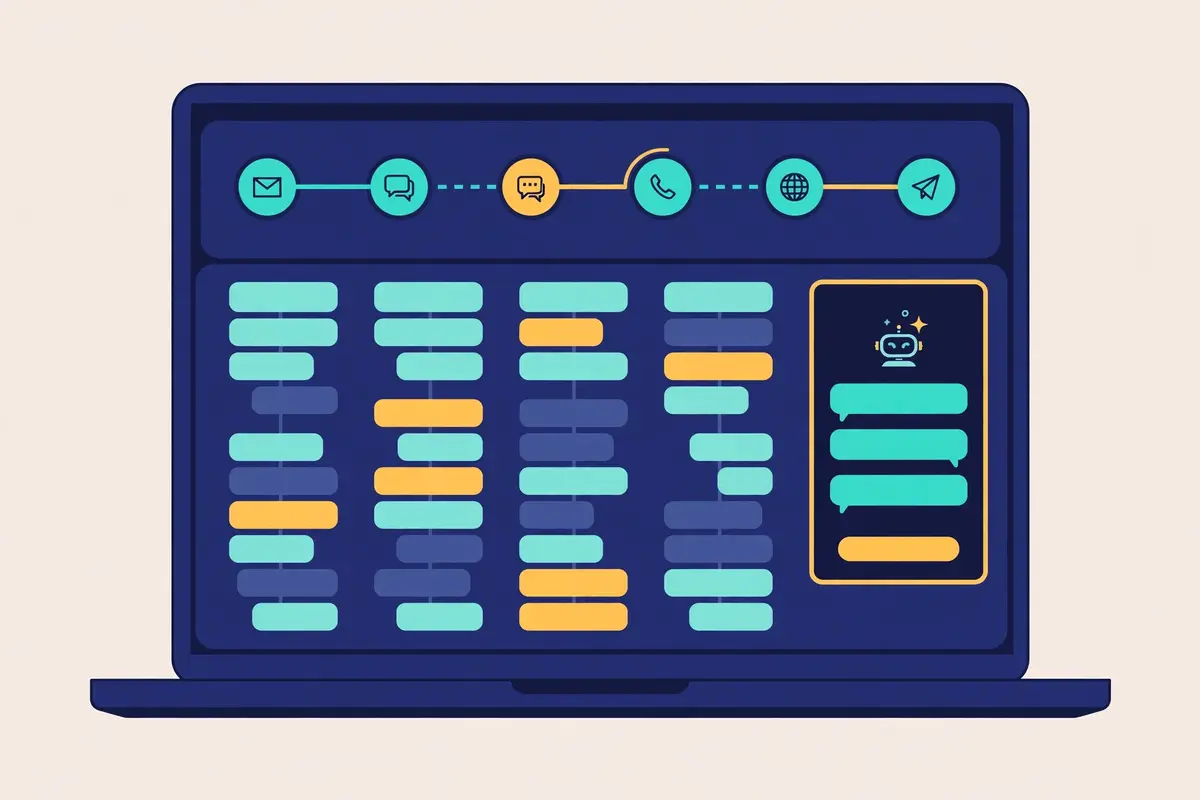
    The Salesloft question is the one buyers should ask about first, because it changes the shape of the decision. ZoomInfo’s own product page for Engage, at zoominfo.com/products/engage, now redirects to a ZoomInfo and Salesloft partnership page, which describes Salesloft as the orchestration layer on top of ZoomInfo’s data. The page promises better data, smarter workflows and multi-touch engagement, with Salesloft’s Cadence and Rhythm doing the sequencing and ZoomInfo’s GTM Data Universe supplying the contacts and the signals. That is a genuine partnership, and it is also a signal. ZoomInfo is steering enterprise engagement buyers toward Salesloft as well as its own Engage. A buyer who already runs Salesloft may not need Engage at all, since the integration already brings ZoomInfo data into Salesloft cadences.

    A buyer who wants one vendor should ask ZoomInfo, in writing, whether Engage or Salesloft is the recommended engagement layer for their team, and what each one costs.

    The wider integration picture in this ZoomInfo Engage review

    Beyond the CRM and the inbox, ZoomInfo lists integrations with marketing automation tools, sales automation tools and its own products, including Chat, Chorus for conversation intelligence, and FormComplete for web forms. The pricing page notes that pre-packaged integrations typically carry a base cost and require a minimum purchase of bulk credits, so an integration is not always free. That is worth confirming in the quote, since a buyer who assumes the Salesforce integration is included can be surprised by a line item. The Chrome extension and the mobile app are included in the Professional plan, and the Copilot plans add workflows that push signals into Salesforce, HubSpot, Slack and Microsoft Teams. If your stack includes a tool ZoomInfo does not list, ask whether the API or a custom integration is available, and whether it is priced separately, before you sign.

    Working from LinkedIn with the ReachOut extension

    Working from LinkedIn is where many reps will meet Engage for the first time, and the ReachOut extension is the bridge. The extension surfaces verified contact data as an overlay on LinkedIn profiles. As a result, a rep can find a direct dial or a business email while looking at the prospect, and can enrol the contact in a sequence without switching tabs. That is a practical advantage over a tool that forces the rep to copy a name into a separate search. Furthermore, it is the reason ZoomInfo’s own LinkedIn outreach guide calls Engage the strongest option for LinkedIn-first prospecting. The extension does not automate LinkedIn messages or connection requests, and this ZoomInfo Engage review is careful to say so. The social step in a Salesflow is a task for the rep, not an automated send.

    A team that wants LinkedIn automation should look at Waalaxy from €19 a user a month or HeyReach from $79 a month, and use Engage for the email and the calls.

    Security, compliance and the rules around cold email

    Security is an enterprise buying question, and ZoomInfo answers it with the certifications buyers expect. ZoomInfo lists SOC 2 Type II, ISO 27001, ISO 27701 and TRUSTe GDPR and CCPA compliance among its trust credentials, and the data page describes the platform as the GTM data layer trusted by over half the Fortune 500. Those are vendor claims, and this ZoomInfo Engage review has not audited them hands-on. Yet, they are the same certifications enterprise procurement teams ask for, and they are published on ZoomInfo’s own trust pages. The Community Edition data exchange is governed by its own terms. Moreover, ZoomInfo states that it collects only professional contact data, never personal email addresses, calendar content, message bodies or attachments, and never sensitive personal information such as health records, financial account numbers or political affiliations.
    Cold email rules for the sender

    Compliance for the sender is a different job, and it belongs to the buyer rather than the vendor. Cold email is legal in many markets when it is done properly, and our cold email legality checklist walks through the rules in plain language. In the United States, the CAN-SPAM Act requires a truthful sender, a truthful subject line, a physical address and a clear way to opt out. In addition, the Act requires the opt-out to be honoured promptly. The GDPR in Europe requires a lawful basis for processing, which for business-to-business outreach is usually legitimate interest, balanced against the prospect’s rights. Also, the prospect must be able to object and be removed. Engage helps by tracking unsubscribes and syncing them to the CRM. Yet, it does not write the legal basis for you.

    A team that sells into Europe should get its own advice on legitimate interest, keep a suppression list, and never email a personal address that ZoomInfo did not supply as a business contact.

    Data accuracy and the Contact Accuracy Score

    Data accuracy has a number attached to it, and it is worth understanding. ZoomInfo gives each contact a Contact Accuracy Score from 75 to 99, which shows how confident ZoomInfo is that the person still works at the listed company and can be reached at the business email. A score of 99 is a strong signal, and a score of 75 is a weaker one. As a result, a rep who works the high scores first will bounce less. That is a practical tool, and it is the reason a team should not treat every exported contact as equal. Check the score, verify the list, and expect a few bounces even on a good list, since people change jobs and companies reorganise.

    A team that measures its bounce rate and feeds it back into the list will get better results from Engage than a team that exports once and never looks back.

    Engage against Apollo, Salesloft and Outreach

    Engage does not compete with every sequencer. Furthermore, this ZoomInfo Engage review compares it with the three rivals that matter most. Apollo is the database-led sequencer that a small team buys instead of ZoomInfo. That is because it pairs a 240M-plus database with sequences from $49 a user a month. Salesloft is the enterprise engagement platform that ZoomInfo itself now points buyers toward, with quote-only Advanced and Elite pricing, Cadence, Rhythm and Clari Forecast. Outreach is the other enterprise platform, with quote-only Amplify pricing, Kaia coaching and multichannel sequences, and no built-in database at all. Those three cover the real alternatives: a cheaper database, the partner platform, and the enterprise rival. A buyer who compares Engage with a $39-a-month volume sender is comparing the wrong thing, since Engage is not a volume sender and never claimed to be.

    The comparison table, checked today

    ToolStarting priceContact databaseSequencesDiallerWarm-upFree plan / trialBest forVisit Site →
    ZoomInfo EngageQuote only500M+ contacts, 100M+ companiesSalesflows: email, calls, social tasksAutodialer, voicemail drops, Trusted CallingNot confirmedNo free plan; no Engage trial advertisedEnterprise teams already buying ZoomInfo dataVisit Site →
    ApolloFree $0; Basic $49 / user / month240M+ contactsYes, with LinkedIn task queuesCloud diallerAutomated warm-up includedFree plan; trial on paid plansSmall teams that want data plus sequencesVisit Site →
    SalesloftQuote onlyNone built inCadence, multichannelPaid add-onNot confirmedNo free plan; no trial advertisedEnterprise cadence and forecastingVisit Site →
    OutreachQuote onlyNone built inYes, multichannelVia integrationsNot confirmedNo free plan; no trial advertisedEnterprise AI revenue platformVisit Site →

    Last checked: 16 November 2026. ZoomInfo, Salesloft and Outreach publish no prices; Apollo publishes its prices. Apollo, Salesloft and Outreach figures are from our published reviews on this site, linked in the table. Features and pricing can change, so please check the provider’s site before you buy. We do not guess at features, prices or trials.

    The feature matrix, checked today

    FeatureZoomInfo EngageApolloSalesloftOutreach
    Built-in B2B database✓ 500M+ contacts✓ 240M+ contacts— none— none
    Email sequences✓ Salesflows✓✓ Cadence✓
    Multichannel steps✓ email, calls, social tasks✓ email, calls, LinkedIn tasks✓✓
    Built-in dialler✓ autodialer✓ cloud dialler— paid add-on— via integrations
    Voicemail drops✓— not confirmed— not confirmed— not confirmed
    A/B testing✓ email steps✓✓✓
    AI email drafting✓ Copilot AI Emailer✓ AI writing assistant✓ AI agents✓ Kaia
    Buyer intent signals✓ Copilot plans✓✓ Rhythm✓
    Warm-up / inbox rotation— not confirmed✓ automated warm-up— not confirmed— not confirmed
    CRM sync✓ Salesforce, HubSpot✓ HubSpot, Salesforce✓ Salesforce, HubSpot✓ Salesforce, HubSpot
    Published pricing— quote only✓ from $49 / user / month— quote only— quote only
    Free plan— Lite and Community Edition for data only✓ free plan— none— none

    Last checked: 16 November 2026. A tick means the feature is stated on the provider’s official site. A dash means it is not confirmed or is confirmed absent. Apollo, Salesloft and Outreach details are from our published reviews on this site. Features and pricing can change, so please check the provider’s site before you buy. We do not guess at features, prices or trials.

    Apollo in this ZoomInfo Engage review: the cheaper database-led alternative

    Most buyers will actually compare Apollo with Engage, and the comparison is straightforward. Apollo pairs a 240M-plus contact database with sequences, a cloud dialler, LinkedIn task queues, an AI writing assistant, automated warm-up and inbox rotation, all from $49 a user a month on monthly billing, with a free plan to start. Engage pairs a 500M-plus database with Salesflows, an autodialer, Copilot signals and an AI Emailer, all quote-only, with no free plan and no warm-up. Apollo’s database is smaller, yet its price is published, its trial is self-serve, and its warm-up is included. Engage’s database is larger, its signals are deeper, and its enterprise integrations are stronger, yet its price is a negotiation. A team of fewer than ten sellers should buy Apollo and spend the saving on volume.

    A team of twenty or more sellers that already holds a ZoomInfo contract should pilot Engage and judge it on cost per meeting, not on the size of the database alone. Our Apollo review covers the detail.

    Salesloft in this ZoomInfo Engage review: the partner platform

    Salesloft is the rival that ZoomInfo itself points buyers toward, which makes the comparison unusual. Salesloft’s platform is built around Cadence for multichannel sequences, Rhythm for prioritised account work, Conversation Intelligence for call coaching, and Clari Forecast for revenue prediction, with Advanced and Elite packages that are both quote-only and a dialler sold as a paid add-on. It has no built-in database, so it relies on ZoomInfo’s data through the integration, and the two companies now sell the combination together. A buyer who wants the deepest sequencing and forecasting should buy Salesloft and feed it ZoomInfo data. A buyer who wants the data and the sequences from one vendor, with one contract and one support team, should buy Engage. The honest answer for many enterprise teams is that they will end up with both. Moreover, the question is which one owns the sequence.

    Our Salesloft review covers the detail, including the Clari merger.

    Outreach in this ZoomInfo Engage review: the other enterprise platform

    Outreach is the third enterprise option, and it competes with Engage on AI rather than on data. Outreach’s Amplify packages are quote-only, with AI credits, Kaia for call coaching, multichannel sequences and forecasting, and no built-in database at all. It is a revenue platform first and a sequencer second, which suits a team that already owns its data and wants the AI to run the whole revenue motion. Engage is a data platform first and a sequencer second, which suits a team that wants the data and the outreach from the same vendor. A team that buys Outreach will still need a data subscription. In addition, ZoomInfo is the obvious one, so the two are complements as often as they are rivals. Our Outreach review covers the detail, including the reported entry price of roughly $100 to $150 a user a month from third-party reports.

    Strengths and weaknesses in this ZoomInfo Engage review, side by side

    Every tool in this ZoomInfo Engage review’s comparison set has a clear trade, and Engage is no exception. Its strength is the data, and its weakness is the price and the packaging. A buyer who reads the two lists together will see the decision clearly. Engage is the best way to work ZoomInfo data, and it is the worst way to buy a cheap sequencer. That is not a contradiction, and it is the reason this ZoomInfo Engage review gives a Best-for label rather than a score. The lists below are drawn from the official site and the help centre, checked on 16 November 2026. Also, they say plainly where a claim could not be verified.

    Five strengths to weigh

    • First strength: the largest verified database in this comparison set, with 500M-plus contacts, 100M-plus companies, 300M-plus verified emails and 135M-plus direct dials behind every sequence.
    • Second strength: Salesflows that mix email, calls and social tasks in one cadence, with multithreading across a whole buying group from a single view.
    • Third strength: Copilot’s buying signals, account summaries and AI Emailer, which tell the rep who to contact, what to say and when to act.
    • Fourth strength: a practical autodialer with pre-recorded voicemail drops, dialler analytics and Trusted Calling, built for reps who sell on the phone.
    • Fifth strength: clean CRM and inbox integrations, with activity syncing to Salesforce and HubSpot and a Chrome extension that brings the data into LinkedIn.

    Five weaknesses to weigh

    • First weakness: no published prices, no self-serve signup and no advertised trial for Engage itself, with third-party reports putting the platform at roughly $14,995 a year to start.
    • Second weakness: no warm-up pool, no inbox rotation and no placement testing, with sends capped at 500 emails a user a day, so high-volume cold email needs a separate sender.
    • Third weakness: the standalone Engage product page now redirects to a Salesloft partnership page, so buyers must ask in writing whether Engage or Salesloft is the recommended engagement layer.
    • Fourth weakness: the credit meter, with one credit per exported profile and no rollover stated on the pricing page, can turn a heavy outbound push into a second bill.
    • Fifth weakness: no AI conversation intelligence comparable to Outreach Kaia or Salesloft Conversation Intelligence, so coaching still comes from the manager listening to calls.

    One more drawback is easy to miss, so it belongs here too. Engage is a platform add-on, and add-ons cut both ways. A team that lives in ZoomInfo gets a sequencer built for exactly that data, with the deepest signals and the cleanest CRM sync in this comparison set. Yet a vendor of that size cannot match the published price and the self-serve trial of a vendor a tenth its size, and a buyer who wants to try before they buy should not expect it here. In practice, therefore, the trade is clear: you buy the best database in this comparison set. Furthermore, you pay an enterprise price for the privilege of working it inside one platform. A buyer who wants the cheapest sequencer should weigh Apollo first. Meanwhile, a buyer who wants one contract for data and outreach should ask ZoomInfo for a written quote.

    Getting started in this ZoomInfo Engage review: a sensible first 90 days

    The first two weeks, in this ZoomInfo Engage review’s getting-started plan, are for the data and the demo. To begin with, use ZoomInfo Lite or Community Edition to check the data for your own market, since the database is the product and its accuracy for your accounts matters more than any feature. Export a sample of fifty target accounts, check the emails and the direct dials by hand, and count how many are correct. Then book the demo and ask the rep to run it on your accounts rather than a polished sample, and to show a Salesflow, a dialler list and a Copilot signal on a live account. Also ask for the quote in writing, with the licences, the credits, the add-ons and the renewal price each on its own line.

    A demo on your own accounts settles the data question with evidence, while a demo on slides settles nothing.

    Weeks three to six: a measured pilot

    Weeks three to six are for a small, measured pilot. Start with one team rather than the whole company, and run a single Salesflow from first touch to booked meeting. That is where the multithreading, the dialler and the Copilot signals either prove themselves or fall flat. Measure the reply rate, the meetings booked, the calls completed and the credits burned, not the send volume. Read the replies yourself, bounces included, and check whether a stale list caused the bounces before you blame the message. When a sequence underperforms, look at the targeting before rewriting the wording. The sharpest email still books no meetings when it lands with the wrong companies.

    Weeks seven to twelve: making the call

    Weeks seven to twelve are for the decision, and the test is a simple one. Give the working Salesflow a little more volume, and keep watching the one that lags. More calling than expected? Compare the minutes used with the dialler analytics and the time saved. If the forecast is the bottleneck, open Copilot every Monday and run the pipeline meeting from its signals. If research is the bottleneck, trial the AI Emailer on one account list and count the time it saves. Divide the quarterly cost by the meetings booked to find your cost per meeting, and set it against the Apollo or Salesloft quote for the same team. In short, when Engage books meetings cheaper than the old stack, keep it. When it does not, narrow the list, sharpen the targeting, and run one more test before the renewal.

    Three months of real numbers beats a year of hoping.

    Frequently asked questions

    What is ZoomInfo Engage?

    In short, ZoomInfo Engage is the sales engagement layer inside ZoomInfo’s go-to-market platform. Moreover, this ZoomInfo Engage review answers the most common questions about it. It runs multi-step Salesflows across email, calls and social tasks, with an autodialer, pre-recorded voicemail drops, mail-merge templates and analytics, all on top of ZoomInfo’s verified B2B database. It is built for enterprise sales teams that already buy ZoomInfo data and want their reps to work that data without leaving the platform.

    How much does ZoomInfo Engage cost?

    ZoomInfo publishes no prices, and this ZoomInfo Engage review says so plainly. The pricing page at zoominfo.com/pricing lists six plans, all quote-only, priced by licences and credits. In addition, Engage is priced as part of that quote. Third-party reports put the platform at roughly $14,995 a year to start and Engage itself at roughly $5,000 to $15,000 a year as an add-on, and both figures are third-party reports rather than ZoomInfo’s own numbers. Ask ZoomInfo for a written quote that names the licences, the credits and the add-ons before you budget.

    Is there a free trial of ZoomInfo Engage?

    No trial is advertised for Engage itself, and this ZoomInfo Engage review says so plainly rather than hiding it. The pricing page carries free trial links for the wider ZoomInfo platform. Yet, no trial length or Engage trial is stated, and third-party listings describe Engage as custom pricing with no free trial. ZoomInfo Lite and Community Edition offer free access to the data, but neither includes sequences, a dialler or Copilot. Ask the rep directly whether a trial covers Engage and for how long.

    What is a Salesflow in ZoomInfo Engage?

    A Salesflow is a multi-step sequence that can include automated emails, calls and other tasks, such as connecting on social media, so a rep fully works every lead. The email steps send automatically on schedule. Meanwhile, the call and social steps appear as reminders in a real-time task view. A rep can A/B test the email steps, enrol several contacts from one account in role-specific sequences, and watch the analytics to see which steps earn meetings. Sends are capped at 500 emails a user a day, with extra emails queued for the next day.

    Does ZoomInfo Engage do warm-up?

    No warm-up pool is published on the official site, and this ZoomInfo Engage review does not claim one. Engage sends from your own mailbox through Gmail or Office 365, and the help centre describes email quotas an administrator can set per day, per minute and per domain. A team that needs warm-up, inbox rotation or placement testing should pair Engage with a dedicated sender such as Instantly or Smartlead, and use Engage for the named-account sequences where the data matters most.

    Who should not use ZoomInfo Engage?

    Small teams and solo sellers should not use it. That is because Engage has no published price, no self-serve signup and no advertised trial. Also, the reported platform cost starts at roughly $14,995 a year. High-volume outbound teams should steer clear too, since sends cap at 500 emails a user a day and the platform supplies no warm-up, inbox rotation or placement testing. A team that needs a ready-made prospect list at a published price should weigh Apollo, which starts at $49 a user a month with a free plan, before deciding.

    The verdict in this ZoomInfo Engage review

    Verdict: best for enterprise teams already buying ZoomInfo data

    ZoomInfo Engage is the easiest way to work ZoomInfo data, and that is the whole case for it. It earns that title by putting the largest verified database in this review’s comparison set, the Salesflows that mix email, calls and social tasks, the autodialer with voicemail drops and Trusted Calling, and Copilot’s signals and AI-drafted emails on one screen. A rep can find a prospect, check the buying signals, enrol the contact in a sequence, make the call and log the activity without leaving the platform, and the activity syncs to Salesforce or HubSpot without anyone remembering to log it.

    Why Engage wins for ZoomInfo buyers

    Five hundred million contacts, one hundred million companies, three hundred million verified emails and one hundred thirty-five million direct dials are the numbers behind that claim, and ZoomInfo’s own data page puts the email deliverability rate at 96%. That is why this ZoomInfo Engage review recommends it to enterprise teams that already hold a ZoomInfo contract, or that are ready to buy one, and that sell to named accounts rather than blasting a list.

    What to watch before you sign

    Go in with open eyes. Pricing is quote-only, with no published prices and no advertised trial for Engage itself, and third-party reports put the platform at roughly $14,995 a year to start. Sends cap at 500 emails a user a day, with no warm-up pool, no inbox rotation and no placement testing. The standalone Engage product page now redirects to a Salesloft partnership page, so ask in writing whether Engage or Salesloft is the recommended engagement layer for your team. Credits cost one per exported profile, and the rollover rule is not stated on the pricing page.

    Book the demo on your own accounts, pilot Engage on one team for a month, and judge it on cost per meeting, not on the size of the database alone. Engage can then carry the whole named-account motion while a dedicated sender handles the volume. Skip the pilot and you will get a bill you never saw coming, not a pipeline. We have not tested ZoomInfo Engage hands-on, so there is no numeric score here — only this verdict, and the evidence above to check it against.

    Visit ZoomInfo Engage →

    Keep reading

    More data and sales engagement reviews

    Guides and roundups

    Best for enterprise teams already buying ZoomInfo data: ZoomInfo EngageQuote-only pricing · 500M+ contacts · Salesflows and autodialer Visit Site →
  • HubSpot Sales Hub Review 2026

    HubSpot Sales Hub Review 2026

    Best for teams already running marketing on HubSpot: HubSpot Sales Hub

    HubSpot Sales Hub is the sales software that sits on HubSpot’s Smart CRM, and it gives a growing team one place for prospecting, pipelines, sequences, calling, meetings and forecasting. The free CRM covers up to two users at $0, Starter starts at $10 a seat a month on a limited-time new-customer offer (struck through from $20), Professional starts at $100 a seat a month, and Enterprise starts at $150 a seat a month. Sequences, forecasting, playbooks and lead scoring all unlock on Professional, while the Breeze Prospecting Agent researches accounts, builds buying committees and drafts personalised outreach on every paid plan, paid for with monthly HubSpot Credits.

    This HubSpot Sales Hub review works through the platform as it stood on 16 November 2026. It covers the four plans and the onboarding fees that sit behind two of them, the Breeze agents and the credit meter that pays for them, sequences and calling, deal scoring and forecasting, and how Sales Hub compares with Close CRM, Apollo and Salesloft. By the end you should know whether the CRM your marketing team already lives in is also the right sales platform for your reps, or whether a cheaper phone-first CRM or a database-led sequencer would serve you better.

    Visit HubSpot Sales Hub → Jump to the comparison table

    A note on the prices in this HubSpot Sales Hub review

    One thing to know before the numbers: HubSpot’s pricing page renders its plan cards in JavaScript. A plain text read of the page does not show every figure. The prices in this HubSpot Sales Hub review were therefore corroborated three ways on 16 November 2026. The product page shows Starter at $10 a seat a month struck through from $20, Professional at $100 and Enterprise at $150. HubSpot’s own structured product data lists a $10.00 offer. The annual-billing list prices were recorded in our Close CRM review the same day, namely Starter $15 a seat a month on annual billing, Professional $90 and Enterprise $150. The Starter $10 figure is a limited-time offer for new customers only, and the $15 annual list price is the one a renewal is based on.

    Where a figure comes from a third-party report rather than HubSpot itself, this HubSpot Sales Hub review says so in the note beside it.

    Quick Answer

    HubSpot Sales Hub is the sales software built on HubSpot’s Smart CRM, covering prospecting, deal pipelines, sequences, calling, meetings, playbooks and forecasting in one system, with Breeze AI agents that research accounts, draft outreach and suggest deal updates. It is free for up to two users, then Starter from $10 a seat a month on a limited-time new-customer offer ($20 list, $15 on annual billing), Professional from $90 a seat a month on annual billing ($100 monthly) plus a $1,500 one-time onboarding fee, and Enterprise from $150 a seat a month plus $3,500 onboarding. Sequences, forecasting, lead scoring and playbooks start on Professional.

    HubSpot’s own product page reports that 73% of sales professionals say HubSpot increased their win rate, 94% more deals closed after six months, and 82% more meetings were booked with the prospecting agent.

    Sales Hub is best for small and mid-sized teams that already run marketing on HubSpot, or that want one CRM for the whole customer journey, and that are happy to pay Professional prices for sequences and forecasting. It is not the tool for a team that needs a built-in contact database, high-volume cold email with warm-up, or a phone-first dialler, because Sales Hub supplies none of those as its core job.

    What HubSpot Sales Hub actually is

    HubSpot Sales Hub is the sales layer of HubSpot’s customer platform, and the simplest way to understand it is to start with the foundation it sits on. HubSpot Smart CRM is where the customer data lives, where records are managed, and where the tools connect. In addition, it comes included with any paid HubSpot subscription. Sales Hub is built on top of that foundation and adds the specialised productivity tools a sales team needs to do its actual job. Prospecting, pipeline management, sales coaching, and a good deal more. If the Smart CRM is the system of record, Sales Hub is what the reps and managers live in day to day. That is HubSpot’s own framing, and it matches what this HubSpot Sales Hub review found on the product and pricing pages.

    In practice, a rep can create a contact, associate it with a company and a deal, send a tracked one-to-one email, enrol the contact in a sequence, log a call, book a meeting, move the deal stage, and update the forecast from connected records, all without leaving the CRM. The product page organises the work into three jobs: create pipeline, progress deals, and close deals. Creating pipeline covers the Breeze Prospecting Agent, lead management, sales automation, buying groups and call tracking. Progressing deals covers deal scoring, deal pipelines, AI guided selling, the Notetaker and playbooks. Closing deals covers deal plans, quoting through Revenue Hub, sales methodology scoring and forecasting. That is the whole sales cycle in one subscription. Also, it is why teams that already run HubSpot marketing find the sales side so easy to adopt.

    Eight capabilities this HubSpot Sales Hub review found defining

    Eight capabilities define the product, and they are worth naming before the detail. First comes the Breeze Prospecting Agent, which finds accounts, sources buying committees and executes personalised outreach. Next comes the sales workspace, which gives each rep one prioritised view of leads, deals, tasks and next best actions. Then come sequences, the automated multi-step follow-up cadences that start on Professional. After that comes calling, with a power dialler, voicemail drops and CRM logging. Deal pipelines follow, with AI deal scoring and deal progression. The Notetaker captures meetings automatically and drafts the follow-up. Forecasting closes the set, with AI-powered projections. Finally comes Revenue Hub, which handles quoting, billing and payment without leaving the platform.

    The eight capabilities at a glance, in this HubSpot Sales Hub review

    • Breeze Prospecting Agent (Beta): finds accounts, sources buying committees, and executes personalised outreach with an AI agent that learns from your best reps over time.
    • Sales workspace: one AI-powered workspace for leads, deals, tasks and guided actions, with daily action summaries and smart queues.
    • Sequences: automated multi-step outreach across email, calls and tasks, with automatic unenrolment on reply or booked meeting.
    • Calling: power dialler, voicemail drops and CRM logging, with calling minutes included on every paid plan.
    • Deal pipelines and scoring: pipelines, AI deal scoring, buying groups and deal progression that suggests CRM updates from conversations.
    • Notetaker: captures every meeting automatically, prepares reps with full customer context, and sends follow-up recordings instantly.
    • Forecasting: AI-powered projections with default and custom forecasting and reporting on Professional and Enterprise.
    • Revenue Hub: AI-powered CPQ, quote approvals and e-signature, so a deal can be quoted, billed and paid without switching platforms.

    One more framing point helps before the details. HubSpot Sales Hub is a CRM with sales tools, not a cold email tool. Furthermore, it does not claim to be one. It is the system of record first and the outreach engine second. Moreover, the sequences are built for one-to-one follow-up rather than bulk cold sending. That boundary suits a team whose pipeline comes from inbound leads, referrals, partnerships and a modest outbound motion. Sales Hub slots into the stack without asking you to move anything else. It leaves a gap for a buyer who wants one tool to find leads, warm inboxes and send cold email at volume, since that buyer will need a second subscription for the data and the deliverability. This HubSpot Sales Hub review keeps that distinction visible throughout. That is because confusing the two jobs is how buyers end up disappointed.

    Who Sales Hub fits best — and who should skip it

    First, this HubSpot Sales Hub review finds the product fits small and mid-sized teams that already run marketing on HubSpot. Think of a company with five to fifty sellers, a marketing team already sending campaigns from Marketing Hub, and a founder or sales leader who wants one customer record from first click to closed deal. That team needs a CRM the reps will actually open, sequences that follow up without nagging, a pipeline the manager can read at a glance, and reporting that does not need a spreadsheet beside it. Sales Hub gives them exactly that, with the free plan covering the first two users so the trial costs nothing. The price is a published per-seat rate. In addition, the comparison is with the cost of a CRM plus a sequencer plus a reporting tool, not with one subscription.

    This HubSpot Sales Hub review rates it highly for teams of that shape.

    Meanwhile, in this HubSpot Sales Hub review, inbound-led teams come next. A business whose leads arrive through the website, content, webinars and referrals gets the most from Sales Hub. That is because the CRM already holds the whole history of every lead. The pages visited, the forms filled, the emails opened and the calls logged. The sales workspace surfaces the leads showing real buying signals, the guided selling queues tell the rep what to do next, and the deal scoring ranks the opportunities most likely to close. A team that buys its pipeline from a database and blasts it will get less from that machinery, since the signals it reads are the ones your own marketing created. That is a strength for an inbound team and a limit for an outbound one. Also, this HubSpot Sales Hub review says so plainly.

    Buyers who should look elsewhere

    Now the other side. However, high-volume outbound teams should look elsewhere first. Sales Hub sequences cap at 500 email sends per user per day on Professional and 1,000 on Enterprise, and the platform supplies no warm-up pool, no inbox rotation across many mailboxes and no placement testing. A team planning thousands of cold emails a month from many domains will find Instantly from $47 a month on Growth, or Smartlead from $39 a month, a far better fit for that motion, and can still use Sales Hub for the deals those emails create. Likewise, a team that needs a ready-made list of prospects should not buy Sales Hub expecting one. Breeze Intelligence enriches records you already hold, and the Prospecting Agent researches accounts you already target. Yet, neither hands you a fresh list of companies to call.

    Phone-first teams should think twice as well. Sales Hub includes calling minutes on every paid plan. Yet, it is not built around the phone the way Close CRM is, with its Power Dialer and Predictive Dialer, SMS and a shared inbox on the same screen. A team whose reps make a hundred calls a day will feel that difference in the first hour. If your buying process needs custom objects, team hierarchies and advanced permissions, Enterprise is the only plan that carries them, and the $150 a seat price plus $3,500 onboarding should be budgeted from the start. A solo seller on a tight budget, by contrast, can start free and stay free until the third user arrives, which is a genuinely generous route in.

    Why a team already on HubSpot should still take the free plan first

    Between those two poles sits the buyer this HubSpot Sales Hub review expects most often. A founder or sales leader whose marketing already runs on HubSpot and whose sales process still lives in a spreadsheet. That buyer should start on the free plan, and bring a real pipeline along. Add two users, import the live deals, connect the inbox, and run one week of real selling before paying anything. If the reps open the workspace every morning without being told, the case is made. If they keep the spreadsheet beside it, that is useful information too, before a single dollar is committed. A week on your own pipeline settles the question with evidence, which beats any sales deck as a test.

    Pricing in this HubSpot Sales Hub review: free, Starter, Professional, Enterprise

    HubSpot publishes its prices, and this HubSpot Sales Hub review starts with the figures as they stood on 16 November 2026. The free CRM costs $0 for up to two users, with no credit card required. Starter starts at $10 a seat a month on a limited-time offer for new customers only, shown struck through from $20. Furthermore, the standing list price is $20 a seat a month on monthly billing or $15 on annual billing. Professional starts at $100 a seat a month on monthly billing, or $90 on annual billing, plus a required one-time onboarding fee of $1,500. Enterprise starts at $150 a seat a month, plus a required one-time onboarding fee of $3,500. Those are the figures on hubspot.com/products/sales and hubspot.com/pricing/sales, checked on 16 November 2026, with the annual list prices corroborated as explained in the note at the top of this HubSpot Sales Hub review.

    HubSpot Sales Hub review: an automated sequence timeline with email, call and task steps flowing across a CRM screen
    Sequences: automated multi-step outreach across email, calls and tasks, starting on Professional.

    The pricing table in this HubSpot Sales Hub review, checked today

    PlanPriceWhat it includesBest forVisit Site →
    Free$0CRM for up to 2 users; deal tracking, live chat, meeting scheduling, 10 dashboardsTrying HubSpot, or a solo seller with a tiny pipelineVisit Site →
    Starter$10 / seat / month *500 HubSpot Credits; 500 calling minutes; up to 50 workflows; 1,000 meeting links; HubSpot branding removedSmall teams that need simple automation and callingVisit Site →
    Professional$90 / seat / month †3,000 HubSpot Credits; sequences (500 sends/user/day); forecasting; 300 workflows; 100 custom reports; 750 transcription hoursTeams that need sequences, forecasting and custom reportingVisit Site →
    Enterprise$150 / seat / month ‡5,000 HubSpot Credits; sequences (1,000 sends/user/day); 1,000 workflows; 500 custom reports; 1,500 transcription hours; conversation intelligenceLarge teams that need hierarchies, custom objects and governanceVisit Site →

    Last checked: 16 November 2026 on HubSpot’s product page and HubSpot’s pricing page. * Starter $10 is a limited-time offer for new customers only, shown struck through from $20; the standing list price is $20 a seat a month monthly or $15 on annual billing. † Professional $90 is the annual-billing rate ($100 monthly) plus a required one-time $1,500 onboarding fee. ‡ Enterprise $150 plus a required one-time $3,500 onboarding fee. The pricing page renders its plan cards in JavaScript, so figures were corroborated against the product page, HubSpot’s own structured product data and the annual list prices recorded the same day. Features and pricing can change, so please check the provider’s site before you buy. We do not guess at features, prices or trials.

    What the first year actually costs

    The per-seat price is only half the bill. Moreover, this HubSpot Sales Hub review counts the onboarding fee as the detail most buyers miss. A three-seat Professional team pays $90 a seat a month on annual billing, which is $3,240 a year, plus the $1,500 onboarding fee, for $4,740 in year one and $3,240 from year two. The same three seats on Enterprise cost $5,400 a year plus $3,500 onboarding, for $8,900 in year one. Starter, by contrast, carries no onboarding fee. Three seats at the $15 annual list price cost $540 a year, or $360 at the $10 new-customer offer while it lasts. Those totals are simple arithmetic from the published rates. In addition, they show why the jump from Starter to Professional is the real buying decision, not the jump from free to Starter.

    HubSpot Credits: the meter behind the AI

    One more pricing point matters, because it is new and it catches buyers off guard. HubSpot Credits pay for the AI agents and features that do work for you, and every paid plan includes a monthly allowance. 500 credits on Starter, 3,000 on Professional and 5,000 on Enterprise. Extra credits cost $0.010 each, bought in packs or on pay-as-you-go, and unused credits do not roll over into the following month. The Breeze Prospecting Agent, the Data Agent and the Customer Agent all consume credits, and third-party coverage of HubSpot’s UNBOUND 2026 launch reports the Prospecting Agent at $1 for each lead it recommends outreach for. Treat that $1 figure as a reported price, not an official one, and budget the credits as a real line item. That is because a team that leans on the agents will burn through 500 Starter credits fast.

    Seats, commitments and support in this HubSpot Sales Hub review

    Finally, the fine print deserves a paragraph of its own, because it is short and it matters. Paid Sales Hub plans are priced per seat, with Professional and Enterprise accessed through Sales Seats and Starter through Core Seats, and View-only Seats are available at no extra cost. Professional and Enterprise require an annual commitment, even when you pay monthly. As a result, paying monthly does not let you walk away in month three. Support is email only on Starter, and email plus phone on Professional and Enterprise, with multi-language support across the plans. HubSpot also offers discount pricing for eligible startups and nonprofits through its HubSpot for Startups and HubSpot for Nonprofits programmes. Before signing, read the quote as carefully as the feature list, since the seat count, the onboarding fee and the renewal terms all live there.

    Prospecting in this HubSpot Sales Hub review: Breeze agents and the sales workspace

    Prospecting is where HubSpot Sales Hub changed most in 2026. Also, it is the capability this HubSpot Sales Hub review spent the longest checking. The Breeze Prospecting Agent is built natively into Sales Hub, which means it runs on your live CRM data from the moment you activate it, with no separate tool to manage, no integration to configure and no sync to monitor. It watches buying signals, finds accounts, sources buying committees and executes personalised outreach with an AI agent that learns from your best reps over time. It researches prospects automatically, pulling firmographic data, recent company news and contact information to build complete profiles without rep input. Furthermore, it can enrol prospects directly into the appropriate Sales Hub sequence. That is prospecting as a system, not as a list, and it is what the product page leads with.

    HubSpot Sales Hub review: an AI prospecting agent researching company profiles and drafting personalised outreach emails
    Breeze Prospecting Agent: finds accounts, sources buying committees and drafts personalised outreach on live CRM data.

    Watching the Prospecting Agent work

    Video: “Prospecting Agent: Deeper research and personalized emails at scale” by HubSpot Academy on YouTube. This video is the property of its creator, embedded via YouTube for education. OutreachCompare is not affiliated with HubSpot and does not claim ownership of the video.

    The sales workspace: one screen for the rep’s day

    Around the agent sits the sales workspace. Moreover, this HubSpot Sales Hub review counts it as the feature reps actually feel every morning. The workspace is an AI-powered home for leads, deals, tasks and guided actions, with smart queues and daily action summaries that tell the rep what to do next. AI Guided Selling surfaces leads, deals, tasks and next best actions in one place. As a result, the rep starts the day on the highest-value work rather than on the oldest task. Lead management keeps every lead and activity in the same view, and the buying groups feature maps every decision maker, champion and influencer automatically. As a result, reps are never single-threaded on a high-stakes deal. That combination, agent plus workspace plus buying groups, is what makes the prospecting story feel different in practice.

    Where prospecting stops, and what that means for your list

    One honest limit belongs in this part of the review. The Prospecting Agent researches accounts and people you already target, and Breeze Intelligence enriches records you already hold. Yet, neither hands you a fresh database of prospects to call. HubSpot’s newer Apollo integration puts Apollo’s 240M-plus contact database behind the agent’s contact surfacing, which closes the gap in practice, even though the data stays a separate subscription rather than part of the platform. A team with no list should budget for a data provider such as Apollo, from $49 a user a month, or read our best B2B data providers roundup before deciding. Judge Sales Hub on the prospecting it does from your own CRM, not on a database it deliberately does not sell.

    Sequences in this HubSpot Sales Hub review: the follow-up engine

    Sequences are the feature most sales teams buy Sales Hub for, and they start on Professional. A sequence is an automated multi-step follow-up cadence across email, calls and tasks, with templates, snippets and meeting links inside each step, and contacts are automatically unenrolled by default when they reply to a sequence email or book through a meeting link in the sequence. Professional allows 5,000 sequences per account and up to 500 email sends per user per day. Meanwhile, Enterprise raises the send limit to 1,000 per user per day and adds the ability to trigger sequences through workflows. LinkedIn actions inside a sequence require a Sales Navigator subscription. In addition, the steps themselves are tasks a rep completes by hand rather than automated sends. That is the follow-up engine in the vendor’s own words. Also, it matches what this HubSpot Sales Hub review found on the pricing page.

    Sales automation around the sequences

    Around the sequences sit the automation features that save reps hours a week. Furthermore, this HubSpot Sales Hub review counts them as the difference between a sequencer and a good sequencer. Sales automation sets up multi-channel outreach that adapts based on prospect engagement. As a result, a prospect who opens twice gets a different next step from one who never opened at all. Workflows run the routing underneath: up to 50 with restricted triggers and actions on Starter, up to 300 fully customisable on Professional, and up to 1,000 on Enterprise, with the ability to trigger sequences and run quote-based workflows. Email templates run to 10,000 per account on paid plans, with 5,000 snippets, and the frequency controls keep a rep from emailing the same contact too often. The vendor’s own numbers put the result plainly.

    82% more meetings booked with the prospecting agent, and 73% of sales professionals saying HubSpot increased their win rate.

    The send limits are a feature, not a bug

    One point about the send limits deserves a closer look. That is because it explains why Sales Hub will never be a bulk cold email tool. Five hundred sends per user per day on Professional is generous for one-to-one follow-up. Moreover, it is a ceiling for a team that wants to blast thousands of cold emails from many domains. The sensible pairing is a volume sender such as Instantly from $47 a month, or Smartlead from $39 a month, for the cold motion, with Sales Hub holding the replies, the meetings and the deals. Budget for both, and judge Sales Hub on the follow-up, the pipeline and the reporting, not on a volume it deliberately caps.

    Deals in this HubSpot Sales Hub review: pipelines, scoring and deal plans

    Deal management is where Sales Hub stops being a prospecting tool and becomes a revenue system. In addition, it is the capability this HubSpot Sales Hub review checked next. Deal pipelines let a team add, score and track deals so nothing falls through the cracks. Also, the pricing page lists up to 15 total pipelines per account across object types on Starter, up to 100 on Professional and up to 350 on Enterprise. Deal scoring uses AI to automatically score, rank and prioritise the deals most likely to close, with up to 5 scores on Professional and up to 10 on Enterprise. Buying groups map the decision makers on every deal, and deal splits and pipeline approvals sit on Enterprise. That is a closing workflow for a team with pipeline to work, rather than a team still hunting for its first meetings.

    Deal Progression and Deal Plans in this HubSpot Sales Hub review

    Day to day, the deal story is the reason the Breeze agents matter, and the plan you buy decides how much of it you get. Deal Progression, currently in beta, analyses conversation transcripts, emails and deal history to suggest CRM updates, draft follow-up emails and next steps that keep deals moving forward. A rep reviews each suggestion before it applies, which is the right control for an agent that writes to the CRM. Deal Plans give every deal a shared path to close, with milestones, owners and dates the buyers can see and act on directly. Sales methodology scoring standardises how a team sells by automatically extracting conversation context and mapping it to the team’s sales framework. The vendor claims 94% more deals closed after six months, and that figure should be read as a vendor claim. Yet, the mechanism is easy to see.

    The deal record updates itself from the conversations, rather than from a rep filling in fields on Friday afternoon.

    The deal record is only as good as the activity feeding it

    One honest limit is worth naming here. A deal score built on engagement signals is only as honest as the activity feeding it, and HubSpot knows this. The platform records calls, emails and meetings as they happen, across Gmail, Outlook and the dialler. Furthermore, that record is what makes the scores and the projections credible. Yet a team that logs half its calls outside HubSpot, or that runs its real pipeline in a spreadsheet beside the CRM, will get scores that reflect the tool, not the business. The practical answer is to connect every inbox, keep every rep inside the workspace, and treat the first quarter as a calibration run. Three months of complete data beats a year of hoping, and this HubSpot Sales Hub review makes that test explicit.

    Forecasting in this HubSpot Sales Hub review: AI projections and reporting

    Forecasting is the capability that separates a CRM from a filing cabinet, and it starts on Professional. HubSpot’s forecasting gives leaders a comprehensive view of the pipeline with AI-powered projections. Moreover, the pricing page lists default and custom forecasting and reporting on Professional, with forecasting across team hierarchies added on Enterprise. Sales analytics and custom reporting sit beside it. Up to 100 custom reports and 10 million events per query on Professional, and up to 500 custom reports and 100 million events on Enterprise, with 30 dashboards on Starter, 75 on Professional and 100 on Enterprise. Deal journey analytics trace each deal through up to 10 stages and 10 unique steps. That is the reporting surface for a manager who needs one forecast the whole business can trust, rather than a spreadsheet nobody believes.

    HubSpot Sales Hub review: a forecasting dashboard with quarterly pipeline bars, a rising forecast line and deal health gauges
    Forecasting: AI-powered projections with default and custom forecasting on Professional, plus team hierarchies on Enterprise.

    Watching the Smart CRM work as one platform

    Video: “How Smart CRM Powers the Agentic Customer Platform | UNBOUND 2026” by HubSpot on YouTube. This video is the property of its creator, embedded via YouTube for education. OutreachCompare is not affiliated with HubSpot and does not claim ownership of the video.

    Why the forecast lives or dies on adoption

    One point about forecasting deserves a closer look, because it explains why the free plan matters. A forecast built on engagement signals is only as honest as the activity feeding it, and the cheapest way to get that activity is to have every rep in the CRM every day. The free plan covering two users is the on-ramp, and the Starter plan is the bridge. Yet, neither carries forecasting: the feature that justifies the platform for a manager only arrives at $90 a seat. A team that buys Professional for the sequences and never opens the forecast has paid for half the product. A team that runs the forecast from week one, with every deal scored and every stage updated, will feel the difference in the first quarter. That is because the pipeline finally reads the same for the rep and the manager.

    Calling in this HubSpot Sales Hub review: dialler, Notetaker and coaching

    Calling is the part of Sales Hub that surprises buyers most. That is because it is better than the price suggests and narrower than a phone-first CRM. Call tracking gives a team a power dialler, voicemail drops and CRM logging for its most important conversations. In addition, the calling minutes are included on every paid plan. 500 minutes on Starter, 3,000 on Professional and 12,000 on Enterprise, with one HubSpot-provided phone number on Starter, up to three on Professional and up to five on Enterprise. The Notetaker captures every meeting automatically, prepares the rep with full customer context, and sends follow-up recordings instantly. Call transcription and coaching run to 750 hours per account per month on Professional and 1,500 on Enterprise. That is a solid calling surface, and it is what the pricing page actually lists.

    Conversation intelligence and playbooks in this HubSpot Sales Hub review

    Behind the dialler sits the coaching surface. Also, this HubSpot Sales Hub review puts it at the centre of the calling value for a team. Conversation intelligence, with tracked terms, is an Enterprise feature. Furthermore, it turns calls into coaching material a manager can search and review. Playbooks build a library of sales content for the team to share, tracking which documents close deals. Up to 5 playbooks on Professional, and up to 5,000 on Enterprise, with notes captured inside each one. Coaching playlists collect the best calls so new reps can hear what great sounds like. That combination, calls plus transcripts plus playbooks, is what makes the coaching precise rather than generic, even though the deepest conversation intelligence only arrives at the top tier.

    What the dialler cannot do

    One candid limit belongs in this section. Sales Hub is not a phone-first CRM, and a team that sells by making a hundred calls a day will feel it. There is no predictive dialler, no SMS channel built into the deal record, and no shared inbox for the phone the way Close CRM builds one, with calling, email and SMS on the same screen from $9 a month for a solo seller. A team that sells mostly by email and meetings will never notice the gap. A team that lives on the phone should test the dialler on a real call list during the free period, and count the clicks between one call and the next. That is because that count is the test that matters.

    Deliverability in this HubSpot Sales Hub review: your mailbox, your reputation

    Sending reputation is the part of outreach nobody sees until it breaks, and Sales Hub puts that responsibility on your own mailbox. Every email goes out through the Gmail or Outlook inbox each rep connects with the HubSpot Sales Extensions, under that rep’s own name and domain. HubSpot does not pool your sending with strangers, and it does not promise to fix a weak domain for you. What it does promise is simpler: sequences stop themselves the moment a prospect replies or books a meeting. Moreover, the reporting shows opens, replies and bounces per contact. As a result, a sender problem shows up in the numbers before it becomes a domain problem.

    How much cold email Sales Hub can carry

    There is a ceiling here, and it is worth stating plainly. Nothing on HubSpot’s official feature pages describes a warm-up pool, rotation across many mailboxes, inbox placement testing, or custom tracking domains. HubSpot never claims those capabilities, so this HubSpot Sales Hub review will not credit the platform with them either. A team sending thousands of cold emails a month across many domains should read our Instantly review and our warm-up tools roundup first. That is because Sales Hub on its own will not carry that volume. Think of the sequence as a careful follow-up guardrail, not as a bulk sending engine, and the limits read sensibly.

    Sender rules that still apply to you

    Beyond the product, the same sender rules bind every outreach tool, Sales Hub included. Gmail has required SPF or DKIM from every sender since February 2024, keeps spam complaints under 0.3%, and asks for DMARC plus one-click unsubscribe on marketing mail from senders passing 5,000 messages a day to Gmail. That is a plain summary, not legal advice. In the United States, the law expects honest headers and subject lines, a genuine postal address, and an opt-out honoured within ten business days. Across Europe, B2B outreach usually relies on legitimate interest, every recipient may object to direct marketing at any moment, and Germany is one of the countries that asks for prior consent for marketing email, even between businesses. HubSpot connects the mailbox; the judgement about who to email stays yours.

    Integrations in this HubSpot Sales Hub review: 2,000-plus tools and the extensions

    Sales Hub connects to the tools a sales team already runs, and the list is broad without being thin. The pricing page states that the platform works with the tools you already use, with 2,000-plus integrations, and the meeting tools a team already runs, including Zoom, Microsoft Teams and Google Meet, connect for calls and scheduling. Yet the CRM sync that matters most is the one inside HubSpot itself, where marketing, sales and service share one record. Gmail and Outlook sit at the centre through the Sales Extensions, which let reps access HubSpot directly in the inbox and research prospects from any webpage without switching tabs. LinkedIn Sales Navigator connects for CRM sync and sequence actions. In addition, the mobile app puts the same workspace in a rep’s pocket.

    That integration position counts, because a CRM that cannot sync is a dead end, and Sales Hub syncs everywhere a growing team actually works.

    The API, and who actually gets it

    One more integration point is worth a note, since it shapes what the product is for. HubSpot’s API and app marketplace are open across the paid plans. Also, the Agent Builder lets a team build and deploy custom agents. Simple automation on Professional, advanced automation with event-based triggers on Enterprise. The public pages do not spell out a metered API allowance per plan. As a result, a team planning to call HubSpot from its own systems should ask for that allowance in writing on the plan it is buying. A team that only needs the Gmail sync will never hit a limit. Also, a team building a custom integration should confirm the number first.

    Gaps in the integration list

    Judging by the official pages, Sales Hub ships no native warm-up tool and no data provider of its own beyond enriching records you already hold. Confirm that absence on a demo rather than assuming the feature exists. In practice the marketplace covers the gap, since Apollo, ZoomInfo and other data providers all connect, though the data remains a separate subscription rather than part of the platform. That is no surprise for a CRM with sales tools. It does its own jobs well instead of doing five jobs badly. Budget for the data subscription when the leads need to flow straight into a sequence. Also, a buyer who only needs the execution will never feel the gap.

    Security in this HubSpot Sales Hub review, and the rules around cold email

    On security, HubSpot gives a buyer something concrete to check. Its Trust Center publishes SOC 2 Type II and SOC 3 compliance materials. Furthermore, the SOC 3 report needs no non-disclosure agreement to read. The Data Processing Agreement sets out the GDPR terms, the subprocessor commitments, the breach notification timelines and the international transfer mechanisms, including standard contractual clauses and the Data Privacy Framework. Sensitive data properties get application-layer encryption, field-level access controls and audit logging. A buyer running a formal security review can start from those public documents. Moreover, this HubSpot Sales Hub review counts that openness as a genuine plus.

    Running your own checks before signing

    Inside the product, the controls are the practical kind. Every sequence step, call and deal change lands in the activity timeline as it happens. As a result, a manager can follow what went out, who answered and what happened next, and every opportunity keeps a named owner. The Breeze agents suggest updates instead of writing straight into the CRM, which is the control you want from an agent that acts. Keep human review switched on for the first month, watch the reputation of every connected inbox, and get the data-processing agreement in writing before you sign. A marketing page is not a contract, and a formal review should treat it as a starting point rather than proof.

    Consent rules worth knowing

    A final word on the cold email rules, since they catch buyers off guard more than any feature does. A work email address counts as personal data across the European Union. Outreach there usually rests on legitimate interest, every recipient may object at any time, and Germany is one of the countries that insists on prior consent for marketing email, even between businesses. In the United States, the rules expect honest headers and subject lines, a real postal address, and an opt-out honoured within ten business days. Target the list, keep the opt-out working, and treat the compliance pages as guidance rather than legal advice. A tool follows its instructions exactly, so the safety of the campaign rests on the instructions you give it.

    HubSpot Sales Hub against Close CRM, Apollo and Salesloft

    The headline difference is the job each tool does. HubSpot Sales Hub is free for up to two users, then $15 a seat a month on Starter at list price, $90 on Professional and $150 on Enterprise, and gives you a CRM with sequences, calling minutes, forecasting and a marketing platform behind it. Close CRM charges from $9 a month for Solo, or $35 per user a month for a team on Essentials, and builds the phone, the email and the texting into the CRM itself. Apollo charges from $49 a user a month on monthly billing, with a free plan, and pairs a 240M-plus contact database with sequences and a dialler in one subscription. Salesloft charges by quote only, across its Advanced and Elite packages, and gives you cadences, Rhythm, Conversations, Deals and Clari Forecast in one platform, with no database and no warm-up.

    Read the table as a buying guide rather than a scoreboard, and start from the bottleneck that hurts your team the most. For example, a team drowning in follow-up should weigh sequences first. Meanwhile, a team with no list should weigh the database first.

    The comparison table in this HubSpot Sales Hub review, in brief

    ToolEntry priceWhat you getBest forVisit Site →
    HubSpot Sales Hub$0 free; $15 / seat / month, StarterFree CRM for 2 users; sequences from Professional; calling minutes included; forecasting; 2,000+ integrations; AI agents on creditsTeams already running marketing on HubSpotVisit Site →
    Close CRM$9 / month, SoloPhone-first CRM; Power Dialer and Predictive Dialer; email and SMS in the record; 14-day trial; no free planSmall and growing teams that sell on the phoneVisit Site →
    Apollo$49 / user / monthFree plan; 240M-plus contact database, sequences, cloud dialer, LinkedIn tasks, verificationSmall teams that want data, sequences and a dialler from $49 a monthVisit Site →
    SalesloftQuote onlyAdvanced and Elite; Cadence, Rhythm, Conversations, Deals, Clari Forecast; dialler and agents as add-onsTeams that want cadences, Conversations, Rhythm and Clari forecasting togetherVisit Site →

    Last checked: 16 November 2026 on the pricing pages linked above. HubSpot Starter is listed at $15 a seat a month on annual billing, with a new-customer offer from $10 (shown struck through from $20); Professional is $90 plus a $1,500 one-time onboarding fee, and Enterprise is $150 plus $3,500. Close, Apollo and Salesloft figures come from our published reviews, cross-checked on their official sites. Features and pricing can change, so please check the provider’s site before you buy. We do not guess at features, prices or trials.

    Which buyer each tool suits

    Three buying patterns emerge from that table, and each one points at a different tool. If your marketing already runs on HubSpot and you want the CRM, the sequences and the reporting in one platform, choose HubSpot Sales Hub. The free plan covers two users, and Professional at $90 a seat adds the sequences and forecasting a cheaper CRM does not try to match. For the cheapest phone-first CRM, choose Close CRM when your team sells mostly by calling. $9 a month for Solo or $35 a user on Essentials buys a dialler, an inbox and a pipeline on one screen. If you want the data as well as the sequences, Apollo is the pick, with $49 a user a month on monthly billing buying a 240M-plus database with sequences and a dialler.

    For a full enterprise revenue motion with a forecast the business depends on, Salesloft is the pick, since its cadences, Rhythm prioritiser, Conversations coaching and Clari Forecast live in one platform. Still deciding? Our best cold email software roundup lines the tools up against the rest of the market. In addition, it is the best place to continue.

    The feature matrix in this HubSpot Sales Hub review, at a glance

    FeatureHubSpot Sales HubClose CRMApolloSalesloft
    CRM with deal pipelines✓✓✓✓ *
    Sequences / cadences✓ †—✓✓
    AI prospecting agent✓ ‡✓—✓ §
    Conversation intelligence and coaching✓ ¶——✓
    Integrated dialler✓✓✓✓ **
    Deal management and health scoring✓✓✓✓
    AI forecasting✓ †——✓ ††
    Built-in B2B contact database——✓—
    Warm-up and inbox rotation——✓—
    Free plan✓—✓—
    Free trial advertised—✓ 14 days✓—
    Published pricing✓✓✓—
    Entry price$0 free; $15 / seat / mo$9 / mo$49 / user / moQuote only

    Last checked: 16 November 2026 on each provider’s official site, as linked above. ✓ means stated on the provider’s site, — means not confirmed or confirmed absent, * marks Salesloft’s Deals as only available to Salesforce CRM customers, † marks HubSpot sequences and forecasting as starting on Professional, ‡ marks HubSpot’s Breeze Prospecting Agent as credit-metered on paid plans, § marks Salesloft’s Account Agent and Coaching Agent as paid add-ons, ¶ marks HubSpot conversation intelligence as an Enterprise feature, ** marks Salesloft’s dialler as a paid add-on, and †† marks Salesloft forecasting as coming through the Forecasting add-on and Clari Forecast. Features and pricing can change, so please check the provider’s site before you buy. We do not guess at features, prices or trials.

    Two matrix rows that swing the choice

    Two rows in that matrix deserve a closer look. First, the free plan row: HubSpot and Apollo both let a team start at $0. Meanwhile, Close CRM and Salesloft do not. Also, that one difference is why HubSpot is the easiest of the four to try. A founder can import a live pipeline, connect an inbox and run a week of real selling before paying anything. Meanwhile, a Close CRM buyer starts on a 14-day trial and a Salesloft buyer starts on a sales call. Second, the database row: only Apollo carries a built-in contact database. Meanwhile, HubSpot, Close CRM and Salesloft all expect you to bring the list. As a result, a buyer whose team has no list should start with Apollo, since a CRM without leads is a filing cabinet, however good the dialler is. A buyer whose list already lives in HubSpot will never notice the gap.

    Strengths and weaknesses in this HubSpot Sales Hub review, side by side

    Every tool in this market trades one strength for another, and HubSpot Sales Hub is no exception. The free plan, the shared CRM, the Breeze agents and the published pricing sit on one side of the ledger. The Professional price jump, the credit meter and the missing database and warm-up sit on the other. This HubSpot Sales Hub review puts both sides in one place so the trade is visible at a glance. Sales Hub is generous where the work is running one customer record across marketing and sales, and modest where the work is finding leads or warming inboxes. A buyer who arrives knowing that trade usually stays happy. Meanwhile, a buyer who arrives expecting a database and a sender usually leaves disappointed.

    The short version in this HubSpot Sales Hub review: five strengths, five weaknesses

    • First strength: the free CRM for up to two users, with no credit card required, so a team can try the real product on a live pipeline before paying.
    • Second strength: one customer record across marketing, sales and service, with 2,000-plus integrations and Gmail and Outlook extensions built in.
    • Third strength: the Breeze Prospecting Agent and Deal Progression, which research accounts, draft outreach and suggest CRM updates from live conversations.
    • Fourth strength: published per-seat pricing from $0 to $150, with sequences, forecasting and custom reporting on Professional.
    • Fifth strength: enterprise depth at the top end, with SOC 2 Type II and SOC 3 materials, custom objects, team hierarchies and conversation intelligence.

    Five weaknesses to weigh

    • First weakness: sequences, forecasting, lead scoring and playbooks all start on Professional at $90 a seat a month, so Starter buyers get a CRM without the sales machinery.
    • Second weakness: the $1,500 Professional and $3,500 Enterprise onboarding fees are required, and Professional and Enterprise need an annual commitment even when you pay monthly.
    • Third weakness: the AI agents run on HubSpot Credits, with only 500 credits a month on Starter, so heavy agent use becomes a second bill.
    • Fourth weakness: no built-in B2B contact database, so a team that needs leads must buy a separate data subscription on top of the CRM.
    • Fifth weakness: no warm-up, inbox rotation or placement testing, and sequence sends cap at 500 per user per day on Professional, so high-volume cold email needs a separate sender.

    One more drawback is easy to miss, so it belongs here too. HubSpot Sales Hub is a platform, and platforms cut both ways. A team that lives in HubSpot gets a system built for exactly that job, with the deepest marketing-to-sales record in this comparison set. Yet a vendor of that size cannot match the phone-first focus of a vendor a tenth its size, and a buyer who needs a predictive dialler and SMS in the deal record should not expect it here. In practice, therefore, the trade is clear. You buy the most complete CRM in this comparison set, from a vendor that owns the whole customer journey. A buyer who wants the phone to do the work should weigh Close CRM first. Meanwhile, a buyer who wants one record from first click to closed deal should start on the free plan.

    Getting started in this HubSpot Sales Hub review: a sensible first 90 days

    The first two weeks, in this HubSpot Sales Hub review’s getting-started plan, are for the free plan and the real pipeline. To begin with, start with the free CRM, which covers up to two users with no credit card, and import the live deals rather than a sample. Connect the Gmail or Outlook inbox, add the Sales Extension, and run one week of real selling. Send the tracked emails, log the calls, book the meetings and move the deal stages. Also check which features sit behind Professional before you fall in love with them, since sequences, forecasting and lead scoring all need the $90 a seat plan. A week on your own pipeline settles the question with evidence, while a demo run on slides settles nothing.

    Weeks three to six: a measured pilot

    Weeks three to six are for a small, measured pilot. Start with one team rather than the whole company, and run a single sequence from first touch to booked meeting. That is where the workspace, the sequences and the deal scoring either prove themselves or fall flat. Measure the reply rate, the meetings booked, the deals moved and the credits burned, not the send volume. Read the replies yourself, bounces included, and check whether the bounces came from a list that needed verifying first. When a sequence underperforms, look at the targeting before rewriting the wording. Even the best-written email books nothing when it reaches the wrong companies.

    Deciding in weeks seven to twelve

    Weeks seven to twelve are for the decision, and the test here is explicit. Give the working sequence a little more volume, and keep watching the one that lags. More calling than expected? Compare the minutes used with the 3,000 on Professional. If the forecast is the bottleneck, open it every Monday and run the pipeline meeting from it. If research is the bottleneck, trial the Prospecting Agent on one account list and count the credits it burns. Divide the quarterly cost by the meetings booked to find your cost per meeting, and set it against the CRM and sequencer Sales Hub replaced. In short, when Sales Hub books meetings cheaper than the old stack, keep it. When it does not, narrow the list, sharpen the targeting, and run one more test before the renewal. Three months of real numbers beats a year of hoping.

    Frequently asked questions

    What is HubSpot Sales Hub?

    In short, HubSpot Sales Hub is the sales software built on HubSpot’s Smart CRM. Furthermore, this HubSpot Sales Hub review answers the most common questions about it. It covers prospecting, deal pipelines, sequences, calling, meetings, playbooks and forecasting in one system, with Breeze AI agents that research accounts, draft outreach and suggest deal updates. HubSpot sells it at hubspot.com as the sales layer of its customer platform. Moreover, it is built for small and mid-sized teams that want one customer record from first click to closed deal.

    How much does HubSpot Sales Hub cost?

    HubSpot Sales Hub is free for up to two users, and this HubSpot Sales Hub review lists the facts plainly. Starter starts at $10 a seat a month on a limited-time new-customer offer, with a standing list price of $20 monthly or $15 on annual billing. Professional is $90 a seat a month on annual billing, or $100 monthly, plus a required one-time $1,500 onboarding fee. Enterprise is $150 a seat a month plus a required one-time $3,500 onboarding fee. Prices were checked on 16 November 2026 on hubspot.com/products/sales and hubspot.com/pricing/sales.

    Is HubSpot Sales Hub free?

    Yes, for up to two users. HubSpot’s free CRM costs $0, with no credit card required, and this HubSpot Sales Hub review says so plainly. It covers deal tracking, live chat and meeting scheduling. Yet, it does not include sequences, forecasting, lead scoring or playbooks, which all start on Professional. A team that needs a free plan with sequences should weigh Apollo, which starts at $49 a user a month on monthly billing and includes a free plan with sequences, or start on HubSpot free and upgrade when the pipeline grows.

    What is the difference between Sales Hub Starter and Professional?

    Professional adds the sales machinery, and this HubSpot Sales Hub review lists it plainly. Starter covers simple automation, calling minutes and meeting scheduling, with 500 HubSpot Credits and up to 50 restricted workflows. Professional adds sequences with 500 sends per user per day, forecasting, lead scoring, playbooks, conversation intelligence on Enterprise only, the sales workspace, 300 workflows, 100 custom reports and 3,000 HubSpot Credits. The jump from $15 to $90 a seat a month is the real buying decision. In addition, it is worth making only when the team will actually use the sequences and the forecast.

    Does HubSpot Sales Hub have a contact database?

    No. HubSpot Sales Hub ships no built-in B2B contact database. Also, this HubSpot Sales Hub review says so plainly rather than hiding it. Breeze Intelligence enriches records you already hold, and the Prospecting Agent researches accounts you already target, rather than supplying fresh prospects. A team that needs leads should pair Sales Hub with a data provider such as Apollo, with 240M-plus contacts from $49 a user a month, or read our best B2B data providers roundup before deciding.

    Who should not use HubSpot Sales Hub?

    High-volume outbound teams should not use it. That is because Sales Hub sequences cap at 500 sends per user per day on Professional and the platform supplies no warm-up, inbox rotation or placement testing. Furthermore, this HubSpot Sales Hub review says so plainly rather than hiding it. A team that needs a ready-made prospect list should steer clear too, since no contact database ships with the platform and the agents only research accounts you already hold. Phone-first teams that live on the dialler should steer clear too, since Sales Hub includes calling minutes without building the product around the phone. If any of those sounds like your team, weigh Close CRM or Apollo before you decide.

    The verdict in this HubSpot Sales Hub review

    Verdict: best for teams already running marketing on HubSpot

    HubSpot Sales Hub is the easiest CRM in this HubSpot Sales Hub review’s comparison set to start. It earns that title by putting prospecting, pipeline, sequence, call and forecast on one record. The free plan covers two users at $0, the Breeze Prospecting Agent researches accounts and drafts outreach on live CRM data, sequences follow up without nagging, deal scoring ranks the opportunities most likely to close, and the forecast reads the same numbers the reps act on.

    Two thousand-plus integrations, Gmail and Outlook extensions, SOC 2 Type II and SOC 3 materials, and published per-seat pricing make the buying decision easy to defend. That is why this HubSpot Sales Hub review recommends it to small and mid-sized teams that already run marketing on HubSpot, or that want one CRM for the whole customer journey.

    Go in with open eyes. Sequences, forecasting, lead scoring and playbooks all start on Professional at $90 a seat a month, with a $1,500 onboarding fee and an annual commitment. The AI agents run on a credit meter that starts at 500 credits a month on Starter. There is no built-in contact database and no warm-up, and sequence sends cap at 500 per user per day on Professional.

    Start on the free plan with your own pipeline, count the credits the agents burn, and judge it on cost per meeting, not on features ticked. Sales Hub can then carry the whole sales motion while your data provider supplies the leads. Skip the free plan and you will get a bill you never saw coming, not a pipeline. We have not tested HubSpot Sales Hub hands-on, so there is no numeric score here — only this verdict, and the evidence above to check it against.

    Visit HubSpot Sales Hub →

    Keep reading

    More CRM and sales engagement reviews

    Guides and roundups

    Best for teams already running marketing on HubSpot: HubSpot Sales HubFree for 2 users · Starter from $10 a seat · Sequences from Professional Visit Site →
  • Salesloft Review 2026

    Salesloft Review 2026

    Best for teams that want cadences, Conversations, Rhythm and Clari forecasting in one platform: Salesloft

    Salesloft is an enterprise sales engagement platform, now sold as the Predictive Revenue System at salesloft.com, that runs multichannel cadences, conversation intelligence, deal management and forecasting from one system. It does not publish prices: its pricing page is a Talk to Sales form, and its two packages, Advanced and Elite, are both quote-only on annual contracts. The dialler, forecasting and two AI agent add-ons sit outside both packages and are priced separately. The company merged with Clari, the forecasting vendor, in December 2025, and now operates under the single Salesloft name, with the forecasting product keeping the Clari name as Clari Forecast.

    This Salesloft review works through the whole platform as it stood on 16 November 2026. It covers the two packages and the four add-ons, Cadence, Rhythm, Conversations, Deals and Clari Forecast, the AI agents, and how Salesloft compares with Outreach, Klenty and Apollo. By the end you should know whether a quote-only platform with the deepest cadence pedigree in the market is the right buy for your revenue team, or whether a tool with published prices and a trial would serve you better.

    Visit Salesloft → Jump to the comparison table

    Why this Salesloft review starts with the merger

    Before anything else, this Salesloft review needs to say plainly what changed at the company. That is because it explains the product you buy today. Salesloft and Clari announced their merger on 7 August 2025, closed it on 3 December 2025, and now operate as one company under the Salesloft name, with Steve Cox as chief executive. The forecasting product keeps the Clari name as Clari Forecast, while the old clari.com address now redirects to salesloft.com. That single fact, that the engagement platform and the forecasting platform are now one vendor, shapes the packages, the add-ons and the roadmap. In addition, this Salesloft review tests it step by step, from the pricing page to the forecast rollup. As a result, a buyer can judge whether the combined platform earns its enterprise price.

    The numbers behind the combined pitch

    That combined positioning is not a slogan. It is the reason Salesloft now calls itself the Predictive Revenue System. Also, the company has put numbers behind the change. The homepage states the pitch in plain terms. Create, convert and grow, with every revenue signal captured across the stack, separated from the noise, and turned into the next move. Behind that line sit the figures the vendor publishes. 97% forecast accuracy, more than 4,000 sales teams, three times faster return on investment, 12 or more hours saved per rep per week, and 40% more selling activity. Those are a platform vendor’s numbers, honestly presented as vendor claims, and this Salesloft review weighs them as such. A heavyweight system for heavyweight teams, not a quick fix for a small job.

    Quick Answer

    Salesloft is an enterprise sales engagement platform at salesloft.com, now sold as the Predictive Revenue System after its merger with Clari closed on 3 December 2025, that combines multichannel cadences, the Rhythm prioritisation engine, Conversations call intelligence, deal management and Clari Forecast in one system, with AI agents for account research, buyer identification and coaching. Pricing is quote-only: two packages, Advanced and Elite, both sold on annual contracts after a sales conversation, with the dialler, forecasting, Account Agent and Coaching Agent all priced as separate add-ons. The vendor claims 97% forecast accuracy, 12-plus hours saved per rep per week, and 40% more selling activity.

    Third-party buyer reports put the entry cost at roughly $125 to $165 per user per month at list price, falling to about $100 to $130 after negotiation, but that is a reported range, not an official price.

    Salesloft is best for mid-market and enterprise revenue teams that want one platform for cadences, coaching, deals and forecasting, and that can run a sales-led buying process. It is not the tool for a solo seller, a small team that needs a published price and a trial, or a team that needs a built-in contact database or email warm-up, because Salesloft supplies none of those.

    What Salesloft actually is

    Salesloft describes itself as the leading Predictive Revenue System, and its homepage makes the positioning easy to grasp. The platform captures every revenue signal across a team’s stack, separates the signals that drive outcomes from the noise, and turns them into the next move, grounded in the team’s own data rather than guesswork. It serves account teams with Cadence, Conversation Intelligence, Deals and Rhythm, and revenue leaders with Clari Forecast, Inspect and Analytics, all running on the same data, the same signals and the same AI. That is the product in the vendor’s own words. Furthermore, it matches what this Salesloft review found on the platform and pricing pages. A complete revenue system, not a sequencer dressed up with extras.

    Behind the pitch sits a company with a long history in this market. Salesloft was founded in 2011 in Atlanta, and it pioneered the cadence. The structured, multi-step sequence of emails, calls, social touches and tasks that every sales engagement tool now copies. The company has been majority-owned by Vista Equity Partners since a deal at a $2.3 billion valuation announced in late 2021. In August 2025 it agreed to merge with Clari, the revenue forecasting company, and the deal closed on 3 December 2025 with Steve Cox becoming chief executive of the combined company. In September 2026 the combined company adopted the single Salesloft name, with only the forecasting tool keeping the Clari name as Clari Forecast. A buyer who remembers Salesloft as a cadence tool should update that picture. That is because the cadence is still there, yet the platform around it has changed completely.

    Eight capabilities this Salesloft review found defining

    First comes Cadence, the multi-step workflow that combines personalised emails, calls, social touches and other tasks, with frameworks that take the guesswork out of building one. Next comes Rhythm, the AI-powered workflow that prioritises high-impact tasks from buyer signals, so reps know what to do next. Then comes Conversation Intelligence, which records and transcribes calls, identifies key moments and creates action items. After that comes Deals, which keeps every opportunity moving with AI-driven insight into risk and momentum. Then comes Clari Forecast, Inspect and Analytics, which predict revenue, surface pipeline risk early and support data-driven decisions. Finally come AI Agents and the MCP launch, which automate work across the revenue lifecycle and connect agents and systems through shared revenue context.

    The eight capabilities at a glance, in this Salesloft review

    • Cadence: structured, multi-step workflows across email, phone, LinkedIn and tasks, with frameworks, templates and automation rules.
    • Rhythm: an AI prioritiser that sorts cadence tasks, deal tasks and plays by buyer signal, so the rep starts the day on the highest-value work.
    • Conversation Intelligence: call recording, transcription, key moments, action items and coaching insights from every conversation.
    • Deals: opportunity management with AI flags for stalled deals, risk and recovery actions, for Salesforce CRM customers.
    • Clari Forecast: AI-driven revenue forecasting with automatic roll-up and submission, kept under the Clari name after the merger.
    • Inspect and Analytics: pipeline risk views and revenue analytics for leaders, including an Analytics Interpreter Agent.
    • AI Agents: Ask Salesloft Agent in every package, plus Account Agent and Coaching Agent add-ons that research accounts and coach in real time.
    • Unified Revenue Data Layer: perpetual sync across revenue data, with MCP so external agents can work inside Salesloft.

    One more framing point helps before the details. Salesloft is not a cold email tool, and it does not claim to be one. It is a revenue orchestration platform that happens to include cadences, and the cadence is one capability among eight. That boundary suits a revenue leader who already has a data provider and a mailbox strategy. Salesloft slots into the stack without asking you to move anything else. It leaves a gap for a buyer who wants one tool to find leads, warm inboxes and send cold email, since that buyer will need a second subscription for the data and the deliverability. This Salesloft review keeps that distinction visible throughout, because confusing the two jobs is how buyers end up disappointed.

    Who Salesloft fits best — and who should skip it

    First, this Salesloft review finds the product fits mid-market and enterprise revenue teams first. Think of a company with fifteen or more sellers, a sales operations team, a formal CRM in Salesforce or HubSpot, and a revenue leader who needs one forecast the whole business can trust. That team needs cadences that follow a playbook, a prioritiser that tells reps what to do first, coaching grounded in real calls, deal health that flags risk before the quarter ends, and a forecast that rolls up cleanly. Salesloft gives them exactly that, with the agents doing the research and the drafting while the reps focus on conversations. The price is a quote, and the comparison is with the cost of five point solutions, not with one sequencer subscription. This Salesloft review rates it highly for teams of that shape.

    Meanwhile, in this Salesloft review, teams already running Salesforce come next. Deals, the opportunity surface, is only available to customers who use Salesforce as their CRM, according to Salesloft’s own help documentation, and the forecasting add-on was built for the same audience. A Salesforce shop gets the full platform. Cadence, Conversations, Deals, Rhythm and Clari Forecast in one place, with the CRM sync keeping every field aligned. A HubSpot shop still gets Cadence, Conversations and Rhythm, and should confirm on the demo exactly which deal surfaces it will and will not see. That one check, made before the quote, saves a painful surprise after the signature.

    Buyers who should look elsewhere

    Now the other side. However, solo sellers and small teams should look elsewhere. Salesloft has no free plan, no advertised free trial and no self-serve signup. Moreover, the pricing page offers only a Talk to Sales form. A founder with three sellers and a hundred dollars a month to spend cannot buy Salesloft tonight, and should not try. That team will get more from Apollo, which starts at $49 a user a month on monthly billing with a free plan and a 240M-plus contact database, or from Klenty, which starts at $50 a month billed annually with a 14-day trial. Likewise, a team that needs a built-in contact database should not buy Salesloft expecting one. There is no prospect database, and the Account Agent add-on identifies buying groups inside accounts you already hold.

    High-volume cold email teams should think twice as well. Salesloft sends through your own Google or Microsoft mailbox rather than through its own sending infrastructure. In addition, it supplies no warm-up pool, no inbox rotation across many mailboxes and no placement testing. A team planning thousands of cold emails a month from many domains will find Instantly from $47 a month on Growth, or Smartlead from $39 a month, a far better fit for that motion, and can still use Salesloft for the deals those emails create. If your buying process needs a published price, a trial and a checkout page, Salesloft will feel closed, since it is built for enterprise procurement and says so on its own pricing page.

    Why an enterprise buyer should still take the demo

    Between those two poles sits the buyer this Salesloft review expects most often. A revenue leader whose team juggles five tools that barely share data, and whose forecast lives in a spreadsheet nobody trusts. That buyer should take the demo, and bring a real deal along. Ask the rep to show a cadence on one of your live accounts, the Rhythm prioritiser on one of your reps&rsquo. Also, actual mornings, and the Clari Forecast rollup for your current quarter. If the platform answers those three questions on one screen, the case is made. If the demo stays on slides, that is useful information too, before a single dollar is committed. A demo run on your own pipeline settles the question with evidence, which beats any sales deck as a test.

    Pricing in this Salesloft review: quote-only Advanced and Elite

    Salesloft keeps its pricing deliberately opaque, and this Salesloft review starts with that fact before any figures. The official pricing page at salesloft.com/pricing contains no prices at all. It is a Talk to Sales page, with a form, a phone number and three claims, namely three times faster return on investment, 12 or more hours saved per rep per week, and 40% more selling activity. There is no price card, no plan grid with numbers and no public calculator. Its own help documentation names the two packages, Advanced and Elite, and states plainly that features and modules may vary and that buyers should speak to a Salesloft sales executive. Those are the words on salesloft.com and help.salesloft.com, checked on 16 November 2026, and this Salesloft review uses them throughout.

    Salesloft review: a multi-step cadence timeline with email, call, LinkedIn and task steps across seven days
    Cadence: structured, multi-step workflows across email, phone, LinkedIn and tasks, in both Advanced and Elite.

    The two packages in this Salesloft review

    Meanwhile, the two packages are easy to tell apart once the help documentation is clear. Salesloft Advanced is designed for revenue teams who need to build pipeline and increase their revenue, and it includes the shared capabilities. Rhythm, Conversations, Deals, Cadence, Coaching, Sales Email, Ask Salesloft Agent, Automation, Calendaring, Mobile App access, CRM Sync, Security and Compliance, Analytics and the Partner Ecosystem. Salesloft Elite is designed for complex organisations, and it adds three differentiated enterprise capabilities. Multi-team administration, a sandbox for safe admin testing, and CRM signals for custom objects that trigger plays from Salesforce custom objects without code. One note matters for both packages: Salesloft Deals is only available to customers who use Salesforce as their CRM, according to the same help page.

    The pricing table in this Salesloft review, checked today

    PackagePriceWhat it includesBest forVisit Site →
    AdvancedRequest pricingCadence, Rhythm, Conversations, Deals *, Coaching, Sales Email, Ask Salesloft Agent, Automation, Calendaring, CRM sync, AnalyticsRevenue teams building pipeline on one business unitVisit Site →
    EliteRequest pricingEverything in Advanced, plus multi-team administration, sandbox, and CRM signals for custom objectsComplex organisations with several teams or custom Salesforce objectsVisit Site →
    Dialer add-onRequest pricingCalling inside Salesloft, including mobile app calls, on any packageAny team that calls from the platformVisit Site →
    Forecasting add-onRequest pricingAutomatic forecast roll-up and submission, AI-driven next actionsTeams that need Clari Forecast inside SalesloftVisit Site →
    Account Agent add-onRequest pricingBuyer Identification, Account Research and Person Research agentsTeams that want AI research on accounts they already holdVisit Site →
    Coaching Agent add-onRequest pricingSales Strategist Agent, real-time guidance for sellers and managersTeams that want live coaching on dealsVisit Site →

    Last checked: 16 November 2026 on Salesloft’s pricing page and Salesloft’s packages help page. Salesloft publishes no prices: every package and add-on is a custom quote. * Deals is only available to customers who use Salesforce as their CRM. Features and pricing can change, so please check the provider’s site before you buy. We do not guess at features, prices or trials.

    Four add-ons that sit outside both packages

    Four capabilities sit outside both packages and are priced separately. Also, this Salesloft review counts that as the most important pricing detail. First, the Dialer is a separate add-on on any package, even Elite, and mobile calling needs it too. Second, the Forecasting add-on automates forecast roll-up and submission and adds AI-driven next actions. Third, the Account Agent add-on brings three intelligent agents. Buyer Identification, which finds key contacts and buying groups inside target accounts. Also, Account Research, which gathers and synthesises information about companies. Also, and Person Research, which does the same for individual records using activities, CRM data and conversations. Fourth, the Coaching Agent add-on brings the Sales Strategist Agent, with real-time guidance for sellers and data-driven coaching opportunities for managers. A buyer who budgets for the seat quote alone will under-budget by a wide margin.

    That is because the dialler and the forecasting are where much of the value lives.

    What buyers report paying, and why it is only a guide

    One more pricing point matters for buyers who want a budget number before the first sales call. Because Salesloft publishes no prices, the only figures available come from buyer reports and procurement marketplaces. Those reports consistently put the list price at roughly $125 to $165 per user per month, falling to about $100 to $130 after negotiation for mid-market teams on annual contracts, with Elite reported higher at $165 to $200 or more per user per month. The dialler is reported at roughly $300 to $400 per user per year on top. Procurement platform Vendr reports a median annual contract of $30,740 across 710 purchases, with buyers saving 18% against the opening quote. Treat every one of those numbers as a reported range, not a price you can hold Salesloft to, and use them only to decide whether the demo is worth your time.

    The honest answer to what Salesloft costs is that you find out on the sales call. Furthermore, this Salesloft review says so plainly rather than dressing a guess up as a price.

    What the fine print says about contracts and the old packages

    Finally, the fine print deserves a paragraph of its own, because it is short and it matters. Contracts run annually, with no monthly billing option reported, and third-party guides report a 10 to 15 seat minimum and no free trial. Existing customers on the old packages, Essentials, Prospect, Premier and Enterprise, saw those licences retired in August 2025. Moreover, the help documentation says they retain core functionality and gain access to Conversations and Deals. Before signing, read the order form as carefully as the feature list, since the seat count, the add-ons, the renewal terms and the uplift all live there. Ask, on the first call, which of the four add-ons are in the quote and which are not. That is because a quote without the dialler is a quote for a platform that cannot call.

    Cadence in this Salesloft review: the sequencer that started it all

    Cadence is where Salesloft began, and it remains the capability most buyers actually use every day. A cadence is a repeatable series of steps, or sequence, that mimics the sales process to create a consistent process, and the available step types include personalised emails, phone calls, LinkedIn touches, video messages and other tasks. Reps work from cadence frameworks that take the guesswork out of building one, follow account-based strategies, and let the platform automate email steps and pause a prospect’s cadence when that person is out of the office. Since November 2025 every new cadence must include a Cadence Purpose before it can proceed, which is a small control that keeps the library tidy. That is the sequencer in the vendor’s own words. In addition, it matches what this Salesloft review found on the platform and help pages. A mature, enterprise-grade engine, not a first attempt.

    Seeing a cadence built

    Video: “Create a Cadence” by Salesloft on YouTube. This video is the property of its creator, embedded via YouTube for education. OutreachCompare is not affiliated with Salesloft and does not claim ownership of the video.

    Automation around the cadence

    Around the cadence sit the automation features that save reps hours a week. Also, this Salesloft review counts them as the difference between a sequencer and a good sequencer. Automation rules move people between cadences, assign tasks and update records when a buyer replies, books or goes quiet. Cadence analytics surface the top-performing patterns at team level. As a result, leaders can identify what works and replicate it across the team rather than leaving it to individual judgement. Email steps autosave every three seconds, and the step builder reads like a calendar, which makes reasoning about spacing easier than a list view. The vendor claims the platform saves 12 or more hours per rep per week. Furthermore, that figure should be read as a vendor claim. Yet, the mechanism behind it is visible in the product: less admin, more conversation.

    Where cadences stop, and what that means for LinkedIn

    One honest limit belongs in this part of the review. LinkedIn steps in Salesloft are tasks a rep completes by hand, not automated sends, and a rep still has to open LinkedIn and do the work. That is the compliant choice, keeping the platform on the right side of LinkedIn’s rules. Yet, a team that wants LinkedIn automation should not buy Salesloft expecting it. The sensible pairing is a LinkedIn tool such as Waalaxy from €19 a user a month, or HeyReach, working from the same account list. Budget for both, and judge Salesloft on the email, the calls and the coaching, not on a channel it deliberately keeps manual.

    Rhythm in this Salesloft review: the signal-to-action engine

    Rhythm is the capability that separates Salesloft from a plain sequencer. Moreover, it is the feature this Salesloft review spent the longest checking. Rhythm is an AI-powered workflow that prioritises high-impact tasks based on key buyer signals, such as following up with a highly engaged lead. In addition, it uses AI to sort the most impactful seller actions so reps know exactly where to focus their time. It pulls together cadence tasks, deal tasks and plays into one daily view. Also, it triggers follow-up actions from real buyer behaviour, like link clicks, email opens and non-reply windows, rather than from a fixed schedule. The vendor’s own customer stories make the point plainly. A rep at Reachdesk says Rhythm makes sure he does not miss a single touchpoint. Furthermore, that the platform keeps everything organised in one interface.

    That is prioritisation as a system, not as a to-do list, and it is what the platform is built around.

    Salesloft review: a sales rep starting the day with a prioritised Rhythm task list, the top task highlighted
    Rhythm: the AI prioritiser that sorts cadence tasks, deal tasks and plays by buyer signal, so the rep starts on the highest-value work.

    Rhythm in a real team’s morning

    Video: “How Salesloft Rhythm Keeps Reachdesk Reps from Missing Out on Important Opportunities” by Salesloft on YouTube. This video is the property of its creator, embedded via YouTube for education. OutreachCompare is not affiliated with Salesloft and does not claim ownership of the video.

    Why Rhythm matters more than another sequencer feature

    One point about Rhythm deserves a closer look, because it explains why Salesloft built it. A cadence tells a rep what to send on day seven. Rhythm tells the rep who to call first this morning. That is because that buyer opened the proposal twice yesterday and the champion went quiet. The first is a schedule. The second is a decision, and decisions are where pipeline is won or lost. Rhythm also carries the lifecycle work that cadences miss. Renewal and expansion plays, triggered by signals such as product usage, support patterns and NPS, with the rep acting in the moment the signal appears. A team that already runs disciplined cadences will feel Rhythm in the first week. That is because it stops reps working the list in order and starts them working the list by value.

    A team with dirty data will feel it too, because prioritisation is only as good as the signals feeding it.

    Conversations in this Salesloft review: call intelligence and coaching

    Conversations is Salesloft’s conversation intelligence offering, and it is the feature this Salesloft review counts as the platform’s best. It records and transcribes meetings, produces summaries and action items, and surfaces the key moments managers need for coaching. It captures every seller interaction automatically, which replaces feelings-based forecasting with real data. Moreover, it tracks methodologies such as MEDDIC without manual entry. The vendor says Conversations helps managers filter call reviews by rep for targeted sessions, and use AI insights to show reps their talk-to-listen ratios and where to let the prospect lead. That is coaching as a system, not as a favour, and it is what the coaching surface is built around.

    Coaching at scale in this Salesloft review

    Behind the call capture sits the manager workflow. In addition, this Salesloft review puts it at the centre of Conversations’ value for a team. Managers search the call library by rep, meeting type, topic or account, instead of scrolling through everything, and use AI-suggested answers on coaching cards to judge a call faster. Playlists collect the best calls so new reps can hear what great sounds like. Also, the two-way feedback loop lets reps ask for coaching instead of only receiving it whenever a manager gets around to it. When reviewing deals, managers can anchor coaching conversations on the buyer signals Rhythm captures, like who is engaging, what is spiking, and which stakeholders are showing intent. That combination, calls plus signals plus deals, is what makes the coaching precise rather than generic.

    What Conversations cannot hear

    One candid limit belongs in this section. Conversations covers Salesloft’s native dialler plus connected video platforms, Zoom, Microsoft Teams, Google Meet and Cisco Webex, and calls outside those channels are not captured, with no workaround today. A team that sells over WhatsApp, over a phone system Conversations cannot join, or in person will have gaps in the record. Furthermore, the coaching will only ever be as complete as the calls it can hear. The sensible move is to check, before signing, which of your team’s real calls travel through a supported channel. If most of them do, Conversations earns its keep. When most of them do not, the coaching surface loses its centre, and this Salesloft review says so plainly.

    Deals and Clari Forecast in this Salesloft review

    Deal management is where Salesloft stops being a prospecting tool and becomes a revenue system. Moreover, it is the capability this Salesloft review checked next. Deals keeps every opportunity moving with AI-driven insight into risk and momentum, and the Stalled Deal Agent surfaces at-risk opportunities automatically, giving leaders time to intervene before those deals slip the quarter. AI flags stalled deals, highlights risks, and recommends recovery actions to improve forecast discipline. Pipeline management reads funnel quality by risk, buyer sentiment and pipeline performance, giving a manager a clear view of where the quarter stands. That is the workflow for a team that already has pipeline and needs to close it, rather than a team still hunting for its first meetings.

    Salesloft review: a Clari Forecast dashboard with quarterly pipeline bars, a rising forecast line and deal health indicators
    Clari Forecast: AI-driven revenue forecasting with automatic roll-up, kept under the Clari name after the merger.

    Clari Forecast, Inspect and Analytics in this Salesloft review

    Day to day, the forecasting story is the reason the merger matters, and the package you buy decides how much of it you get. The forecasting product predicts revenue with confidence, and the Forecasting add-on automates the tedious parts: automatic forecast roll-up and submission. As a result, nobody compiles numbers by hand, and AI-driven next actions that analyse forecast data and suggest the optimal next step for each deal. Inspect sees pipeline risk early, and Analytics supports data-driven revenue decisions, including an Analytics Interpreter Agent that reads the numbers for the team. The vendor claims 97% forecast accuracy on its homepage, and that figure should be read as a vendor claim. Yet, the mechanism is easy to see. The forecast reads the same signals the reps act on, rather than a spreadsheet filled in on Friday afternoon.

    The forecast is only as good as the data feeding it

    One honest limit is worth naming here. A forecast built on engagement signals is only as honest as the activity feeding it, and Salesloft knows this. The platform records all sales activity as it happens, across email, calls and meetings. In addition, that record is what makes the health scores and the projections credible. Yet a team that logs half its calls outside Salesloft, or that runs its real pipeline in a spreadsheet beside the CRM, will get a forecast that reflects the tool, not the business. The practical answer is to run the CRM sync properly, keep every rep inside the platform, and treat the first quarter as a calibration run. Three months of complete data beats a year of hoping, and this Salesloft review makes that test explicit.

    AI agents in this Salesloft review: Ask Salesloft, Account Agent and more

    The agents are the change that defines Salesloft in 2026. Also, they are the feature this Salesloft review spent the longest checking. Set the branding aside and the agents fall into three groups. Ask Salesloft Agent sits inside every package. Furthermore, it uses AI to help reps generate personalised messaging to preserve or expand deals with a single prompt, without losing a day digging through data. The Account Agent add-on brings Buyer Identification, Account Research and Person Research agents, which find buying groups and synthesise account and person information from activities, CRM records and conversations. The Coaching Agent add-on brings the Sales Strategist Agent, which gives sellers real-time guidance and managers data-driven coaching opportunities. That is a genuinely useful agent set. Moreover, it is priced as an add-on rather than included, which buyers should know before the quote.

    MCP and the Unified Revenue Data Layer

    Behind the agents sits the data layer, and this Salesloft review counts it as the platform’s most interesting bet. The Unified Revenue Data Layer promises true data interoperability, with perpetual sync across revenue data. As a result, every role runs on the same numbers. The MCP launch lets agents and systems connect through shared revenue context. As a result, external AI agents can work inside Salesloft and Salesloft’s agents can reach into the rest of the stack. Since the merger, the combined company also runs Groove, the sales engagement product Clari acquired in 2023, and Drift, the conversational marketing product, alongside Cadence and Clari Forecast. Third-party reports say Drift is being wound down with 1mind named as the successor partner. In addition, that no official sunset has been announced for Groove.

    As a result, a buyer should ask, on the demo, which of those products are in the quote and which are not.

    Where the agents are strongest, and where they are still young

    One frank limit belongs in this section. The agents are strongest where they read data Salesloft already holds. Conversations has been transcribing calls for years, and a research brief that knows what the prospect said on last month’s call beats one assembled from LinkedIn alone. Yet the agent add-ons are new enough that a buyer should ask, on the demo, which agents are generally available on the package being quoted, which are in beta, and what each one costs. The agent story holds up, and the platform has rebuilt itself around it. Yet, the newest parts deserve the toughest questions. A buyer who pays for the Account Agent add-on should see it identify a buying group on a live account before signing, because that is the test that matters.

    Deliverability in this Salesloft review: your mailbox, your reputation

    Deliverability is the quiet risk in every outreach tool. Also, Salesloft handles it at the mailbox rather than at the platform. Email leaves through your own Google or Microsoft mailbox, and each user connects their own sending identity. As a result, the reputation on the line is yours rather than a shared pool’s. That is a sensible control for an enterprise platform, and this Salesloft review counts it as honest. Salesloft protects the cadence, without pretending to be a deliverability platform. Cadences pause automatically when a prospect is out of office. Furthermore, the engagement reporting shows what was opened, replied to and bounced. As a result, a team can see the damage before it spreads.

    How much cold email Salesloft can carry

    The ceiling is clear all the same. A team planning thousands of cold emails a month from many domains needs deliverability kit that Salesloft does not supply. The official feature pages show no warm-up pool, no rotation across many mailboxes, no placement testing and no custom tracking domain controls. Salesloft never claims those capabilities, and this Salesloft review will not attribute them to the platform. A team planning heavy cold email across many domains should read our Instantly review and our warm-up tools roundup first, since Salesloft alone will not carry that volume. Treat the cadence as a guardrail rather than an engine, and the limits make sense.

    Sender rules that still apply to you

    Separately, the sender rules that govern every outreach tool still bind you here, and Salesloft grants no exemption from them. Since February 2024 Gmail has required SPF or DKIM from every sender, caps spam complaints at 0.3%, and demands DMARC plus one-click unsubscribe on marketing mail from senders passing 5,000 messages a day to Gmail. A plain summary, not legal advice. United States law calls for honest headers and subject lines, a genuine postal address, and an opt-out honoured within ten business days. European B2B outreach normally relies on legitimate interest, with every recipient free to object to direct marketing at any moment, and Germany is one of the countries that requires prior consent for marketing email, even between businesses. Those duties stay with you whatever you buy, and a connected mailbox handles the mechanics while the judgement remains yours.

    Integrations in this Salesloft review: Salesforce, HubSpot and the marketplace

    Salesloft connects to the tools a revenue team already runs, and the list is broad without being thin. The platform page states that the system runs on the same data, the same signals and the same AI across every revenue role, and the pricing page names the meeting integrations explicitly. Zoom, Microsoft Teams, Google Meet and Cisco Webex. Salesforce and HubSpot sit at the centre, with CRM sync that keeps the cadence, the activity and the opportunity fields aligned. The mobile app and the partner marketplace put the same platform in a rep’s pocket and in the channel where the team already talks. That integration position counts, because an enterprise platform that cannot sync is a dead end. Moreover, Salesloft syncs everywhere a revenue team actually works.

    The API, and who actually gets it

    One more point about integrations is worth a note, because it explains the shape of the product. The help documentation lists CRM Sync, Analytics and the Partner Ecosystem as shared capabilities in both packages. In addition, the platform page adds the MCP launch, which lets external agents work inside Salesloft. What the public pages do not state is a metered API allowance per package. As a result, a team that wants to call Salesloft from its own systems should confirm the allowance on the package being quoted. A buyer who genuinely needs deep API access should ask for it in writing, and a buyer who only needs the CRM sync will never notice the meter.

    Gaps in the integration list

    As far as the official pages show, Salesloft has no built-in B2B contact database, no native warm-up tool and no data provider of its own beyond the enrichment of records you already hold, and a team that needs those capabilities should confirm their absence on the demo rather than assume they exist. The integration list covers the gap in practice, since ZoomInfo, Apollo and the other data providers all connect, even though the data stays a separate subscription rather than part of the platform. That gap is not a surprise: Salesloft is a revenue orchestration platform. Also, it does those jobs well rather than doing five badly. A buyer who wants the leads to flow straight into a cadence should budget for the data subscription, and a buyer who only needs the execution will never notice the gap.

    Security in this Salesloft review, and the rules around cold email

    Security is the section where this Salesloft review can report good news, because the official site states its position plainly. The platform page shows ISO, GDPR and CCPA compliance marks, and states that the platform is built for enterprise, with the performance, permissions and controls global revenue organisations require, on one data platform that scales. It adds that enterprise-grade security, privacy and compliance are built in. Furthermore, that revenue data stays protected and under the customer’s control. The platform FAQ states that Salesloft uses private AI models that ensure customer data is never used to train models for other customers. A buyer with a formal security review asks about those claims first. Moreover, Salesloft states them on public pages rather than behind a sales call.

    Running your own checks before signing

    Inside the product, the controls are practical rather than cosmetic. Every cadence step, call and deal change is captured as it happens. As a result, a team can trace what went out, who was reached and what followed. Meanwhile, the deal view keeps a named owner on every opportunity update. The agents propose actions rather than writing straight to the CRM unchecked, which is the right control for an agent that acts. A team that keeps human review switched on for the first month, watches the sender reputation of every identity it connects, and asks for the data-processing agreement in writing will get the best from the platform without risking its domain. A team with a formal review should still request the agreement in writing, since a marketing page is not a contract, even though the claims are there to be checked.

    Consent rules worth knowing

    One last point on cold email rules, because they catch buyers off guard. A work email address is personal data across the European Union. B2B outreach there normally relies on legitimate interest, and every recipient keeps the right to object at any time. Meanwhile, Germany is one of the countries that insists on prior consent for marketing email, even between businesses. United States law insists on honest headers and subject lines, a real postal address, and an opt-out honoured within ten business days. Keep lists targeted rather than blasted, keep the opt-out working, and treat the compliance pages as guidance rather than legal advice. A tool that follows its instructions exactly is only as safe as those instructions.

    Salesloft against Outreach, Klenty and Apollo

    The headline difference is the job each tool does. Salesloft charges by quote only, across two packages, Advanced and Elite, and gives you cadences, Rhythm, Conversations, Deals and Clari Forecast in one platform, with no database and no warm-up. Outreach also charges by quote only, across four Amplify packages, and gives you sequences, Kaia coaching, deal management and AI forecasting in one platform, with no database and no warm-up. Klenty starts at $50 a month billed annually, with published prices and a 14-day trial, and offers sequences, a parallel dialler and AI call coaching for mid-market teams. Apollo charges from $49 a user a month on monthly billing, with a free plan, and gives you a 240M-plus contact database, sequences and a dialler in one subscription. Treat the table as a buying guide rather than a scoreboard, and start from the bottleneck that hurts your team the most.

    The comparison table in this Salesloft review, in brief

    ToolEntry priceWhat you getBest forVisit Site →
    SalesloftQuote onlyAdvanced and Elite; Cadence, Rhythm, Conversations, Deals, Clari Forecast; dialler and agents as add-onsTeams that want cadences, Conversations, Rhythm and Clari forecasting togetherVisit Site →
    OutreachQuote onlyAmplify packages, 10,000 to 100,000 AI credits; sequences, Kaia coaching, deal grid, AI forecasting; no database, no warm-upEnterprise revenue teams that want sequences, coaching and forecasting in one platformVisit Site →
    Klenty$50 / month, StarterPublished pricing, 14-day trial; sequences, parallel dialler, AI call coaching, CRM sync from GrowthMid-market teams that want published pricing and a parallel diallerVisit Site →
    Apollo$49 / user / monthFree plan; 240M-plus contact database, sequences, cloud dialer, LinkedIn tasks, verificationSmall teams that want data, sequences and a dialler from $49 a monthVisit Site →

    Last checked: 16 November 2026 on the pricing pages linked above. Salesloft and Outreach publish no prices; Salesloft figures below are third-party reported ranges, not official prices. Klenty and Apollo figures come from our published reviews, cross-checked on their official sites. Features and pricing can change, so please check the provider’s site before you buy. We do not guess at features, prices or trials.

    Which buyer each tool suits

    Three buying patterns emerge from that table, and each one points at a different tool. If your team runs a full revenue motion, with SDRs, AEs, managers and a forecast the business depends on, choose Salesloft. That is because the cadences, the Rhythm prioritiser, the Conversations coaching and the Clari Forecast live in one platform. Meanwhile, the agents handle the research and the drafting and the reps do the talking. If you want the same enterprise shape with a different agent story, choose Outreach. That is because the Amplify packages pair sequences with Kaia coaching and an agent suite that acts on deals. If you want published prices, a trial and a dialler without an enterprise sales process, Klenty is the pick. $50 a month billed annually buys the Starter plan with a 14-day trial, and Growth at $70 a user a month adds the calling.

    If you want the data as well as the sequences, Apollo is the pick. $49 a user a month on monthly billing buys a 240M-plus database with sequences and a dialler. Still deciding? Our best cold email software roundup sets the tools beside the rest of the market. In addition, it is the best place to continue.

    The feature matrix in this Salesloft review, at a glance

    FeatureSalesloftOutreachKlentyApollo
    Multichannel cadences / sequences✓✓✓✓
    AI prioritiser for the rep’s day✓———
    AI agents that act on deals✓ *✓——
    Conversation intelligence and coaching✓✓✓—
    Integrated dialler✓ †✓✓✓
    Deal management and health scoring✓✓—✓
    AI forecasting✓ ‡✓ §——
    Built-in B2B contact database——✓✓
    Warm-up and inbox rotation———✓
    Free plan———✓
    Free trial advertised——✓ 14 days✓
    Published pricing——✓✓
    Entry priceQuote onlyQuote only$50 / mo$49 / user / mo

    Last checked: 16 November 2026 on each provider’s official site, as linked above. ✓ means stated on the provider’s site, — means not confirmed or confirmed absent, * marks Salesloft’s Account Agent and Coaching Agent as paid add-ons with Ask Salesloft Agent included in both packages, † marks Salesloft’s dialler as a paid add-on reported at about $300 to $400 per user per year, ‡ marks Salesloft forecasting as coming through the Forecasting add-on and Clari Forecast after the December 2025 merger, and § marks Outreach AI forecast projection as available on Amplify Pro only, with Plus claiming 81% deal-outcome accuracy. Features and pricing can change, so please check the provider’s site before you buy. We do not guess at features, prices or trials.

    Two matrix rows that swing the choice

    A couple of rows in that matrix are worth a closer look. First, the AI prioritiser row: Salesloft is the only tool of the four with Rhythm, an engine that sorts the rep’s day by buyer signal. Also, that one difference is the reason its cadence story feels different in practice. Outreach has agents that act on deals, yet nothing equivalent to a daily prioritiser. Klenty and Apollo sell AI writing and enrichment, yet neither tells the rep who to call first this morning. A buyer whose team drowns in tasks and works the list in order will feel that difference in the first week. Meanwhile, a buyer whose reps already know their accounts will barely notice the change. Second, look at the published pricing row: only Klenty and Apollo publish prices. Meanwhile, Salesloft and Outreach both sit behind a sales call.

    A team that needs a budget number this week should start with the two that publish, since a quote-only platform takes a demo, a scoping call and a procurement round before the first figure appears.

    Strengths and weaknesses in this Salesloft review, side by side

    Every tool in this market trades one strength for another, and Salesloft is no exception. Its strengths cluster around the cadence pedigree, Rhythm, Conversations and the Clari forecast. Meanwhile, its weaknesses cluster around the hidden pricing, the paid add-ons and the missing database and warm-up. This Salesloft review puts the two sides in one place, so the trade is visible at a glance. The pattern is consistent: Salesloft is generous where the work is running a revenue team, and modest where the work is finding leads or warming inboxes. Buyers who arrive knowing that trade-off usually stay happy, whereas buyers who arrive expecting a database and a sender usually leave disappointed.

    The short version in this Salesloft review: five strengths, five weaknesses

    • First strength: the cadence pedigree, with frameworks, automation and analytics from the vendor that pioneered the multi-step sequence.
    • Second strength: Rhythm, the AI prioritiser that sorts cadence tasks, deal tasks and plays by buyer signal, so reps work the highest-value action first.
    • Third strength: Conversations and coaching, with call recording, transcription, key moments, action items and MEDDIC tracking, grounded in real calls.
    • Fourth strength: Clari Forecast, Inspect and Analytics in the same platform as the cadences, with a vendor claim of 97% forecast accuracy.
    • Fifth strength: enterprise depth, with more than 4,000 sales teams, Salesforce and HubSpot sync, ISO, GDPR and CCPA compliance, and private AI models.

    Five weaknesses to weigh

    • First weakness: no published prices, no free plan and no advertised free trial, so a buyer cannot put a number on the platform without a sales call and a custom quote.
    • Second weakness: the dialler, forecasting and both AI agent add-ons sit outside both packages, so the seat quote understates the real bill.
    • Third weakness: no built-in B2B contact database, so a team that needs leads must buy a separate data subscription on top of the platform.
    • Fourth weakness: no warm-up, inbox rotation or placement testing, so high-volume cold email needs a separate sender and deliverability tool.
    • Fifth weakness: Deals is only available to Salesforce CRM customers, and the merged product line still runs several overlapping products, so buyers should lean on the demo before paying.

    One more drawback is easy to miss, so it belongs here too. Salesloft is an enterprise platform, and enterprise cuts both ways. The concentration is real: a revenue team that lives in the platform gets a system built for exactly that job, with the deepest cadence heritage in the market to show for it. Yet a vendor of that size cannot match the self-serve speed of a vendor a tenth its size, and a buyer who needs to start tonight should not expect it to. In practice the trade is clear: you buy the most proven cadence platform in this comparison set, from a vendor that now owns the forecast as well. A buyer who wants published prices and a trial should weigh Klenty first. Meanwhile, a buyer who wants a single platform for the whole revenue motion should book the demo.

    Getting started in this Salesloft review: a sensible first 90 days

    The first two weeks, in this Salesloft review’s getting-started plan, are for the demo and the deal. Start with the Talk to Sales form, which is the only way in, and bring a real account to the call, not a slide deck. Ask the rep to show a cadence on one of your live accounts, the Rhythm prioritiser on one of your reps&rsquo. Also, actual mornings, and the Clari Forecast rollup for your current quarter. Also ask which of the four add-ons are in the quote, what each one costs, and what the annual contract, the renewal and the uplift actually say. A demo run on your own pipeline settles the question with evidence, while a demo run on slides settles nothing.

    Weeks three to six: a measured pilot

    Weeks three to six are for a measured pilot, and this Salesloft review keeps the numbers small on purpose. For example, start with one team, not the whole company. That is because that is where the cadences, the Rhythm prioritiser and the deal view either prove themselves or do not, and run one cadence end to end. Track the reply rate, the meetings booked, the Rhythm actions completed and the deals moved, not the send volume. Read every reply yourself, including the ones that bounced, and check whether the bounces came from a list that should have been verified first. If one cadence underperforms, look at the targeting before changing the wording. The best-written email still books nothing when it reaches the wrong companies.

    Deciding in weeks seven to twelve

    Weeks seven to twelve are for the decision, and this Salesloft review makes the test explicit. Open the throttle a little on the cadence that works, and keep a close eye on the one that does not. If the team needs more calling, add the dialler; if the forecast is the bottleneck, add the Forecasting add-on. Also, if the research is the bottleneck, add the Account Agent. Divide the quarterly cost by the meetings booked to get your cost per meeting, and compare it with the cost of the five point solutions that Salesloft replaced. Finally, if Salesloft books meetings cheaper than the old stack did, keep it. If it does not, narrow the list, sharpen the targeting, and run one more test before you sign the renewal. Three months of real numbers beats a year of hoping.

    Frequently asked questions

    What is Salesloft?

    Salesloft is an enterprise sales engagement platform, and this Salesloft review answers the most common questions about it. It combines multichannel cadences, the Rhythm prioritisation engine, Conversations call intelligence, deal management and Clari Forecast in one system, with AI agents for account research, buyer identification and coaching. The company sells it at salesloft.com as the Predictive Revenue System, after merging with Clari in December 2025. Furthermore, it is built for account teams and revenue leaders running a full revenue motion.

    How much does Salesloft cost?

    Salesloft does not publish prices, and this Salesloft review lists the facts plainly. Its pricing page is a Talk to Sales form, and its two packages, Advanced and Elite, are both quote-only on annual contracts, with the dialler, forecasting, Account Agent and Coaching Agent all priced as separate add-ons. Third-party buyer reports put the list price at roughly $125 to $165 per user per month, falling to about $100 to $130 after negotiation. However, that is a reported range, not an official price. Prices were checked on 16 November 2026 on salesloft.com/pricing.

    Is Salesloft free?

    No. Salesloft offers no free plan and no advertised free trial, and this Salesloft review says so plainly. The only way in is a Talk to Sales form and a custom quote. A team that needs a free plan or a trial should weigh Apollo, which starts at $49 a user a month on monthly billing and includes a free plan, or Klenty, which starts at $50 a month billed annually with a 14-day trial.

    What is the difference between Salesloft Advanced and Elite?

    Elite adds three enterprise capabilities to everything in Advanced, and this Salesloft review lists them plainly. Advanced covers pipeline building with Cadence, Rhythm, Conversations, Deals, Coaching, Sales Email, Ask Salesloft Agent, Automation, Calendaring, CRM sync and Analytics. Elite adds multi-team administration, a sandbox for safe admin testing, and CRM signals for custom objects that trigger plays from Salesforce custom objects without code. Both packages need the dialler, forecasting and agent add-ons bought separately.

    Does Salesloft have a contact database?

    No. Salesloft has no built-in B2B contact database, and this Salesloft review says so plainly rather than hiding it. The Account Agent add-on identifies buying groups and researches accounts you already hold, rather than supplying new prospects. A team that needs leads should pair Salesloft with a data provider such as Apollo, with 240M-plus contacts from $49 a user a month, or read our best B2B data providers roundup before deciding.

    Who should not use Salesloft?

    Solo sellers and small teams should not use it. That is because Salesloft has no free plan, no advertised trial and no self-serve signup. Moreover, this Salesloft review says so plainly rather than hiding it. A team hunting for a built-in contact database should steer clear too, since no prospect database ships with the platform and the agents only research accounts you already hold. Teams that want high-volume cold email with warm-up and inbox rotation should steer clear too, since Salesloft sends through your own mailbox and supplies none of those. If any of those sounds like your team, weigh Klenty or Apollo before you decide.

    The verdict in this Salesloft review

    Verdict: best for teams that want cadences, Conversations, Rhythm and Clari forecasting in one platform

    Salesloft is the most proven cadence platform in this Salesloft review’s comparison set, and it earns that title by putting the cadence, the call, the deal and the forecast on one screen. Rhythm tells the rep who to call first this morning, Conversations coaches from real calls rather than from memory, Deals flags the opportunities at risk before the quarter ends, and Clari Forecast rolls the quarter up without a spreadsheet. More than 4,000 sales teams, Salesforce and HubSpot sync, ISO, GDPR and CCPA compliance, and private AI models make the buying decision easy to defend. That combination is the product’s core strength, and it is why this Salesloft review recommends it to mid-market and enterprise revenue teams that can run a sales-led buying process.

    Go in with open eyes. Salesloft publishes no prices, offers no free plan and no advertised trial, has no built-in contact database and no warm-up, and the dialler, the forecasting and both AI agent add-ons sit outside the seat quote. Take the demo with your own pipeline, ask which add-ons are in the quote, and judge it on cost per meeting, not on features ticked. Do that, and Salesloft can carry the whole revenue motion while your data provider supplies the leads. Skip the demo and you will get a quote you never saw coming, not a pipeline. We have not tested Salesloft hands-on, so there is no numeric score here — only this verdict, and the evidence above to check it against.

    Visit Salesloft →

    Keep reading

    More sales engagement and enterprise reviews

    Guides and roundups

    Best for teams that want cadences, Conversations, Rhythm and Clari forecasting in one platform: SalesloftQuote-only Advanced & Elite pricing · Rhythm prioritiser · Clari Forecast Visit Site →
  • Outreach Review 2026

    Outreach Review 2026

    Best for enterprise revenue teams that want sequences, Kaia coaching and forecasting in one platform: Outreach

    Outreach is an enterprise sales engagement platform, now sold as the AI Agent Platform for Revenue teams at outreach.ai, that runs multichannel sequences, live call coaching through its Kaia assistant, deal management and AI forecasting from one system. It does not publish prices: every one of its four Amplify packages ends in a Request pricing button, and the cost combines per-seat licences with consumption-based AI credits. The packages carry 10,000, 25,000, 50,000 or 100,000 AI credits, and the most popular tier, Amplify Plus, claims to predict deal outcomes with 81% accuracy and to ramp reps three times faster. There is no free plan, no advertised free trial and no self-serve signup.

    This Outreach review works through the whole platform as it stood on 16 November 2026. It covers the four Amplify packages and the credit model that sits underneath them, the AI agents, the sequences, Kaia coaching, deal management and forecasting, and how Outreach compares with Salesloft, Klenty and Apollo. By the end you should know whether an enterprise platform with quote-only pricing is the right buy for your revenue team, or whether a tool with published prices and a trial would serve you better.

    Visit Outreach → Jump to the comparison table

    Why this Outreach review starts with the price question

    Before anything else, this Outreach review needs to say plainly what Outreach is not. That is because it explains every other choice in the platform. Outreach is not a tool a founder buys on a Tuesday afternoon with a credit card. It is an enterprise platform sold by its own sales team to whole revenue teams, on annual contracts, after a demo and a custom quote. That single fact, that the buying motion is enterprise from the first click, shapes the product, the pricing and the support. In addition, this Outreach review tests it step by step, from the pricing page to the forecast rollup. As a result, a buyer can judge whether the platform earns that motion.

    The numbers behind the enterprise pitch

    That enterprise positioning is not a slogan. It is the reason Outreach rebuilt itself around AI agents in 2026. Also, the company has put numbers behind the change. The homepage states the pitch in plain terms. An agentic AI platform that unifies prospect engagement, customer retention, coaching and revenue intelligence, with agents that can autonomously execute the work. Behind that line sit the figures the vendor publishes. 10 hours saved per rep per week, three times higher reply rates, 99% faster speed to lead, win rates up 26% on average, and more than 2 million opportunities closed every month. Those are a platform vendor’s numbers, honestly presented as vendor claims, and this Outreach review weighs them as such. A serious system for serious teams, not a quick tool for a quick job.

    Quick Answer

    Outreach is an enterprise AI revenue platform at outreach.ai (formerly outreach.io) that combines multichannel sequences, the Kaia conversation-intelligence assistant, deal management and AI forecasting in one system, with AI agents for research, revenue, personalisation, deals and meeting preparation. Pricing is quote-only: four Amplify packages carry 10,000, 25,000, 50,000 or 100,000 AI credits, and every package ends in a Request pricing button. The cost combines per-seat licences with consumption-based AI credits, with no published price, no free plan and no advertised free trial. Third-party buyer reports put the entry cost at roughly $100 to $150 per user per month, but that is a reported range, not an official price.

    The vendor claims 81% forecast accuracy on Amplify Plus, three times faster rep ramp, 10 hours saved per rep per week, and win rates up 26% on average.

    Outreach is best for enterprise and mid-market revenue teams that want one platform for sequences, coaching, deals and forecasting, and that can run a sales-led buying process. It is not the tool for a solo seller, a small team that needs a published price and a trial, or a team that needs a built-in contact database or email warm-up, because Outreach supplies none of those.

    What Outreach actually is

    Outreach describes itself as the AI Agent Platform for Revenue teams, and its homepage makes the positioning easy to grasp. The platform helps account executives, sales leaders and revenue executives drive pipeline, close deals and deliver accurate forecasts, with agents for every persona. It unifies prospect engagement, customer retention, coaching and revenue intelligence in one place. As a result, a revenue team stops stitching together point solutions. That is the product in the vendor’s own words. Furthermore, it matches what this Outreach review found on the pricing page and the platform page. A full revenue system, not a sequencer with a few extras bolted on.

    Behind the pitch sits a deliberate piece of rebranding. Typing outreach.io into a browser now redirects to outreach.ai, and the company completed that move in April 2026 alongside a conversational agent called Omni and a no-code Agent Studio. Outreach was founded in 2014 in Seattle, and Abhijit Mitra has led it as chief executive since September 2024. The old Engage, Call, Meet, Deal and Forecast packages are gone. What a buyer purchases now is one of four Amplify tiers, each carrying a pool of AI credits. A buyer who remembers Outreach as a sequencer should update that picture. That is because the sequencer is still there, yet the platform around it has changed completely.

    Seven capabilities this Outreach review found defining

    First come the AI Agents. Research, Revenue, Personalisation and Deal Agents support account research, prospect engagement and opportunity updates. Meanwhile, Omni answers questions and takes actions across the platform, and Agent Studio lets administrators assemble custom agent workflows. Next comes Sales Engagement, where sequences combine email, calls and seller tasks with meeting scheduling and engagement reporting. Then comes Conversation Intelligence, where Kaia records and transcribes meetings, produces summaries and action items, and surfaces live content cards. After that comes Deal Management, with an editable deal grid, health scoring and mutual action plans. Then comes Sales Forecasting, with AI projections, scenario planning and rollups. Finally come Pipeline Management and Rep Coaching, which diagnose funnel quality and scale the habits of the best reps across the whole team.

    The seven capabilities at a glance, in this Outreach review

    • AI Agents: Omni, Research, Revenue, Personalisation, Deal and Meeting Prep agents that research accounts, draft outreach and update deals.
    • Sales Engagement: multichannel sequences across email, phone, LinkedIn tasks and manual tasks, with templates, snippets and triggers.
    • Conversation Intelligence: Kaia joins meetings, transcribes in real time, detects action items and coaches reps live with content cards.
    • Deal Management: an editable deal grid, AI health scoring, mutual action plans and pipeline views that sync with the CRM.
    • Sales Forecasting: AI forecast projection, scenario planning, rollups and trends, on the Amplify Pro package.
    • Pipeline Management: funnel diagnosis by risk, buyer sentiment and pipeline performance, with win and loss outcomes tracked.
    • Rep Coaching: AI coach cards with automated scoring, playlists, topic analysis and talk-to-listen ratios, so managers coach at scale.

    One more framing point helps before the details. Outreach is not a cold email tool, and it does not claim to be one. It is a revenue execution platform that happens to include sequences, and the sequences are one capability among seven. That boundary is a strength for a revenue leader who already has a data provider and a mailbox strategy. Outreach slots into the stack without asking you to move anything else. It is a gap for a buyer who wants one tool to find leads, warm inboxes and send cold email. That is because that buyer will need a second subscription for the data and the deliverability. This Outreach review keeps that distinction visible throughout, because confusing the two jobs is how buyers end up disappointed.

    Who Outreach fits best — and who should skip it

    First, this Outreach review finds the product fits enterprise revenue teams first. Think of a company with twenty or more sellers, a sales operations team, a formal CRM in Salesforce or HubSpot, and a chief revenue officer who needs one forecast the whole business can trust. That team needs sequences that follow a playbook, coaching that happens during the call rather than after it, deal health that flags risk before the quarter ends, and a forecast that rolls up cleanly. Outreach gives them exactly that, with the agents doing the research and the follow-up drafting while the reps focus on conversations. The price is a quote, and the comparison is against the cost of five point solutions, not against one sequencer subscription. This Outreach review rates it highly for teams of that shape.

    Meanwhile, in this Outreach review, mid-market teams with a real sales process come next. A team of ten to twenty sellers that already runs a disciplined pipeline, holds a weekly forecast call and coaches from call recordings will feel the platform pay for itself quickly. Amplify Core brings the sequences and the Revenue and Personalisation agents, and Amplify Plus adds the live coaching and the deal health alerts that managers actually use. A team of that size should still expect a sales-led buying process, an implementation project and an annual contract, because Outreach does not sell itself. Yet a team that already works the way Outreach assumes will find the platform fits like a glove, and this Outreach review says so plainly.

    Buyers who should look elsewhere

    Now the other side. However, solo sellers and small teams should look elsewhere. Outreach has no free plan, no advertised free trial and no self-serve signup. Moreover, the pricing page offers only a Request pricing button and a demo form. A founder with three sellers and a hundred dollars a month to spend cannot buy Outreach tonight, and should not try. That team will get more from Apollo, which starts at $49 a user a month on monthly billing with a free plan and a 270M-plus contact database, or from Klenty, which starts at $50 a month billed annually with a 14-day trial. Likewise, a team that needs a built-in contact database should not buy Outreach expecting one. There is no prospect database, and the data enrichment on the pricing page enriches records you already hold.

    High-volume cold email teams should think twice as well. Outreach sends through your own Google or Microsoft mailbox rather than through its own sending infrastructure. In addition, it offers no warm-up pool, no inbox rotation across many mailboxes and no placement testing. A team planning thousands of cold emails a month from many domains will find Instantly from $47 a month on Growth, or Smartlead from $39 a month, a far better fit for that motion, and can still use Outreach for the deals those emails create. If your buying process needs a published price, a trial and a checkout page, Outreach will feel closed. That is because it is built for enterprise procurement and it says so on its own pricing page.

    Why an enterprise buyer should still take the demo

    Between those two poles sits the buyer this Outreach review expects most often. A revenue leader whose team runs five tools that barely talk to each other, and whose forecast is a spreadsheet nobody trusts. That buyer should take the demo, and bring a real deal to it. Ask the rep to show the deal grid on one of your live opportunities, the Kaia coaching card on one of your recorded calls, and the forecast rollup for your current quarter. If the platform answers those three questions in one screen, the case is made. If the demo stays on slides, that tells you something useful too, before a single dollar is committed. A demo with your own pipeline answers the question with evidence. Also, that is a better test than any sales deck.

    Pricing in this Outreach review: quote-only Amplify packages

    Outreach keeps its pricing deliberately opaque, and this Outreach review starts with that fact before any figures. The official pricing page lists four packages, and every one of them ends in a Request pricing button, with no price card, no plan grid with numbers and no public calculator. Its wording on the model is plain. Pricing combines seat-based access, where you pay for each user, with consumption-based AI credits, where you pay for what you use. AI credits power the agentic workflows, research, personalisation, sequencing automation, conversation analysis, forecasting and more. Your team’s usage directly determines credit consumption. Those are the words on outreach.ai/pricing, checked on 16 November 2026, and this Outreach review uses them throughout.

    Outreach review: a multichannel sequence timeline with email, call, LinkedIn and task steps
    Multichannel sequences: email, calls, LinkedIn tasks and manual tasks in one playbook, from Amplify Core upward.

    The four Amplify packages in this Outreach review

    Meanwhile, the four packages are easy to tell apart once the credit pools are clear. Amplify Essentials carries 10,000 AI credits and centres on conversation intelligence and coaching, with Kaia, Omni, the Research and Deal agents, the Meeting Prep agent, the Outreach Voice dialer, real-time transcription, action item detection, sentiment analysis, deal and pipeline management, account planning and relationship maps. It has no sequences. Amplify Core carries 25,000 AI credits, 250,000 API calls, 5 custom objects and 500 MB of knowledge. Furthermore, it adds multichannel sequences, the Revenue and Personalisation agents, engagement reporting and Plus support. Amplify Plus, the most popular tier, carries 50,000 AI credits, 500,000 API calls, 10 custom objects and 750 MB of knowledge. Moreover, it adds everything in Essentials and Core, plus live coaching cards, deal health and alerts, data enrichment and the Outreach MCP server and client.

    Amplify Pro carries 100,000 AI credits, 1,000,000 API calls, 20 custom objects and 1,500 MB of knowledge. In addition, it adds AI forecast projection, the scenario planner, forecast rollups and trends, territory management, multi-currency, parallel forecasts and advanced managed services.

    The pricing table in this Outreach review, checked today

    PackagePriceAI creditsAPI calls / objects / knowledgeVisit Site →
    Amplify EssentialsRequest pricing10,000Not listed / not listed / not listedVisit Site →
    Amplify CoreRequest pricing25,000250,000 / 5 custom objects / 500 MBVisit Site →
    Amplify PlusRequest pricing50,000500,000 / 10 custom objects / 750 MBVisit Site →
    Amplify ProRequest pricing100,0001,000,000 / 20 custom objects / 1,500 MBVisit Site →

    Last checked: 16 November 2026 on Outreach’s pricing page. Outreach publishes no prices: every package is a custom quote, per-user pricing, no platform fees, support included. Features and pricing can change, so please check the provider’s site before you buy. We do not guess at features, prices or trials.

    Two details that decide what a quote costs

    Two details deserve a closer look, because they decide what the quote actually contains. First, the credits. Consumption-based pricing is measured on discrete actions, and an action is a specific AI-powered task, such as generating a personalised message or completing an individual search, each with a predictable credit cost. If a team needs more credits than its package includes, it can purchase additional credit packs at any time. A third-party report of the June 2025 pay-as-you-go terms lists $1.40 per overage credit, subject to change. Also, this Outreach review flags that figure as reported rather than official. That is because the pricing page itself states no overage rate. Second, the support. Plus support is included with Amplify Core, and additional managed services are included with Amplify Pro. Meanwhile, professional services packages, from self-serve to full implementation with dedicated resources, are available to speed up onboarding.

    A buyer should price the implementation alongside the licences. That is because the platform is not a tool you switch on and forget.

    What buyers report paying, and why it is only a guide

    One more pricing point matters for buyers who need a budget number before the first sales call. Because Outreach publishes no prices, the only figures available come from buyer reports and procurement marketplaces. Those reports consistently put the entry cost at roughly $100 to $150 per user per month for core sales engagement, with mid-tier packages higher and enterprise configurations entirely custom. A public marketplace listing has shown a 50-seat annual contract at $108,000, or roughly $180 per user per month, which gives an upper reference point rather than a quote. Treat every one of those numbers as a reported range, not a price you can hold Outreach to, and use them only to decide whether the demo is worth your time. The honest answer to what Outreach costs is that you find out on the sales call.

    Furthermore, this Outreach review says so plainly rather than dressing a guess up as a price.

    What the fine print says about contracts and add-ons

    Finally, the fine print deserves a paragraph of its own, because it is short and it matters. Per-user pricing applies across the packages, with no platform fees, and support is included. Contracts run annually, and the terms of service state that service begins on the effective date in a signed order and then auto-renews in successive twelve-month periods. Add-ons available for purchase include Data Sharing, Connectors, Additional Instances and Listener Licences. There is no publicly advertised free trial, free plan or self-serve signup. Moreover, the pricing page does not mention a seat minimum. A buyer who signs should read the order form as carefully as the feature list. That is because the order form is where the seat count, the credit pool, the renewal and the uplift actually live.

    The AI agents in this Outreach review: Omni, Research, Revenue and more

    The agents are the change that defines Outreach in 2026. In addition, they are the feature this Outreach review spent the longest checking. Strip the branding away and the agents fall into three groups. Research Agent and Revenue Agent find and profile accounts, mixing Outreach’s own engagement and call data with third-party public data. Personalisation Agent turns that research into email, call and LinkedIn drafts for a rep to approve. Deal Agent and Meeting Prep Agent work the pipeline. The first proposes changes to opportunity fields and sends them to Slack for approval. Meanwhile, the second writes a brief before each meeting. Omni sits over all of it as a chat box in the web app, the mobile app and Slack, answering questions about accounts and deals from the company’s own records and drafting follow-ups from them.

    Agent Studio is the part of the story that matters most to revenue operations. Also, this Outreach review counts it as the platform’s most interesting bet. It is a visual canvas where RevOps builds and schedules custom agents without engineering help, with templates for the workflows every team wants automated, such as inbound lead engagement that responds and routes before the lead goes cold. Since June 2026 an MCP server and a ChatGPT app take the agents outside the Outreach tab, and since 15 September they can be bought through Salesforce AgentExchange. The MCP suite means external AI agents such as Claude, Microsoft Copilot, Agentforce, ChatGPT and Codex can sequence prospects, update records and run workflows inside Outreach. Meanwhile, Outreach’s own agents can reach out into Seismic, Snowflake, ZoomInfo, Slack and the rest of the stack. That is a genuinely open architecture, and it is rare in this market.

    Seeing the agents in action

    Video: “How Freshworks Built a Unified GTM Engine with Outreach” by Outreach on YouTube. This video is the property of its creator, embedded via YouTube for education. OutreachCompare is not affiliated with Outreach and does not claim ownership of the video.

    Where the agents are strongest, and where they are still young

    One honest limit belongs in this section. The agents are strongest where they read data Outreach already holds. Kaia has been transcribing calls for years, and a research brief that knows what the prospect said on last month’s call beats one assembled from LinkedIn alone. Yet several agents were still in beta or only recently generally available when this Outreach review was written, with Deal Agent and Research Agent reaching general availability in August 2025 and the Spring 2026 release adding Omni and Agent Studio in April. A buyer should ask, on the demo, which agents are generally available on the package being quoted, which are in beta, and what each one costs in credits. The agent story is real, and the platform has rebuilt itself around it. Yet, the newest parts deserve the hardest questions.

    Sequences in this Outreach review: multichannel engagement at enterprise scale

    Sequences are where Outreach began, and they remain the capability most buyers actually use every day. A sequence is a structured, multi-step series of touchpoints that engages prospects across channels, and the available step types include auto email, manual email, phone call, generic task and LinkedIn task. Reps work from proven templates and snippets, follow account-based strategies, and let the platform pause a prospect’s sequence automatically when that person is out of the office, resuming it on their return. Machine learning tools, including A/B testing, buyer sentiment analysis and sequence insights, make optimising each step straightforward. That is the sequencer in the vendor’s own words. Furthermore, it matches what this Outreach review found on the platform and pricing pages. A mature, enterprise-grade engine, not a first attempt.

    Smart Email Assist and the automation around it

    Around the sequences sit the automation features that save reps hours a week. Moreover, this Outreach review counts them as the difference between a sequencer and a good sequencer. Smart Email Assist drafts emails, replies and follow-ups from the conversation context. As a result, a rep reviews and sends rather than writing from a blank page. Automations and triggers move prospects between sequences, assign tasks and update records when a buyer replies, books or goes quiet. Smart Account Plans and prospect relationship maps show who matters inside an account and what each person cares about. The vendor claims the platform saves 10 hours per rep per week and delivers three times higher reply rates. In addition, those figures should be read as vendor claims. Yet, the mechanism behind them is visible in the product: less admin, more conversation.

    Where sequences stop, and what that means for LinkedIn

    One honest limit belongs in this section. LinkedIn steps in Outreach are manual tasks, not automated sends, and a rep still has to open LinkedIn and do the work. That is the compliant choice, and it keeps the platform on the right side of LinkedIn’s rules. Yet, a team that wants LinkedIn automation should not buy Outreach expecting it. The sensible pairing is a LinkedIn tool such as Waalaxy from €19 a user a month, or HeyReach, feeding from the same account list. Budget for both, and judge Outreach on the email, the calls and the coaching, not on a channel it deliberately keeps manual.

    Kaia in this Outreach review: coaching that happens during the call

    This assistant is Outreach’s conversation intelligence offering, and it is the feature this Outreach review counts as the platform’s best. Kaia joins sales calls and meetings, coaches reps in real time, transcribes conversations and surfaces the key moments managers need for coaching. During a live call it shows content cards with product answers and objection handling, detects action items as they are agreed, and tracks sentiment and talk-to-listen ratios. After the call it produces summaries, flags the moments that matter and feeds the coaching workflow. The vendor says Kaia helps onboard reps three times faster and boost win rates by 41%. Also, those figures should be read as vendor claims. Yet, the mechanism is easy to see. The rep gets help while the buyer is still talking, not in a review a week later.

    Outreach review: a live sales call with a Kaia coaching panel showing transcription, talk time and a suggested answer
    Kaia live coaching: transcription, talk-to-listen ratios and a suggested answer card, while the call is still running.

    Coaching at scale in this Outreach review

    Behind the live coaching sits the manager workflow. Furthermore, this Outreach review puts it at the centre of Kaia’s value for a team. Managers filter the call library by rep, meeting type, topic or account, instead of scrolling through everything, and use AI-suggested answers on coaching cards to evaluate a call faster. Playlists gather the best calls so new reps can hear what great sounds like. Moreover, the two-way feedback loop lets reps request coaching instead of only receiving it whenever a manager gets around to it. A sales leader in the vendor’s own video describes filtering call reviews by rep for targeted sessions, and using AI insights to show reps their talk-to-listen ratios and where to let the prospect lead. That is coaching as a system, not as a favour, and it is what the Essentials package is built around.

    Video: “How Sales Teams Use Kaia to Coach Reps Faster and Scale What Great Looks Like” by Outreach on YouTube. This video is the property of its creator, embedded via YouTube for education. OutreachCompare is not affiliated with Outreach and does not claim ownership of the video.

    What Kaia cannot hear

    One honest limit belongs in this section. Kaia covers Outreach’s native dialer plus connected video platforms, Zoom, Microsoft Teams, Google Meet and Cisco Webex, and calls outside those channels are not captured, with no workaround today. A team that sells over WhatsApp, over a phone system Kaia cannot join, or in person will have gaps in the record. In addition, the coaching will only ever be as complete as the calls it can hear. The sensible move is to check, before signing, which of your team’s real calls run through a supported channel. If most of them do, Kaia earns its keep. When most of them do not, the Essentials package loses its centre, and this Outreach review says so plainly.

    Deal management and forecasting in this Outreach review

    Deal management is where Outreach stops being a prospecting tool and becomes a revenue system. Also, it is the capability this Outreach review checked next. The deal grid is an editable view of every opportunity, with value, close date, next steps, activity and buyer engagement in one place, and changes sync back to the CRM. AI health scoring reads the engagement signals and flags deals that are stalling. Meanwhile, mutual action plans align the seller and the buyer on the steps that get the deal closed. Pipeline management diagnoses funnel quality by risk, buyer sentiment and pipeline performance. As a result, a manager can see where the quarter actually stands. That is the workflow for a team that already has pipeline and needs to close it, rather than a team still looking for its first meetings.

    Outreach review: a forecasting dashboard with pipeline bars, a funnel and an accuracy gauge
    AI forecasting: scenario planning, rollups and trends, with the vendor claiming 81% deal-outcome accuracy on Amplify Plus.

    Forecasting in this Outreach review, from Plus to Pro

    Day to day, the forecasting story splits across two packages, and the package you buy decides how much of it you get. Amplify Plus claims to predict deal outcomes with 81% accuracy. Furthermore, it includes deal health and alerts alongside the pipeline views. Amplify Pro adds the full forecasting suite. AI forecast projection, the scenario planner, forecast rollups, forecast trends, territory management, multi-currency, parallel forecasts and self-service forecast configuration. The vendor claims Pro helps teams spend half the time preparing forecasts and reduce forecast errors by 15%. A buyer choosing between Plus and Pro should ask one question. Who owns the forecast in your company, and how many hours a week do they spend building it? If the answer is a revenue operations lead with a spreadsheet, Pro earns its keep. A sales manager with a whiteboard will find Plus enough.

    The forecast is only as good as the data feeding it

    One honest limit belongs in this section. A forecast built on engagement signals is only as honest as the activity feeding it, and Outreach knows this. The platform captures all sales activity as it happens, across email, calls and meetings. Moreover, that capture is what makes the health scores and the projections credible. Yet a team that logs half its calls outside Outreach, or that runs its real pipeline in a spreadsheet beside the CRM, will get a forecast that reflects the tool, not the business. The practical answer is to run the CRM sync properly, keep every rep inside the platform, and treat the first quarter as a calibration exercise. Three months of complete data beats a year of hoping, and this Outreach review makes that test explicit.

    Deliverability in this Outreach review: your mailbox, your reputation

    Deliverability is the quiet risk in every outreach tool. In addition, Outreach handles it at the mailbox rather than at the platform. Email goes out through your own Google or Microsoft mailbox, and each user connects their own sending identity. As a result, the reputation at stake is yours, not a shared pool’s. That is a sensible control for an enterprise platform, and this Outreach review counts it as honest. Outreach protects the sequence, without pretending to be a deliverability platform. Sequences pause automatically when a prospect is out of office. Also, the engagement reporting shows what was opened, replied to and bounced. As a result, a team can see the damage before it spreads.

    How much cold email Outreach can carry

    The ceiling is clear all the same. A team planning thousands of cold emails a month from many domains needs deliverability kit that Outreach does not supply. The official feature pages list no warm-up pool, no rotation across many mailboxes, no placement testing and no custom tracking domain controls. Outreach never claims those capabilities, and this Outreach review will not attribute them to the platform. A team planning heavy cold email across many domains should look at our Instantly review and our warm-up tools roundup first. That is because Outreach on its own will not carry that volume. Treat the sequencer as a guardrail rather than an engine, and the limits make sense.

    Sender rules that still apply to you

    Separately, the sender rules that govern every outreach tool still bind you here, and Outreach grants no exemption from them. Since February 2024 Gmail has insisted on SPF or DKIM from every sender, caps spam complaints at 0.3%, and requires DMARC plus one-click unsubscribe on marketing mail from senders passing 5,000 messages a day to Gmail. A plain summary, not legal advice. United States law requires honest headers and subject lines, a genuine postal address, and an opt-out honoured within ten business days. European B2B outreach normally rests on legitimate interest, with every recipient free to object to direct marketing at any moment, and Germany is one of the countries that requires prior consent for marketing email, even between businesses. Those duties stay with you whatever you buy, and a connected mailbox handles the mechanics while the judgement stays yours.

    Integrations in this Outreach review: Salesforce, HubSpot and 90-plus apps

    Outreach connects to the tools a revenue team already runs, and the list is broad without being thin. The platform page states that more than 90 supported integrations streamline sales workflows and maximise rep productivity, and the pricing page names the meeting integrations explicitly. Zoom, Microsoft Teams, Google Meet and Cisco Webex. Salesforce and HubSpot sit at the centre, with two-way CRM sync that keeps the deal grid, the activity and the opportunity fields aligned. The mobile app and the Slack app put the same platform in a rep’s pocket and in the channel where the team already talks. That integration position matters, because an enterprise platform that cannot sync is a dead end. Furthermore, Outreach syncs everywhere a revenue team actually works.

    The API, and who actually gets it

    One more point about integrations deserves a note, because it explains the shape of the product. API access is metered by package, and the pricing page states the allowances plainly. Core includes 250,000 API calls, Plus includes 500,000, and Pro includes 1,000,000, alongside 5, 10 and 20 custom objects and 500 MB, 750 MB and 1,500 MB of knowledge respectively. Essentials lists no API allowance on the pricing page. As a result, a team that wants to call Outreach from its own systems should confirm the allowance on the package being quoted. The MCP server and client, listed on every package from Essentials upward, open a second route. External agents can work inside Outreach, and Outreach’s agents can reach into the rest of the stack.

    A buyer who genuinely needs deep API access should budget for Core or above, and a buyer who only needs the CRM sync will never notice the meter.

    Gaps in the integration list

    As far as the official pages show, Outreach has no built-in B2B contact database, no native warm-up tool and no data provider of its own beyond the enrichment of records you already hold, and a team that needs those capabilities should confirm their absence on the demo rather than assume they exist. The integration list covers the gap in practice, because ZoomInfo, Apollo and the other data providers all connect. Yet, the data is a separate subscription rather than part of the platform. That gap is not a surprise: Outreach is a revenue execution platform. Moreover, it does those jobs well rather than doing five badly. A buyer who wants the leads to flow straight into a sequence should budget for the data subscription, and a buyer who only needs the execution will never notice the gap.

    Security in this Outreach review, and the rules around cold email

    Security is the section where this Outreach review can report good news, because the official site states its position plainly. Outreach calls itself the first revenue platform certified in responsible AI, and its security page lists SOC 2 Type II, ISO 27001, ISO 27701, ISO 42001, the AI-management standard, and HIPAA. The vendor’s documentation also states that customer data does not train the Azure OpenAI models its Smart Email Assist and Smart Account Assist use, and its privacy statement excludes Google Workspace data from AI and machine-learning training. Those are the claims a buyer with a formal security review asks about first. In addition, Outreach makes them on public pages rather than behind a sales call.

    Running your own checks before signing

    Inside the product, the controls are practical rather than decorative. Every sequence step, call and deal change is captured as it happens. As a result, a team can see what went out, who was reached and what followed. Meanwhile, the deal grid keeps a person in charge of every opportunity update. The Deal Agent proposes changes to opportunity fields and sends them to Slack for approval, rather than writing straight to the CRM, which is the right control for an agent that acts. A team that keeps human review on for the first month, checks the sender reputation of every identity it connects and asks for the data-processing agreement in writing will get the best from the platform without putting its domain at risk. A team with a formal review should still ask for the agreement in writing.

    That is because a marketing page is not a contract, yet the claims are there to be checked.

    Consent rules worth knowing

    One last point on cold email rules, because they catch buyers out. A work email address counts as personal data across the European Union. B2B outreach there normally rests on legitimate interest, and every recipient keeps the right to object whenever they like. Meanwhile, Germany is among the countries insisting on prior consent for marketing email, even between businesses. United States law demands honest headers and subject lines, a real postal address, and an opt-out honoured within ten business days. Keep lists targeted rather than blasted, keep the opt-out working, and treat the compliance pages as guidance, not legal advice. A tool that sequences exactly as instructed is only as safe as the instructions themselves.

    Outreach against Salesloft, Klenty and Apollo

    The headline difference is the job each tool does. Outreach charges by quote only, across four Amplify packages, and gives you sequences, Kaia coaching, deal management and AI forecasting in one platform, with no database and no warm-up. Salesloft also charges by quote only, across two plans, Advanced and Elite, and gives you cadences, Conversations, Rhythm plays and, since the Clari merger closed on 3 December 2025, Clari forecasting in the same story. Klenty charges from $50 a month billed annually, with published prices and a 14-day trial, and gives you sequences, a parallel dialler and AI call coaching for mid-market teams. Apollo charges from $49 a user a month on monthly billing, with a free plan, and gives you a 270M-plus contact database, sequences and a dialler in one subscription.

    Treat the table as a buying guide rather than a scoreboard, and start from the bottleneck that hurts your team most.

    The comparison table in this Outreach review, in brief

    ToolEntry priceWhat you getBest forVisit Site →
    OutreachQuote onlyAmplify packages, 10,000 to 100,000 AI credits; sequences, Kaia coaching, deal grid, AI forecasting; no database, no warm-upEnterprise revenue teams that want sequences, coaching and forecasting in one platformVisit Site →
    SalesloftQuote onlyAdvanced and Elite plans; cadences, Conversations, Rhythm, Clari forecasting; dialer as a paid add-onTeams that want cadences, Conversations and Clari forecasting togetherVisit Site →
    Klenty$50 / month, StarterPublished pricing, 14-day trial; sequences, parallel dialler, AI call coaching, CRM sync from GrowthMid-market teams that want published pricing and a parallel diallerVisit Site →
    Apollo$49 / user / monthFree plan; 270M-plus contact database, sequences, cloud dialer, LinkedIn tasks, verificationSmall teams that want data, sequences and a dialler from $49 a monthVisit Site →

    Last checked: 16 November 2026 on the pricing pages linked above. Outreach and Salesloft publish no prices; Salesloft figures below are third-party reported ranges, not official prices. Klenty and Apollo figures are from our published reviews, cross-checked on their official sites. Features and pricing can change, so please check the provider’s site before you buy. We do not guess at features, prices or trials.

    Which buyer each tool suits

    Three buying patterns come out of that table, and each one points at a different tool. If your team runs a full revenue motion, with SDRs, AEs, managers and a forecast the business depends on, choose Outreach. That is because the sequences, the Kaia coaching, the deal grid and the AI forecast live in one platform. Also, the agents do the research and the drafting while the reps talk. If you want the same enterprise shape with Clari forecasting in the story, choose Salesloft. That is because the Advanced and Elite plans pair cadences with Conversations and Rhythm. Furthermore, the Clari merger puts the forecast in the same vendor. If you want published prices, a trial and a dialler without an enterprise sales process, choose Klenty.

    That is because $50 a month billed annually buys the Starter plan with a 14-day trial, and Growth at $70 a user a month adds the calling. If you want the data as well as the sequences, choose Apollo. That is because $49 a user a month on monthly billing buys a 270M-plus database with sequences and a dialler. If you are still choosing, our best cold email software roundup lines up the tools against the rest of the market. Moreover, it is the best place to continue.

    The feature matrix in this Outreach review, at a glance

    FeatureOutreachSalesloftKlentyApollo
    Multichannel sequences✓✓✓✓
    AI agents that act on deals✓— *——
    Conversation intelligence and live coaching✓✓✓—
    Integrated dialler✓✓ †✓✓
    Deal management and health scoring✓✓—✓
    AI forecasting✓ ‡✓ §——
    Built-in B2B contact database——✓✓
    Warm-up and inbox rotation———✓
    Free plan———✓
    Free trial advertised——✓ 14 days✓
    Published pricing——✓✓
    Entry priceQuote onlyQuote only$50 / mo$49 / user / mo

    Last checked: 16 November 2026 on each provider’s official site, as linked above. ✓ = stated on the provider’s site. — = not confirmed or confirmed absent. * Salesloft sells Rhythm plays and AI features, but no agent suite equivalent to Outreach’s Omni, Research, Revenue, Personalisation and Deal agents. † Salesloft’s dialler is a paid add-on, reported at roughly $300 to $400 per user per year. ‡ Outreach AI forecast projection is on Amplify Pro only; Plus claims 81% deal-outcome accuracy. § Salesloft forecasting comes through Clari after the December 2025 merger. Features and pricing can change, so please check the provider’s site before you buy. We do not guess at features, prices or trials.

    Two matrix rows that swing the choice

    A couple of rows in that matrix deserve a closer look. First, the AI agents row: Outreach is the only tool of the four with an agent suite that researches accounts, drafts outreach and proposes deal updates. In addition, that one difference is the reason its pricing sits where it does. Salesloft sells Rhythm plays and AI features, yet nothing equivalent to Omni, Research, Revenue, Personalisation and Deal agents. Klenty and Apollo sell AI writing and enrichment, yet neither runs agents that act on deals. A buyer whose team drowns in research and follow-up drafting will feel that difference in the first month. Meanwhile, a buyer whose reps already know their accounts will never notice it. Second, the published pricing row: only Klenty and Apollo publish prices. Also, Outreach and Salesloft both hide behind a sales call.

    A team that needs a budget number this week should start with the two that publish. That is because a quote-only platform costs a demo, a scoping call and a procurement round before the first number appears.

    Strengths and weaknesses in this Outreach review, side by side

    Every tool in this market trades one strength for another, and Outreach is no exception. Its strengths cluster around the agent suite, Kaia coaching, the deal grid and the forecast. Meanwhile, its weaknesses cluster around the hidden pricing, the missing database and the missing warm-up. This Outreach review puts the two sides in one place, so the trade is visible at a glance. The pattern is consistent: Outreach is generous where the work is running a revenue team, and modest where the work is finding leads or warming inboxes. Buyers who arrive knowing that trade-off usually stay happy. Meanwhile, buyers who arrive expecting a database and a sender usually leave disappointed.

    The short version in this Outreach review: five strengths, five weaknesses

    • First strength: the AI agent suite, Omni, Research, Revenue, Personalisation, Deal and Meeting Prep agents, with Agent Studio and MCP for custom workflows.
    • Second strength: Kaia live coaching, with real-time transcription, content cards, action items and talk-to-listen ratios, during the call rather than after it.
    • Third strength: deal management and AI forecasting in the same platform as the sequences, with an editable deal grid, health scoring and mutual action plans.
    • Fourth strength: enterprise depth, with 90-plus integrations, two-way Salesforce and HubSpot sync, SOC 2 Type II and ISO certifications, and responsible-AI certification.
    • Fifth strength: a mature sequencer, with multichannel steps, Smart Email Assist, triggers, A/B testing and out-of-office pausing, proven across 2 million opportunities a month.

    Five weaknesses to weigh

    • First weakness: no published prices, no free plan and no advertised free trial, so a buyer cannot budget without a sales call and a custom quote.
    • Second weakness: no built-in B2B contact database, so a team that needs leads must buy a separate data subscription on top of the platform.
    • Third weakness: no warm-up, inbox rotation or placement testing, so high-volume cold email needs a separate sender and deliverability tool.
    • Fourth weakness: consumption-based AI credits sit on top of seat licences, so the total bill is harder to predict than a flat per-seat price.
    • Fifth weakness: several agents were only recently generally available, and no hands-on test in this Outreach review, so buyers should lean on the demo before paying.

    One more drawback is easy to miss, so it belongs here too. Outreach is an enterprise platform, and enterprise cuts both ways. The concentration is real: a revenue team that lives in the platform gets a system built for exactly that job, with a Gartner Leader position in Revenue Action Orchestration for the second year running to show for it. Yet a vendor of that size cannot match the self-serve speed of a vendor a tenth its size, and a buyer who needs to start tonight should not expect to. In practice the trade is clear: you buy the most complete revenue execution platform in this comparison set, from a vendor that knows its lane. A buyer who wants published prices and a trial should compare Klenty before deciding, and a buyer who wants one platform for the whole revenue motion should take the demo.

    Getting started in this Outreach review: a sensible first 90 days

    The first two weeks, in this Outreach review’s getting-started plan, are for the demo and the deal. Start with the Request a demo form, which is the only way in, and bring a real opportunity to the call, not a slide deck. Ask the rep to show the deal grid on one of your live deals, the Kaia coaching card on one of your recorded calls, and the forecast rollup for your current quarter. Also ask which agents are generally available on the package being quoted, what each one costs in credits, and what the annual contract, the renewal and the uplift actually say. A demo spent on your own pipeline answers the question with evidence, and a demo spent on slides answers nothing.

    Weeks three to six: a measured pilot

    Weeks three to six are for a measured pilot, and this Outreach review keeps the numbers small on purpose. For example, start with one team, not the whole company. That is because that is where the sequences, the Kaia coaching and the deal grid either prove themselves or do not, and run one sequence end to end. Track the reply rate, the meetings booked, the Kaia coaching moments and the deals moved, not the send volume. Read every reply yourself, including the ones that bounced, and check whether the bounces came from a list that needed verifying first. If one sequence underperforms, look at the targeting before changing the wording. The best-written email still books nothing when it lands with the wrong companies.

    Deciding in weeks seven to twelve

    Weeks seven to twelve are for the decision, and this Outreach review makes the test explicit. Open the throttle a little on the sequence that works, and keep a close eye on the one that does not. If the team needs more volume, move up the Amplify ladder for more credits, more API calls and the forecasting suite, or stay on Plus if the deal health alerts already do the job. Divide the quarterly cost by the meetings booked to get your cost per meeting, and compare it with the cost of the five point solutions that Outreach replaced. Finally, if Outreach books meetings cheaper than the old stack did, keep it. If it does not, narrow the list, tighten the targeting, and run one more test before you sign the renewal. Three months of real numbers beats a year of hoping.

    Frequently asked questions

    What is Outreach?

    Outreach is an enterprise AI revenue platform, and this Outreach review answers the most common questions about it. It combines multichannel sequences, the Kaia conversation-intelligence assistant, deal management and AI forecasting in one system, with AI agents for research, revenue, personalisation, deals and meeting preparation. The company sells it at outreach.ai, after rebranding from outreach.io in April 2026. Furthermore, it is built for account executives, sales leaders and revenue executives running a full revenue motion.

    How much does Outreach cost?

    Outreach does not publish prices, and this Outreach review lists the facts plainly. All four Amplify packages end in a Request pricing button, and the cost combines per-seat licences with consumption-based AI credits. The packages carry 10,000, 25,000, 50,000 or 100,000 AI credits, for Essentials, Core, Plus and Pro respectively. Third-party buyer reports put the entry cost at roughly $100 to $150 per user per month. However, that is a reported range, not an official price. Prices were checked on 16 November 2026 on outreach.ai/pricing.

    Is Outreach free?

    No. Outreach offers no free plan and no advertised free trial, and this Outreach review says so plainly. The only way in is a demo request and a custom quote, through the Request pricing button on the pricing page. A team that needs a free plan or a trial should compare Apollo, which starts at $49 a user a month on monthly billing with a free plan, or Klenty, which starts at $50 a month billed annually with a 14-day trial.

    What are Outreach AI credits?

    AI credits power Outreach’s agentic workflows, and this Outreach review explains them in plain terms. They pay for research, personalisation, sequencing automation, conversation analysis, forecasting and more. Consumption is measured on discrete actions, and an action is a specific AI-powered task, such as generating a personalised message or completing an individual search, each with a predictable credit cost. Essentials includes 10,000 credits, Core 25,000, Plus 50,000 and Pro 100,000, and additional credit packs can be bought at any time.

    Does Outreach have a contact database?

    No. Outreach has no built-in B2B contact database, and this Outreach review says so plainly rather than hiding it. The data enrichment on the pricing page enriches records you already hold, rather than supplying new prospects. A team that needs leads should pair Outreach with a data provider such as Apollo, with 270M-plus contacts from $49 a user a month, or read our best B2B data providers roundup before deciding.

    Who should not use Outreach?

    Solo sellers and small teams should not use it. That is because Outreach has no free plan, no advertised trial and no self-serve signup. Moreover, this Outreach review says so plainly rather than hiding it. A team hunting for a built-in contact database should not use it either. That is because no prospect database ships with the platform, and enrichment only covers records you already hold. Teams that want high-volume cold email with warm-up and inbox rotation should not use it either. That is because Outreach sends through your own mailbox and offers none of those. If any of those describes your team, compare Klenty or Apollo before you decide.

    The verdict in this Outreach review

    Verdict: best for enterprise revenue teams that want sequences, Kaia coaching and forecasting in one platform

    Outreach is the most complete revenue execution platform in this Outreach review’s comparison set, and it earns that title by putting the sequence, the call, the deal and the forecast on one screen. The AI agents do the research and the drafting, Kaia coaches the rep while the buyer is still talking, the deal grid keeps every opportunity honest, and the AI forecast rolls the quarter up without a spreadsheet. Ninety-plus integrations, two-way Salesforce and HubSpot sync, SOC 2 Type II and ISO certifications, and responsible-AI certification make the buying decision easy to defend. That combination is the product’s core strength, and it is why this Outreach review recommends it to enterprise and mid-market revenue teams that can run a sales-led buying process.

    Go in with open eyes. Outreach publishes no prices, offers no free plan and no advertised trial, has no built-in contact database and no warm-up, and the AI credit bill sits on top of the seat licences. Take the demo with your own pipeline, ask which agents are generally available on the package being quoted, and judge it on cost per meeting, not on features ticked. Do that, and Outreach can carry the whole revenue motion while your data provider supplies the leads. Skip the demo and a quote you never saw coming is what you will get, not a pipeline. We have not tested Outreach hands-on, so there is no numeric score here — only this verdict, and the evidence above to check it against.

    Visit Outreach →

    Keep reading

    More sales engagement and enterprise reviews

    Guides and roundups

    Best for enterprise revenue teams that want sequences, Kaia coaching and forecasting in one platform: OutreachQuote-only Amplify pricing · Kaia coaching · AI forecasting Visit Site →

OutreachCompare

Compare B2B email outreach tools — cold email, deliverability, data and verification, tested and ranked for startups, agencies and enterprises.

Compare B2B email outreach tools — cold email, deliverability, data and verification, tested and ranked for startups, agencies and enterprises.

© 2026 OutreachCompare. All rights reserved.

Designed with WordPress